
Everything You Need to Share a Form Now Lives in One Tab
You build a form. It looks great. Then comes the fiddly part - getting it onto your website, sharing the link, making a QR code, hooking it up to an automation. All of that used to live in different corners of your account.
Not anymore. There's now a dedicated Integrate tab right inside your form, survey and quiz builder, and it holds everything you need to get your form out into the world.
What landed
Instead of a single Integrate button, you now get a proper tab with four sections: Embed, Share, Email and Connection. Build your form, then move straight across to put it to work.
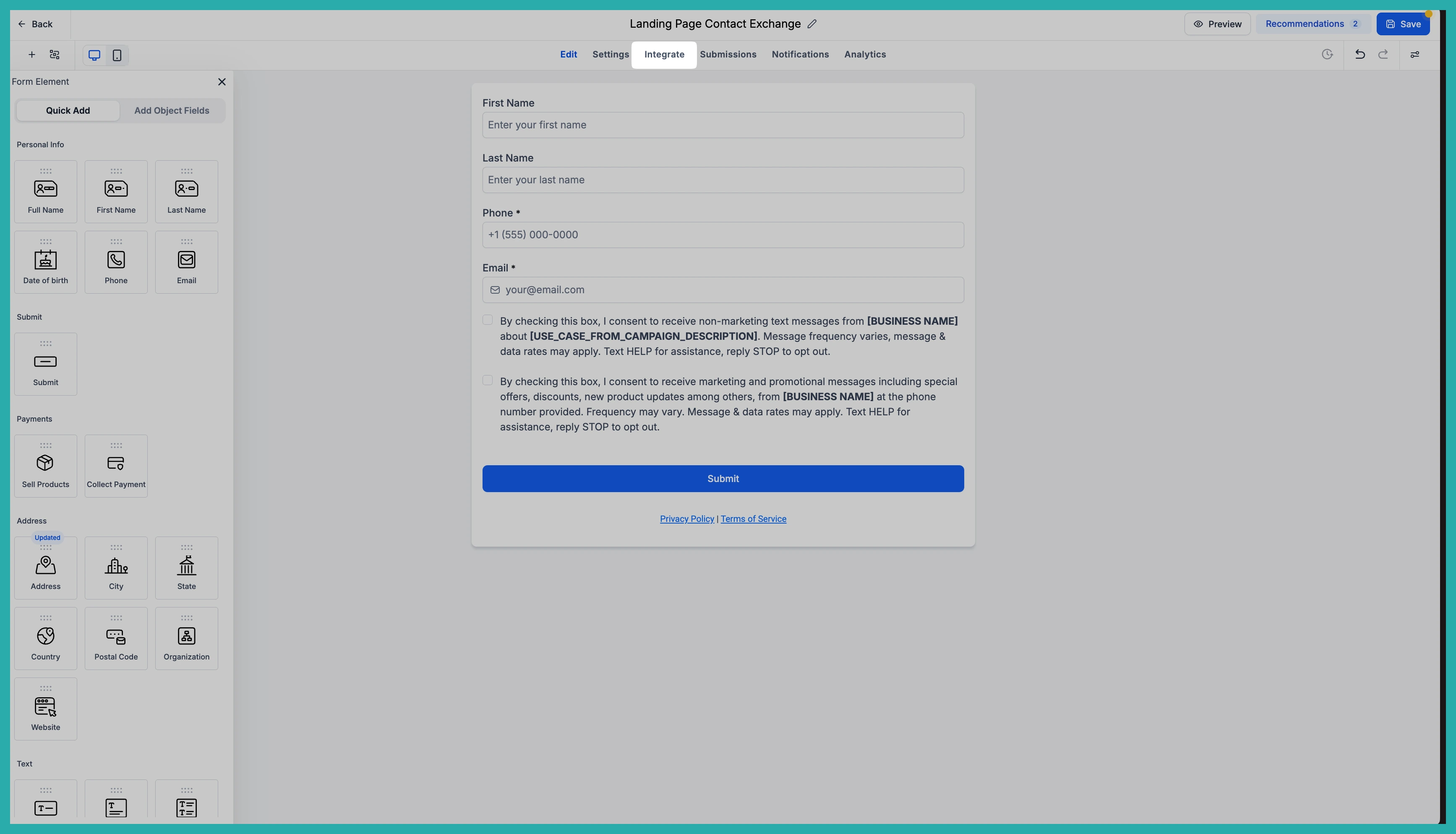
Let me walk you through each part.
Embed, with live previews
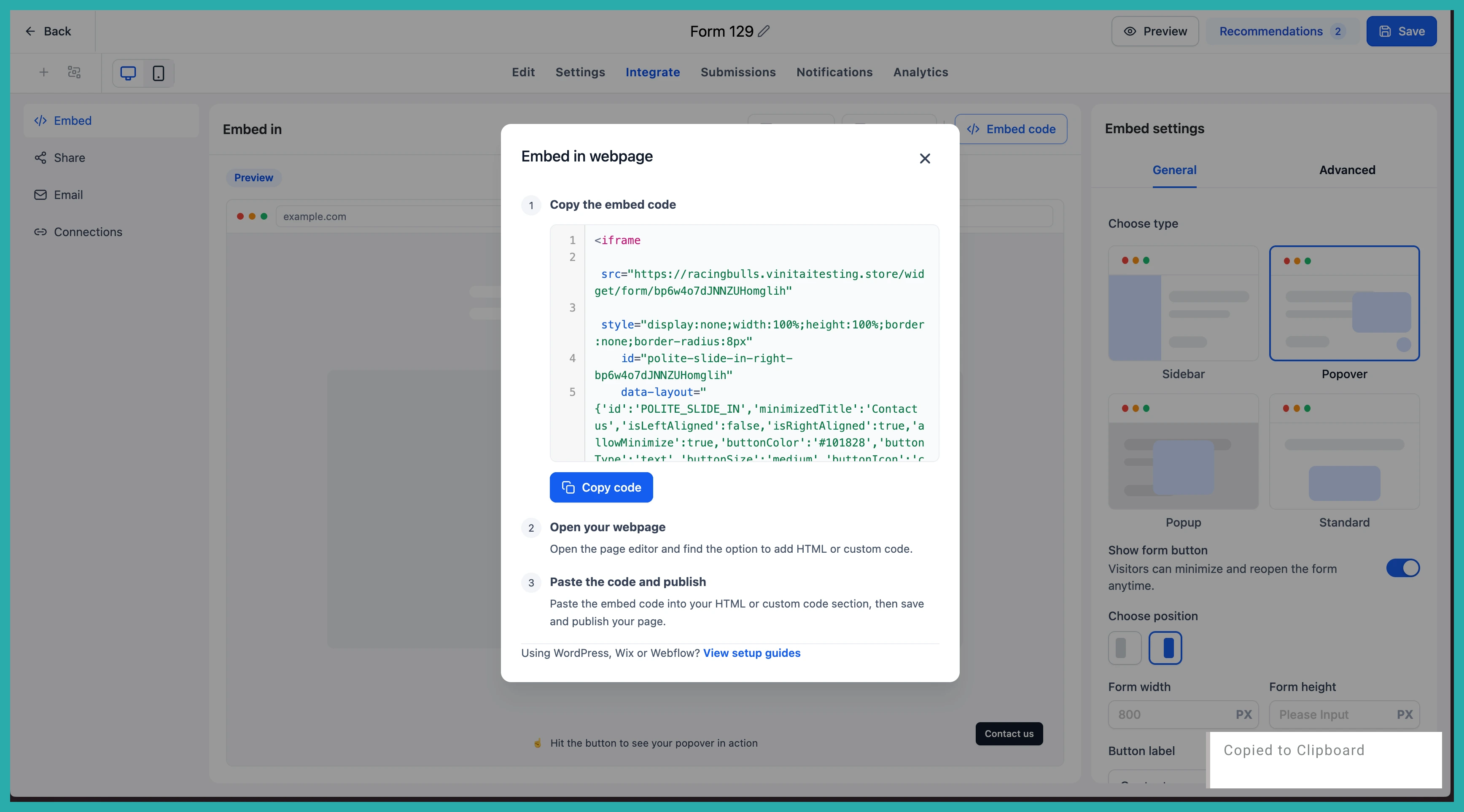
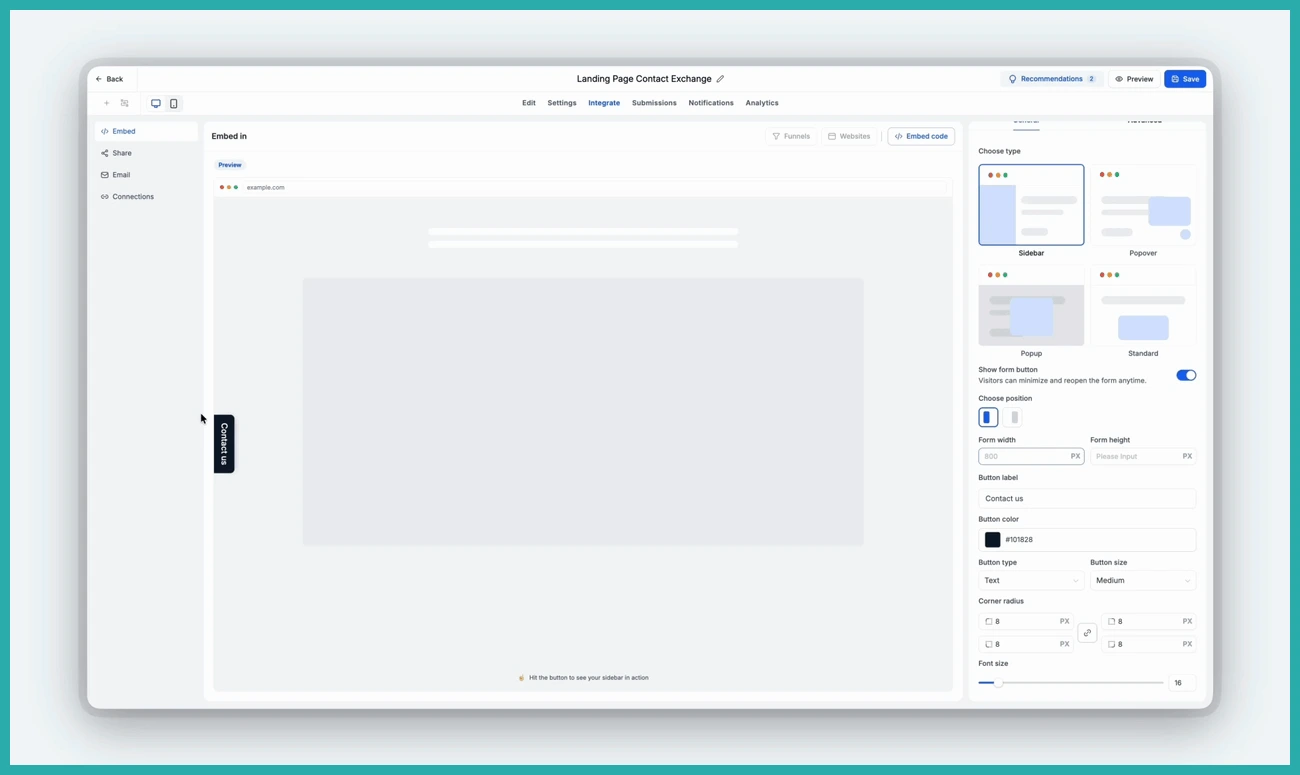
This is the one I'm most pleased about. When you choose an embed option, you can now see exactly how your form will look before you use it. No more copying code, pasting it onto your site, and flicking back and forth to check it looks right.
Adjust your embed settings and the preview updates in real time, so you can compare the options and pick the one that suits you with confidence.
Share, with a QR code already made for you
The Share section brings all your sharing options together - your direct link to copy, social sharing, and a QR code.
Here's the lovely bit. Every form, survey and quiz now comes with a QR code already created and mapped to it. You used to have to go off and build one by hand. Now it's just sitting there waiting. Tweak the design, download it, and put it on a flyer, a sign, a business card, wherever you need.
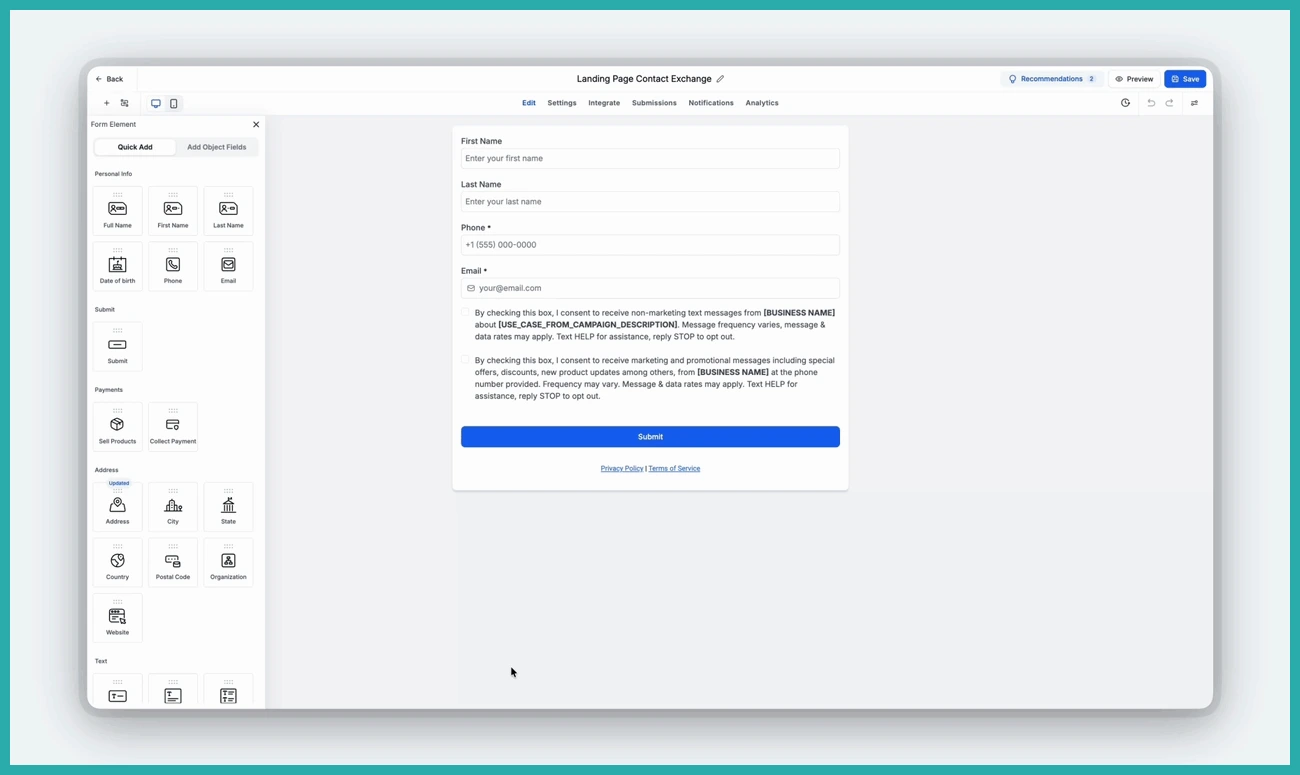
If you like to drop your forms into your emails, that option now lives in the same tab. You can use an existing template or start a fresh email and embed your form straight into it. Nothing's changed about how it works - it's just easier to find alongside everything else.
Connection, so you know where your form is being used
Ever lost track of which automation a form is tied to? The new Connection section shows you the workflows linked to your form in one place, so you're not hunting through your account trying to remember.
You can also start a brand new workflow for your form right from here, without leaving the builder.
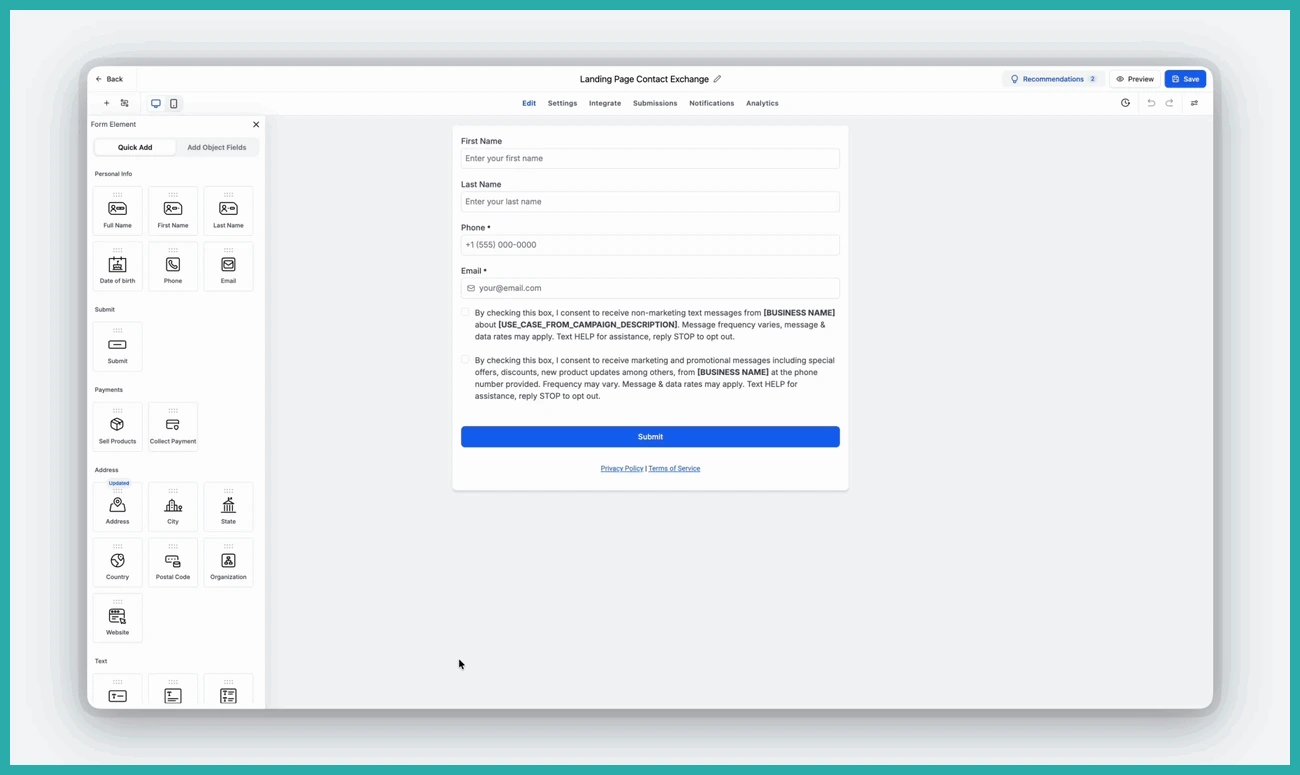
A smarter Save
Saving used to feel like the end of the road. Now, when you hit Save, a little window pops up showing you what to do next - share your form, embed it, or set up an automation. A gentle nudge to actually put your work to use rather than letting it sit there.
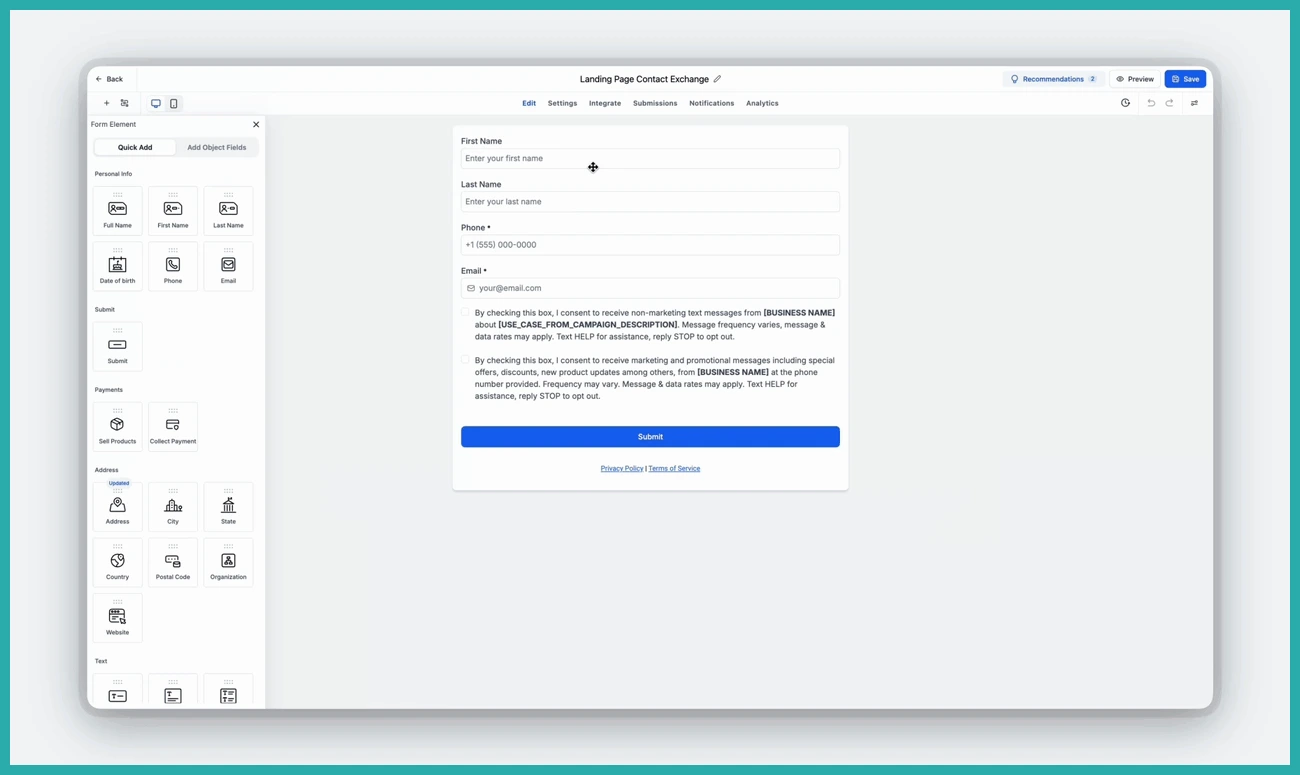
How to find it
- Open any form, survey or quiz in the builder.
- Click the new Integrate tab.
- Choose Embed, Share, Email or Connection.
- Preview your embed, customise your QR code, or check your workflow connections.
- Save, and use the pop-up to take your next step.
A couple more things are on the way too - embedding forms straight into funnel steps and website pages, and seeing those connections listed here as well.
For now, go open one of your existing forms and have a poke around the Integrate tab. Your QR code is already there waiting - that alone might save you a job.
