
Shape Your Calendar View the Way You Read It, Then Export It in One Click
You open your calendar and your eyes do a little work before your brain catches up. Whose appointment is that? Is that empty slot actually bookable? What am I even looking at here?
The calendar view just got a lot easier to shape around the way you scan it. You can tune how it displays, colour-code your staff, and export exactly what's on screen. None of this touches your availability, your booking rules, or what customers see when they book. It's purely about making the view work for you.
One panel for all your display settings
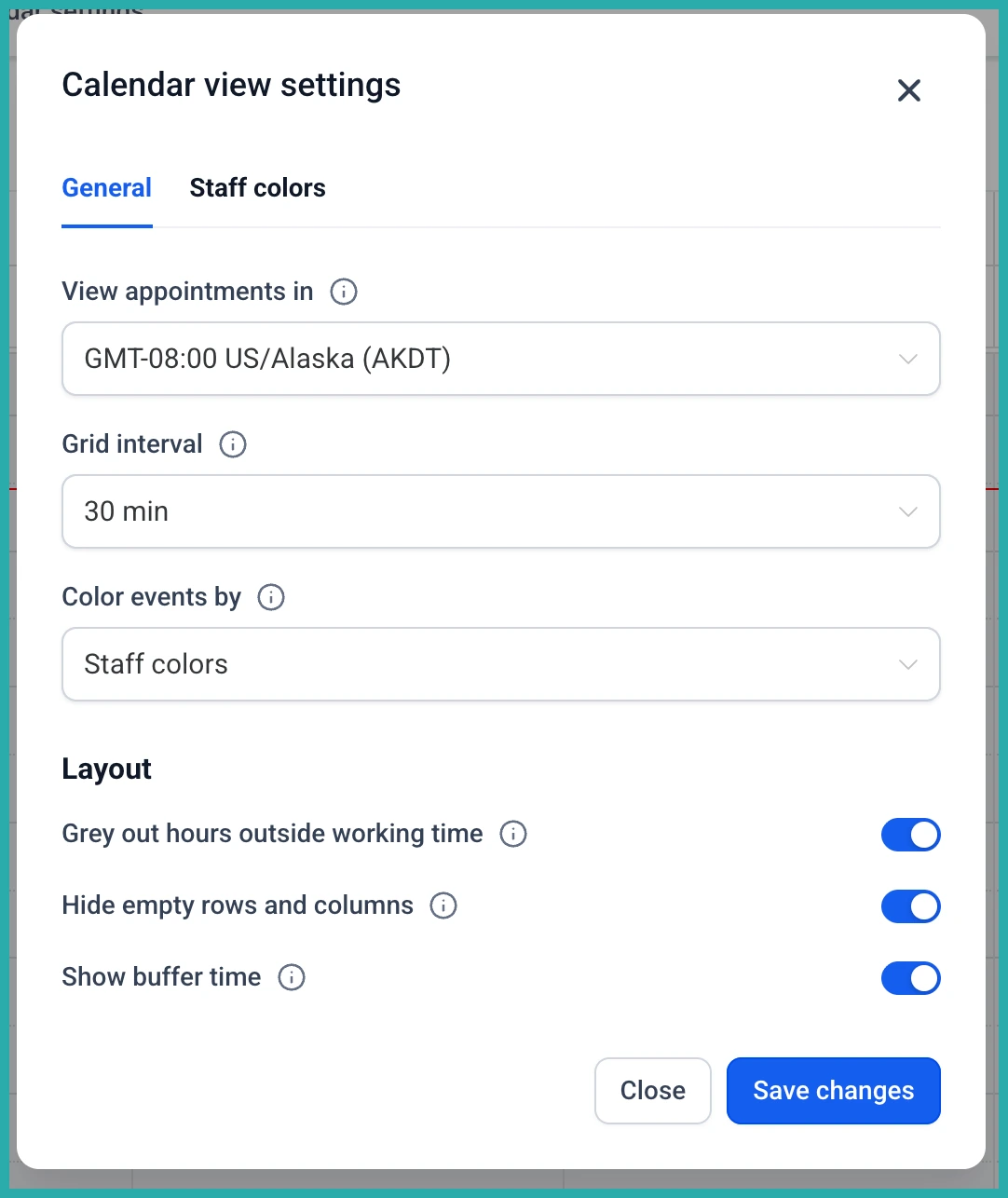
Everything now lives in one place. On your calendar, find the three-dot menu (⋮) next to Manage view in the toolbar, and choose Calendar view settings.
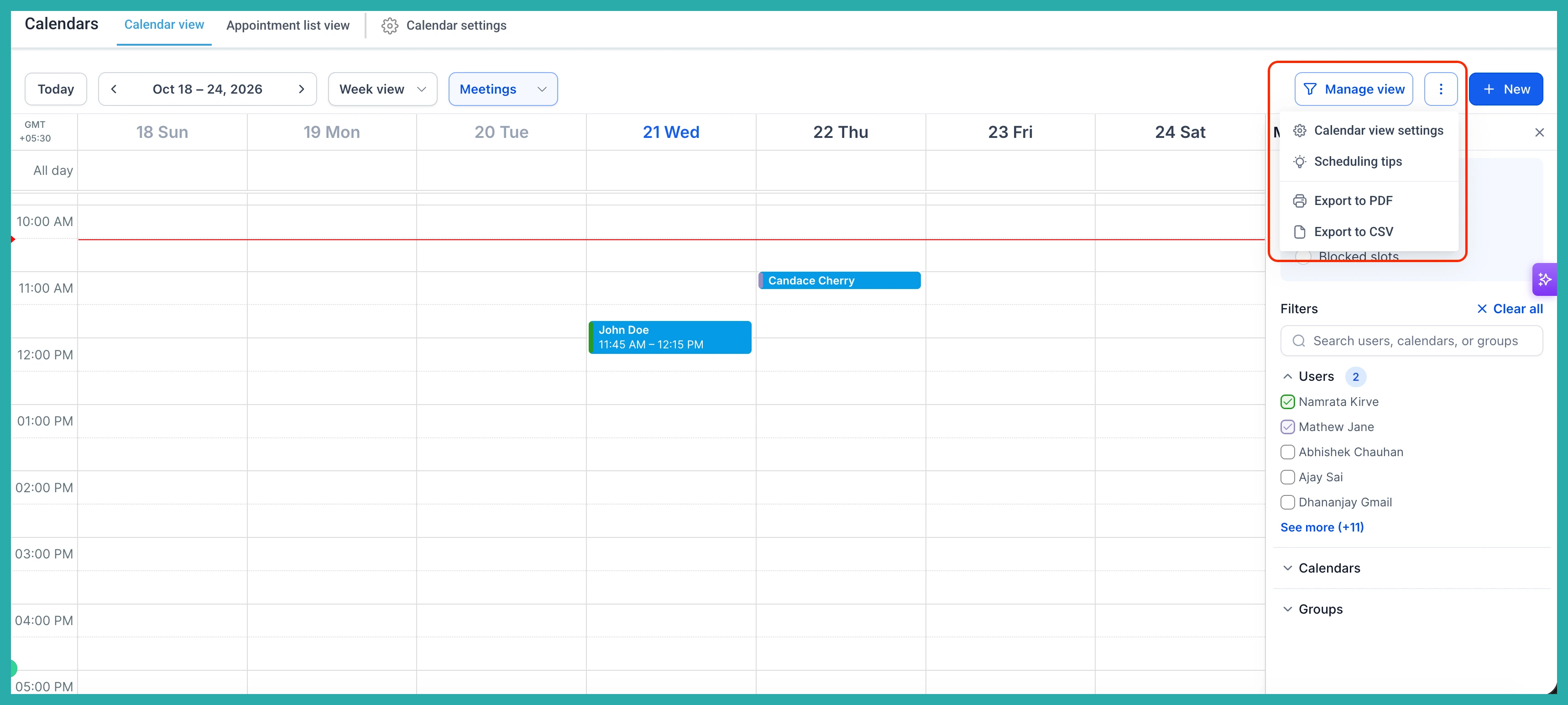
That opens a single panel for your display preferences, and your choices are saved for next time you come back.
The preferences you can tune
Here's what you can adjust in that panel:
- View appointments in: Show times in whatever timezone you choose, across all your calendar screens and your appointment emails. This is just for you - it doesn't change availability or what anyone else sees.
- Default grid interval: Pick how granular your day and week grids are - 15, 30, or 60 minutes.
- Grey out hours outside working time: Shade the non-working hours for each staff member based on their schedule for that date.
- Hide empty rows and columns: Keep the view focused on what's actually booked and tuck away the resources with nothing on them.
- Show buffer time: See the buffer before and after appointments wherever a slot is blocked by one.
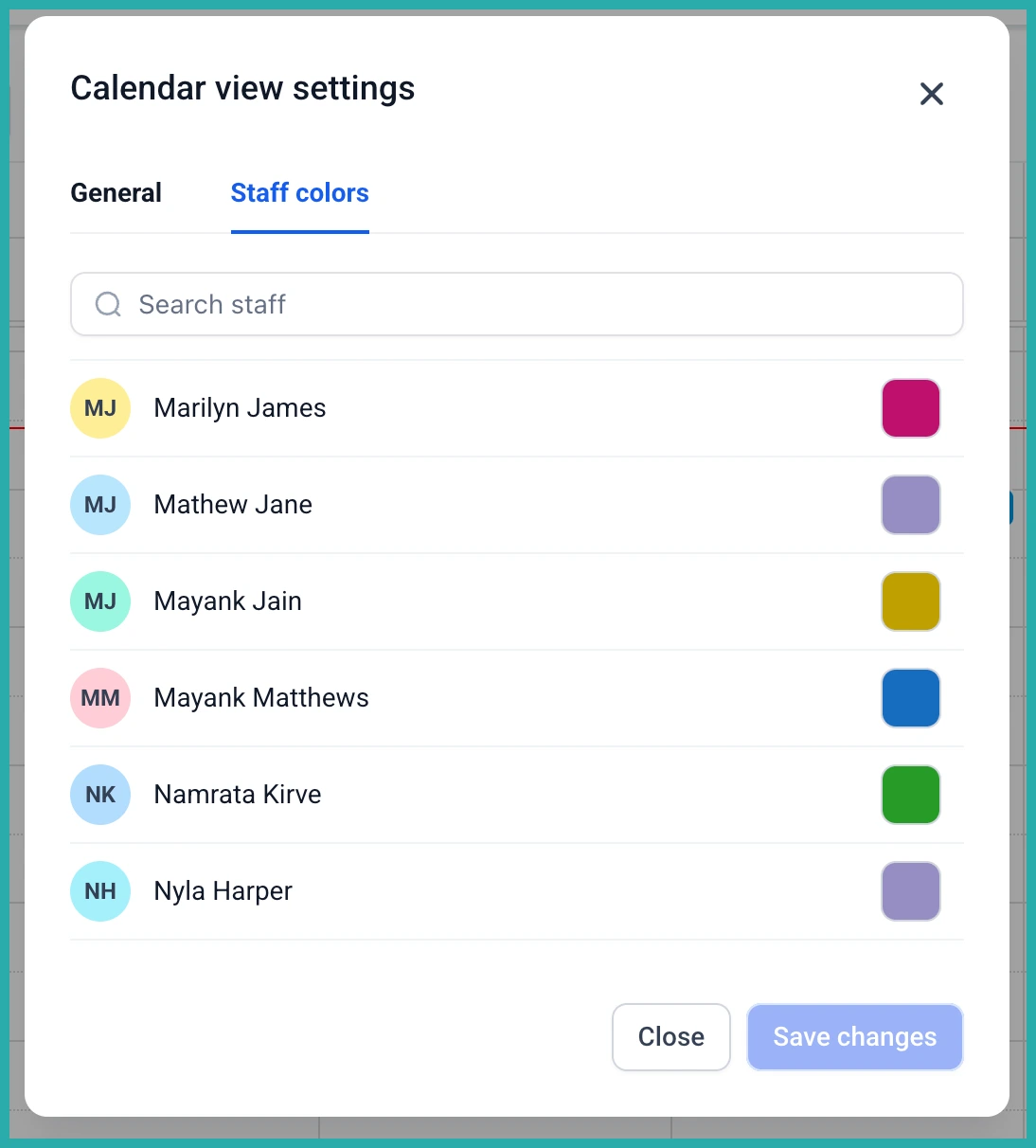
One handy note: the old "View in timezone" setting used to be buried in Meetings Preferences and Global Settings. It now lives here with the rest of your view settings, and any timezone you set before carries over on its own.
Colour your staff so you can read at a glance
If you're an admin, you get a Staff colours tab where you can recolour how each person's appointments look.
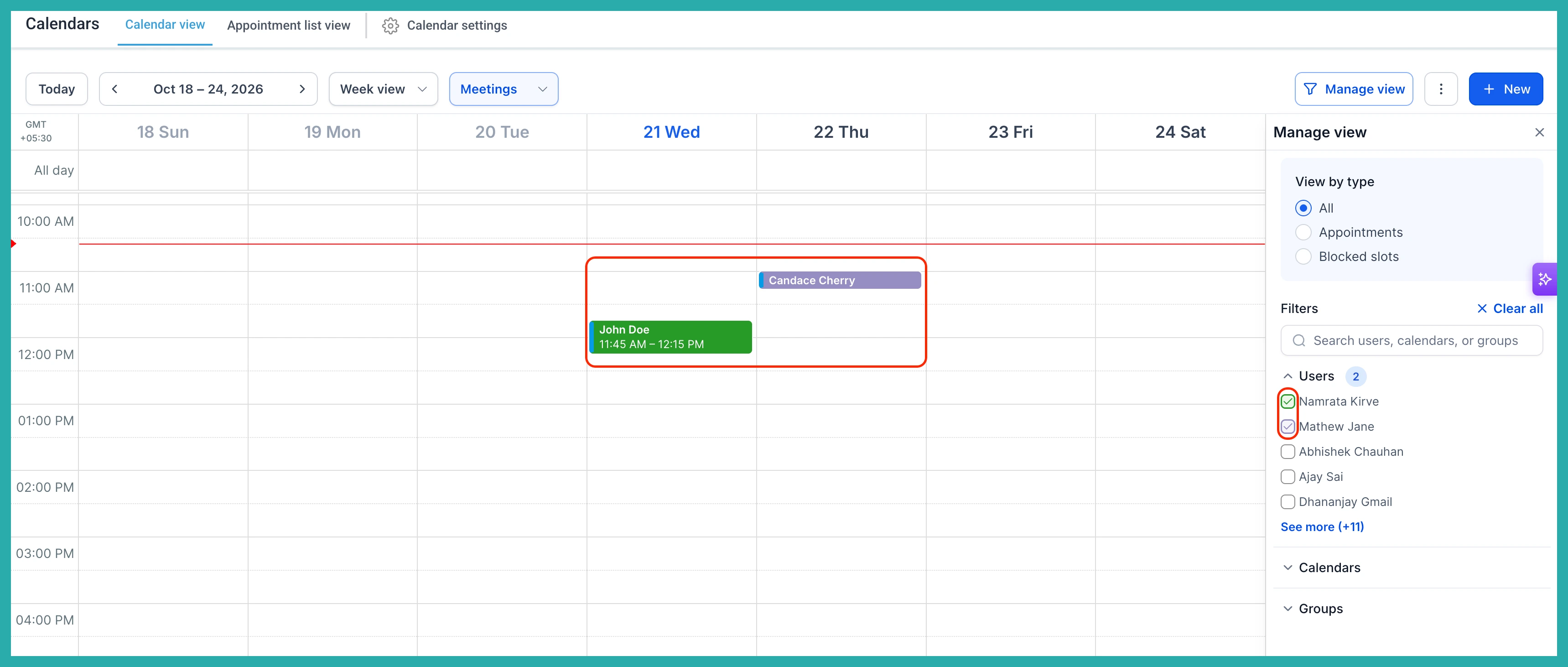
You can also decide whether the event tile is filled with the calendar or service colour, or the staff colour, with the other one showing on the tile's left strip. That strip is wider now too, so you can tell who an appointment belongs to at a glance without squinting.
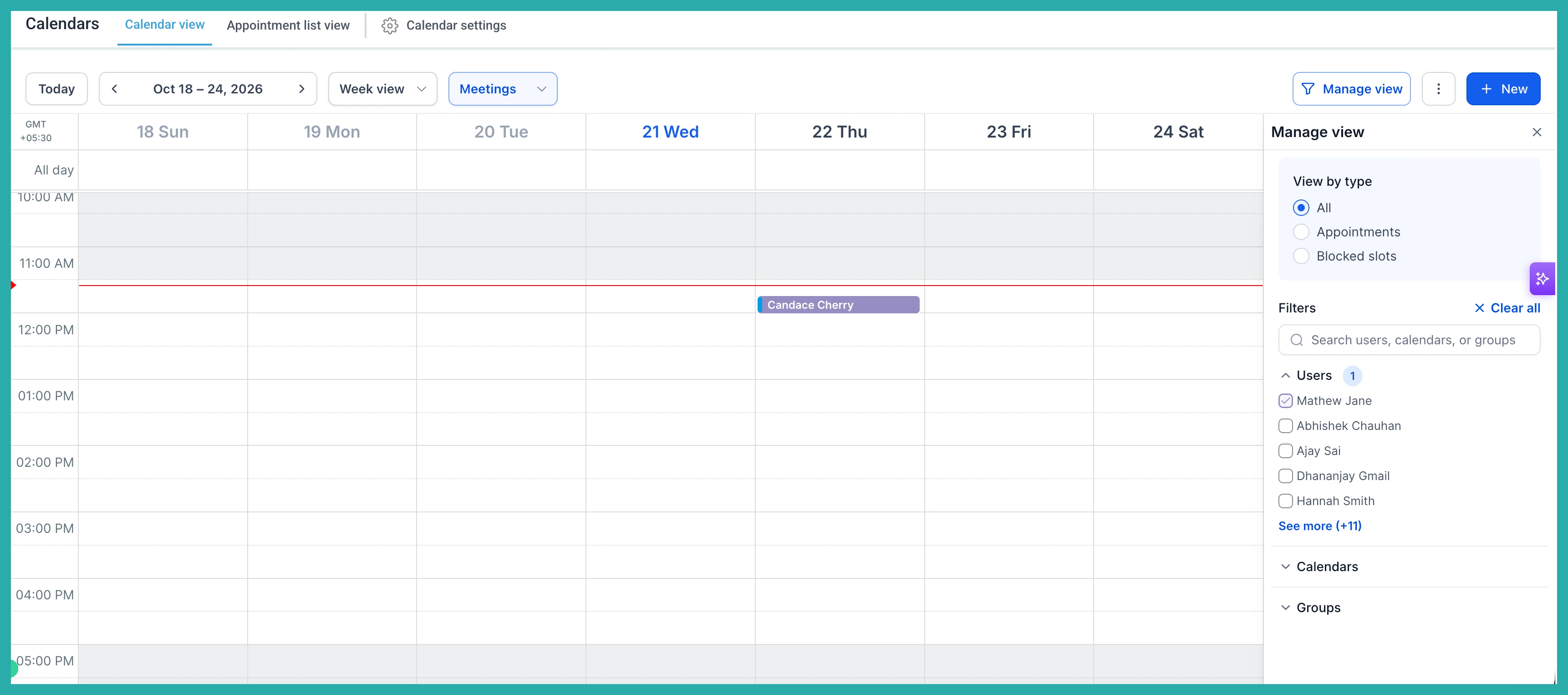
Export exactly what you see
Open that same three-dot menu (⋮) and you'll find Export to PDF and Export to CSV. Both take the current view - same filters, same date range - straight out of the system.
That makes it simple to share a schedule with someone or work with the data somewhere else, without rebuilding anything by hand.
Have a play with the settings panel next time you're in your calendar. A couple of minutes setting it up the way your eyes work, and every day after that is easier to read.
