
Set Different Tax Rates by Region with Manual Tax Zones
If you sell into more than one country or state, tax can get messy fast. Different regions, different rates, and no clean way to keep it all straight.
There's now a tidier way to handle it. You can create Tax Zones under Manual Taxes, group the countries and states that belong together, and attach the exact tax rates you want customers in that region to pay.
What you get
A Tax Zone is a group of countries and states that share the same manual tax setup. You give it a name you'll recognise, add the regions it covers, then attach the tax rates you want applied there.
A few things worth knowing up front:
- A country or state can only belong to one zone at a time, so there's no overlap to trip you up.
- You can add up to 10 tax rates per zone, and add or remove them as things change.
- For a rate to actually apply at checkout, it needs to be attached to both the product and the zone. It's the intersection of the two that charges.
- If a region isn't in any zone, all rates attached to the product apply as they did before.
- If a zone has no rates attached, customers in that zone aren't charged tax.
Your current setup carries on working as-is. If you don't create any zones, existing product tax rates behave exactly as they do today.
Where to find it
Go to Payments, then Settings, then Taxes, and open Manual Taxes.
Tax settings are now split into clear areas so you're not hunting around: Display settings for tax inclusive or exclusive pricing, Automatic Taxes for categories and nexus, and Manual Taxes for your rates and zones.
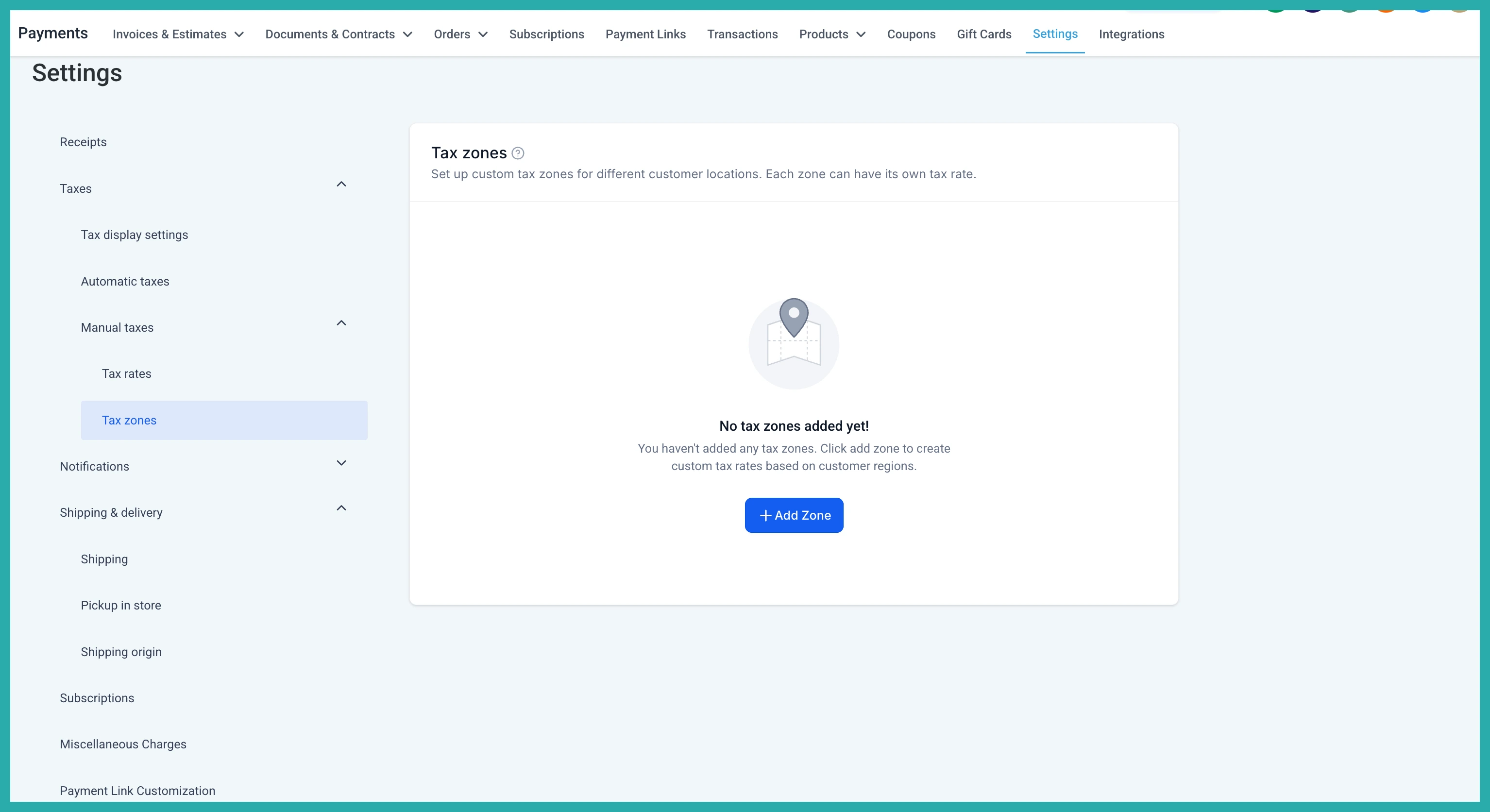
Create your first zone
From the Manual Taxes area, choose to create a Tax Zone. Give it a name that tells you what it covers, then select the countries and states that belong to it.
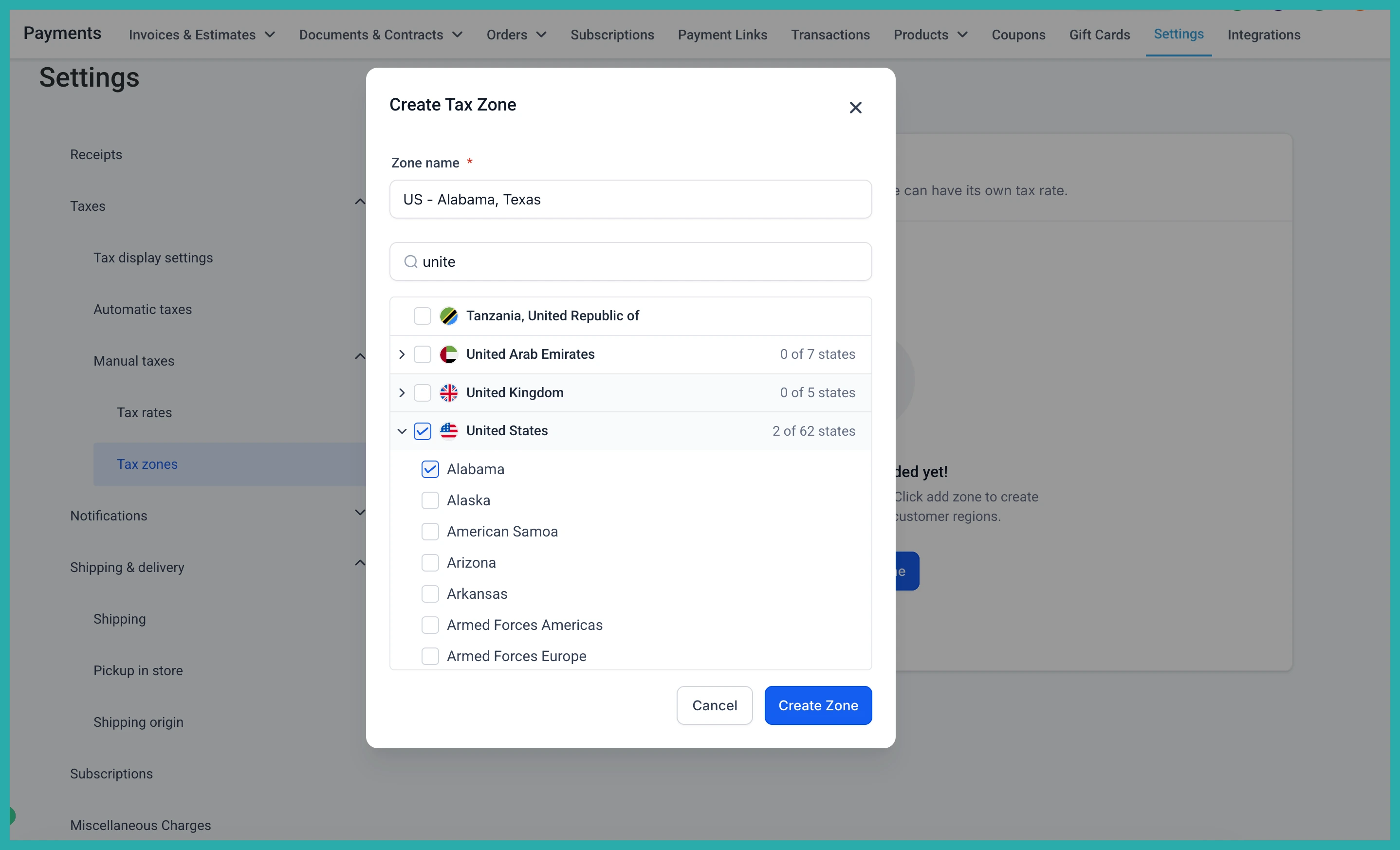
Say you sell into Canada. Create a Canada Tax Zone, add the Canadian regions you need, and you've got a clean home for those rates.
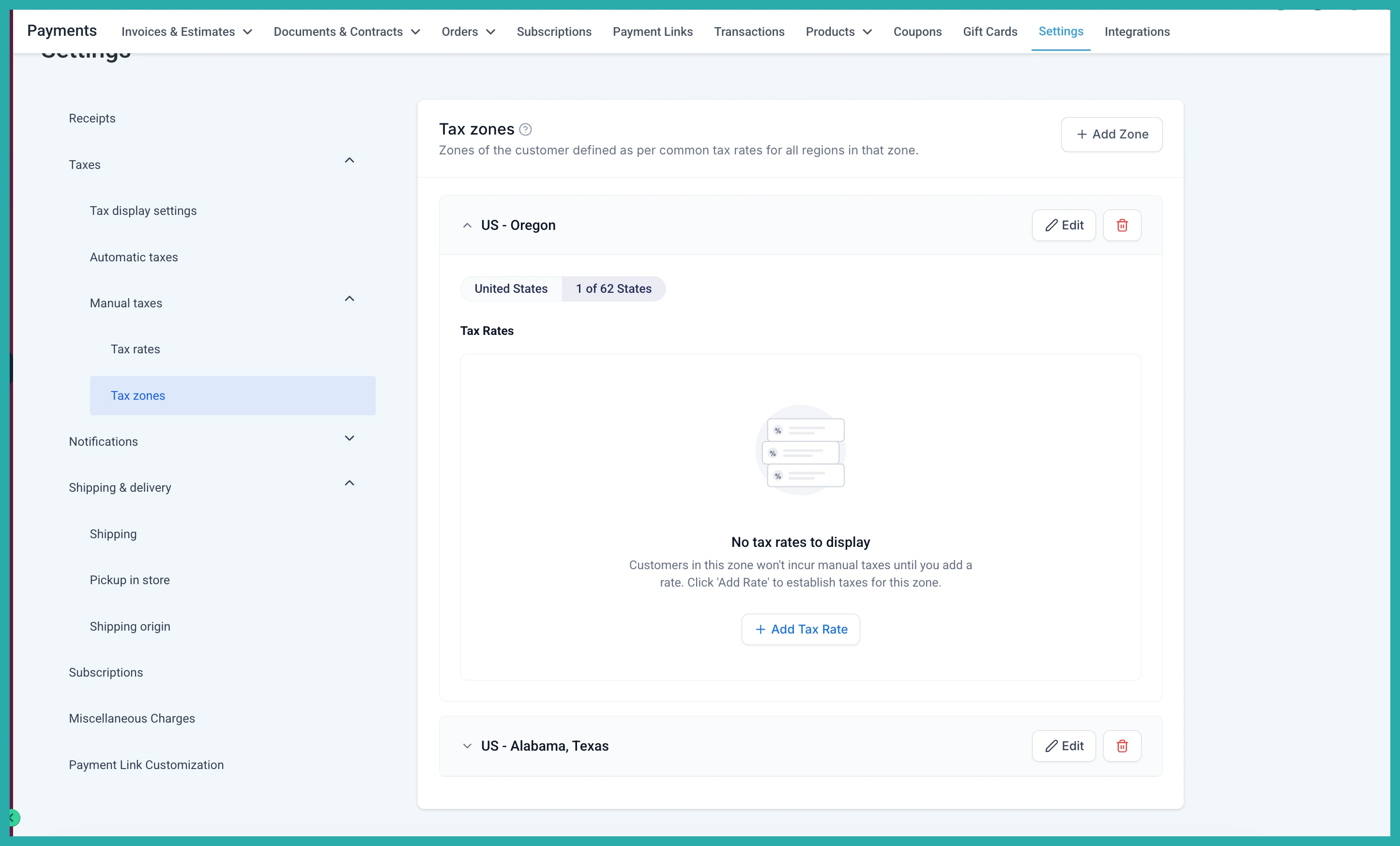
A brand new zone starts empty, with no rates attached yet.
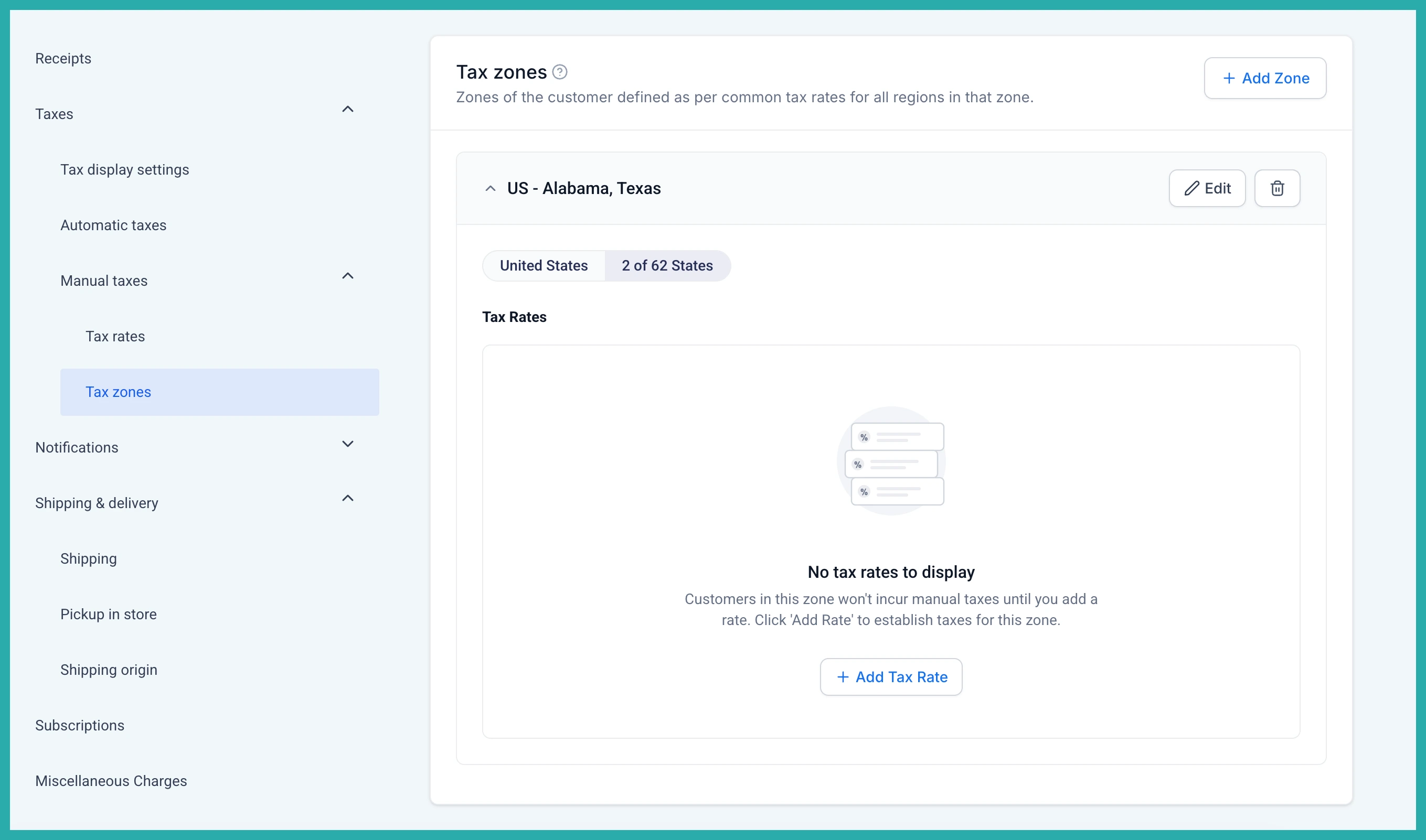
Attach your tax rates
Now bring in the rates. Attach any of your existing user-defined tax rates to the zone, up to 10 per zone.
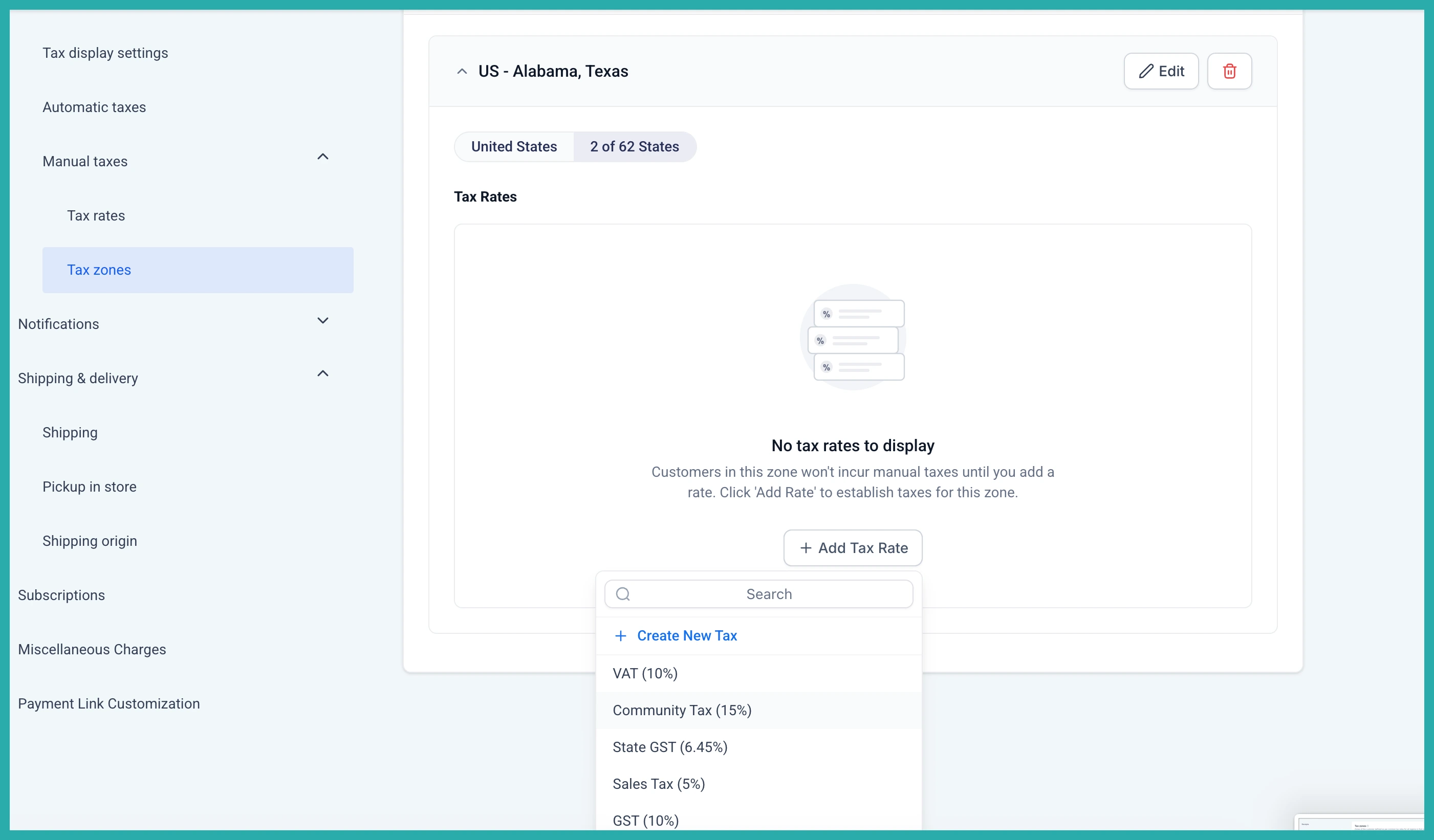
Need more than one region? Add as many zones as you like, each with its own regions and rates.
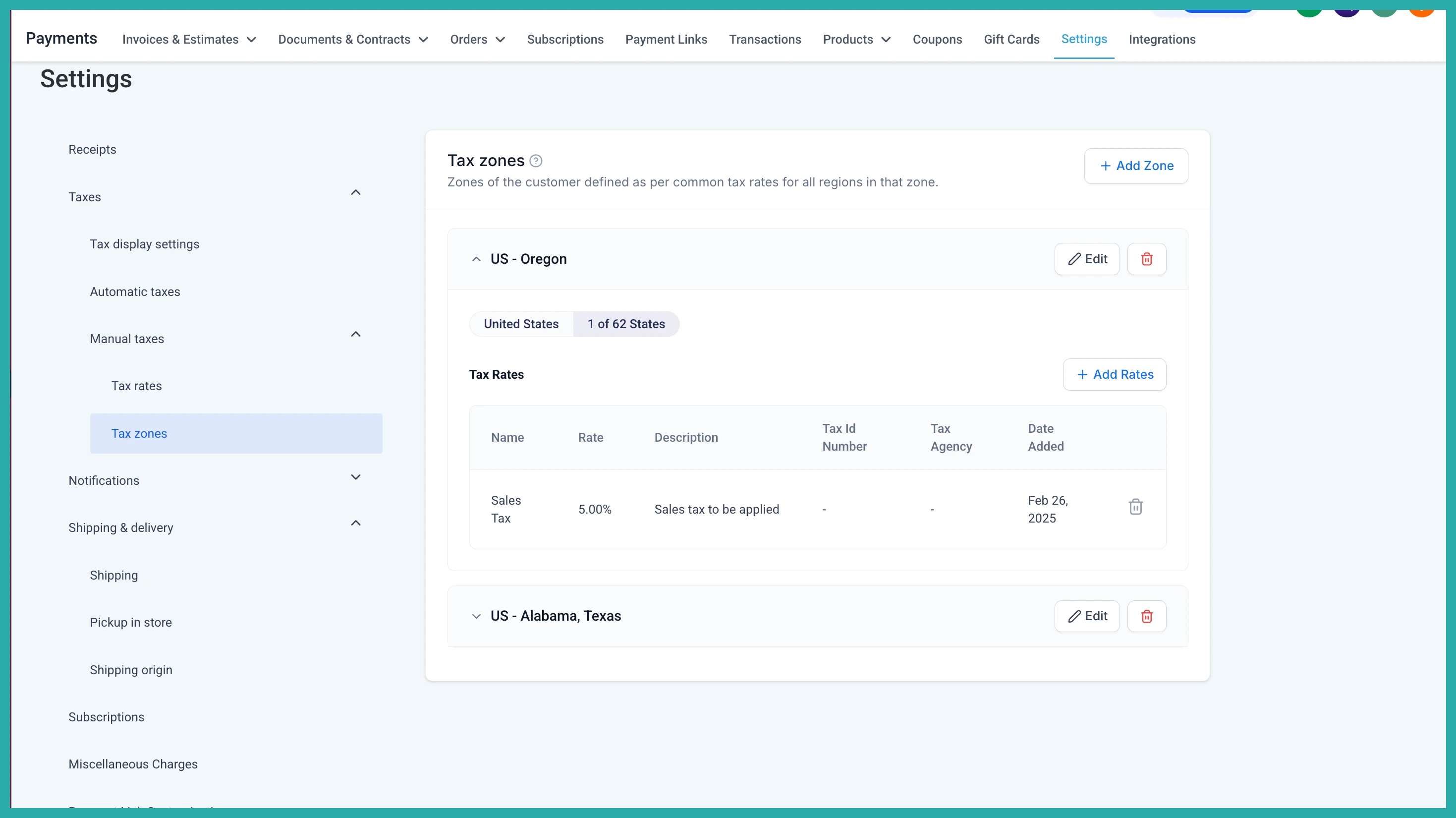
Once your rates are in, the zone shows exactly what customers there will be charged, so you can review it at a glance.
Editing and removing
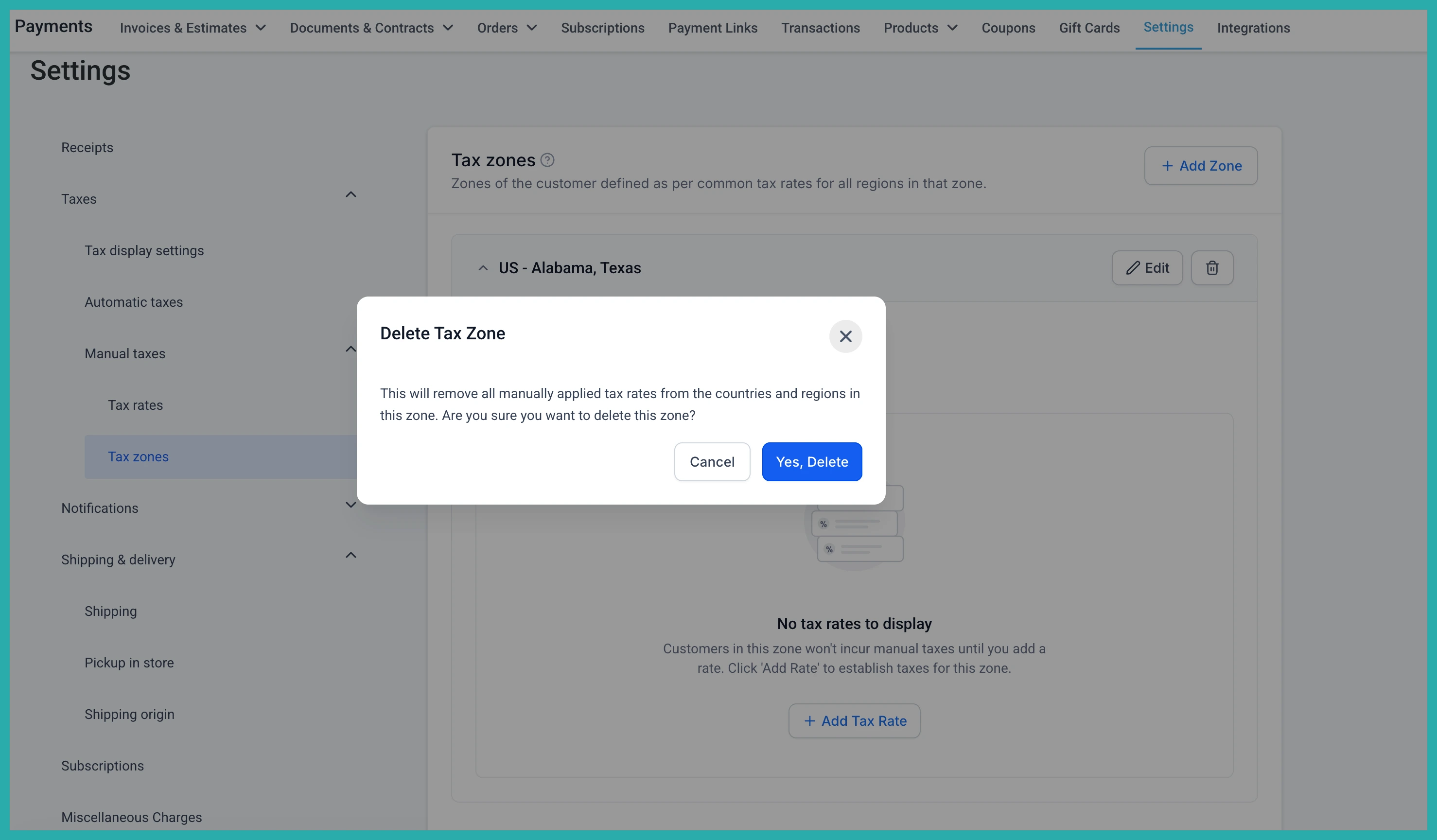
You can update a zone any time as your tax situation changes. Removing a rate from a zone only takes it out of that zone, it doesn't delete the rate itself, so it's still there for other products and zones.
How this works with Automatic Taxes
You don't have to pick one system. Automatic Taxes always take priority when they're available for the country and product combination. Your manual zone rates step in as the fallback when automatic tax is turned off or isn't available for that combination.
That makes zones handy for covering regions automatic tax doesn't reach, without disturbing anything that's already automated.
If you sell across a few regions, spend ten minutes setting up a zone for each. Once it's done, the right tax just applies where it should, and you can stop second-guessing it.
