
Welcome Badge emails now have their own template, separate from your other badge emails
When someone enrols and earns their welcome badge, they get an email. Up until now that email shared its template with every other badge you hand out, so you couldn't say something warm and specific to a brand-new member without changing the tone of all your other badge emails too.
That's now sorted.
What landed
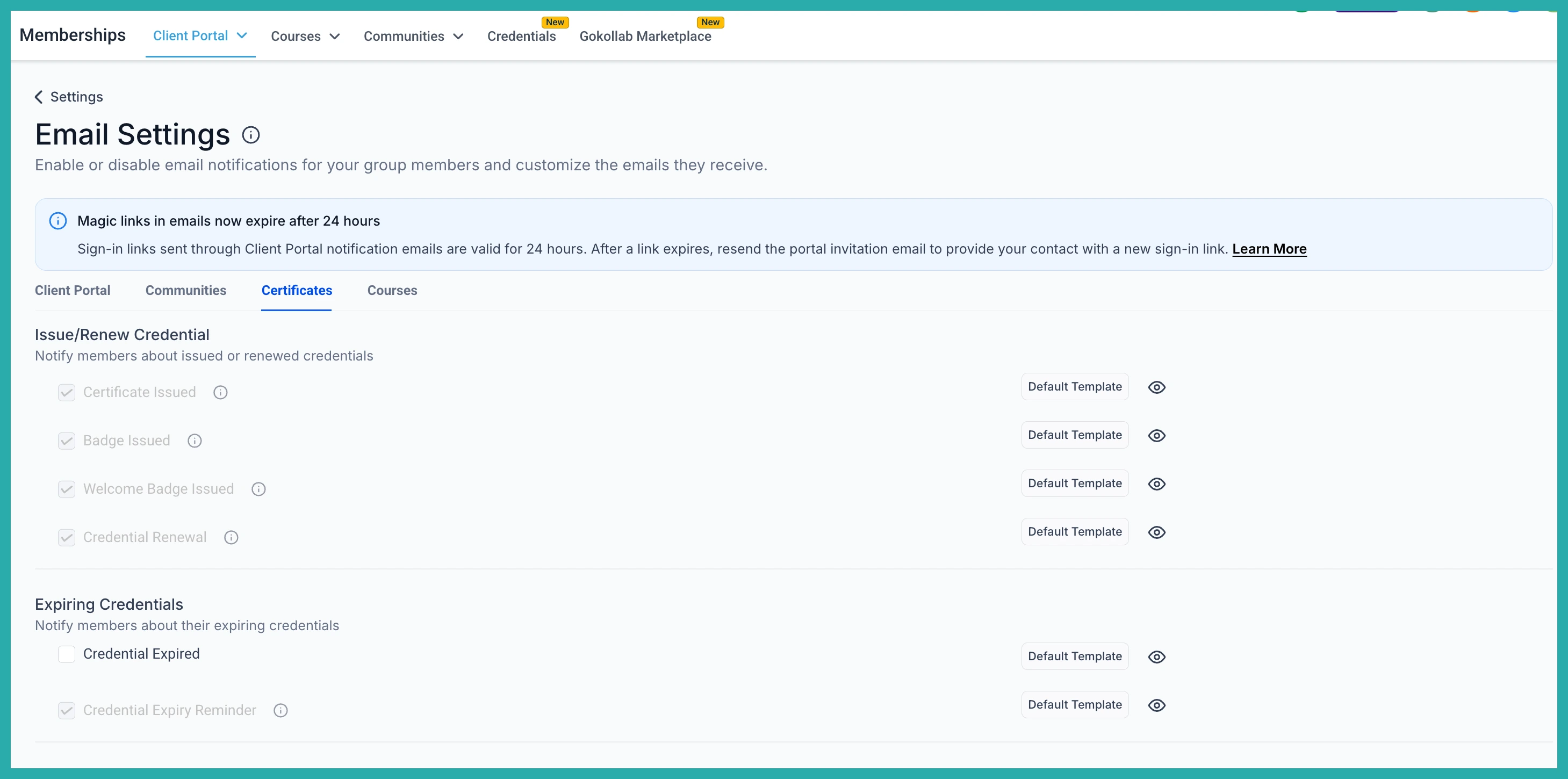
Welcome badges and regular badges now have their own separate email templates. There's a new notification type called Welcome Badge Issued, and it sits right alongside your existing Badge Issued and Certificate Issued settings.
So you can write a proper welcome for people just joining, and leave your other badge emails exactly as they are.
Why you'll like it
- You can customise your welcome-badge message without it affecting any other badge email.
- Your settings are clearer, with Certificate, Badge and Welcome Badge emails each in their own place.
- Enrolment-triggered welcome badges use the new Welcome Badge path automatically, so there's nothing to reconnect.
How to set it up
- Open your Client Portal, then go to Email Settings.
- Find Welcome Badge Issued listed alongside Badge Issued and Certificate Issued.
- Edit the welcome badge template to say what you want, and adjust the mute settings if you'd rather it didn't send.
In the screenshot below, you'll see the three notification types sitting together, so you know exactly which email you're editing.
From here on, anyone who enrols and earns their welcome badge gets the message you wrote for them, and your other badge emails carry on untouched. Go give your welcome a quick polish - it's the first thing a new member hears from you.
