
Email the Right People Straight From Your Companies and Custom Object Lists
You've built a lovely, precise Smart List. Properties in one city. Policies due to renew next month. Companies in a particular industry. You can see exactly who you want to talk to.
Then you go to email them, and you're back at the Contacts list rebuilding the whole audience by hand. All that filtering work, done twice.
Not anymore.
What landed
You can now send a bulk email to the associated contacts directly from your Companies and Custom Object lists. Pick the records you care about, choose which linked contacts should hear from you, and send. No starting over from Contacts.
It works for Companies and for Custom Objects like Properties, Policies, Pets, Memberships, whatever you've set up - as long as they're associated with contacts.
How to use it
Open your Companies or a supported Custom Object and select the records you want to email from. In the screenshot below, you'll see the list with records ticked and ready to go.
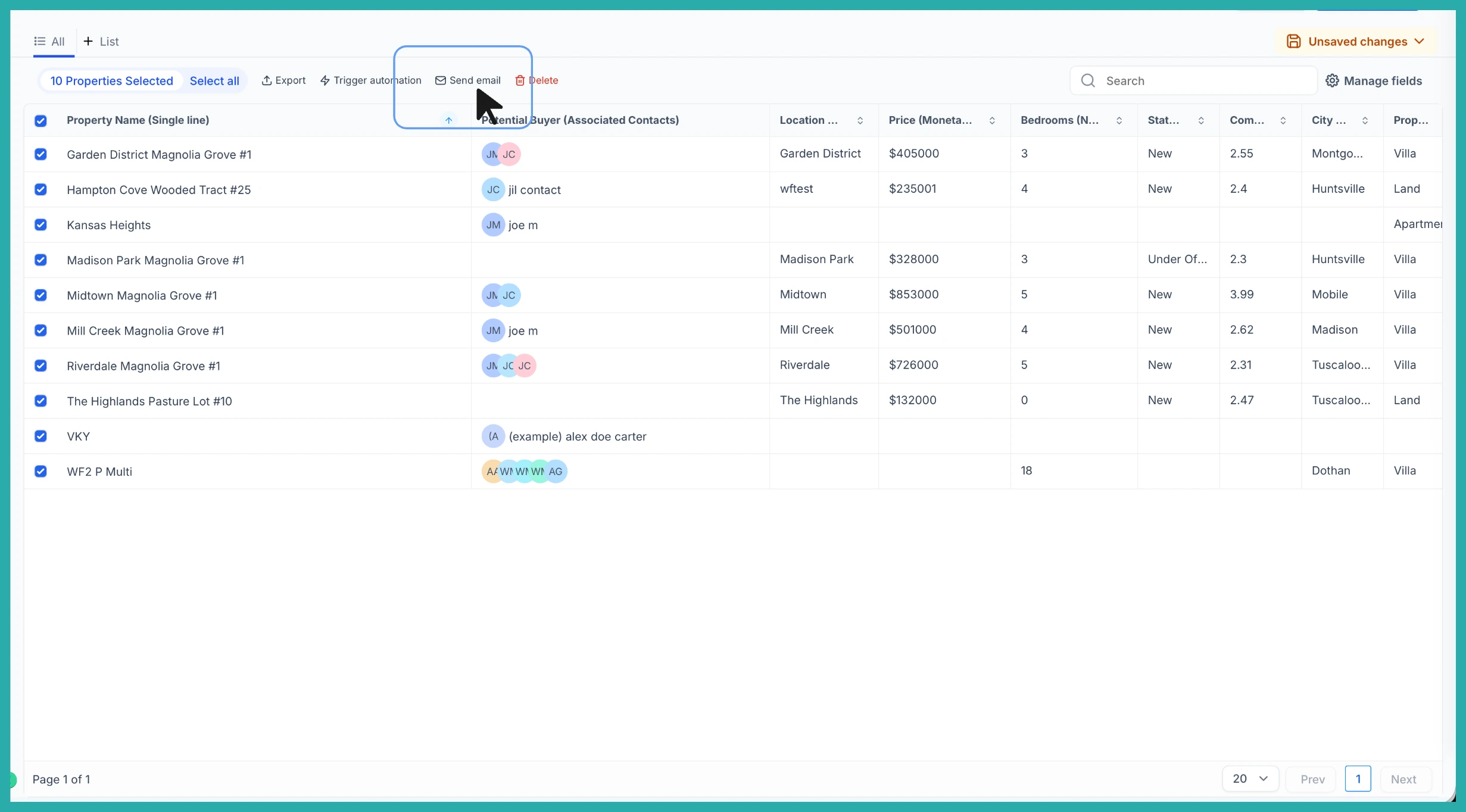
Click Send email in the bulk actions bar.
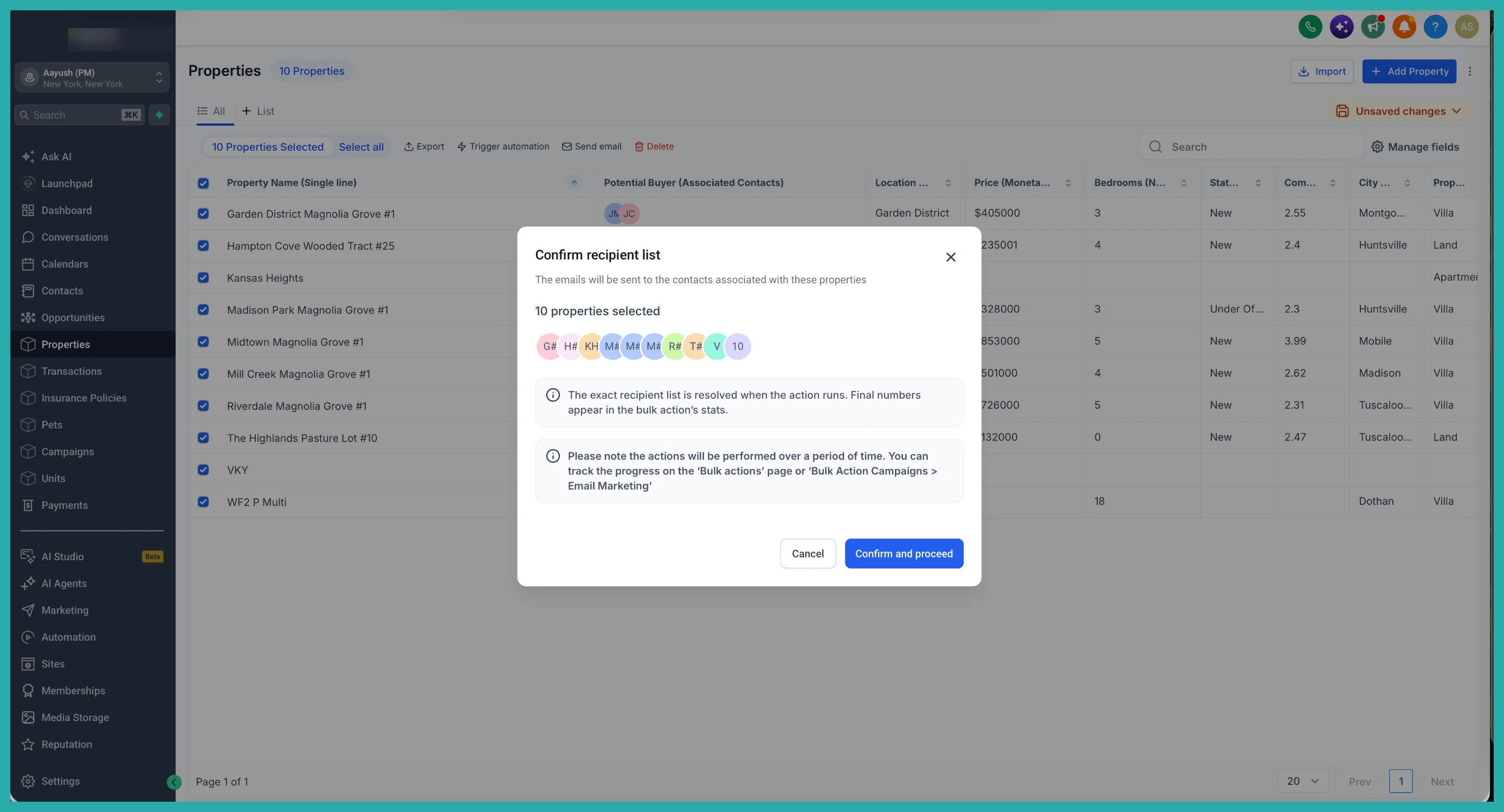
If you're working from a Custom Object, choose the association label or labels that define who should receive the email. For Companies, the contact association is picked for you automatically, so there's nothing extra to do.
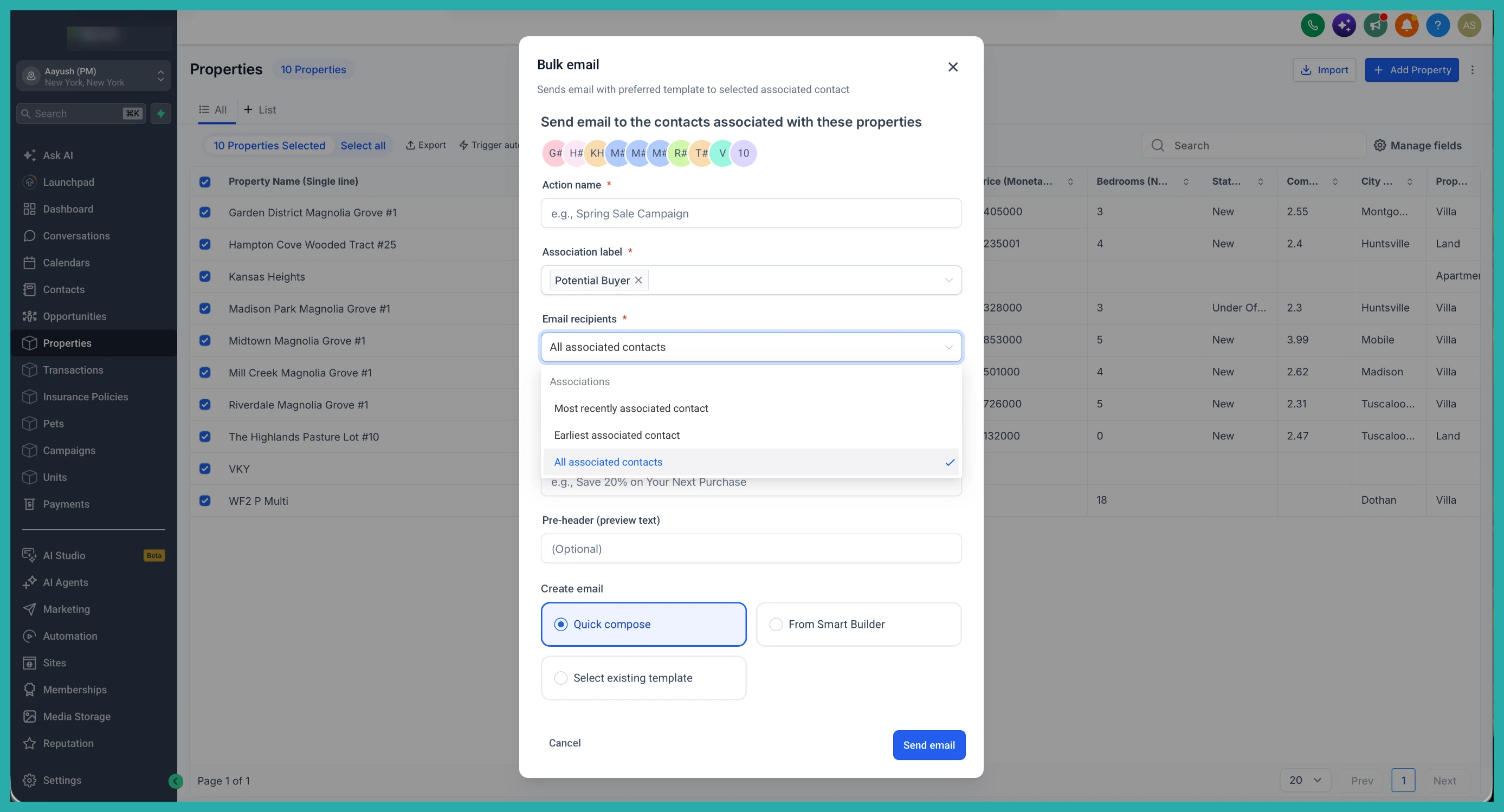
Next, decide which associated contacts should get it:
- The most recently associated contact
- The earliest associated contact
- All associated contacts
If a contact turns up under more than one label you selected, the system removes the duplicates before sending, so nobody gets the same email twice.
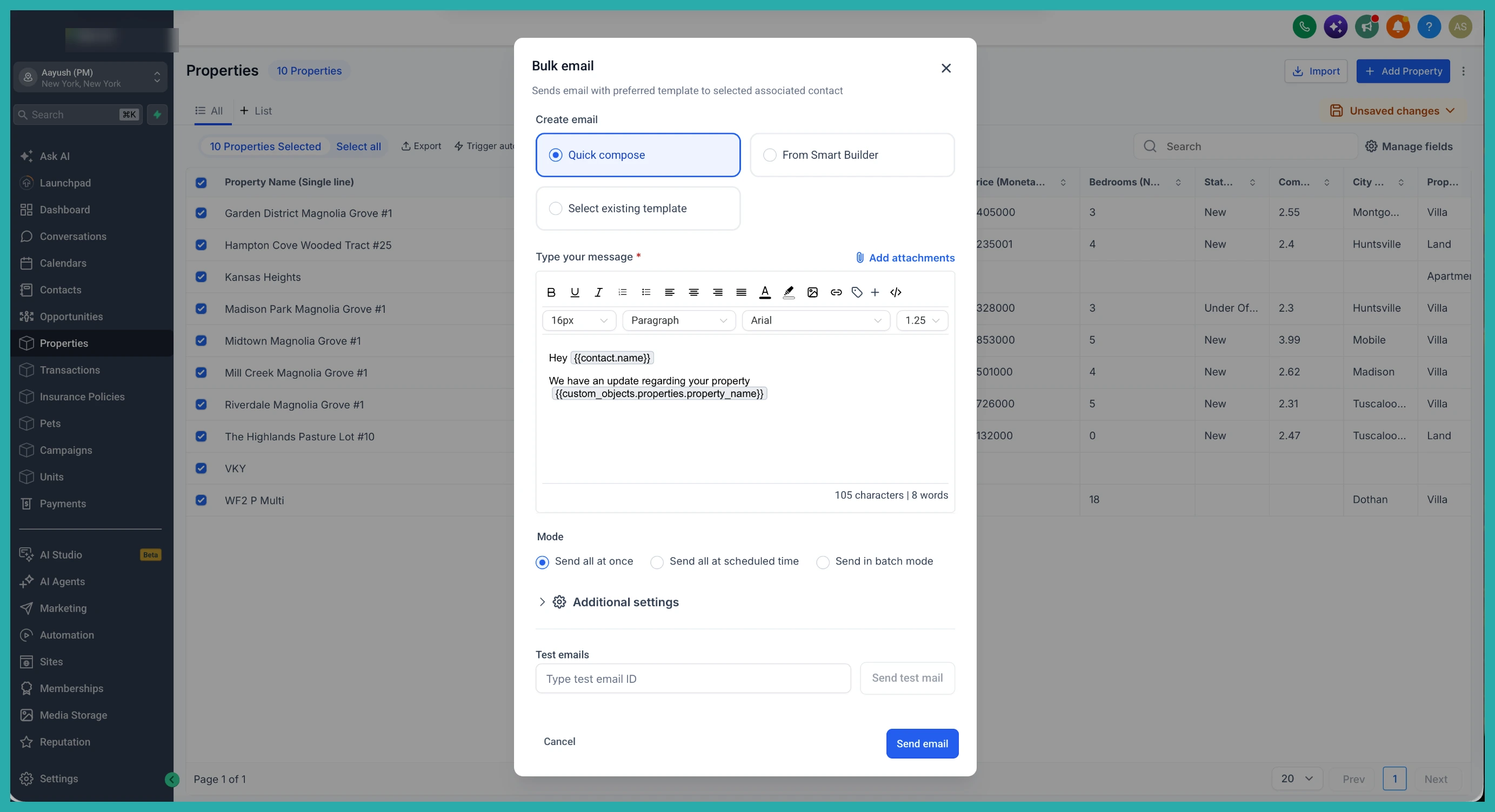
Now compose your email. Use Quick Compose, the Smart Builder, or an existing template, and personalise it with Contact, Company, or Custom Object fields as merge fields. That means you can drop in the property address, the policy renewal date, or the company name right in the message.
When you're ready, send it now, schedule it for later, or use batch mode to spread it out.
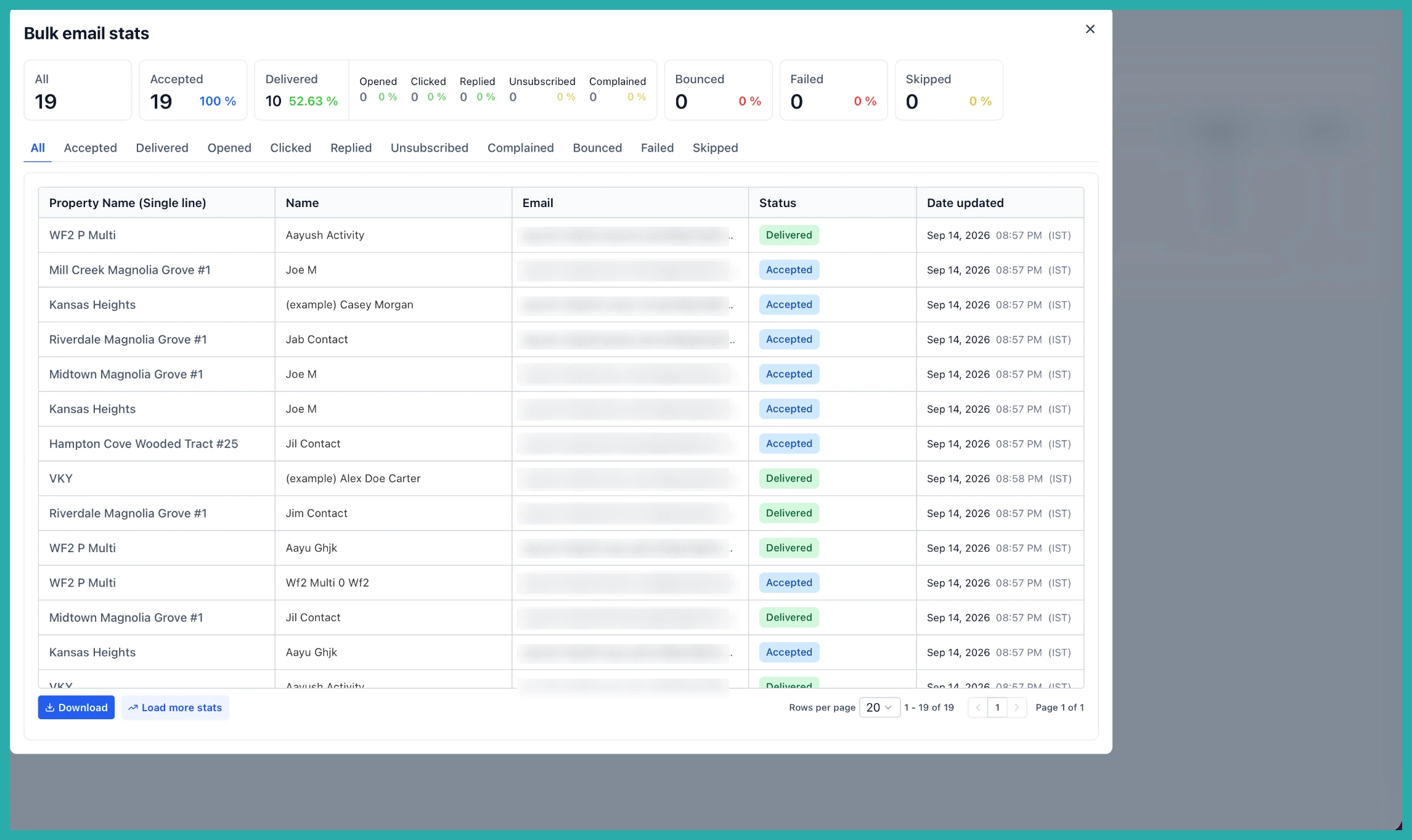
Keeping track
You can follow delivery and engagement in Bulk Actions, and under Marketing, then Emails, then Bulk Action Campaigns. Your usual email permissions, consent requirements, and deliverability rules still apply, and the final recipient list is worked out at the moment the action runs.
A few real examples
- Filter Properties by city, price, or status and email the associated potential buyers
- Filter Policies by renewal date and email the policy holders
- Filter Companies by industry or account tier and run a targeted B2B campaign
- Filter Memberships by expiry date and email those members a reminder
Segment first, message straight after. Got a Smart List you built weeks ago and never emailed? Now's the moment to put it to work.
