
See Your Buffer Time Right on the Calendar in Day and Week Views
You set buffer time so you're not sprinting from one thing to the next. Time to reset the room, brief the next group, catch your breath. But until now, that buffer was doing its job out of sight - you could feel the gap when you booked, but you couldn't see it on the calendar.
That's changed. Buffer time now shows up right in your Day and Week views, as its own block, so your schedule reads exactly how it actually runs.
What you get
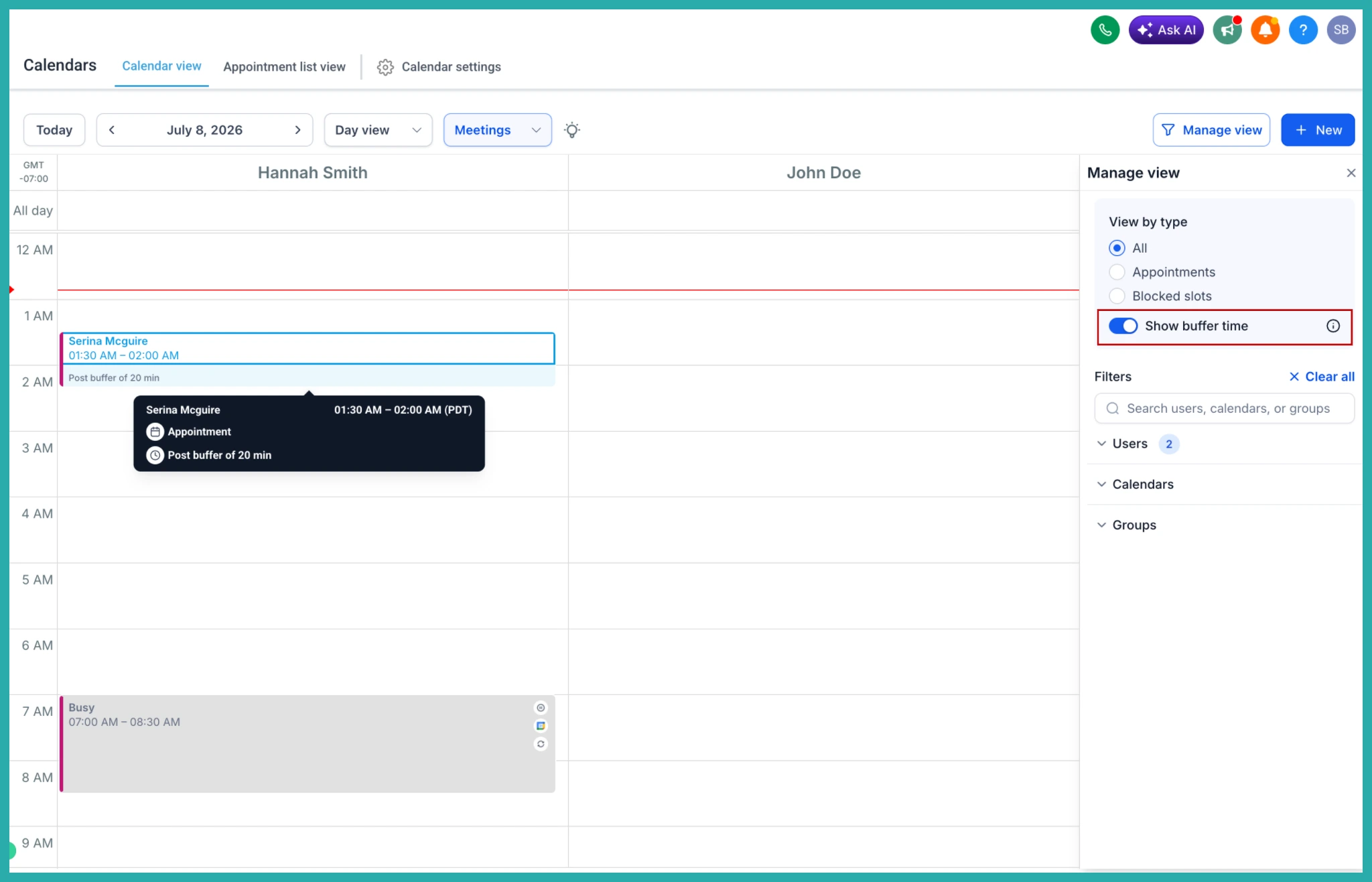
Pre-buffer and post-buffer times now appear as their own informational blocks, sitting before and after each appointment. They're styled differently from your actual bookings, so at a glance you can tell what's a booked session and what's turnaround time.
Nothing about how appointments get booked has changed. This is purely about seeing your day clearly. The buffers are shown for information, so you keep all the same scheduling flexibility you had before.
It also works across every filter you use - by Staff or User, by Service or Calendar, and by Category or Group. However you slice your view, the buffer time comes along with it.
How to use it
- Go to Calendars.
- Switch to the Day or Week view.
- Turn on the Show buffer time toggle.
- Look at your bookings - you'll see the highlighted buffer periods sitting before and after each appointment.
In the screenshot below, you'll see how the buffer blocks appear alongside the actual appointments, so the spacing in your day is obvious without any guesswork.
If you run back-to-back slots and have ever wondered whether you'd actually left yourself enough time between groups, this makes it plain to see. Flip the toggle on and take a look at tomorrow's schedule.
