
Schema Markup Errors Now Show You Exactly Which Line to Fix
If you've ever added schema markup to a page, you know the drill. You paste in your code, hit save, and get a vague warning that something's wrong somewhere. Then you're left squinting at a wall of brackets trying to find the one thing that broke it.
That guesswork is gone.
What changed
The Schema Markup JSON view in the Website and Funnel Builder now shows validation errors directly on the exact line that needs fixing. No more general alert with no idea where to look.
Each error is marked right where it happens, and when you hover over the marker you get a plain-language explanation of what's wrong. As you fix each issue, the errors clear one by one, so you can see your progress.
It works for nested fields, more complex structures, and even multi-schema setups, where errors get routed to the right schema block instead of leaving you to hunt through everything.
Quick note if this is new to you: schema markup is the behind-the-scenes code that helps search engines understand your page - like telling them "this is a product" or "this is an FAQ." It's optional and a bit advanced, but if you use it, this makes life much easier.
How to find it
Open the Website or Funnel Builder and go into Edit Page for the page you're working on.
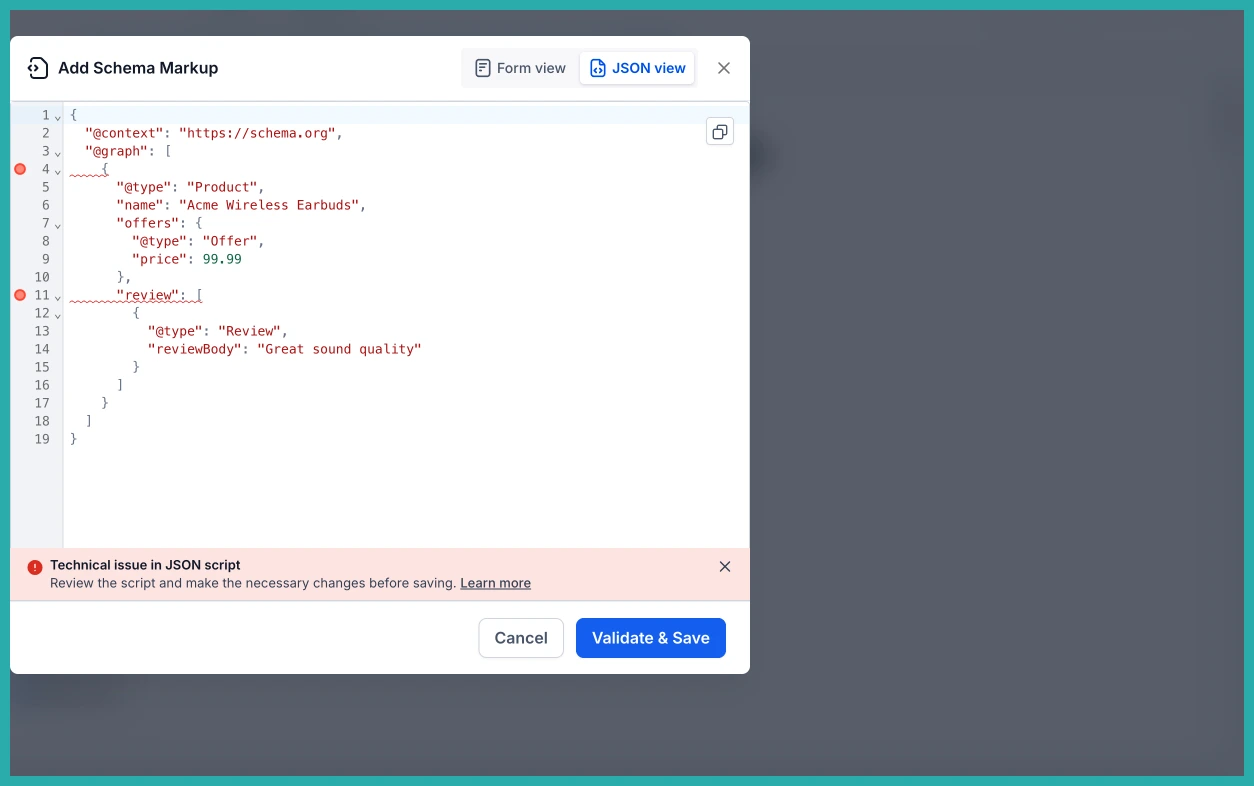
Head to SEO & AI search optimization, then Schema Markup. Open Add or Edit Schema, and switch to the JSON view.
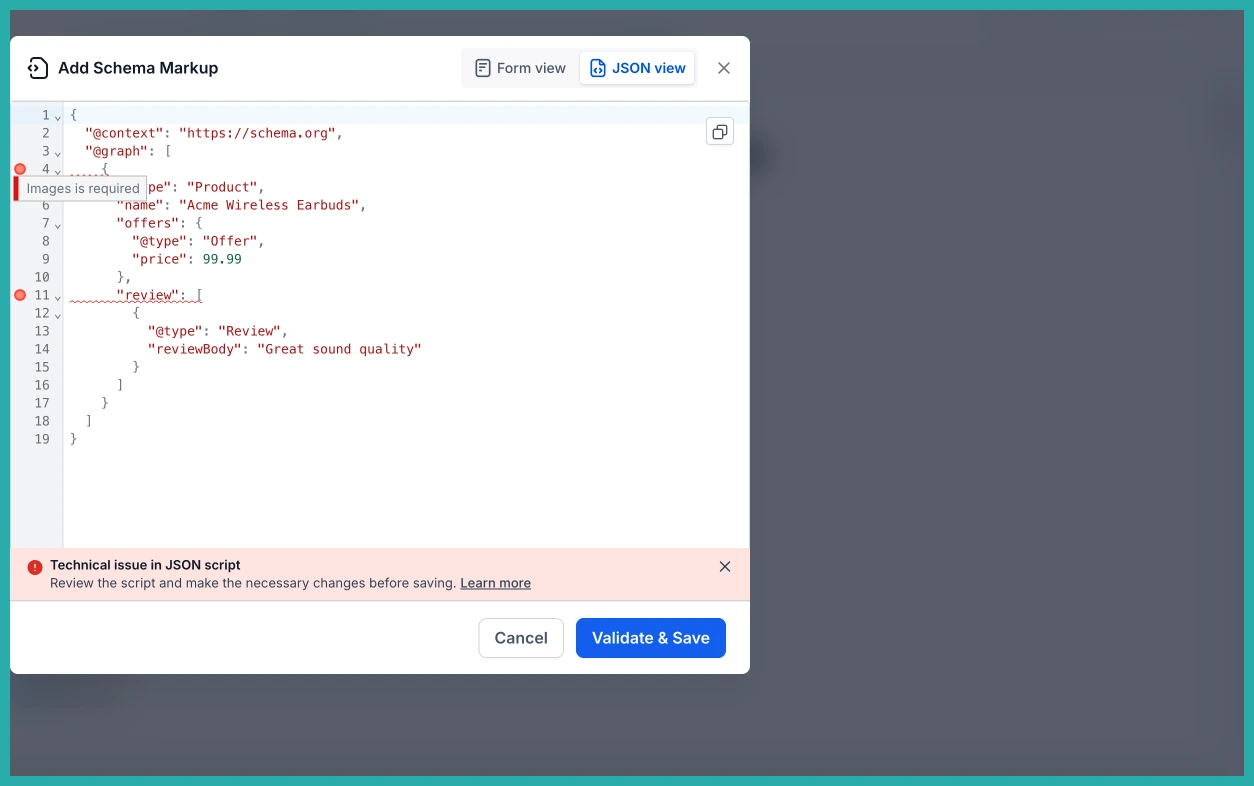
Now click Validate & Save. If there's a problem, you'll see the error markers appear inline, right next to the lines causing the trouble. Hover over one to read exactly what needs sorting.
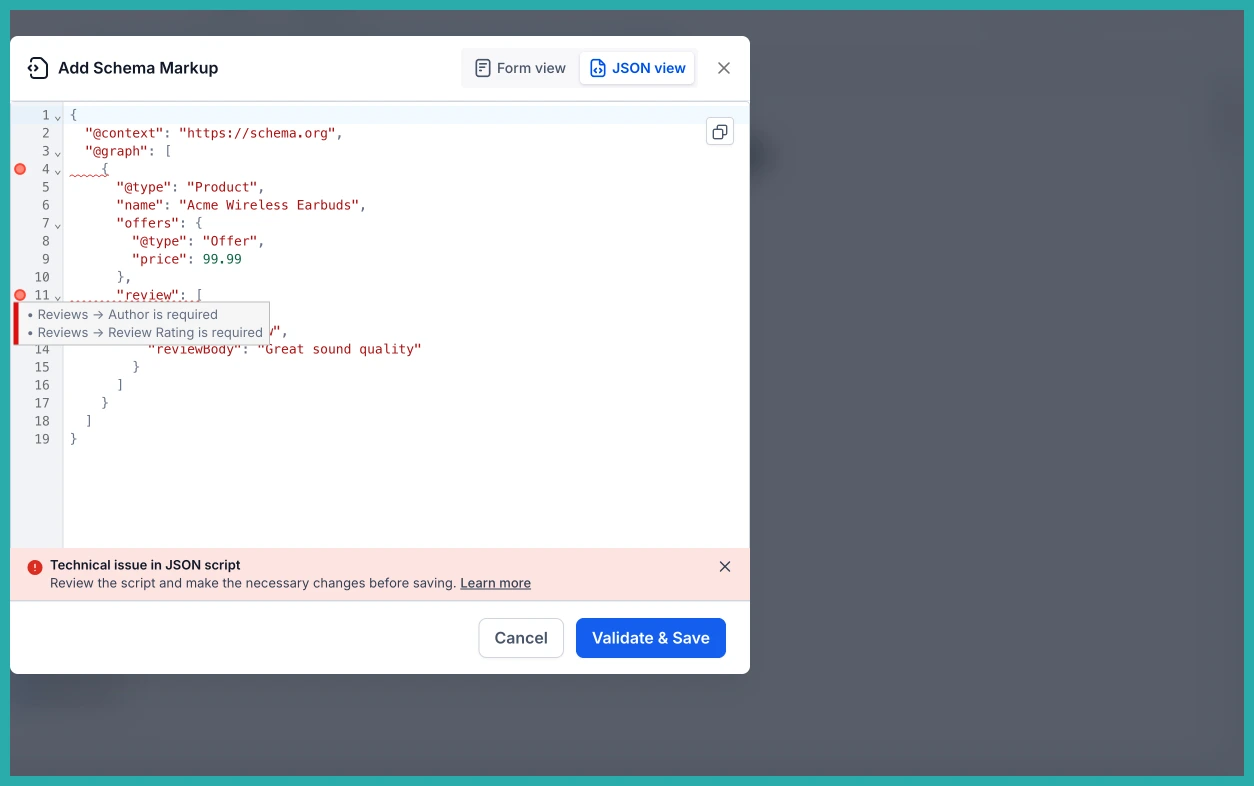
This works across both the Website Builder and Funnel Builder, and supports all the schema types you'd use - Product, Organization, FAQ, LocalBusiness, Article, Recipe, Event and more - including multi-schema payloads.
If schema markup has always felt fiddly, give it another go. Finding and fixing errors is a lot less painful now.
