
Save Your QR Codes Straight to Apple or Google Wallet
You've made a QR code for your business - maybe for your booking page, your website, or your profile. You save it to your phone so you've got it handy when you're out and about.
Then you make another. And another. Before long your photo gallery is a wall of near-identical black-and-white squares, and you're squinting to work out which one points where.
There's a tidier way now. You can save your QR codes straight to Apple Wallet or Google Wallet.
What you get
Instead of hunting through your photos, you open your wallet, pick the right pass, and let the customer scan it. Done in seconds.
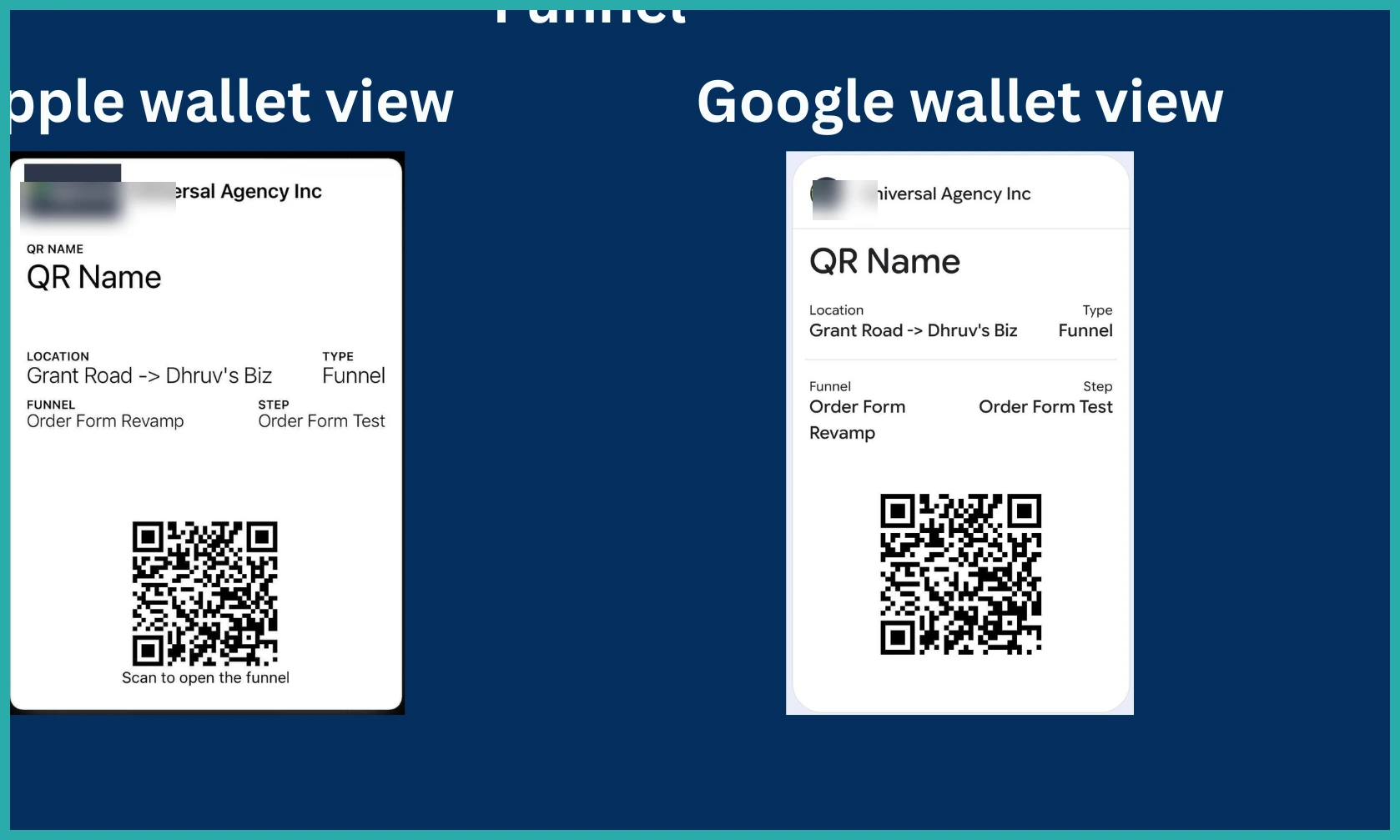
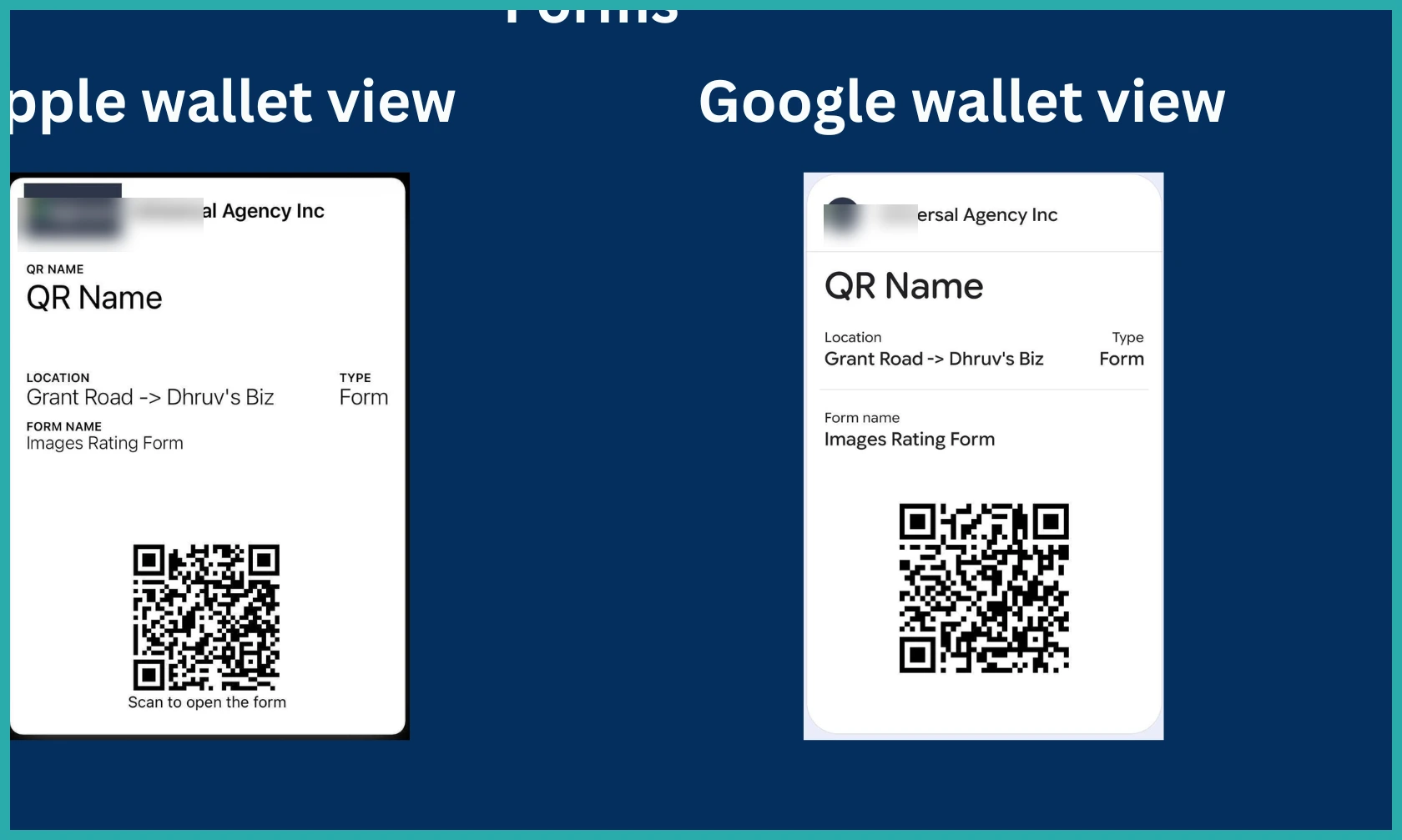
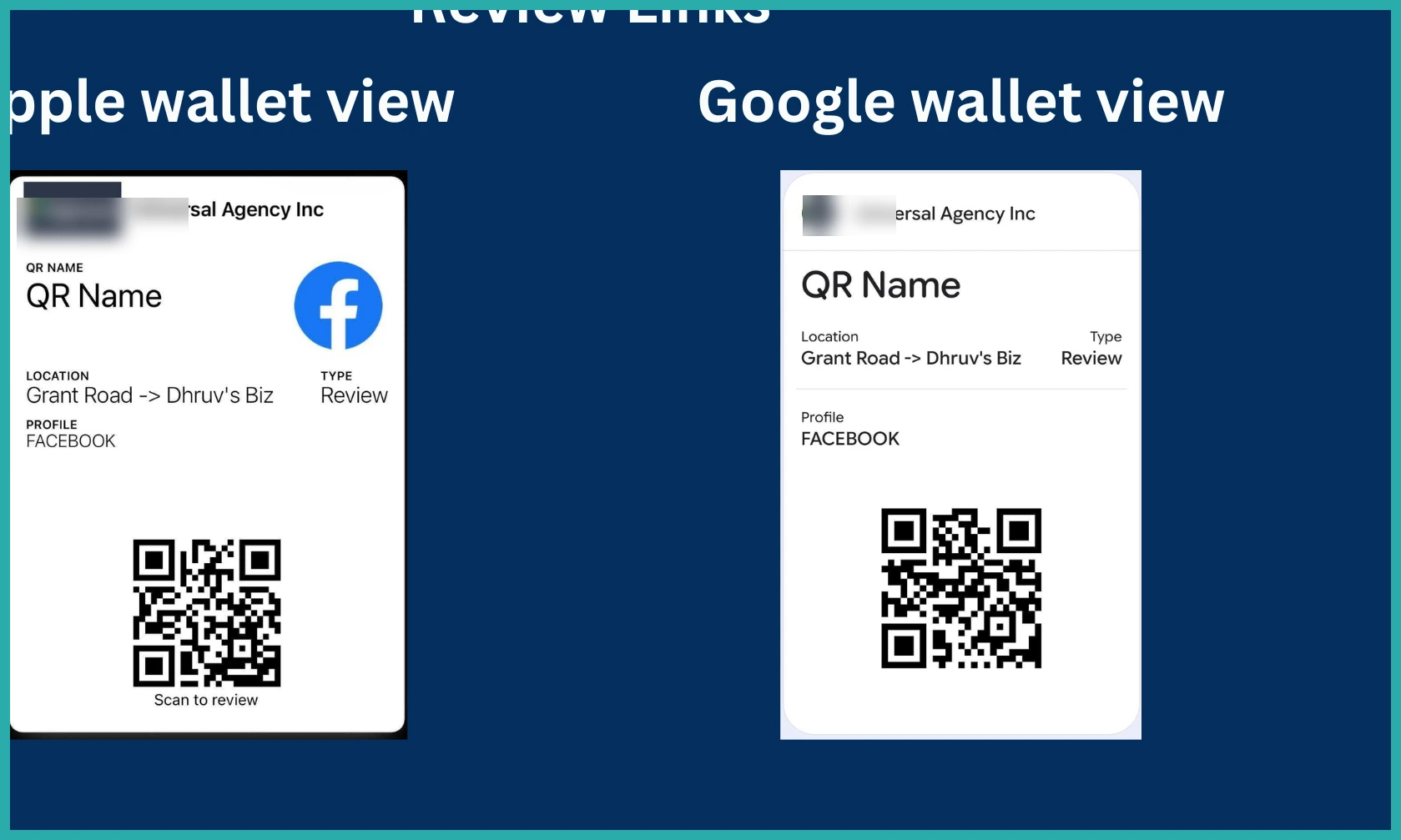
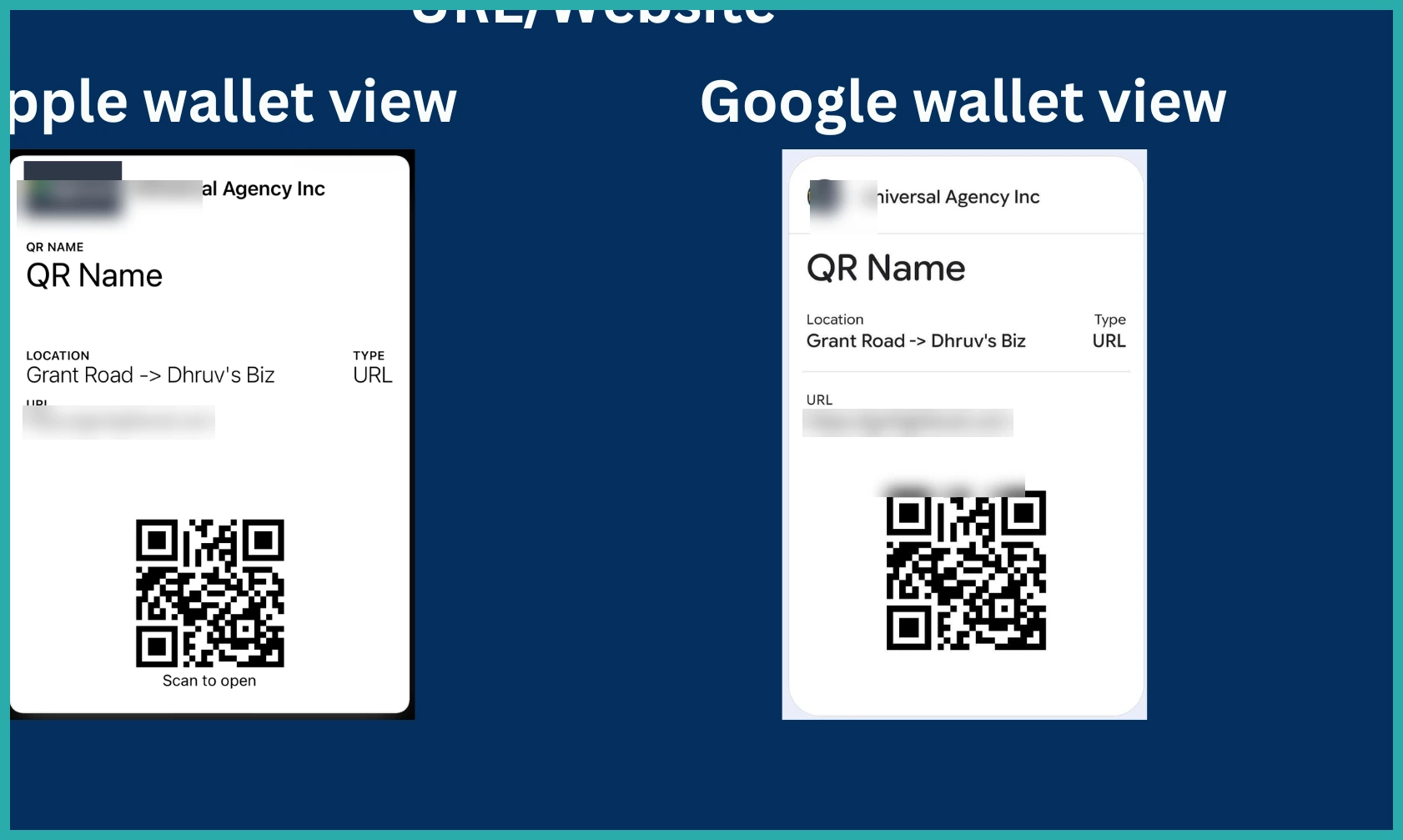
Each wallet pass carries the useful details too - what type of QR code it is, where it sends people, and any location it's tied to. So you always know which one is which.
It works with the QR codes you've already made as well as new ones, so there's nothing to recreate.
How to set it up
Head to your QR Code Builder. Create a new QR code, or open one you already have.
Work through the builder as usual until you reach the final step.
On that last step you'll see the option to add the QR code to your digital wallet. Select it.
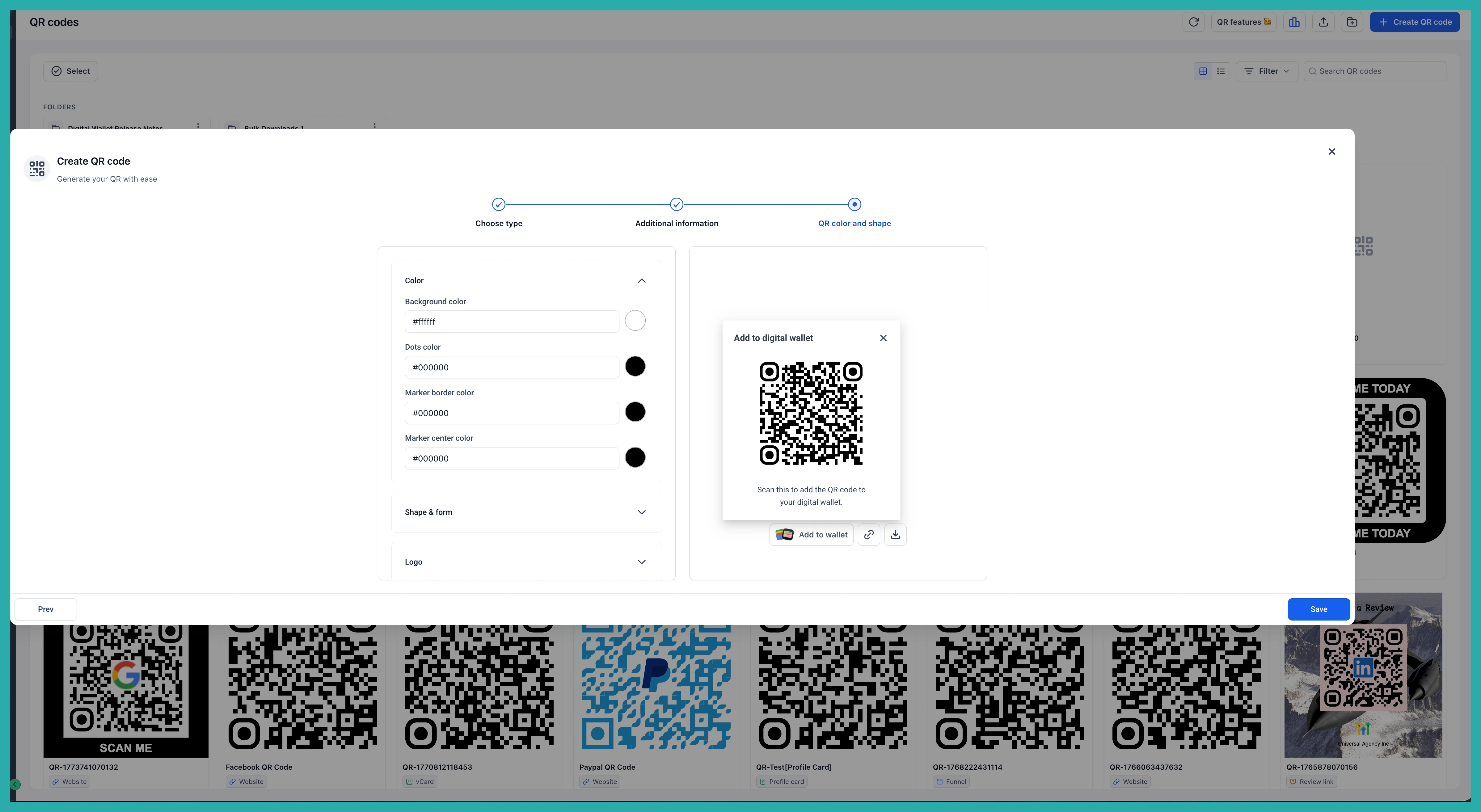
A new QR code appears on screen for you to scan with your phone.
Scan it. Depending on whether you're on an iPhone or an Android device, the pass gets added to Apple Wallet or Google Wallet automatically.
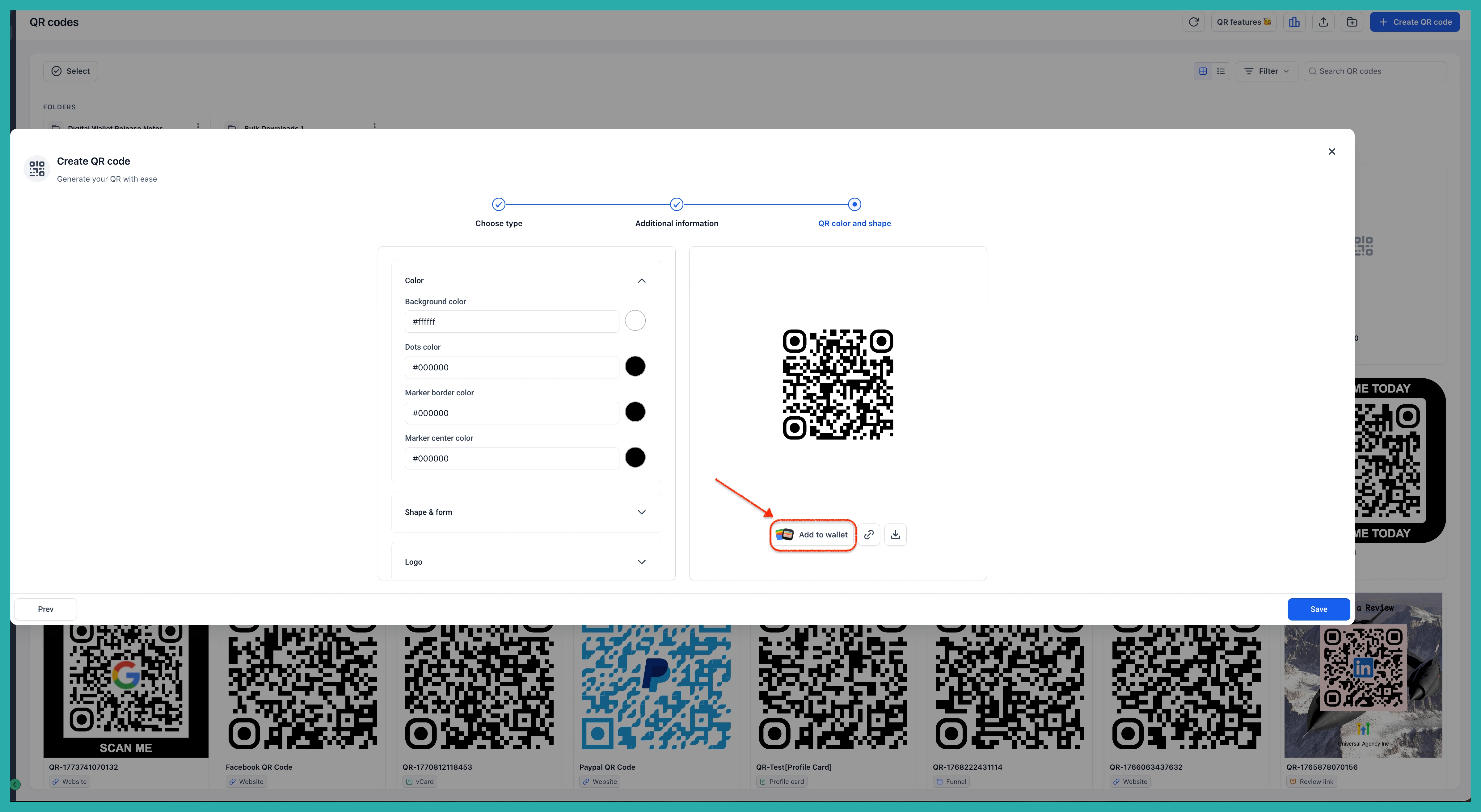
That's the whole setup. From now on, when you need it, just open your wallet, choose the right pass, and present the QR code for someone to scan.
Apple Wallet and Google Wallet look a little different
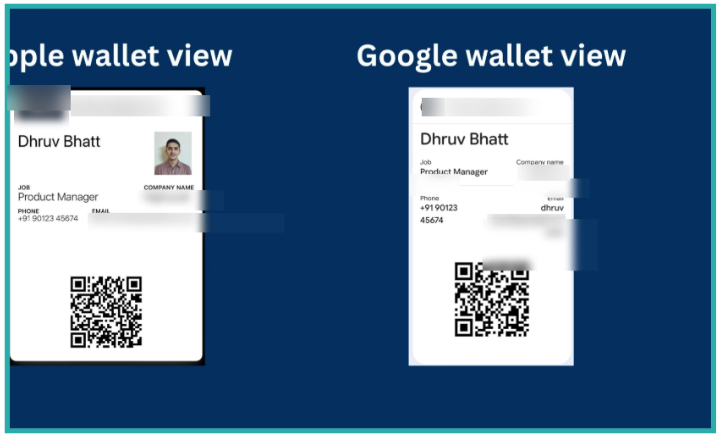
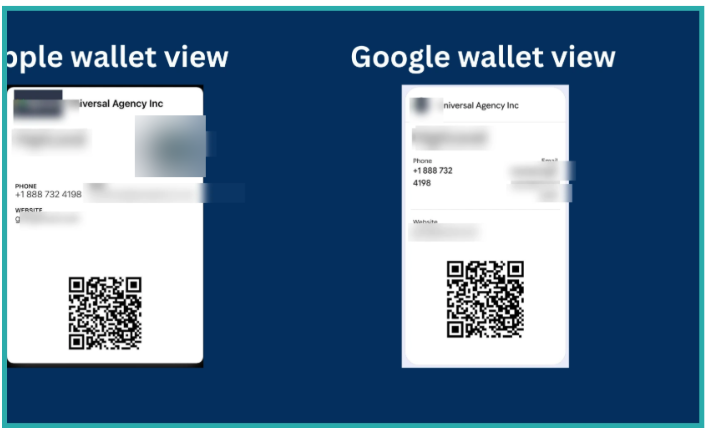
The two wallets don't offer exactly the same design options, so your pass will look slightly different depending on the device.
For example, Apple Wallet can show a profile image on the pass, while Google Wallet doesn't support that yet. The important QR code details are front and centre on both, so nothing you rely on goes missing.
A note on branding
Right now each wallet pass shows agency branding in the header, so your brand stays visible whenever the code is saved and presented. There are plans to make that optional down the line, giving you more say over how it appears.
It's a small addition, but if you ever show QR codes to people in person, it takes the faff out of it. Go add one of your existing codes to your wallet and see how much easier your next offline chat feels.
