
Run Ads Inside ChatGPT, Straight From Your Ad Manager
More and more people start their research inside ChatGPT now, typing out what they want in plain words before they ever hit a search engine. That's a moment you can be in front of them for.
OpenAI is now a platform in your Ad Manager, sitting right alongside Meta, Google and LinkedIn. You can connect an OpenAI Ads account, build and publish ads that run inside ChatGPT, target the surfaces and audiences you want, and measure your conversions, all without leaving your account.
Your ads show up in the ChatGPT apps on iOS and Android, and on chatgpt.com on both mobile and desktop.
What you get
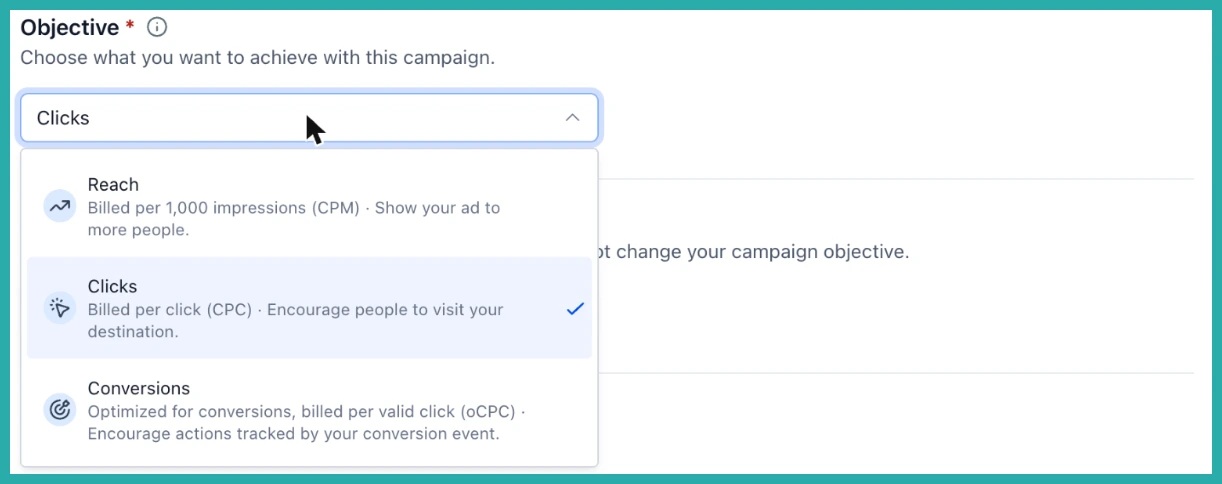
The best part is that nothing new to learn. It's the same campaign, ad group and ad structure you already use for your other channels. You get three objectives - Reach billed per 1,000 impressions, Clicks billed per click, and Conversions billed per valid click - plus budget and schedule controls, surface targeting, and reporting that lands next to all your other channels.
Let me walk you through it.
Connect your OpenAI ad account
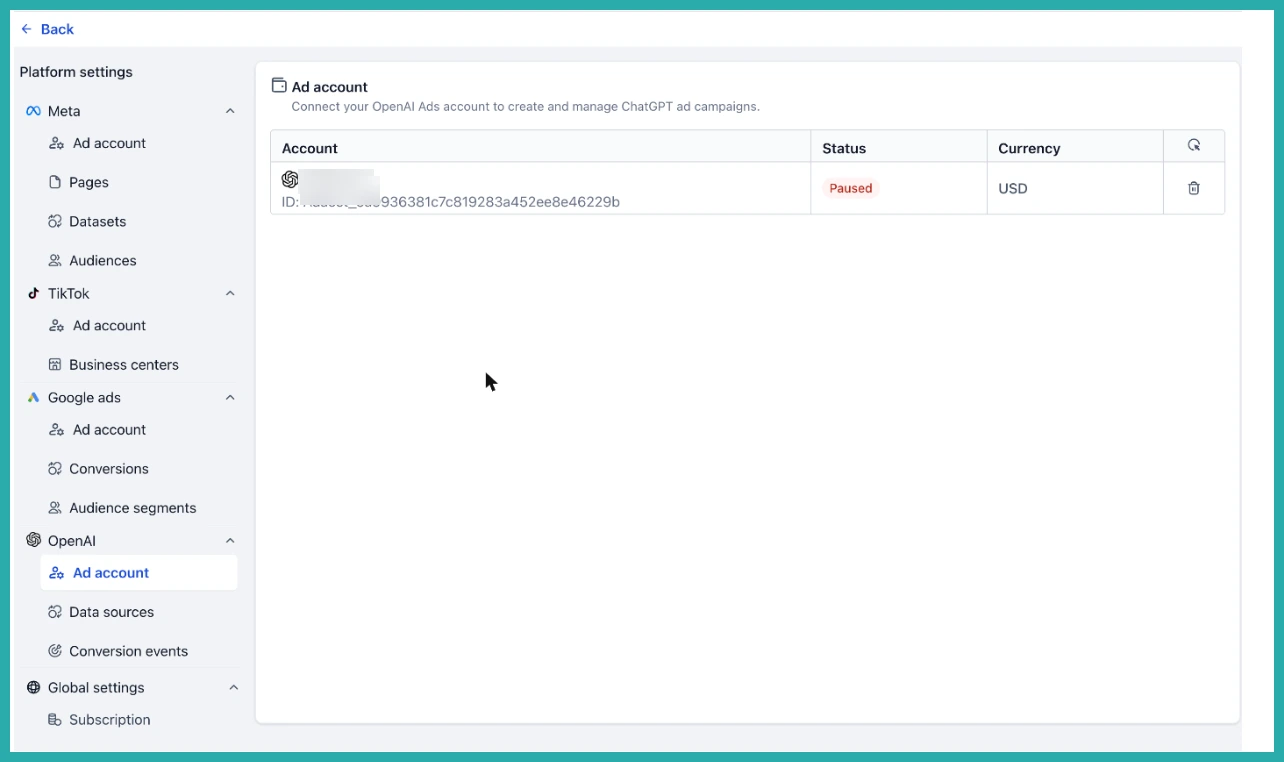
Go to Ad Manager, then Settings, then OpenAI, then Ad account, and connect the OpenAI Ads account you want to run campaigns from. Once it's connected, you'll see its ID, status and currency, so you know exactly which account you're working in.
One honest note before you start: you do need a connected OpenAI Ads account, and billing and ad review stay on their side.
Set up your measurement
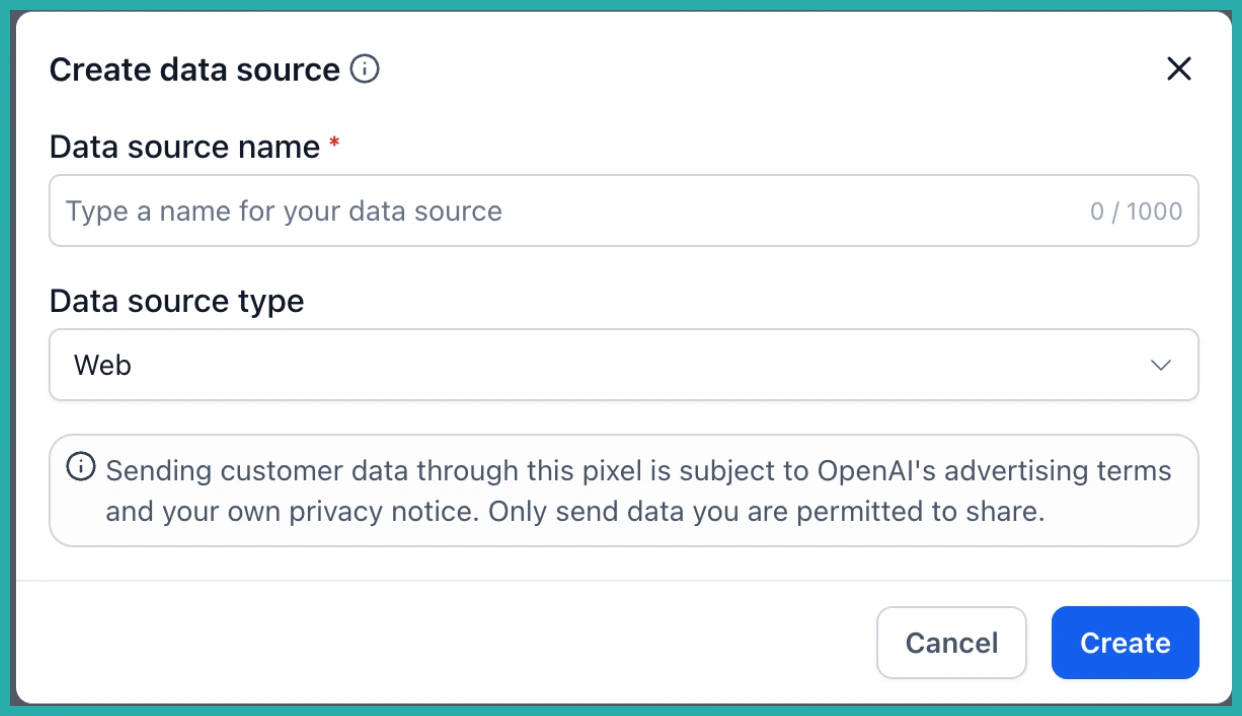
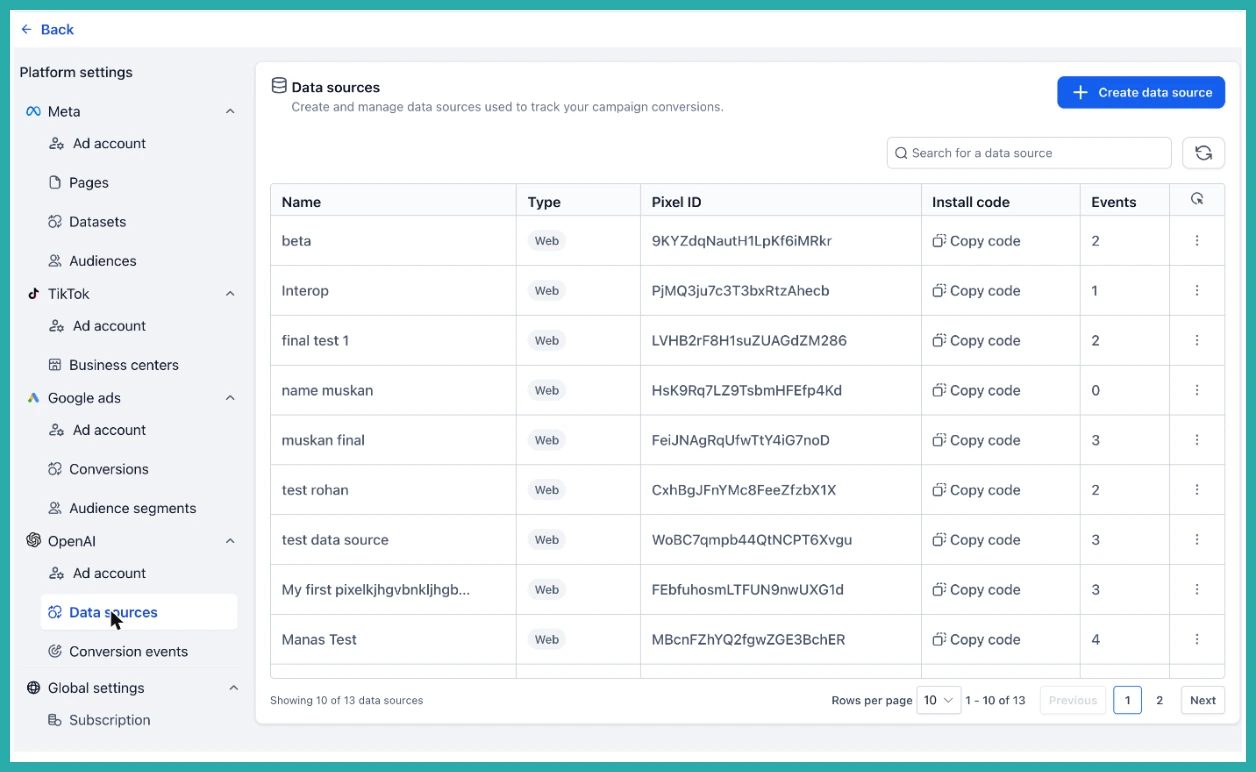
Under Data sources, create a web data source and copy its install code onto your site. Each data source shows its pixel ID and how many events it has received, so you can check it's actually firing.
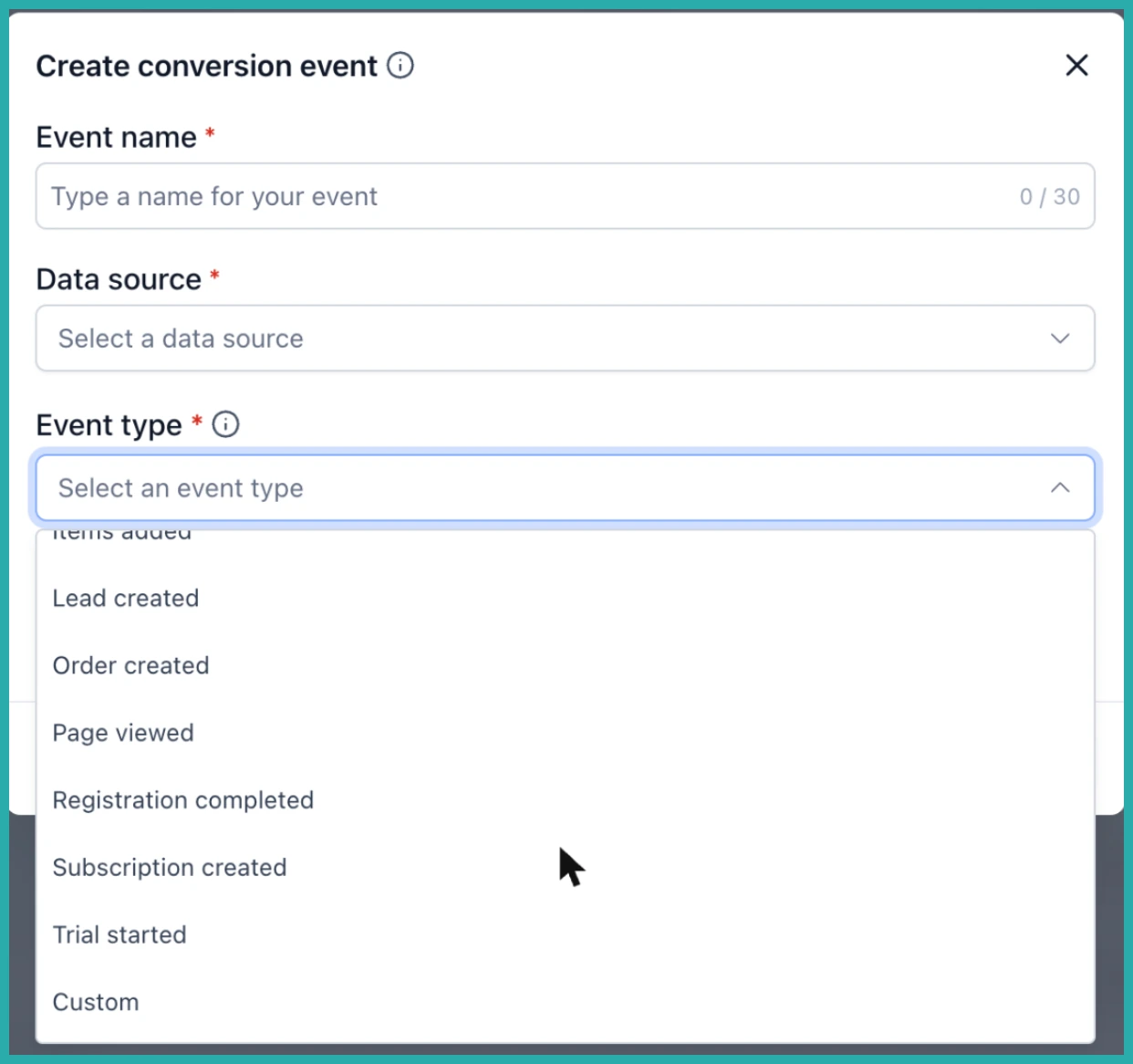
Then under Conversion events, create the events you want to track. Pick the data source, choose a standard event type or a custom one, and Ad Manager shows you the attribution windows that will apply.
Create the campaign
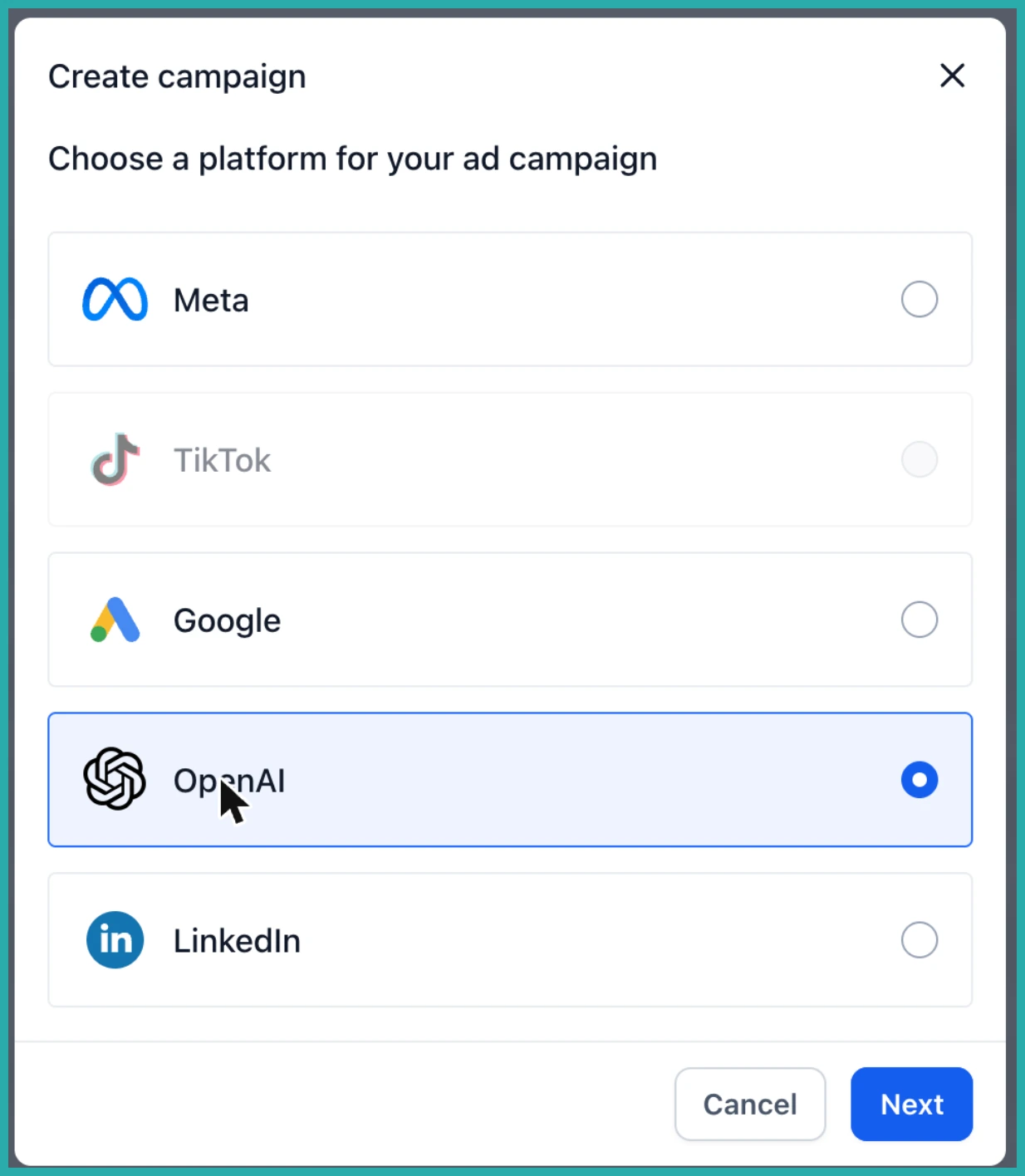
Click Create campaign, choose OpenAI, then Start from scratch.
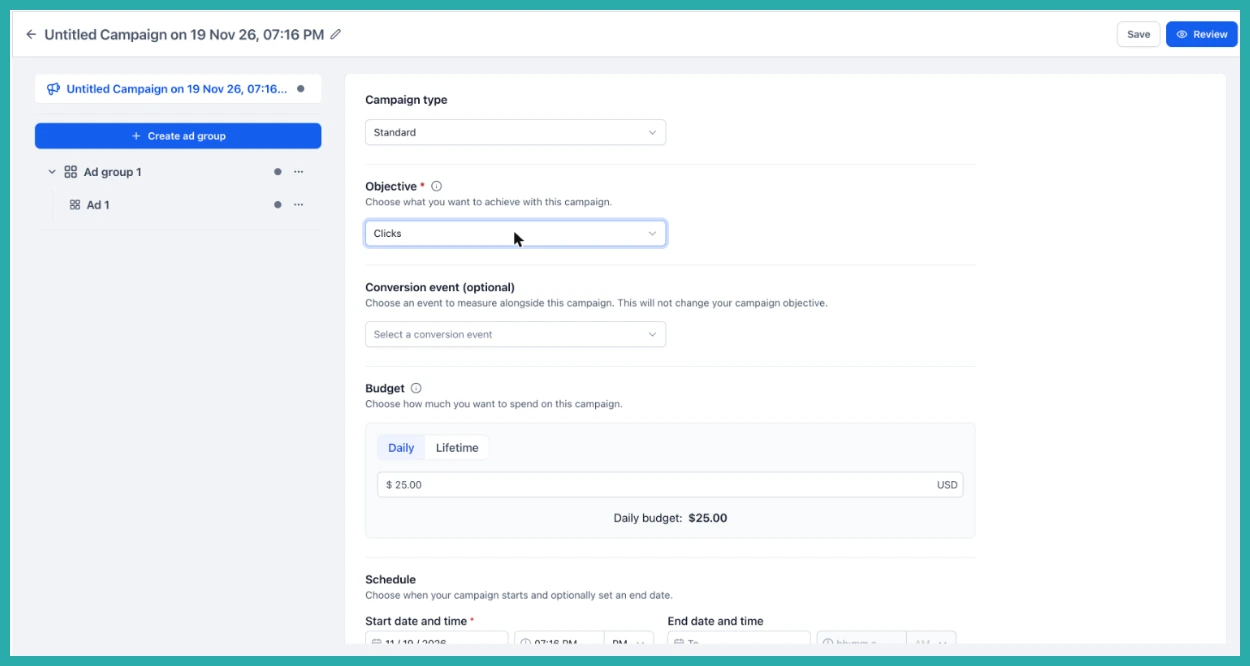
Set your objective, add an optional conversion event to measure alongside it, then set your budget (daily or lifetime) and your schedule.
Choose where the ads run
Add the locations you want to include or exclude.
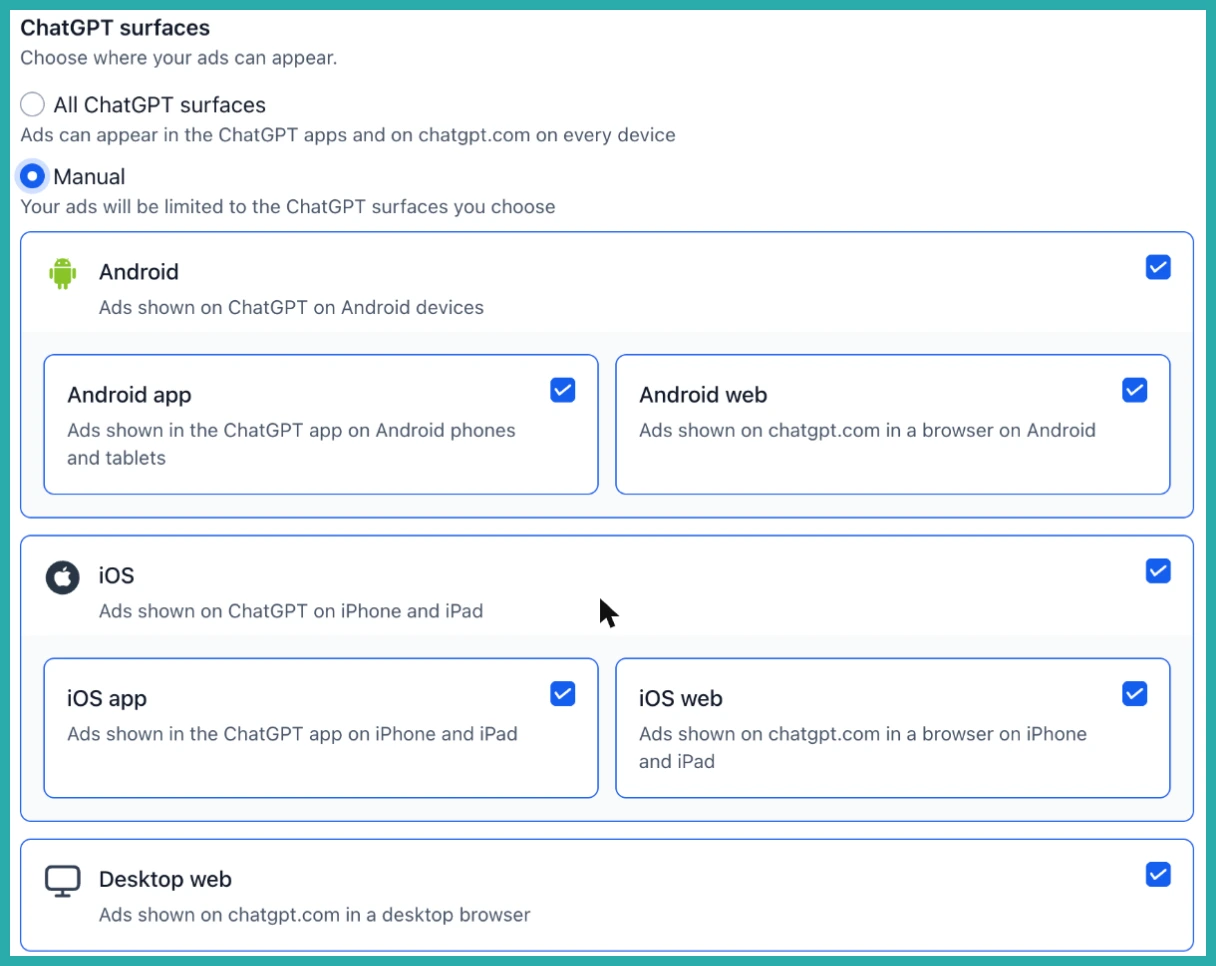
Then decide whether to run across all ChatGPT surfaces, or pick them by hand - Android app, Android web, iOS app, iOS web and Desktop web.
Add URL parameters and audiences
Set the tracking parameters for every ad in the campaign. These get filled in at click time, so your reporting stays tidy.
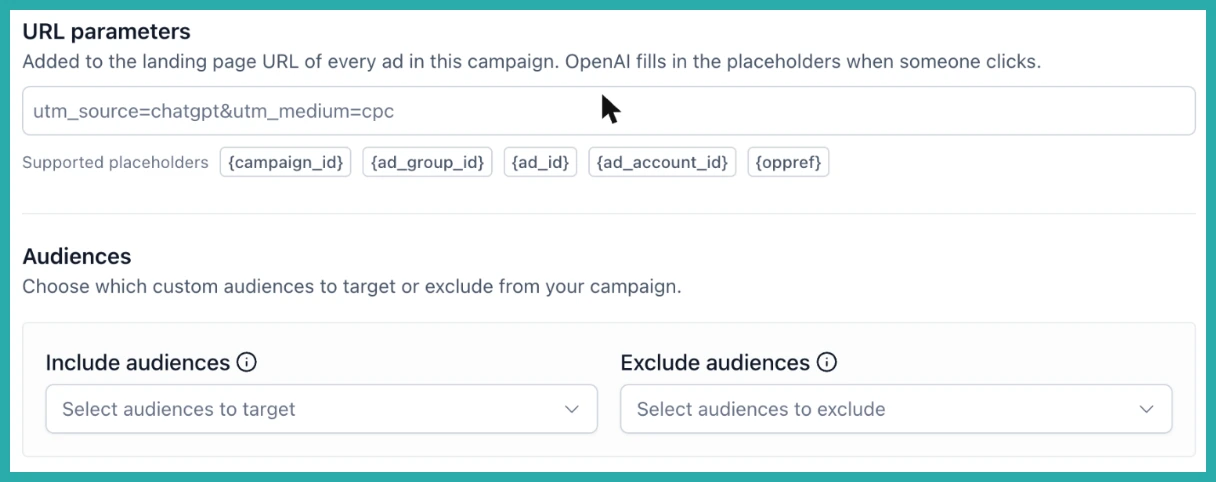
Next, include or exclude your custom audiences.
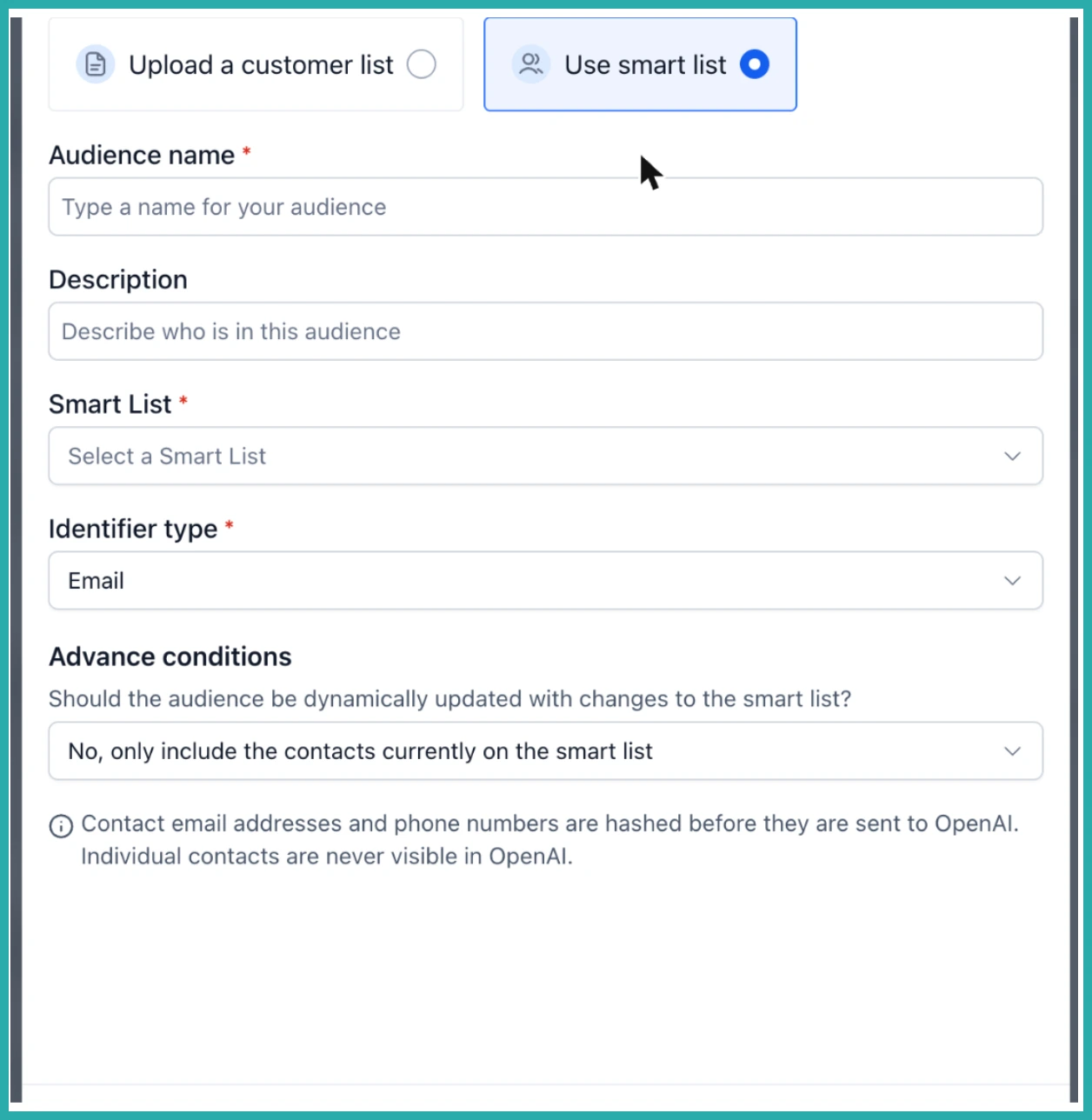
Need a new one? You can build an audience from an uploaded customer list or straight from a smart list, and choose whether it keeps updating as that list changes. Your contact data travels safely here - emails and phone numbers are hashed before they ever reach OpenAI, and individual contacts are never visible on their side.
Just know you'll need at least 25,000 matched users in an audience before OpenAI will let you target it.
Build the ad group
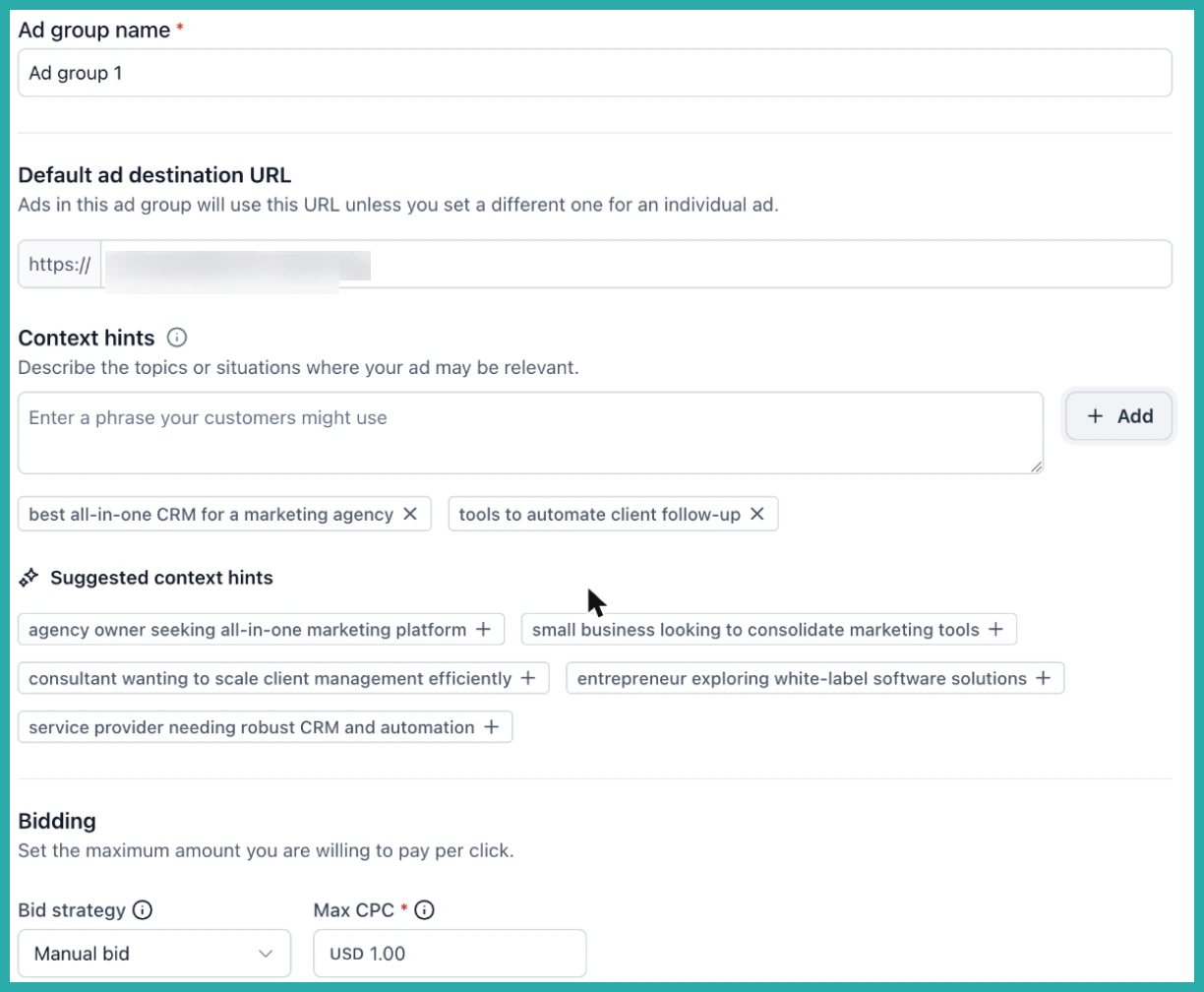
Name the ad group, set the default destination URL, and add your context hints. This is the clever bit - instead of keywords, you describe the situations where your ad belongs, in your customers' own words. Suggested hints are generated for you, and it's one click to add them. Then set your bid, either a manual Max CPC or Maximize results.
Write the ad
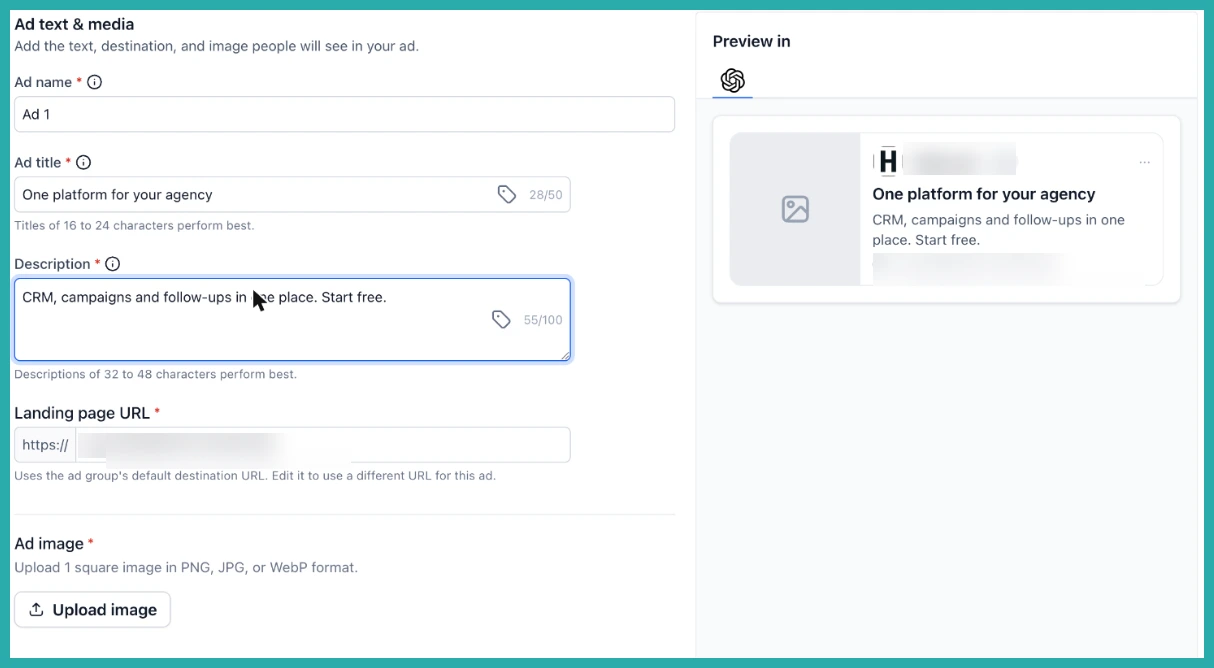
Add your title (50 characters), description (100 characters), landing page URL and one square image. Custom values work in the ad text, and you'll see a live ChatGPT preview update as you type, so you know exactly how it'll look.
Each ad takes one square image in PNG, JPG or WebP.
Review and publish
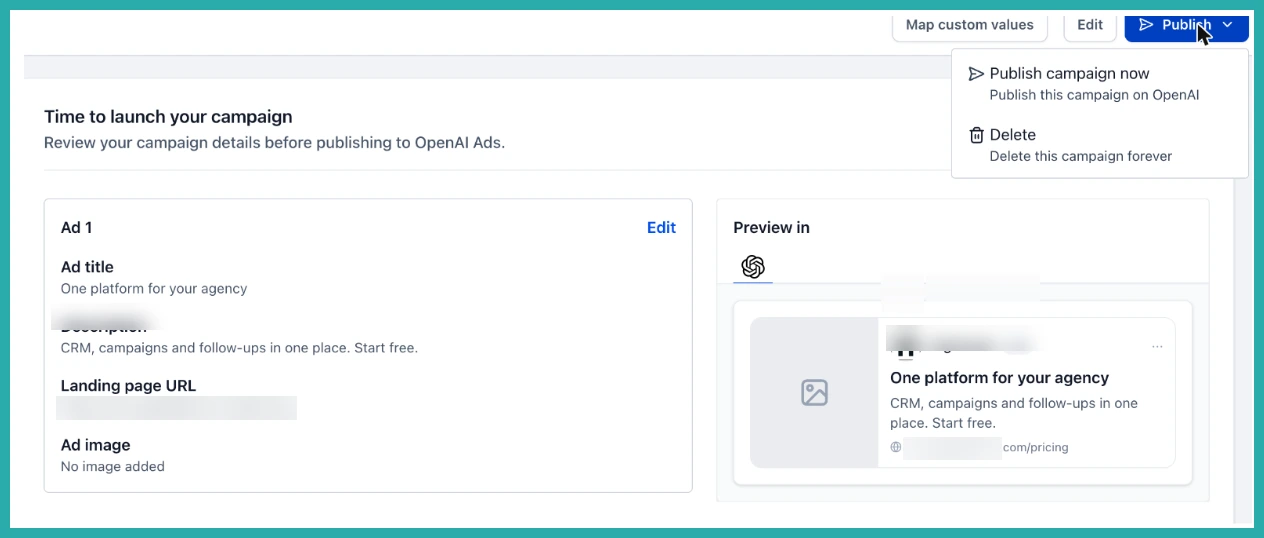
Open Review to see every ad exactly as it will run, then publish to OpenAI Ads.
Track your results
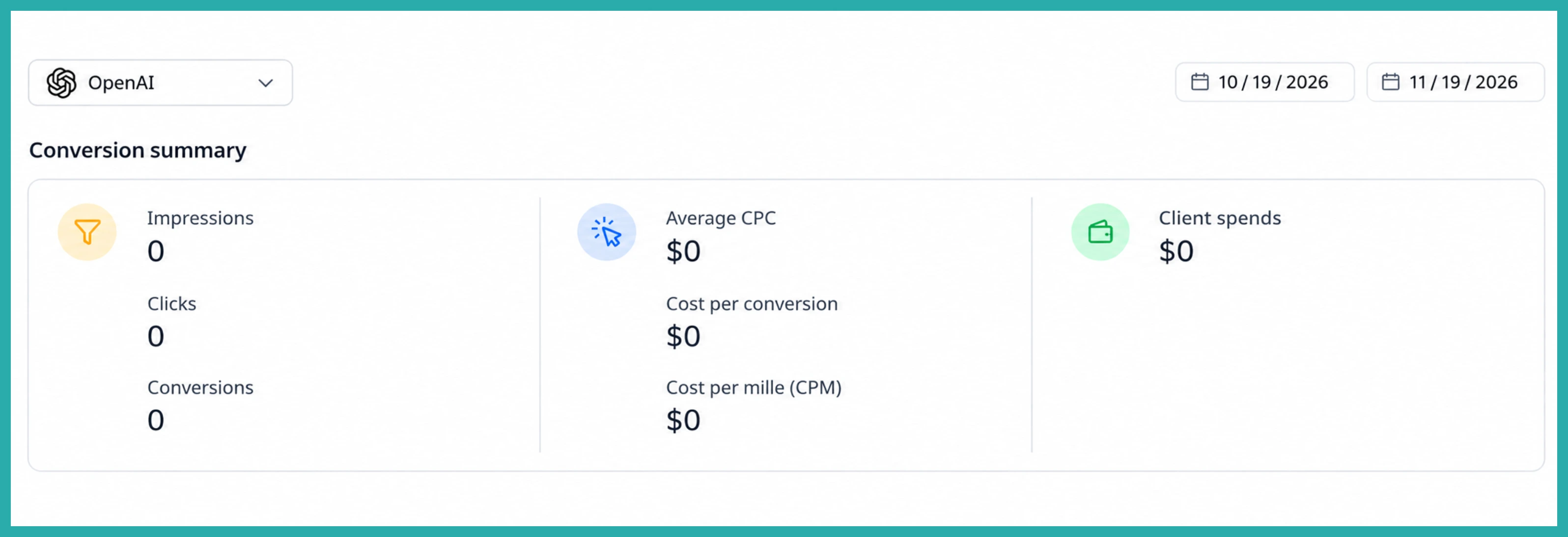
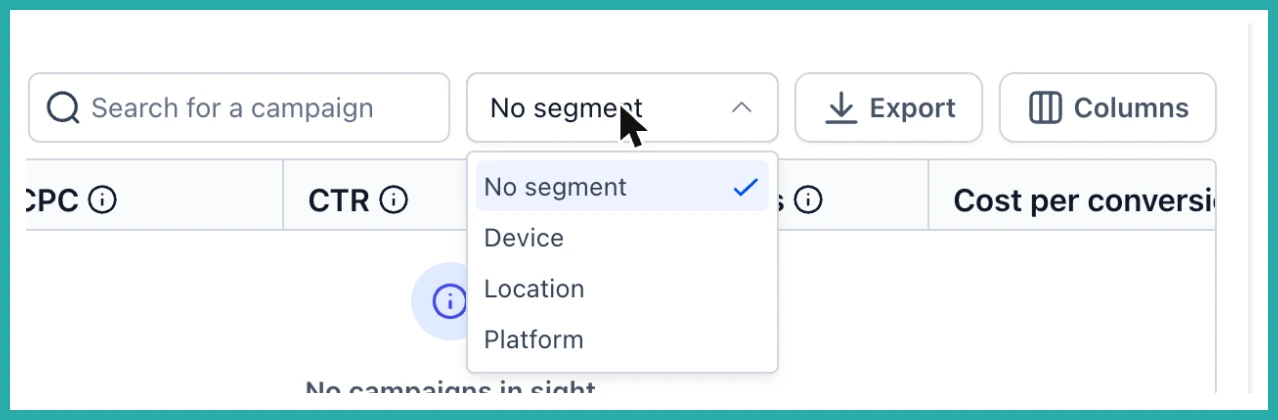
Head to Statistics and switch the platform to OpenAI. You'll see your ChatGPT spend, clicks and conversions broken down by device, location and platform.
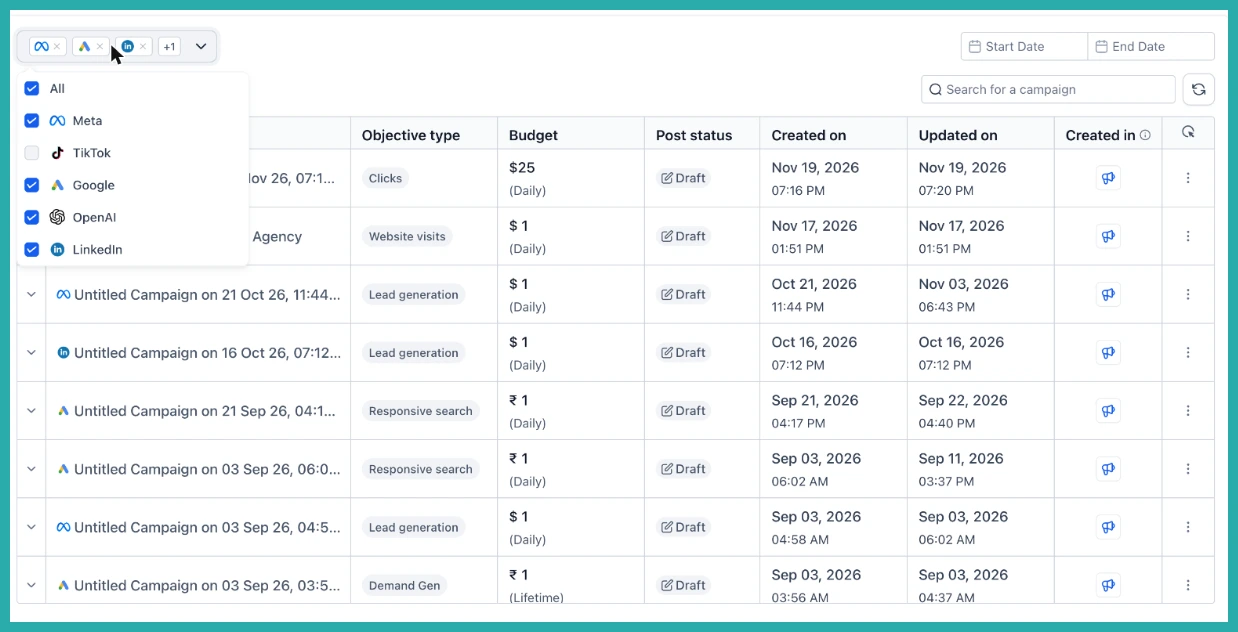
And back on the Campaigns tab, the platform filter now includes OpenAI, so you can look at your ChatGPT campaigns on their own or right next to everything else.
Conversion events use a 30 day click-through and a 1 day view-through window, so give your reporting a little time to settle before you judge it. Campaign type is Standard for now, with ready-made templates coming soon.
If you're already running ads on your other channels, this will feel completely familiar. Same builder, same flow, one more place to meet your customers. Go connect your account and give it a try.
