
Take Table Bookings and Orders Right on Your Restaurant's Website With Widgets
If you run a restaurant, you already have a website you like. Now you can add table booking, online ordering, your menu and your hours straight onto it, without rebuilding anything or sending guests off to another page.
These are called website widgets, and they drop into any site - a page you built in the system, WordPress, Wix, Squarespace, you name it. Guests book a table right there on your page.
What you get
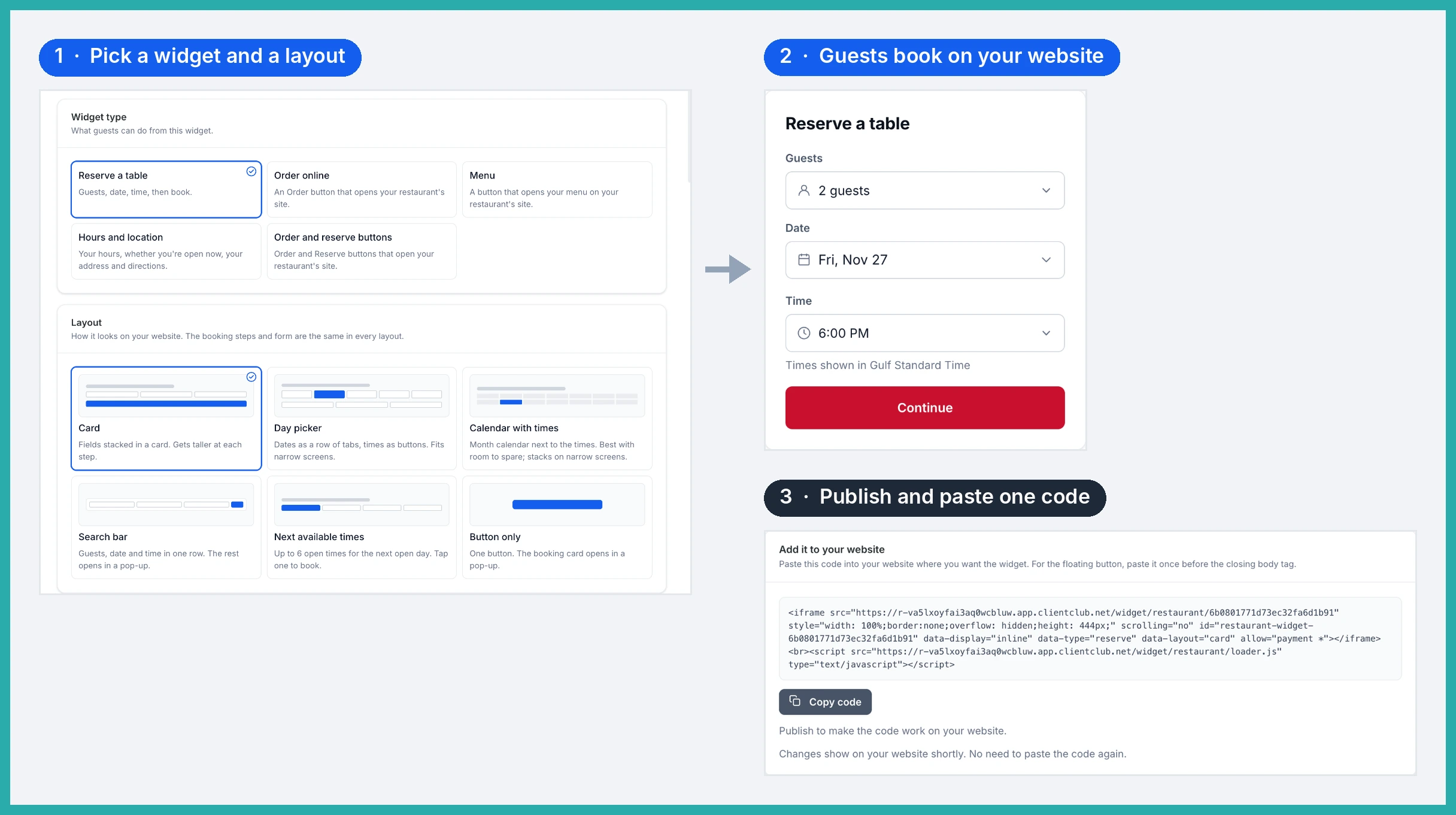
There are five widgets to pick from, so you add only what you need:
- Reserve a table: guests choose party size, date and time, then book on your website.
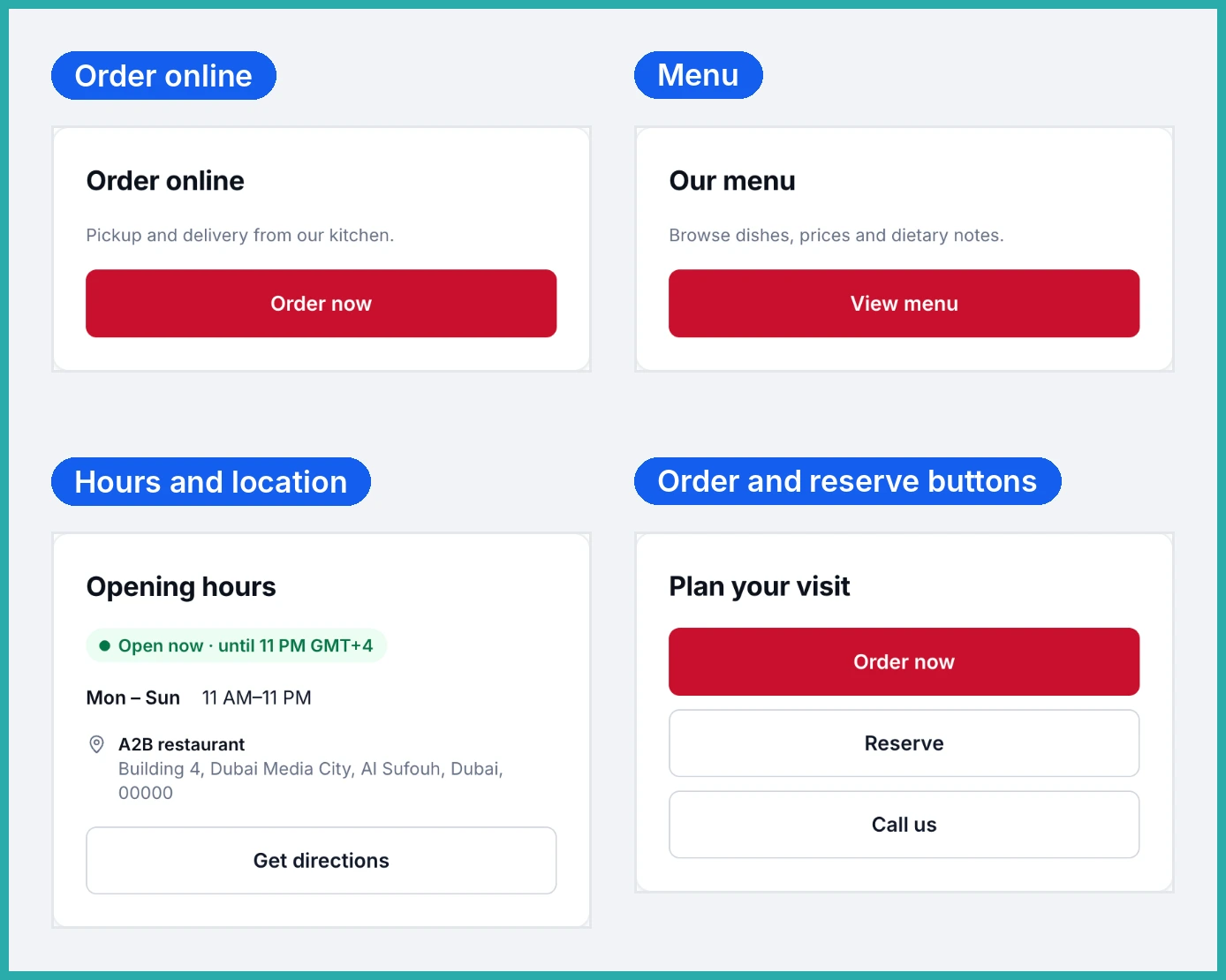
- Order online and Menu: buttons that open online ordering or your full menu.
- Hours and location: your opening hours, whether you're open now, and directions.
- Order and reserve buttons: Order now, Reserve and Call us, all in one tidy card.
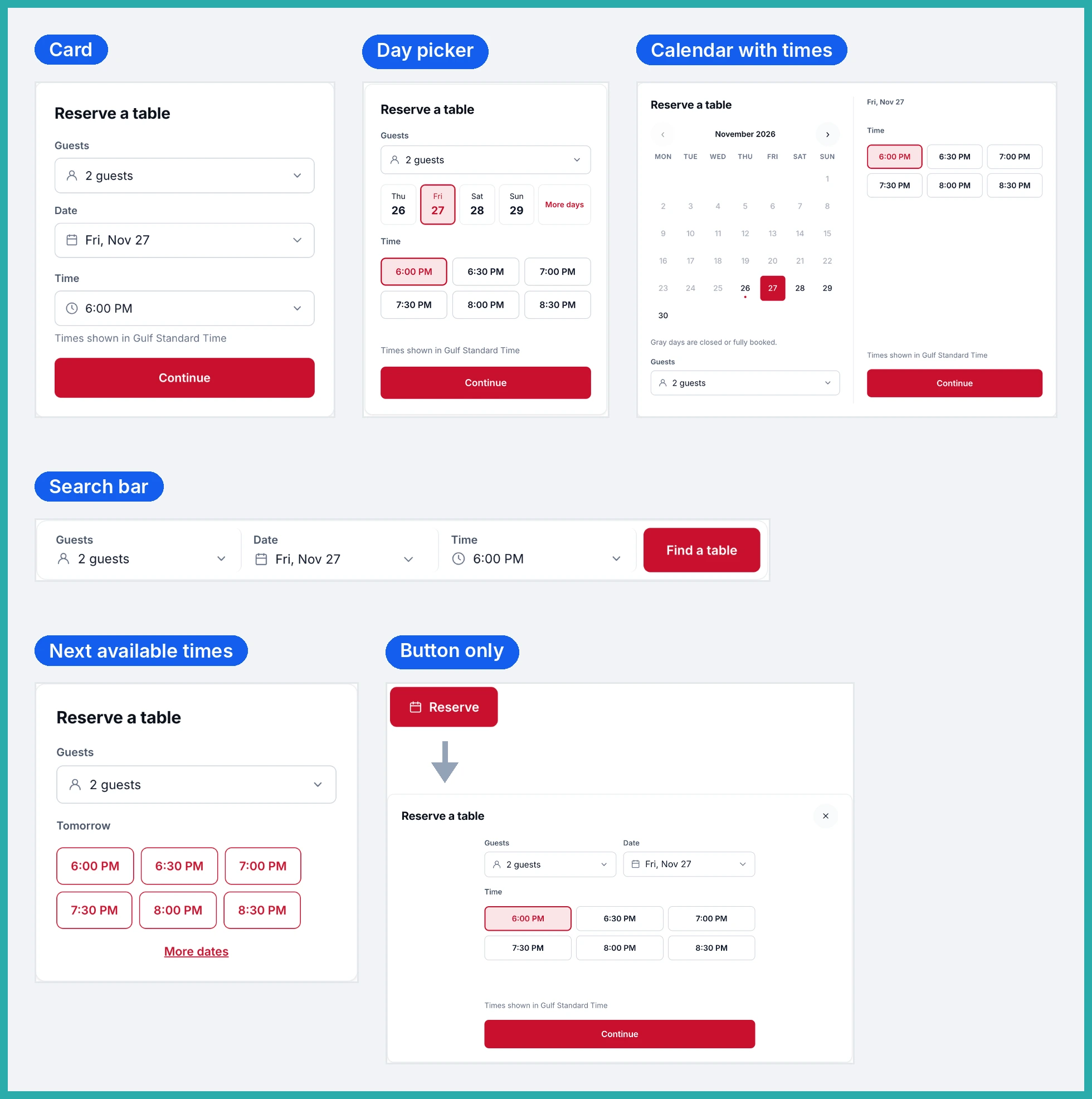
For the booking widget you also get six layouts - a card, a day picker, a calendar with times, a search bar, next available times, or a button only. The booking steps are the same whichever look you choose, so pick the one that suits your page.
A simple flow for your guests
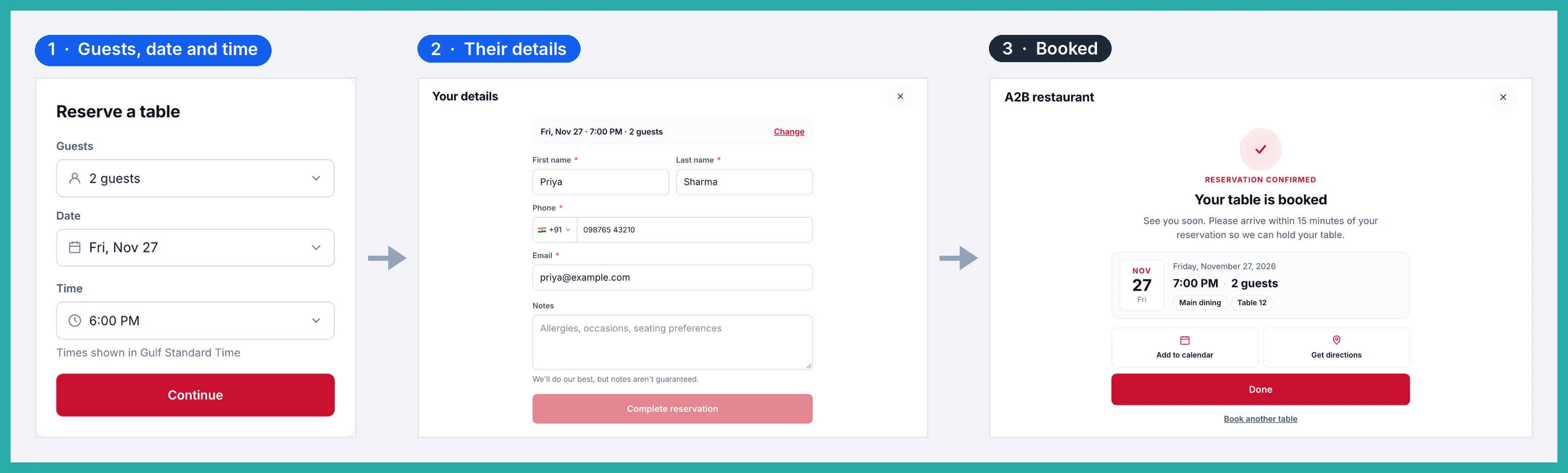
The guest picks a time, adds their details and gets a confirmation. That confirmation includes Add to calendar and Get directions, so there's nothing left for them to chase up.
Show it your way
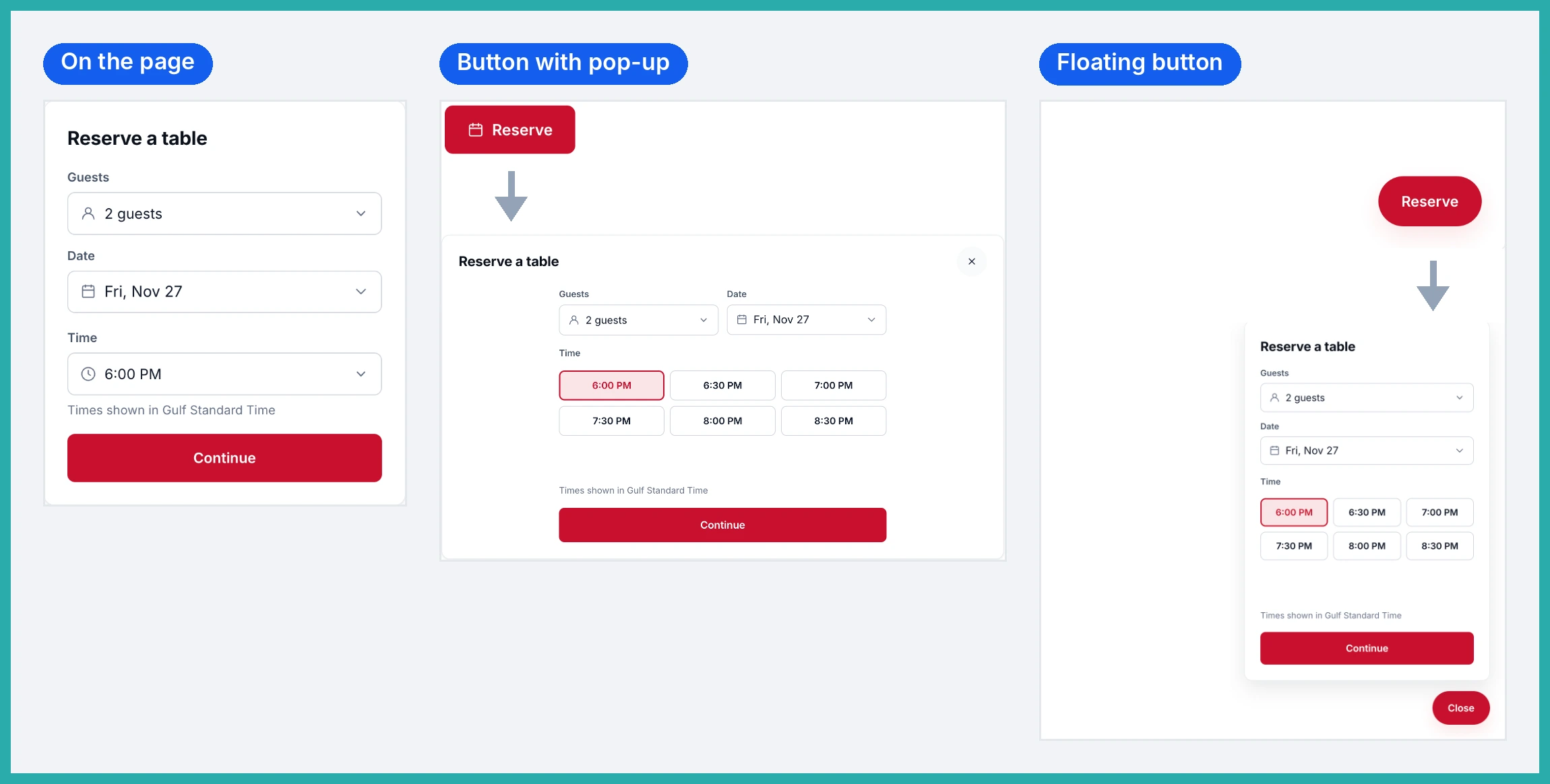
You decide how the widget appears. Put it right on the page, open it from a button as a pop-up, or tuck a floating button into the corner of every page so it's always within reach.
It looks like your brand
By default the widget matches your restaurant website, so it blends in. If you'd rather set your own look, you can choose your colours, your corners and a light or dark theme. You can also change the heading and button text, and guests see the widget in their own language.
How to set one up
- Go to Restaurant Website, then Setup and sharing, then Website widgets, and click New widget.
- Pick a widget type, a layout and how you want it to display.
- Make it yours and check the Live preview on both desktop and phone.
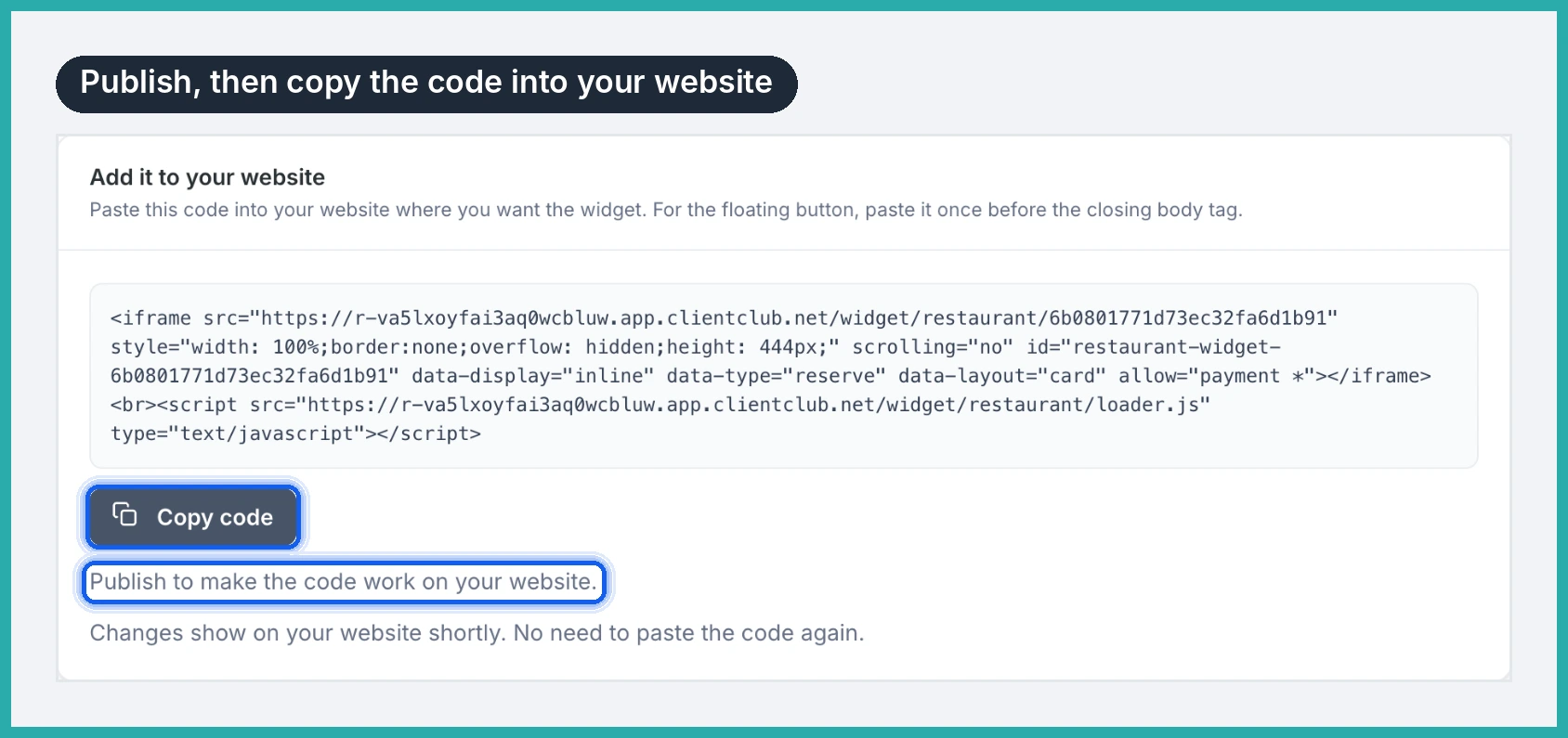
- Click Publish, then Copy code and paste it into your website.
Here's the part that saves you time: change a widget any time and every website using that code updates on its own. Update once, and you're done everywhere.
Who can use it
Website widgets are available with Restaurants on the Founder's plan.
If you've been wanting bookings and orders handled on the site you already have, this is the gentle way in. Set up one widget, paste the code, and let guests book right where they find you.
