
Your Order Forms Can Now Show the Right Products to the Right People
You build an Order Form, drop in all your products, and every visitor sees the same long list. Even the ones that don't apply to them. It works, but it's not exactly tailored.
That just changed. Your Forms and Surveys can now react to what a customer actually chooses, right down to a single product or a single variant.
What landed
Two things, and together they make your Order Forms a lot smarter.
First, you can now use individual products as conditions. Whatever a customer selects can trigger one of your four logic types - redirect them to a URL, show a custom message, disqualify a lead, or show and hide fields.
Second, the Show/Hide logic went from all-or-nothing to precise. Before, you could only show or hide the entire product section. Now you can show or hide one specific product, or even one variant of a product, based on what someone picked earlier in the Form.
So instead of presenting every option to everyone, you present the options that actually fit the person in front of you.

Where to find it
Open any Form or Survey, new or existing. This works across both the old and new builders, so you don't need to rebuild anything to use it.
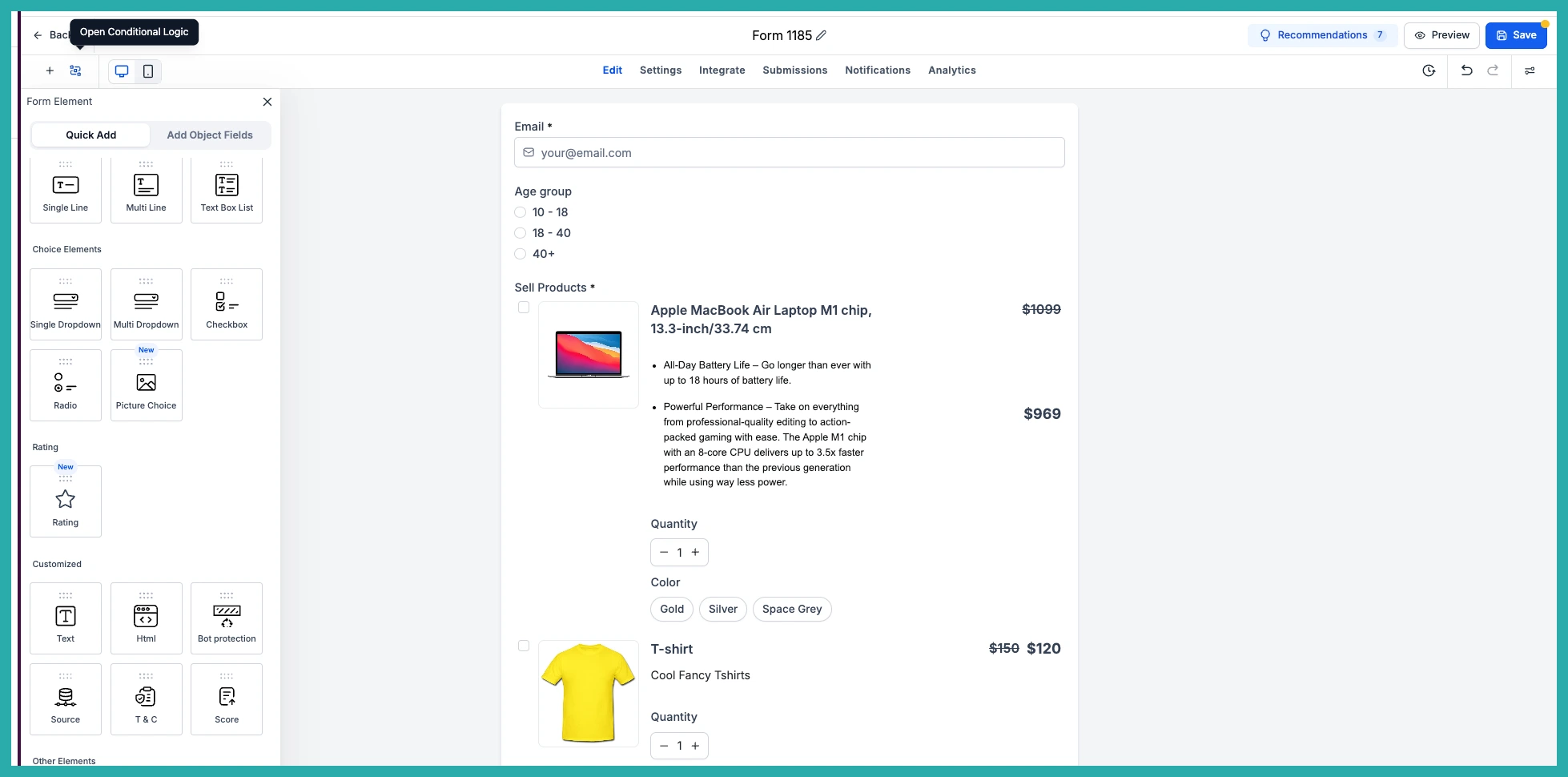
Head into the builder and open the Conditional Logic section. That's home base for everything below.
Setting a product-based condition
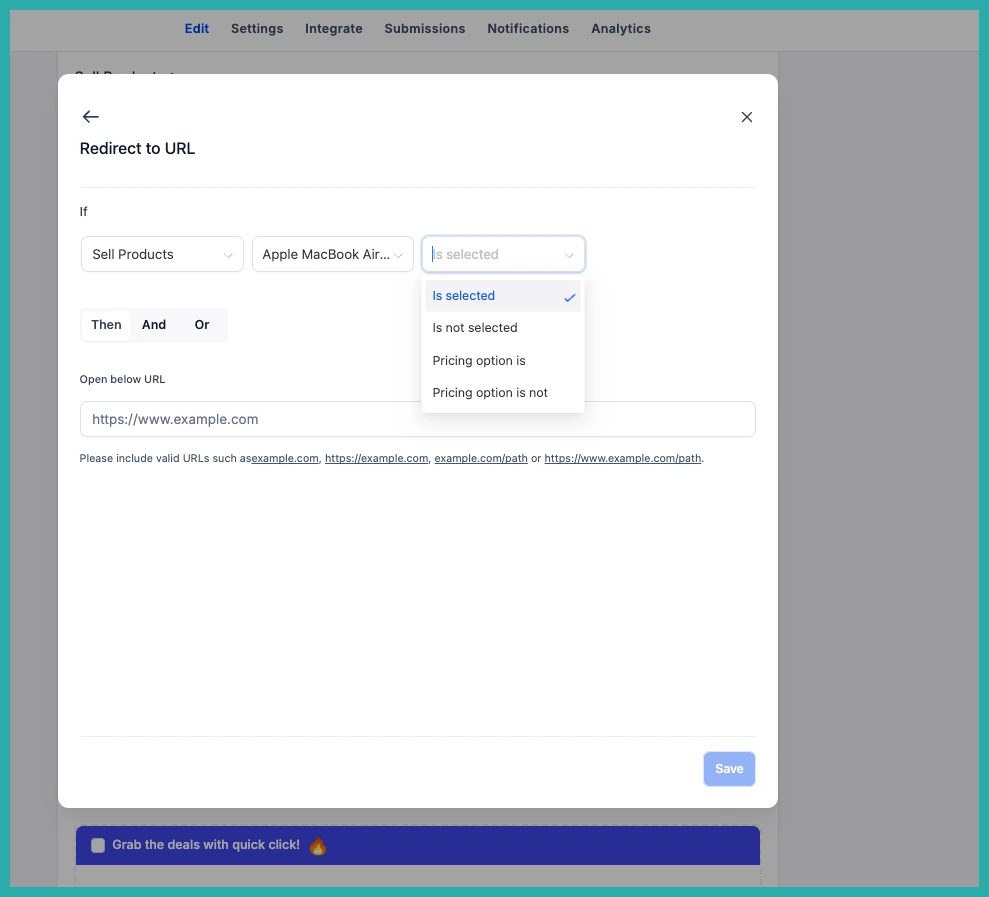
When you add an IF condition, you can now choose a product as the trigger. Pick the product that should set things in motion, then decide what happens next.
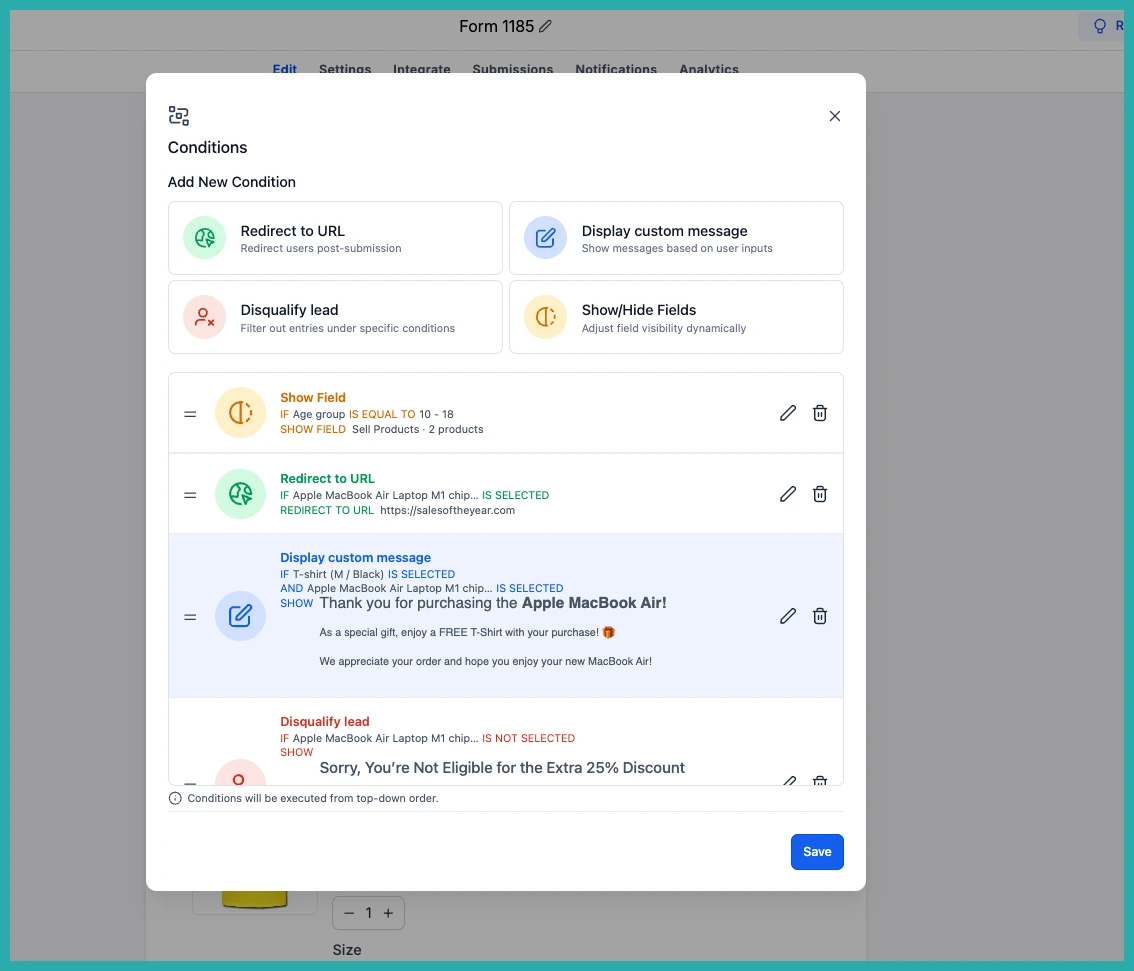
In the screenshot below, you'll see the product selected as the condition. From here you choose your logic type.
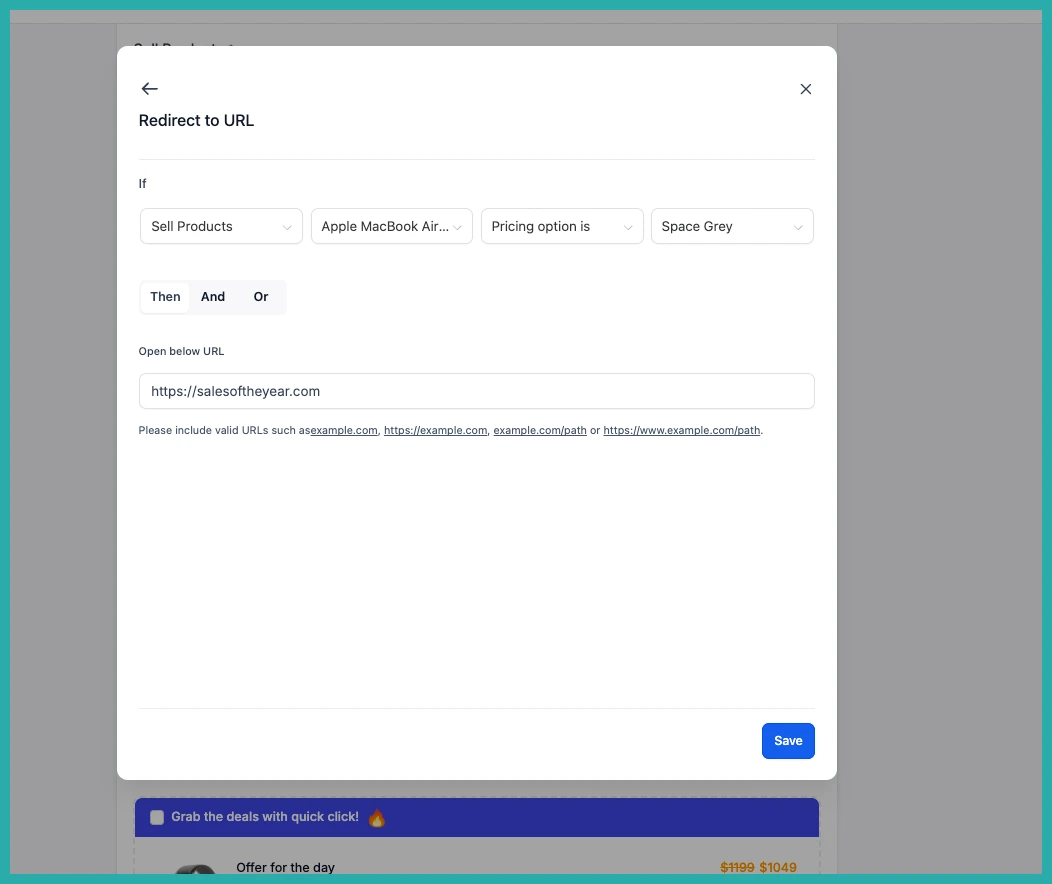
Say someone selects a particular product. You can send them to a specific thank-you page, pop up a message written just for that choice, or smoothly move them along the right path. All four logic types - Redirect URL, Display Custom Message, Disqualify Lead, and Show/Hide Fields - now respond to products.
Showing and hiding individual products
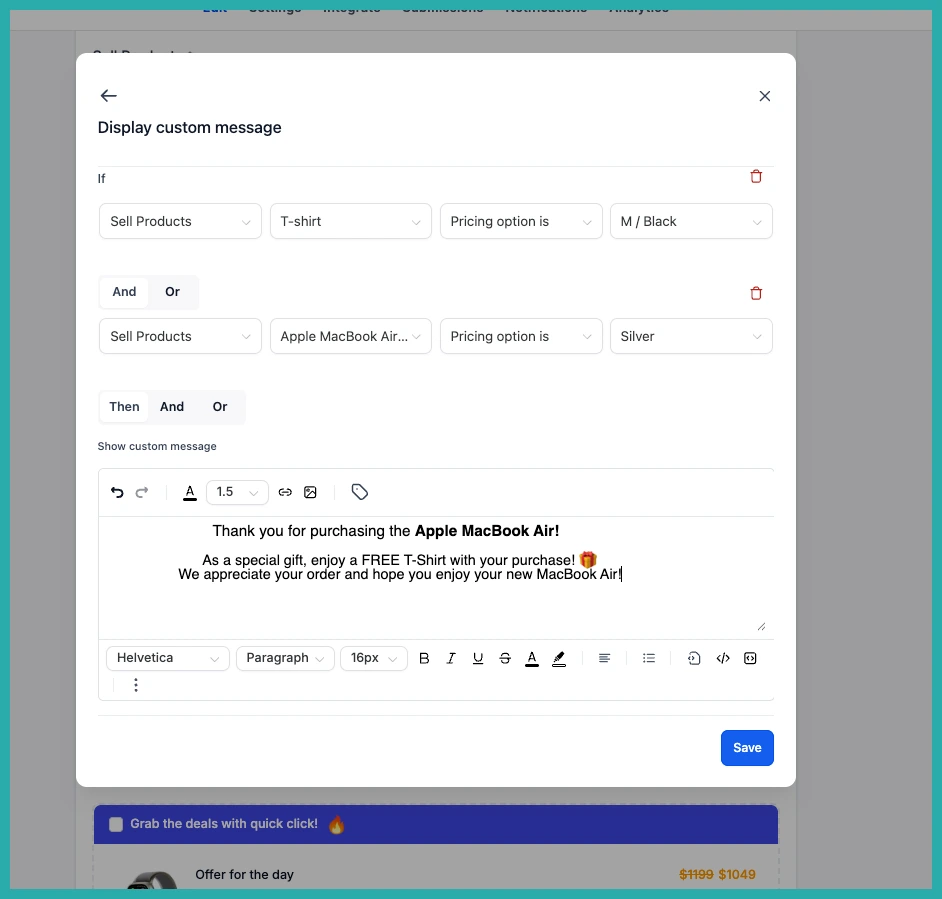
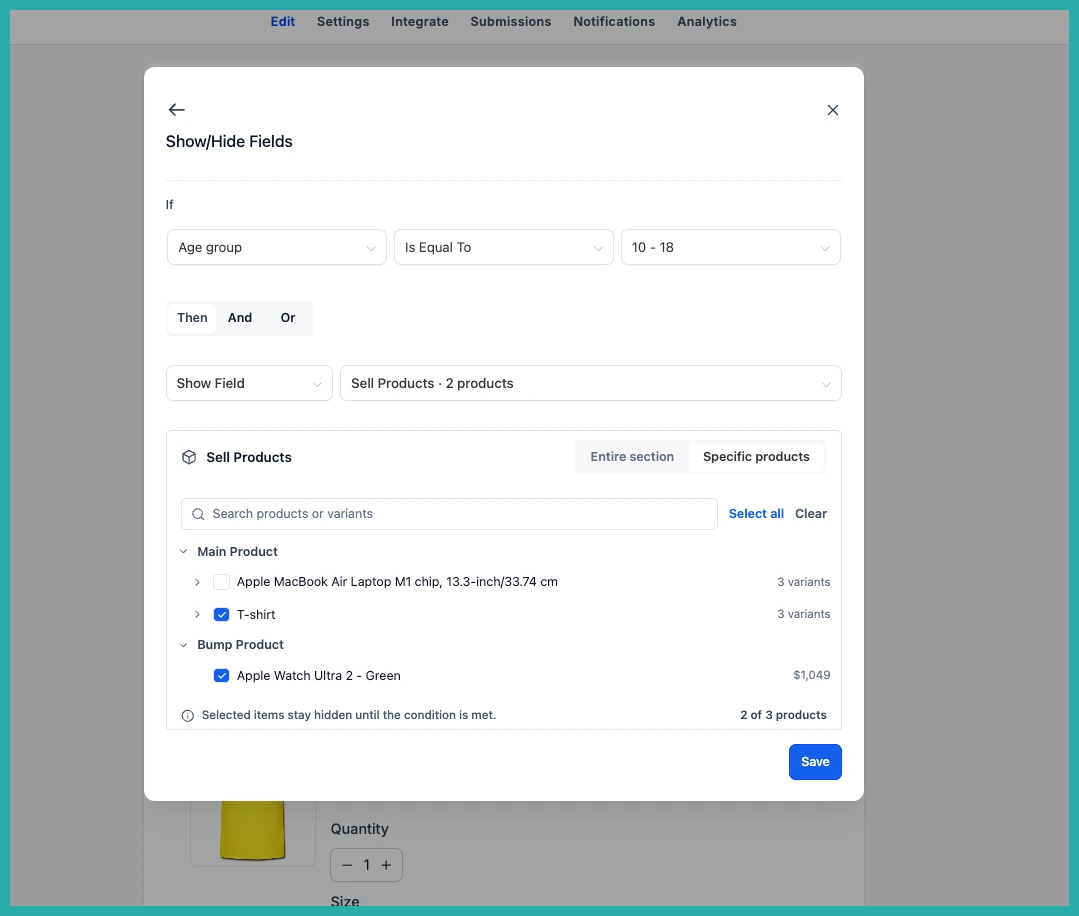
This is the part that makes your Order Forms feel personal. Choose the Show/Hide Fields logic type, and you'll now be able to target an individual product rather than the whole product block.
In the screenshot below, you can see a single product being set to show or hide based on an earlier answer.
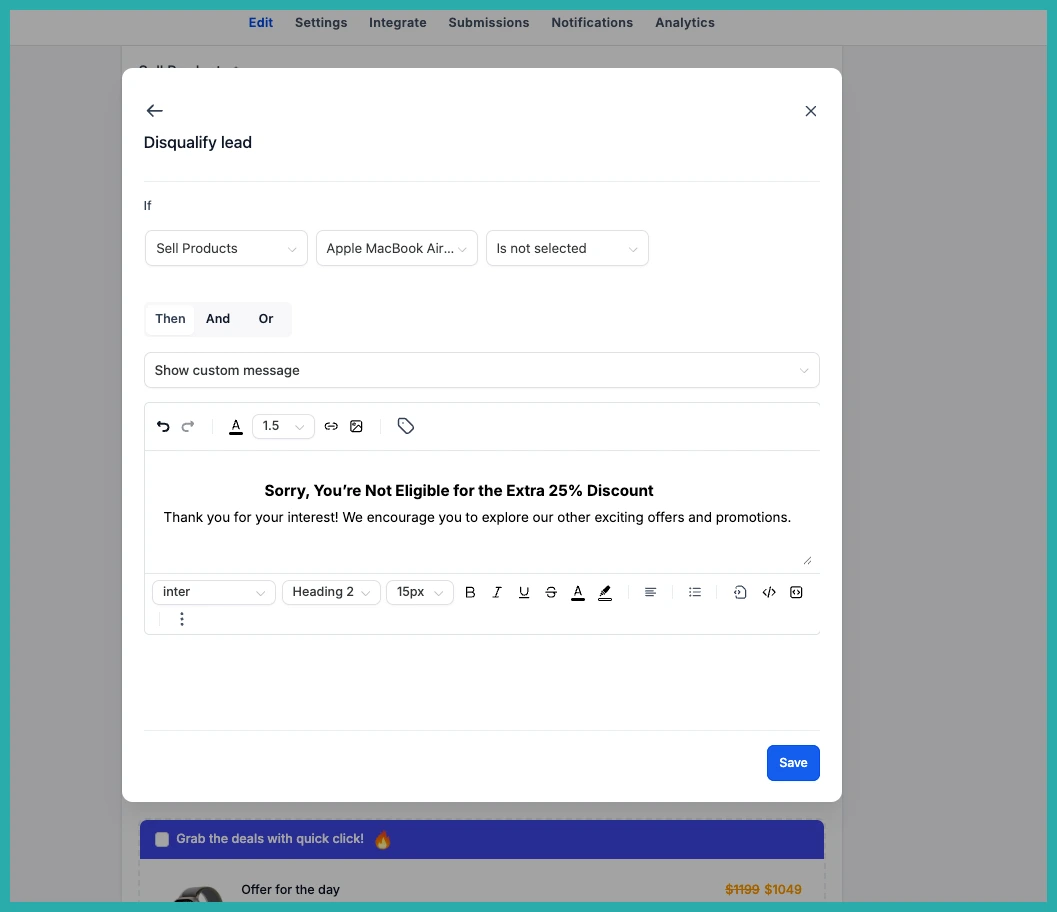
Want to go a level deeper? You can control individual variants too. If a product comes in a few options, you can show only the variants that match what the customer told you.
Putting it together
Here's the flow, start to finish:
- Open your Form or Survey builder.
- Go to the Conditional Logic section.
- Set an IF condition, choosing a product as the trigger if you like.
- Pick your logic type - redirect, message, disqualify, or show/hide.
- For show/hide, choose whether to target the whole product section, a single product, or a specific variant.
- Define when it should appear or disappear.
The result is an Order Form that guides each person to the options that suit them, and keeps everything else out of the way. No clutter, no irrelevant products, no customer scrolling past things that don't apply.
And if you've already built Forms the old way, nothing breaks. Showing or hiding the entire product section still works exactly as before - this just gives you finer control when you want it.
Have an Order Form that feels a bit cluttered? Open it up and try trimming it down to just what each customer needs to see. It's a small change that makes the whole thing feel considered.
