
Take Phone, Counter and Table Orders Straight From Your Account
Until now, the orders that came in over the phone or at the counter lived in one place, and your online orders lived in another. Two systems, two tabs, and a running tally in your head.
That gap is gone. Your staff can now place any order type - dine-in, pickup or delivery - straight into your account, so every order sits side by side in one list.
What you get
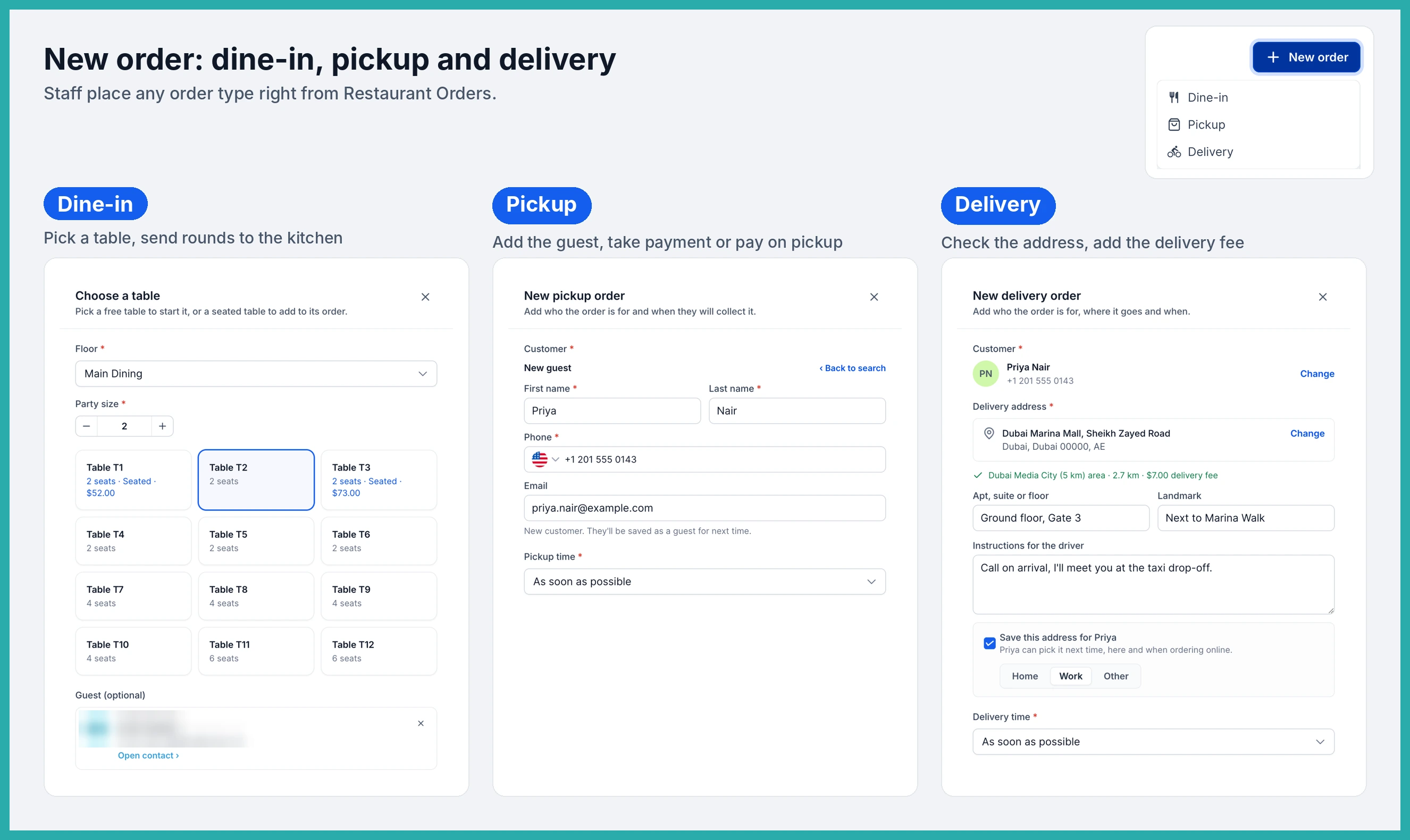
Restaurant Orders now has a New order button, and it handles all three order types from a single screen.
- Dine-in: Pick a table, build the round with options and a kitchen note, and send it through. The bill stays open so you can add more rounds.
- Pickup: Find or add the guest, choose a pickup time, add the items, and place the order.
- Delivery: Check the address to confirm it's in your delivery area, see the distance and fee, and leave notes for the driver.
You can also save a guest's address as Home, Work or Other, so the next order is quicker. And payment is flexible: charge a card, record a payment you've already taken, or set it to Pay on pickup or Pay on delivery.
Once the order is placed, it's accepted right away with a ready time set, and it heads straight to the kitchen.
How to place an order
- Go to Restaurants, then Restaurant Orders, and click New order.
- Choose Dine-in, Pickup or Delivery.
- Add the guest and the items, then click Send to kitchen or Place order.
In the screenshot below, you'll see the New order button and the three order types ready to go.
The real win here is simple: every order in one place. Phone and counter orders now sit right next to your online ones, and because guests and their addresses are saved, repeat orders take a fraction of the time.
One note on availability: this is for accounts using Restaurants on the Founder's plan. If that's you, open Restaurant Orders and give the New order button a try on your next walk-in.
