
Make a QR Code for Any Website Page in One Click
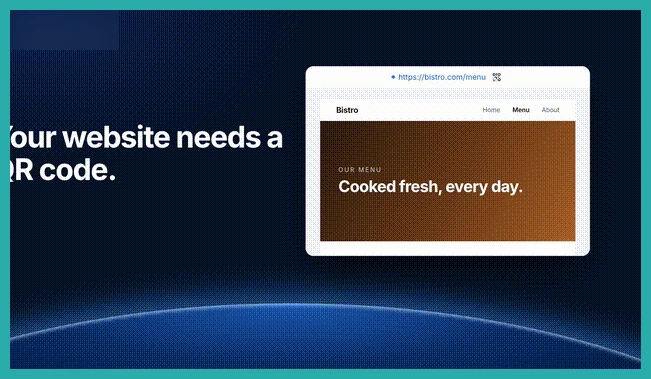
Your website is often the first thing you share out in the real world. On a flyer, a menu, a store window, a business card. And the usual way to point people there was a QR Code built from a copied-and-pasted link.
The trouble with that? Change your page slug or domain later, and your printed QR Code stops working. All those menus and cards, suddenly dead ends.
That's now sorted. QR Codes are built straight into Websites, just like they already are for Funnels.
What you get
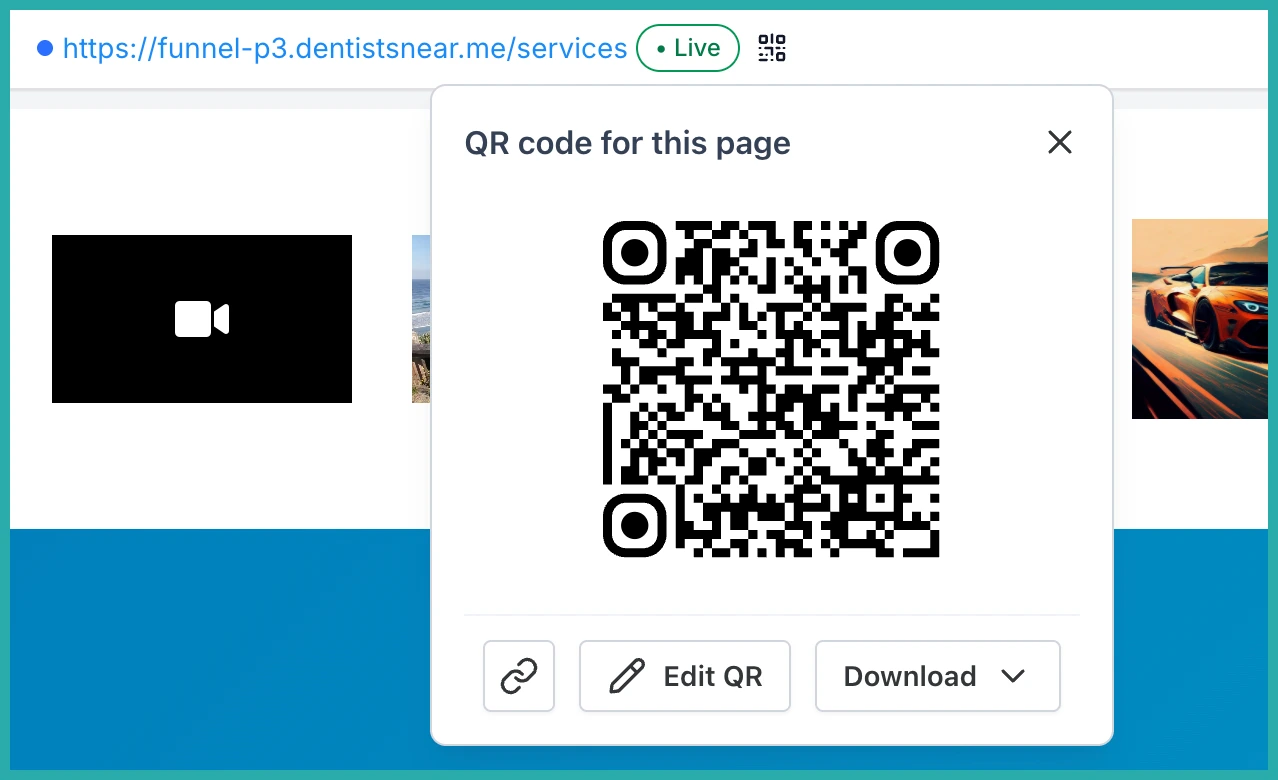
A QR Code icon now sits right next to your page URL in the Website Builder. One click and you can create, download, or customise a QR Code for the page you're editing - no copying URLs, no hunting through menus.
There's also a new Website type in the QR Code Builder. Pick a website, pick a page, done.
The best part: these QR Codes are tied to the page itself, not to a fixed URL. So if you change the slug or the domain down the track, the printed QR Code still opens the right page. Nothing to reprint.
Create one from the Website Builder
This is the quickest route. Open a website that has a connected domain, then open any page in the Website Builder.
In the screenshot below, you'll see the QR Code icon sitting next to the page URL. Click it.
From there you can download your QR Code as a PNG, SVG, or PDF - whichever suits print, signage, packaging, or digital use.
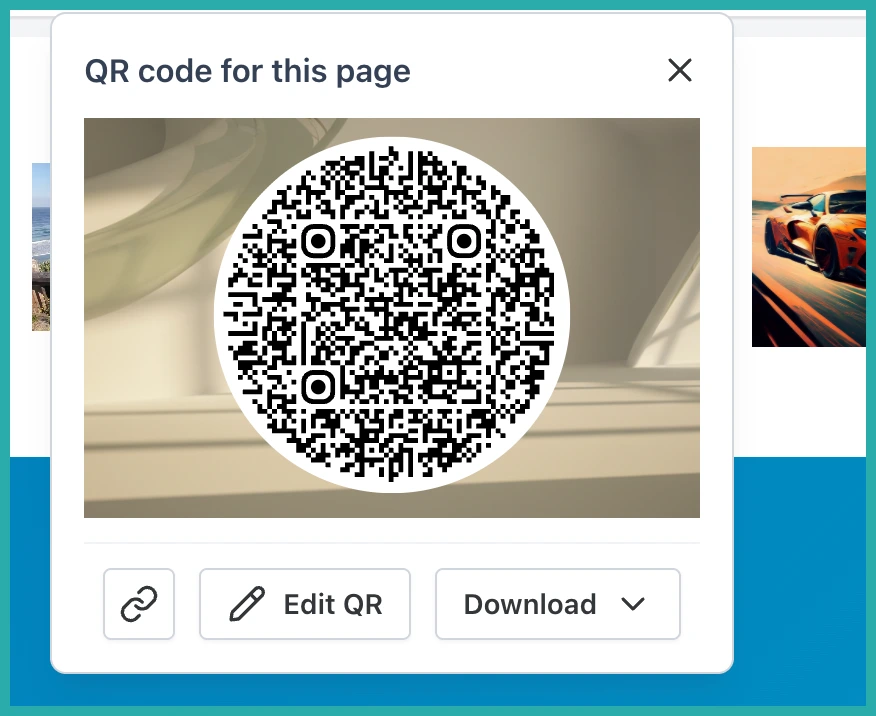
Want it to match your branding? Click Edit QR and you'll jump straight to the styling step, where you can set colours, shapes, and your own branding.
Once it's made, give it a quick scan with your phone to check it opens the right page. Takes a few seconds and saves any surprises later.
Create one from the QR Code Builder
If you'd rather build it from the QR side, you can do that too.
- Go to Sites, then QR Codes, then Create QR.
- Choose the Website type.
- Pick your website and your page from the two dropdowns.
In the screenshot below, you'll see those two dropdowns - one for the website, one for the page. That's all the setup there is.
Then style it how you like, save, and download.
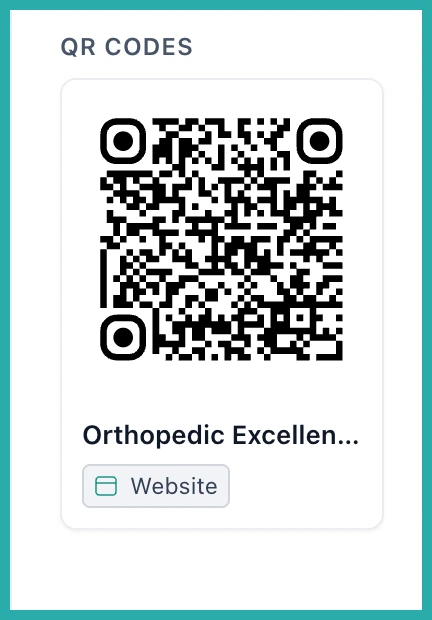
A couple of handy extras
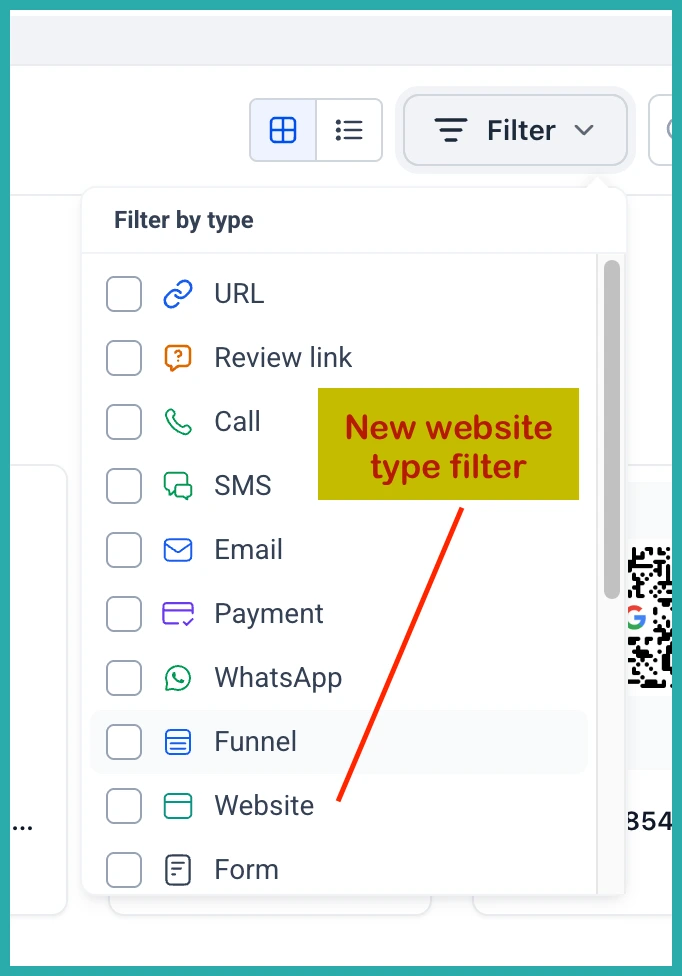
Website QR Codes support Add to Wallet, and the wallet pass shows both the Website and Page names so you always know what it points to. You can also filter your QR Codes list by the new Website type to find them fast.
One small note: the old QR type that was labelled "Website" (a plain link) is now called URL. Only the name changed. Any QR Codes you've already made keep working exactly as before.
If you've got a page you share offline, go make a QR Code for it now. One click, and it'll keep working no matter what you tweak later.
