
Manage All Your Page Schema From One Screen (No More Page-by-Page)
If you've ever wondered whether your pages are set up properly for Google and the newer AI answer engines, this one's for you. Schema is the behind-the-scenes markup that tells search engines what your page is actually about. Good schema makes your pages eligible for rich results and helps AI tools understand and cite your business.
The trouble was, keeping it current meant opening every single page in the builder, one at a time. So most sites fell out of date. Now there's a single dashboard that shows you everything at a glance and lets you fix it in bulk.
Where to find it
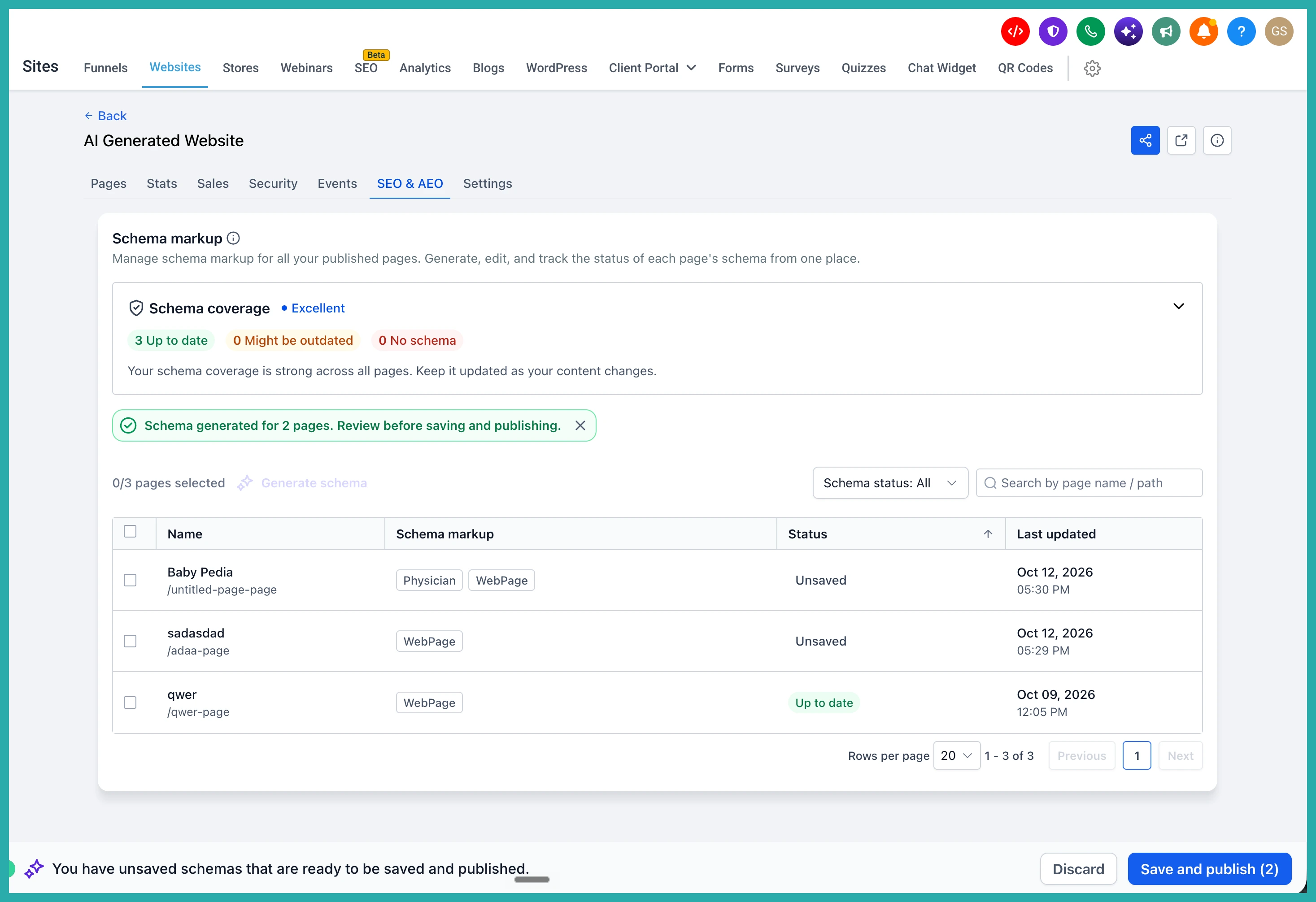
Go to Sites, choose Websites or Funnels, select the one you want, then open the new SEO & AEO tab. Every website and funnel has one now, and any schema you already had shows up there automatically.
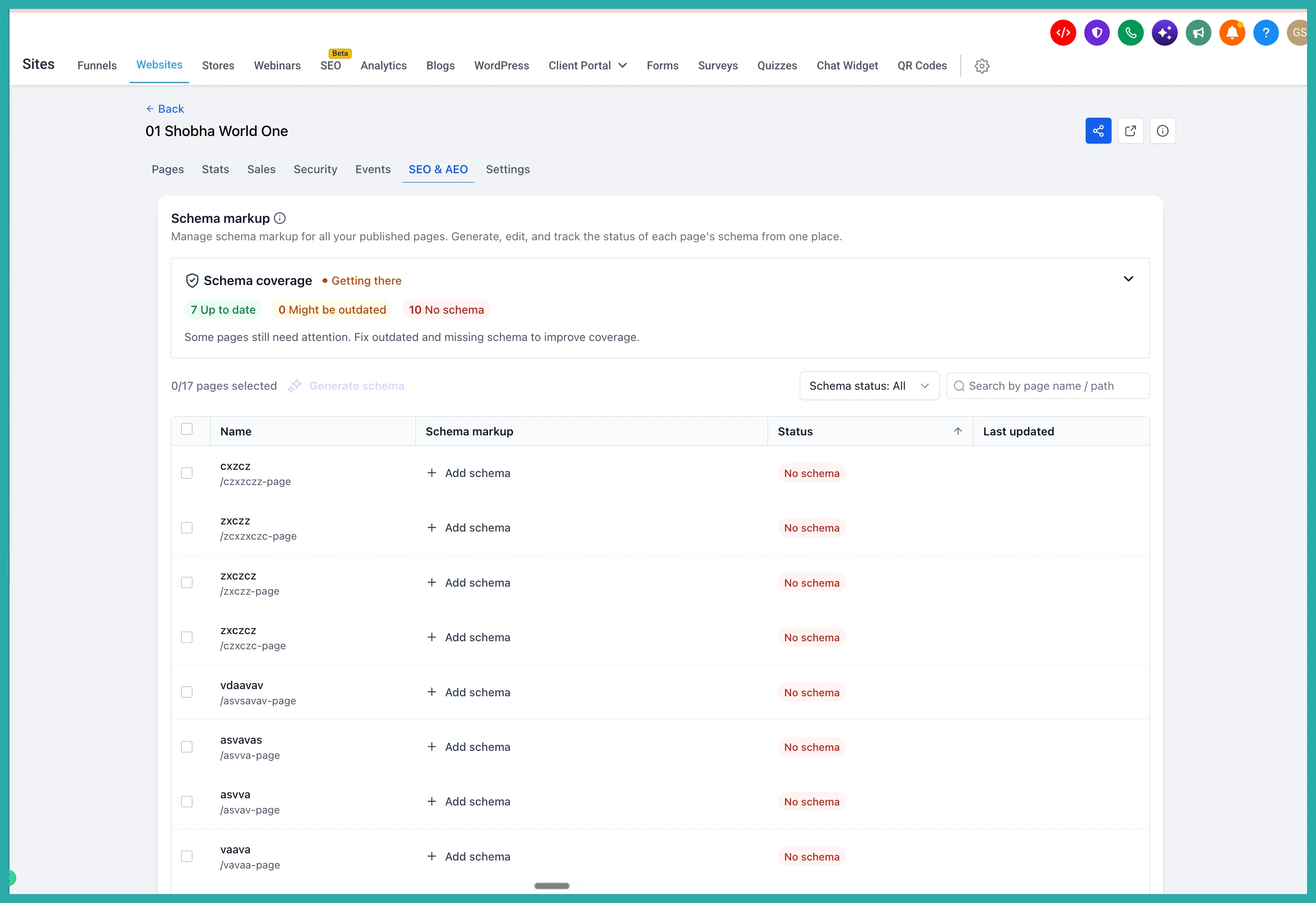
The first thing you'll see is the Schema coverage card. It rates your whole site as Needs work, Getting there, Good, or Excellent, with counts for how many pages are Up to date, Might be outdated, or have No schema.
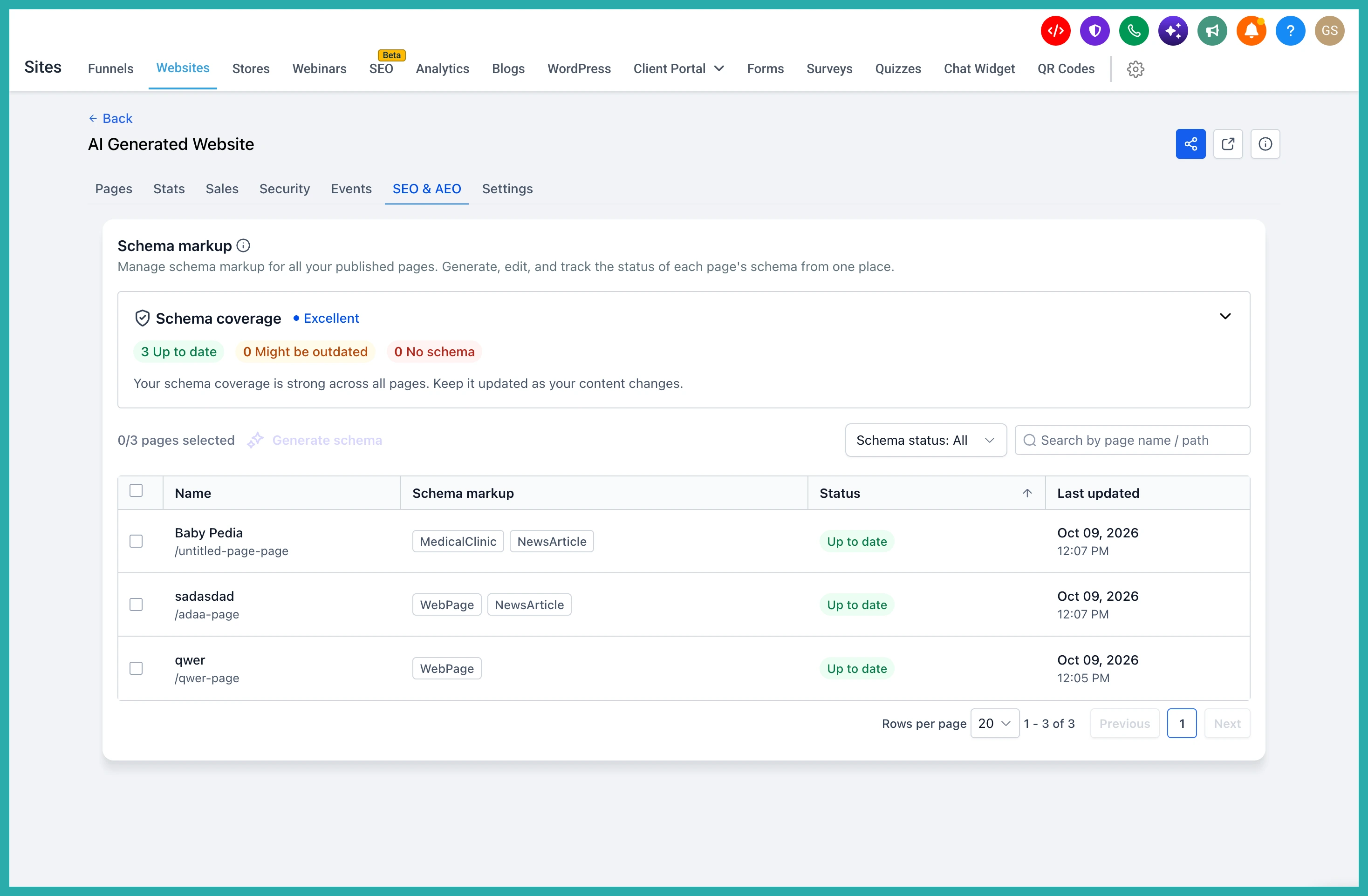
Below that, every page is listed with its schema types, its status, and when it was last updated. Statuses you'll see are Up to date, Might be outdated, No schema, Unpublished, and Unsaved.
One clever touch: if a page has been edited and republished two or more times since its schema was created, it gets flagged Might be outdated. That's your nudge to take a look.
Finding what needs attention
You don't have to scroll through everything. Search by page name or path, or filter by schema status. Filtering by No schema or Might be outdated is the fastest way to see exactly what needs your attention.
Generating schema with AI
This is where it saves real time. Select the pages you want to sort out, then click Generate schema. You can do one page or many at once.
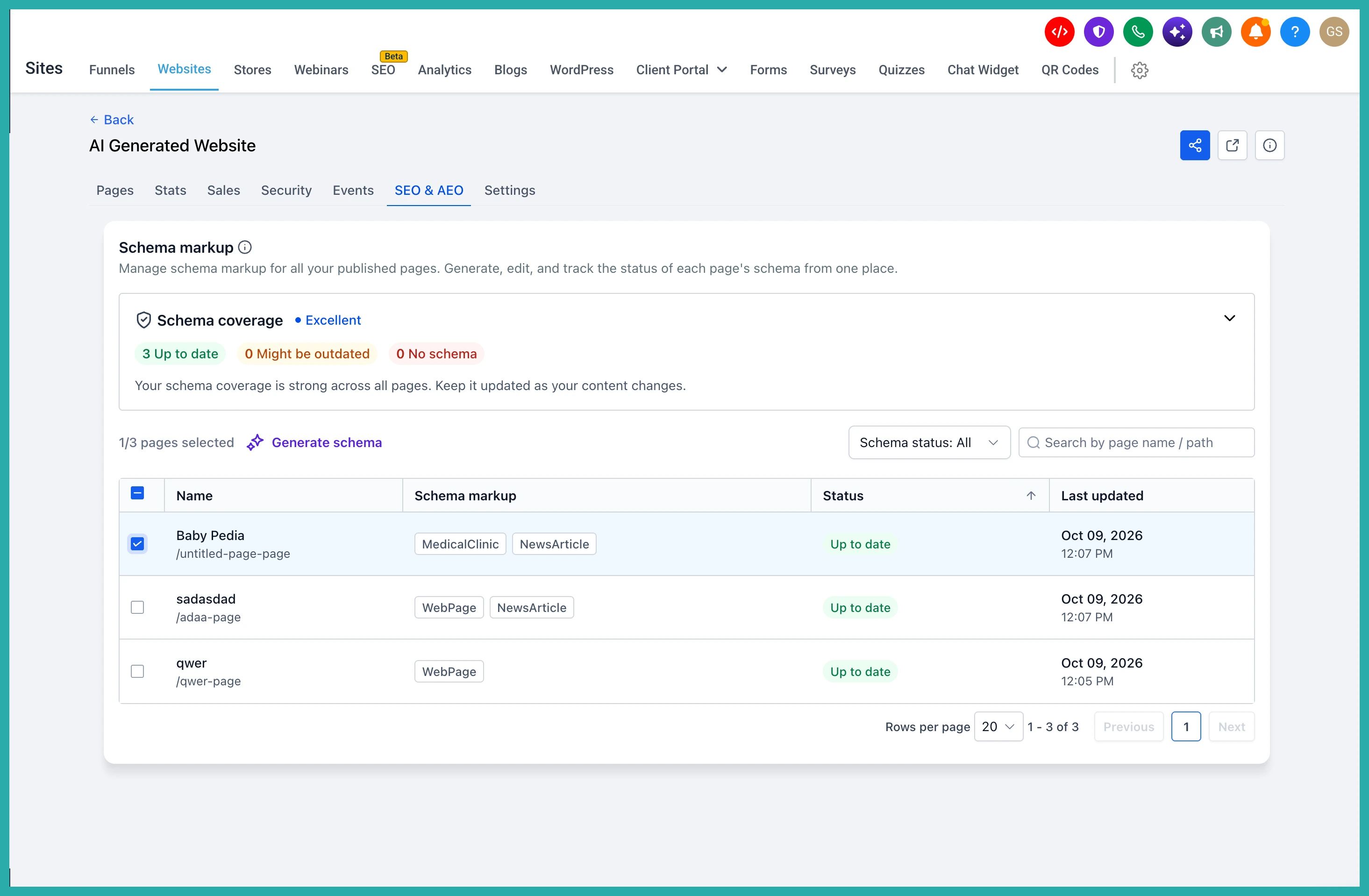
Progress shows live as it works through your selection, so you're not left guessing.
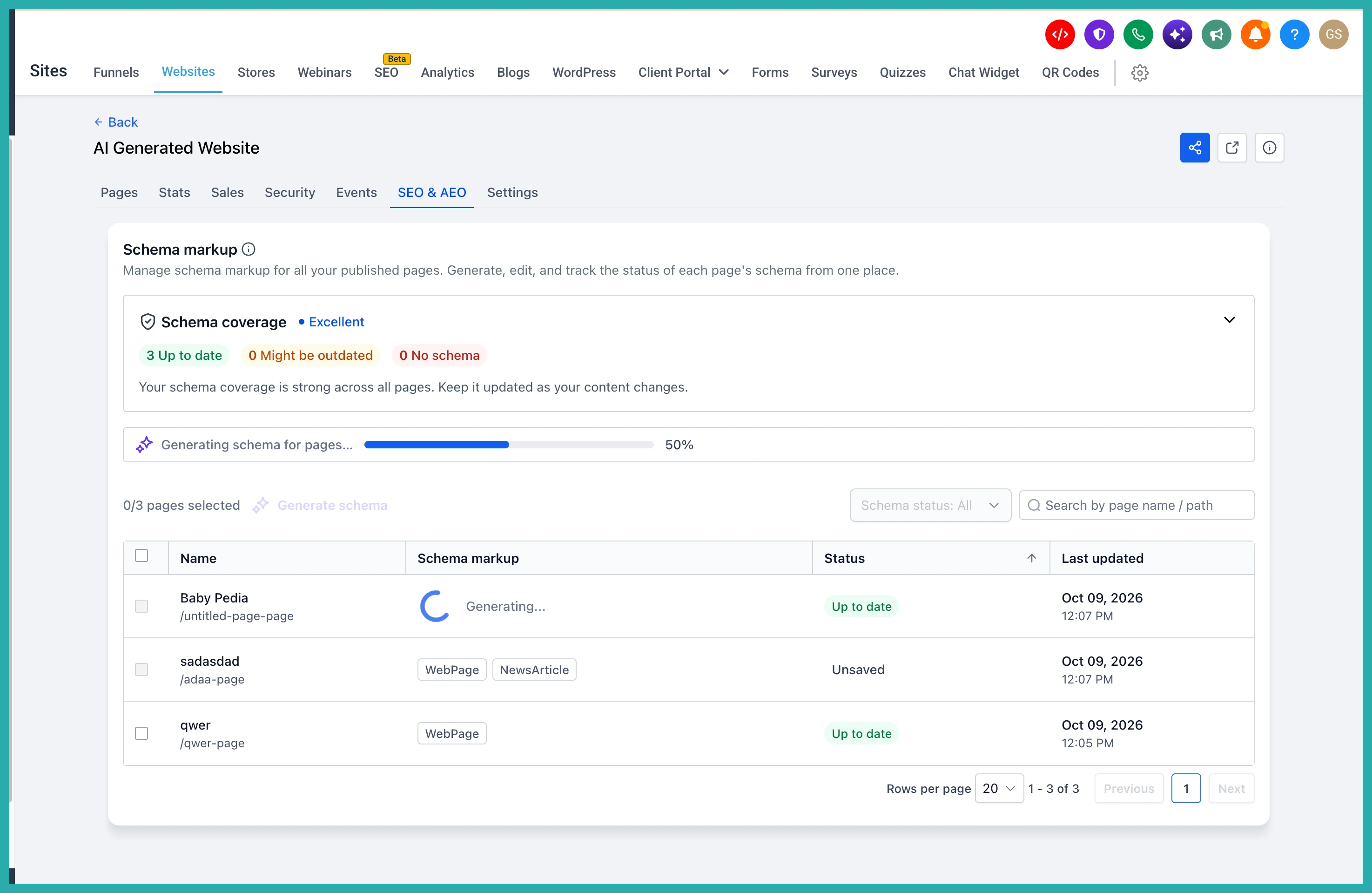
When it's done, the generated schema appears for your review before anything goes live. Nothing publishes automatically, which means you stay in control.
Adding or editing schema by hand
Prefer to do it yourself? For any page with none, click + Add schema. To change existing schema, click any schema tag to open the editor.
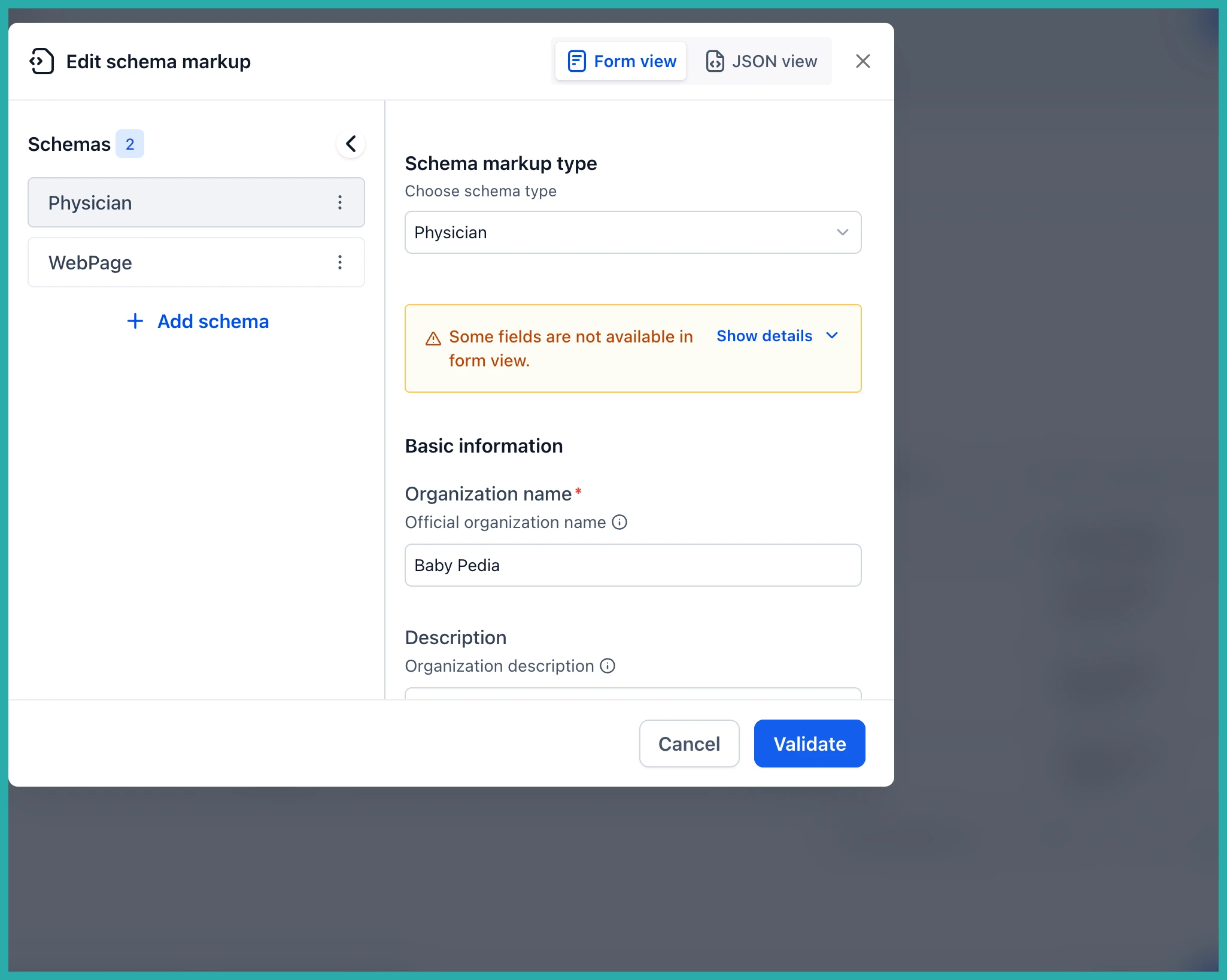
Whether it's AI-generated or hand-edited, the schema stays marked Unsaved until you click Save and publish. If you're not happy with it, just click Discard. Simple as that.
A couple of honest notes
Nothing was lost in this change and there's no action you're required to take. Editing schema inside the page builder still works exactly as it did, and the two places stay in sync.
One thing to watch: running Generate schema on a page that already has schema replaces it entirely. So have a quick look at the results before you hit Save and publish.
If keeping your schema current has always felt like a chore you kept putting off, open the SEO & AEO tab and filter by No schema. You'll probably sort out a whole batch of pages in a few minutes.
