
Link One Contact to Every Company They Work With
A quick heads-up: this one's in Labs
It's an early feature you turn on yourself in Settings > Labs inside your account. It works, but it's still in development - the documentation and support is limited and not everything will behave perfectly yet.
If you like getting your hands on new things early, switch it on and have a play. If you'd rather wait for the finished, fully-supported version, leave it off and we'll let you know when it lands.
Some people wear more than one hat. Your accountant supports three of your client companies. A consultant works across every account you manage. Until now, you either duplicated their details or picked one company and ignored the rest.
Now a single contact can be linked to every company they work with, all from the one record.
How it works
Every contact has a Primary Company. That's a system label, it links one company only, and you can't edit it. Your domain and business name automations still use it, so it stays central.
What's new is that you can create your own association label and sit it alongside the Primary Company. That custom label can allow many companies, so one contact can connect to several at once without touching their Primary Company.
Setting up the label
Head to Settings, then Objects, then Companies, and open the Associations tab. Click Create association, choose Contacts, give your labels a name, and set the relationship to Many Companies.
That last setting is the important one. It's what lets a single contact link to more than one company.
Linking a contact to companies
Open the contact you want to connect. Next to Companies, click Add, pick the company, and choose your new label.
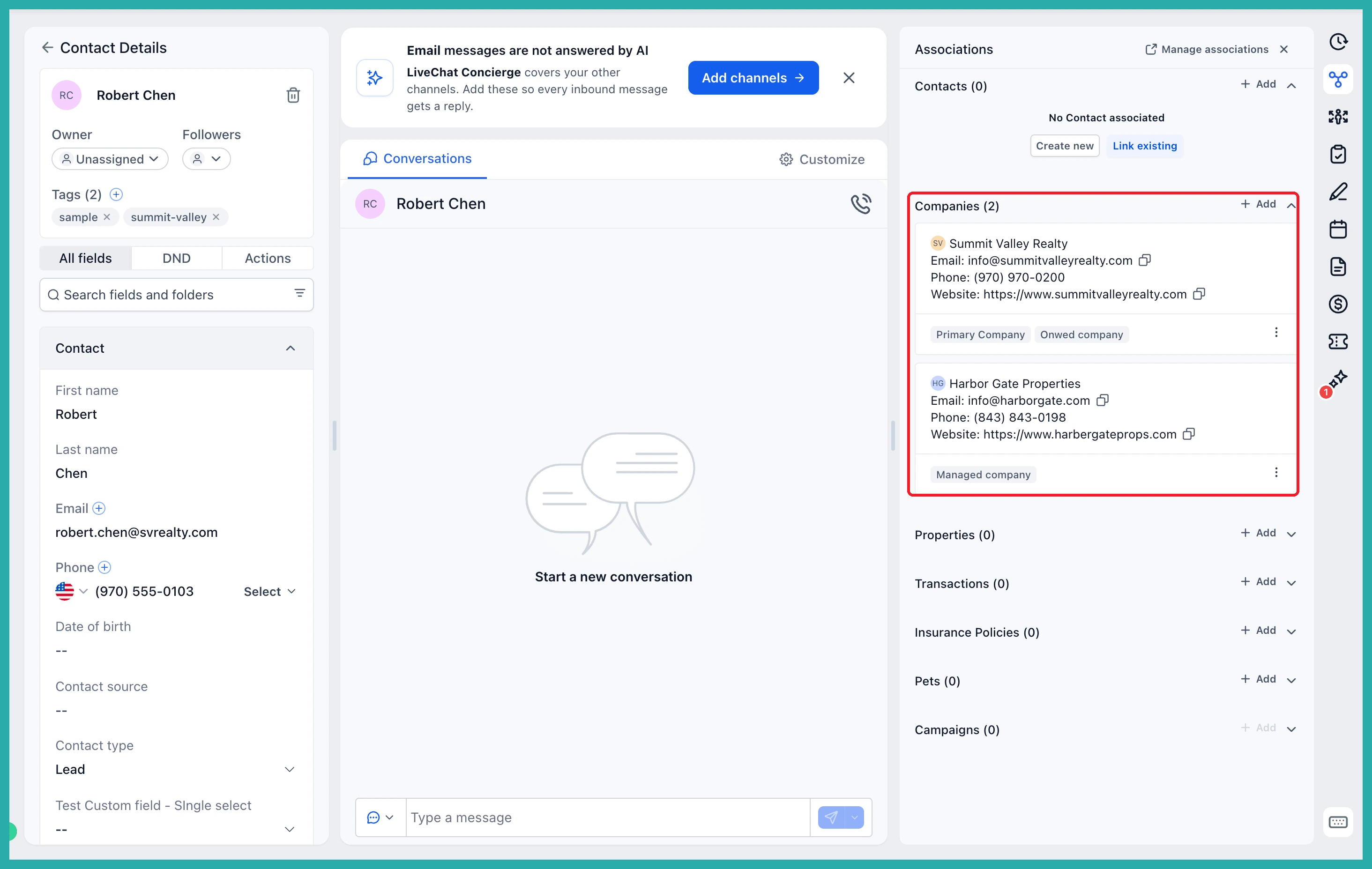
In the screenshot above, you'll see where you add the company and apply the label. Save, then repeat to add another company, and another, up to whatever limit you set on the association.
You can also work from the other direction. Open a company, go to its Associations tab, choose Contacts, and link an existing contact there instead. Same result, whichever side feels more natural.
A few things worth knowing
- Search before you create. Look for the contact and the company first so you're linking existing records, not making duplicates.
- Check your limits. The association needs to allow as many company links as your process actually needs.
- Keep Primary Company accurate. Company merge fields still pull from the Primary Company, not the extra links. So if you use company details in your emails or pages, make sure the Primary Company is the right one.
One person, one record, connected to everyone they work with. Go link up that accountant who's spread across three of your accounts and see how much tidier it feels.
