
Inbox Preview: See Exactly How Your Emails Land in Gmail, Outlook and Apple Mail
A quick heads-up: this one's in Labs
It's an early feature you turn on yourself in Settings > Labs inside your account. It works, but it's still in development - the documentation and support is limited and not everything will behave perfectly yet.
If you like getting your hands on new things early, switch it on and have a play. If you'd rather wait for the finished, fully-supported version, leave it off and we'll let you know when it lands.
You build an email, it looks lovely on your screen, you hit send. Then it lands in someone's Gmail with the images stacked wrong, or in Outlook with the spacing all over the place, or in dark mode with white text on a white background.
The old desktop and mobile previews only ever showed you a simulation. They couldn't tell you how Gmail or Outlook would actually treat your email. Inbox Preview can.
What it does
Instead of guessing, you now see your email rendered in real email clients - Gmail, Outlook, Apple Mail and more - captured from the actual client, not a best-guess preview.
You can:
- Pick the clients you want to test, or start with the popular ones already selected for you.
- Filter by device (web, desktop, mobile) and by mode (light or dark), and pin the clients you check most so they're ready every time.
- Preview as a specific contact, so you see your email with their personalised details filled in.
- Compare layouts side by side to spot anything inconsistent in formatting, images or design, and open any preview full size for a proper look.
It also flags the practical stuff that trips people up: Outlook rendering quirks, dark-mode surprises, and Gmail clipping your email when it gets too long. You'll see your email's estimated size with a warning if Gmail is going to cut it off.
How to use it
Open an email in the email builder or the AI editor, then:
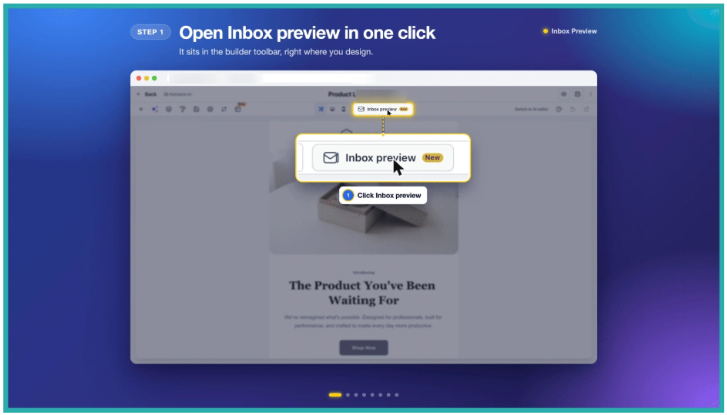
- Click Inbox preview in the toolbar, or open it from Preview & test.
- Select the email clients you want to test.
- Click Preview email, then review each client's preview as it comes through.
In the screenshot below, you'll see the email rendered across a few different clients at once, so you can scan for anything out of place at a glance.
One handy touch: if you go back and edit the email, Inbox Preview tells you which previews are now out of date, so you're never signing off on an old version by mistake.
Good to know
Each account gets a set number of inbox previews. Previews that fail don't count, so if one doesn't come through you can simply try it again.
Next time you've got an important email ready to go, run it through before you send. Catching a wonky layout now beats hearing about it from a customer later.
