
Coming soon: Your Forms Can Now Create Deals, Companies and Records Without a Contact
Coming soon
This one isn't available in your account just yet. We're sharing it now so you know what's on the way, and we'll let you know as soon as you can use it.
Up to now, every form was built around a contact. If you wanted a deal, a company or a custom record to come in from a form, you first had to collect a name, email or phone - whether you needed it or not.
That just changed. A form can now create an opportunity on its own, with no contact attached. It can also create two linked records at once: a deal and a company, a deal and a custom record, or a company and a custom record.
What you can now build
A few examples of what this opens up:
- Opportunity-only forms - a quote request or project inquiry that creates the deal, full stop.
- Opportunity + Company - a partner deal registration form.
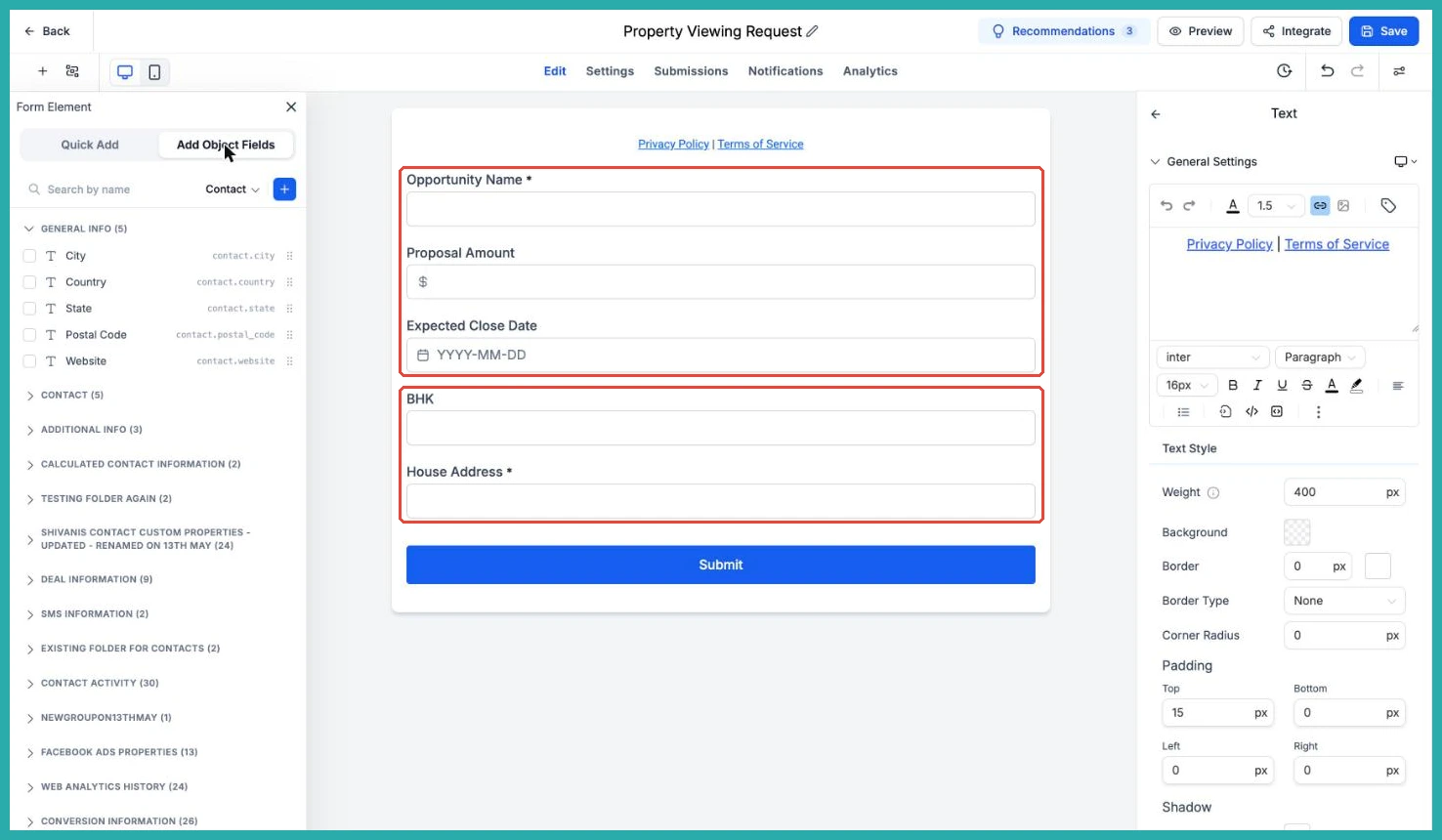
- Opportunity + Custom Object - a property viewing request that creates the deal and the property.
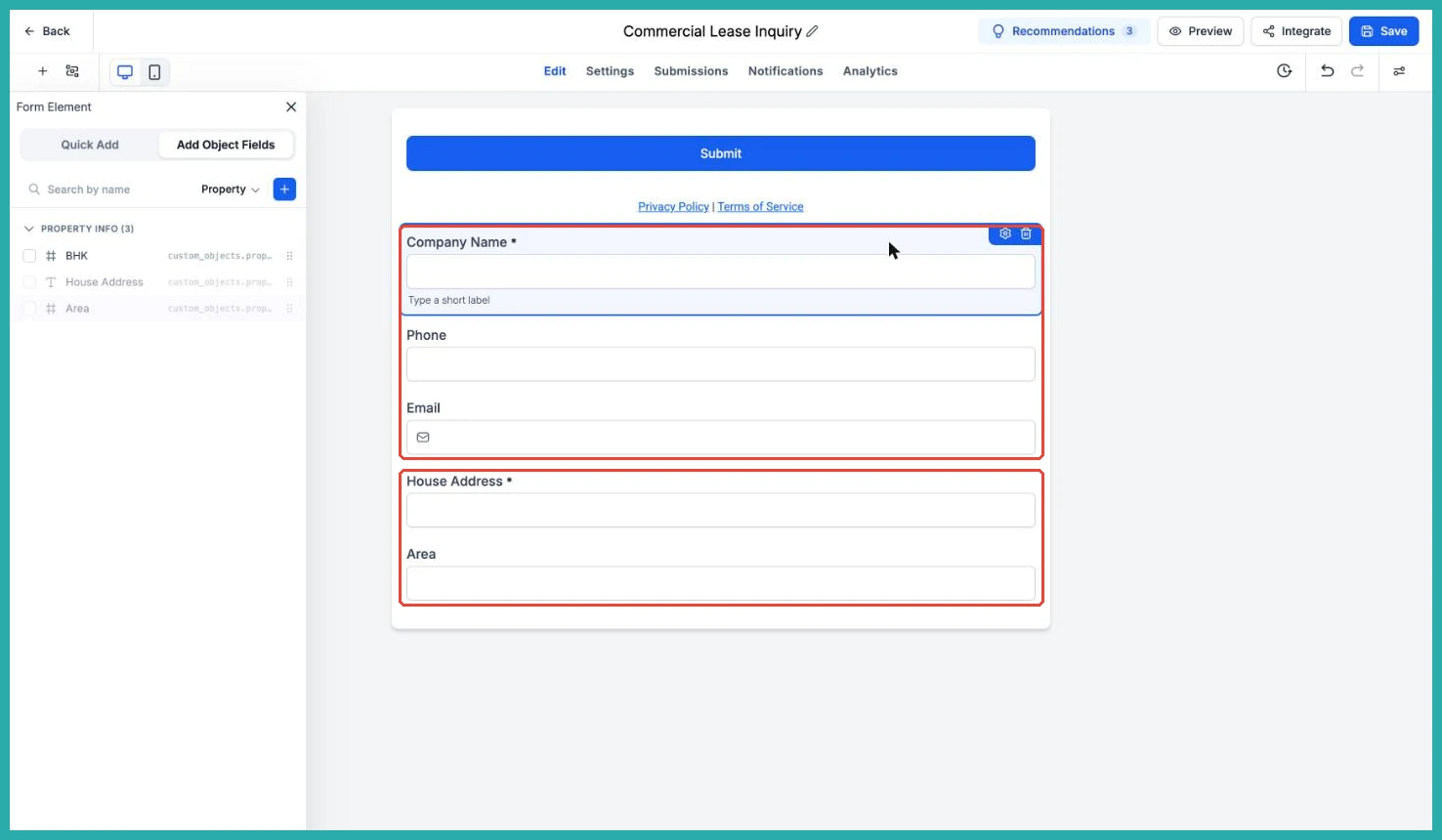
- Company + Custom Object - a commercial lease inquiry that creates the company and the property.
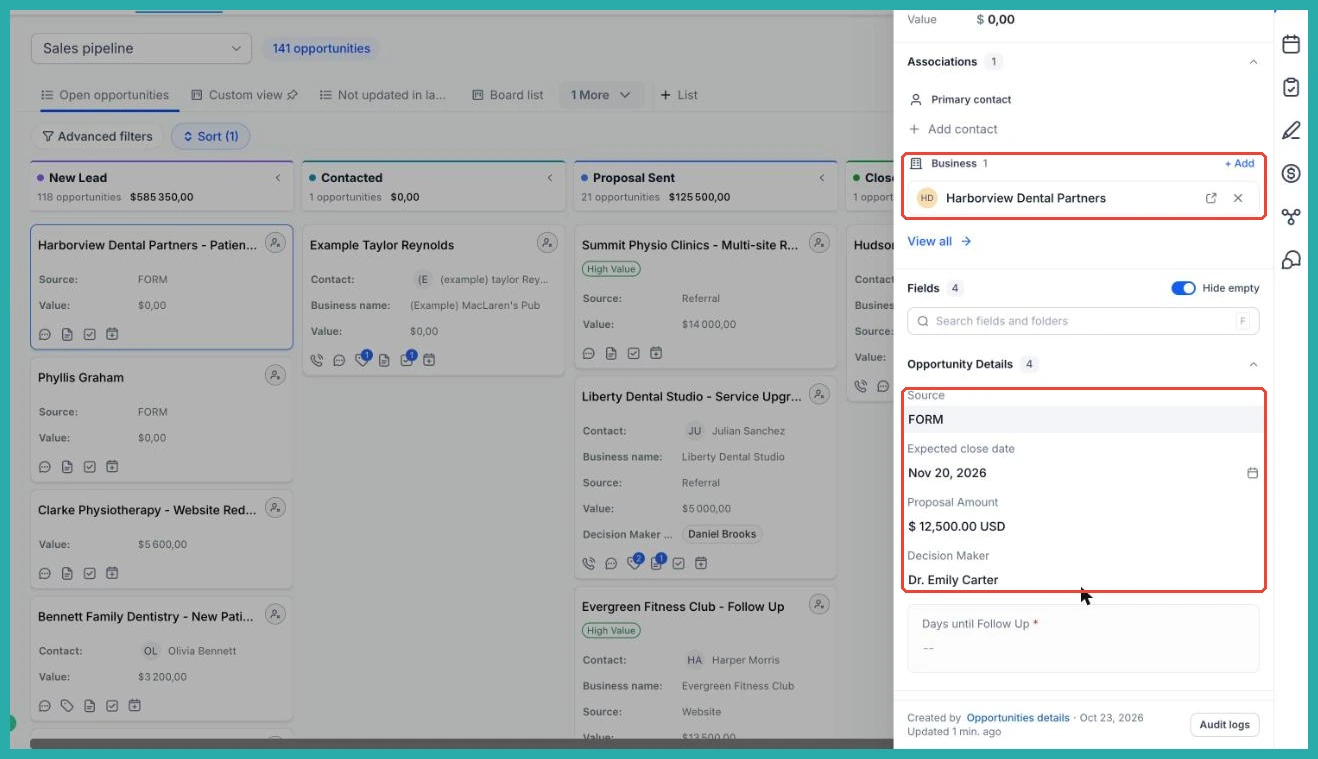
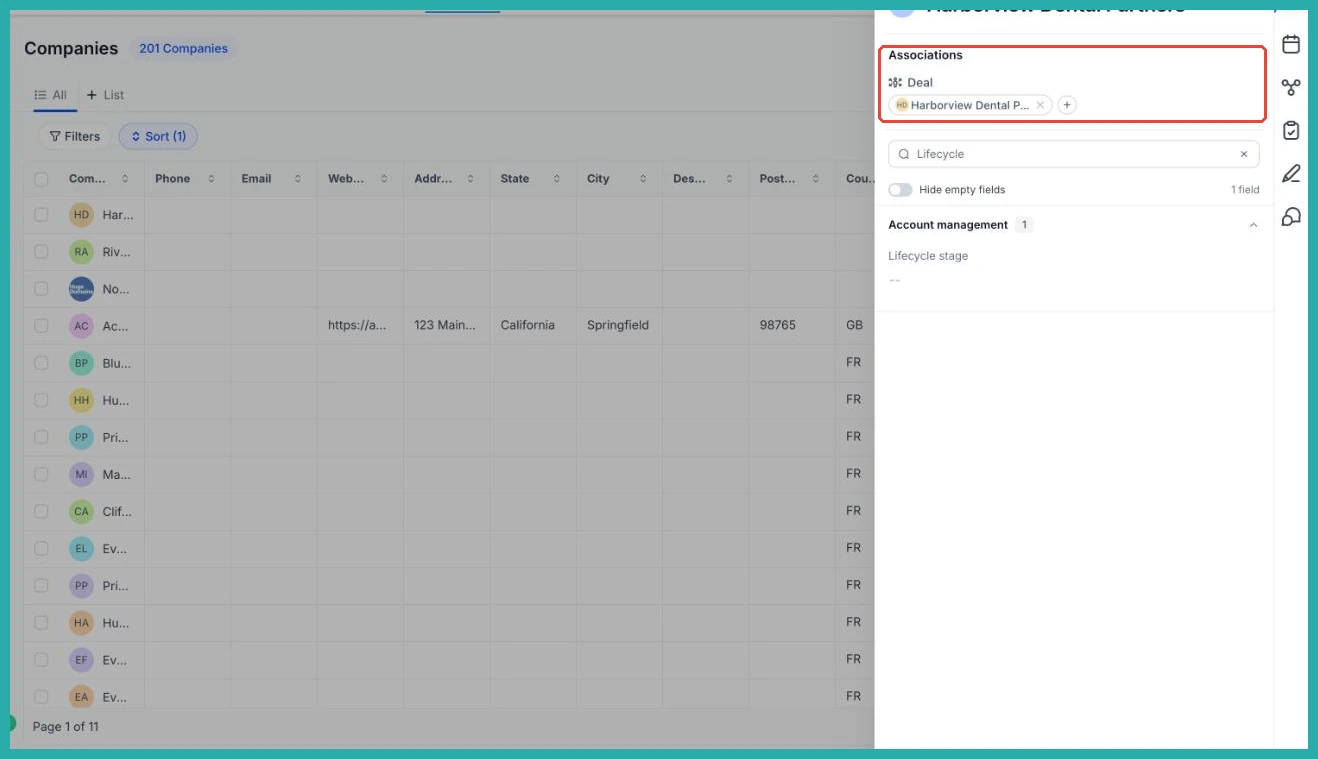
On submit, both records are created and linked with a relationship label you choose, and opportunities land in the pipeline stage you set, tagged with Source FORM.
Setting it up
Head to Sites, then Forms, and open an existing form or create a new one. The first thing to do is remove the default contact fields, since you no longer need them.

Now click Add Object Fields. In the dropdown you'll see Opportunity, Company and any custom objects you've set up. Pick the one you want and add its fields.
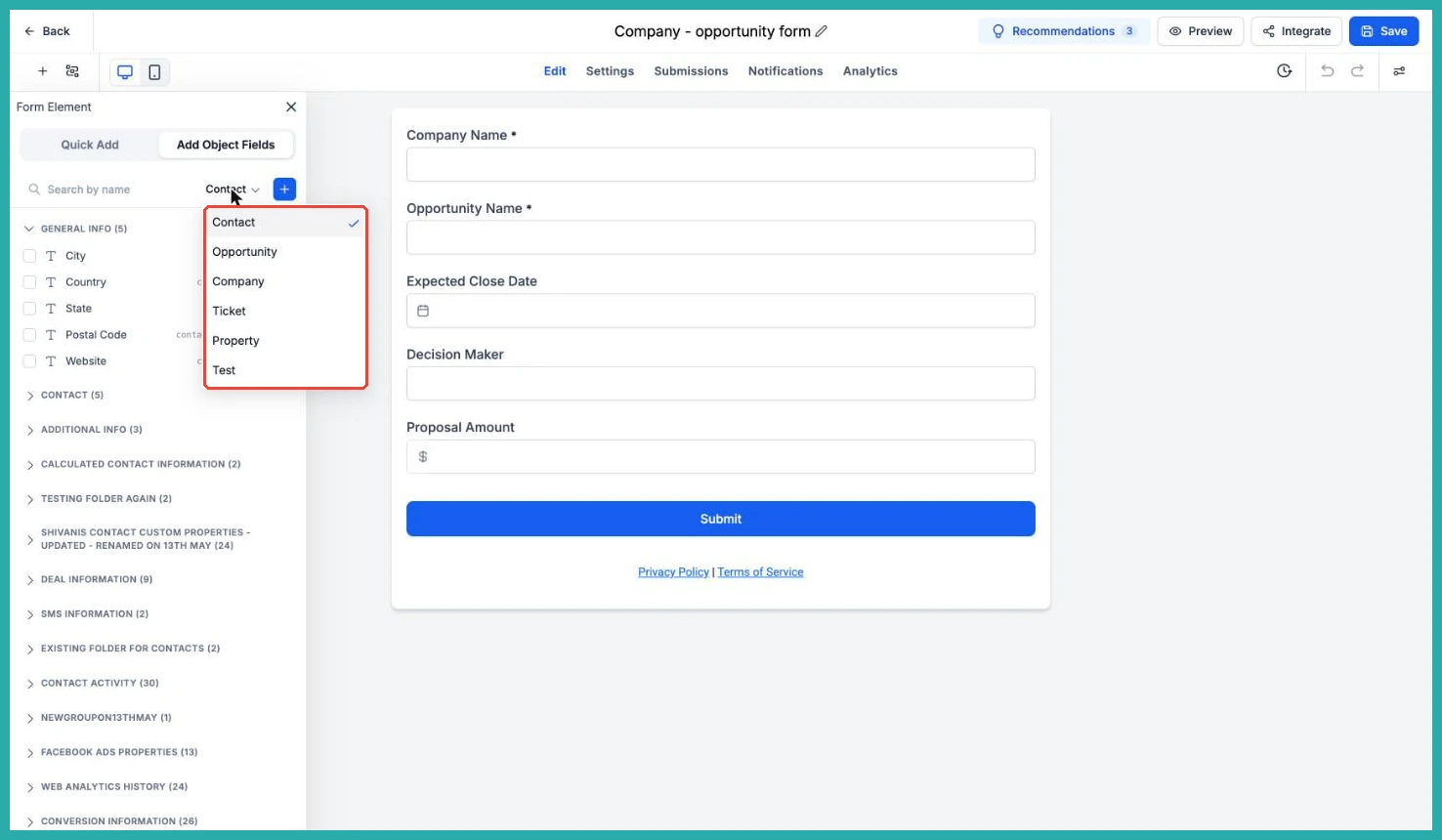
If your form only needs an opportunity - say a simple quote request - you can stop here with just the opportunity fields in place.
Adding a second, linked record
Want the form to create two records? Switch the object dropdown to Company or a custom object and add its fields alongside the first.
When you add that second object, a pop-up asks how the two records should be linked. Choose the association label - something like Business, Primary Company or Listing - then save.
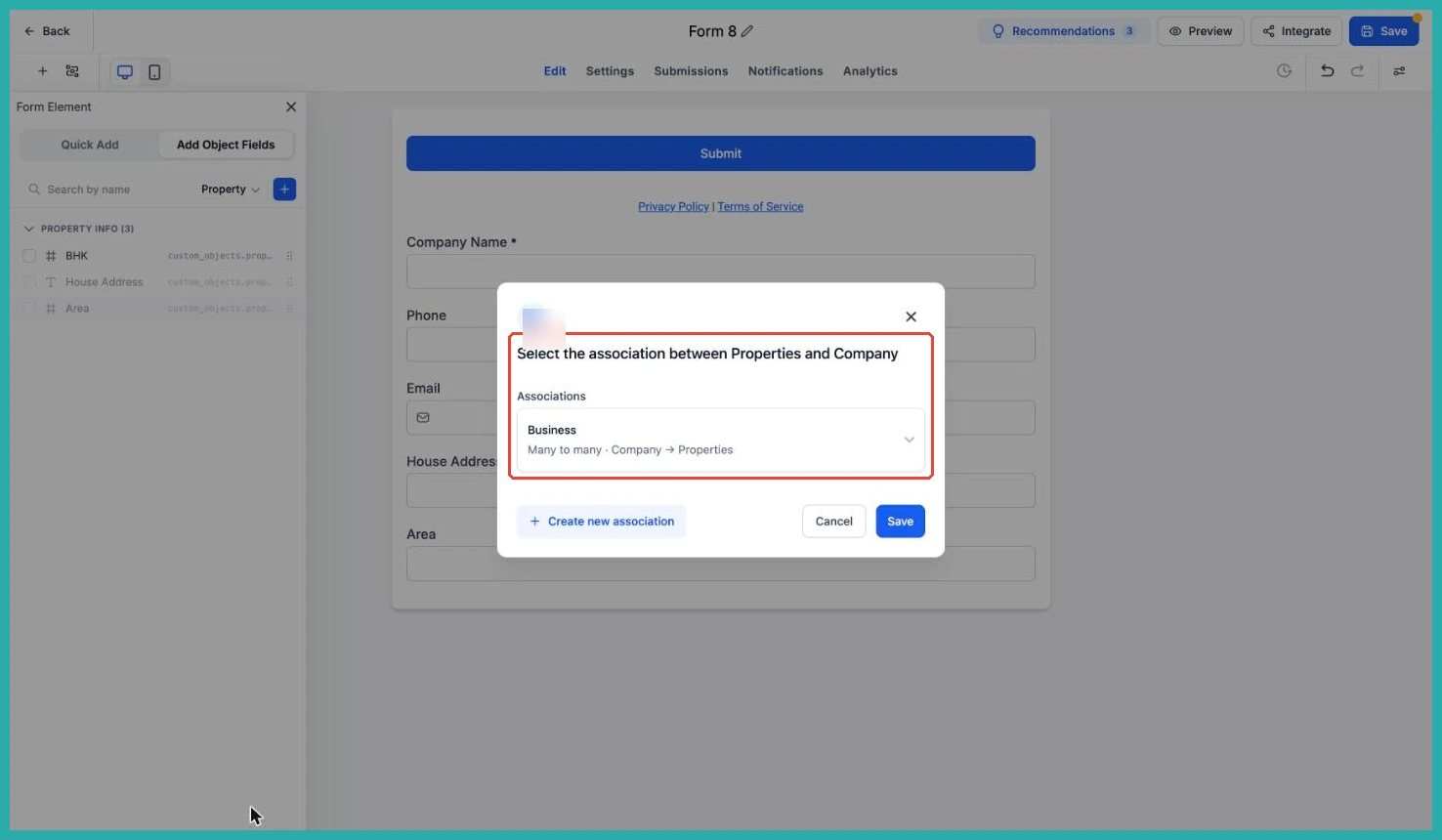
These labels come from your association settings, so if the one you need isn't there yet, pop into Settings, Objects, then Associations and create it before you build the form.
Telling the opportunity where to go
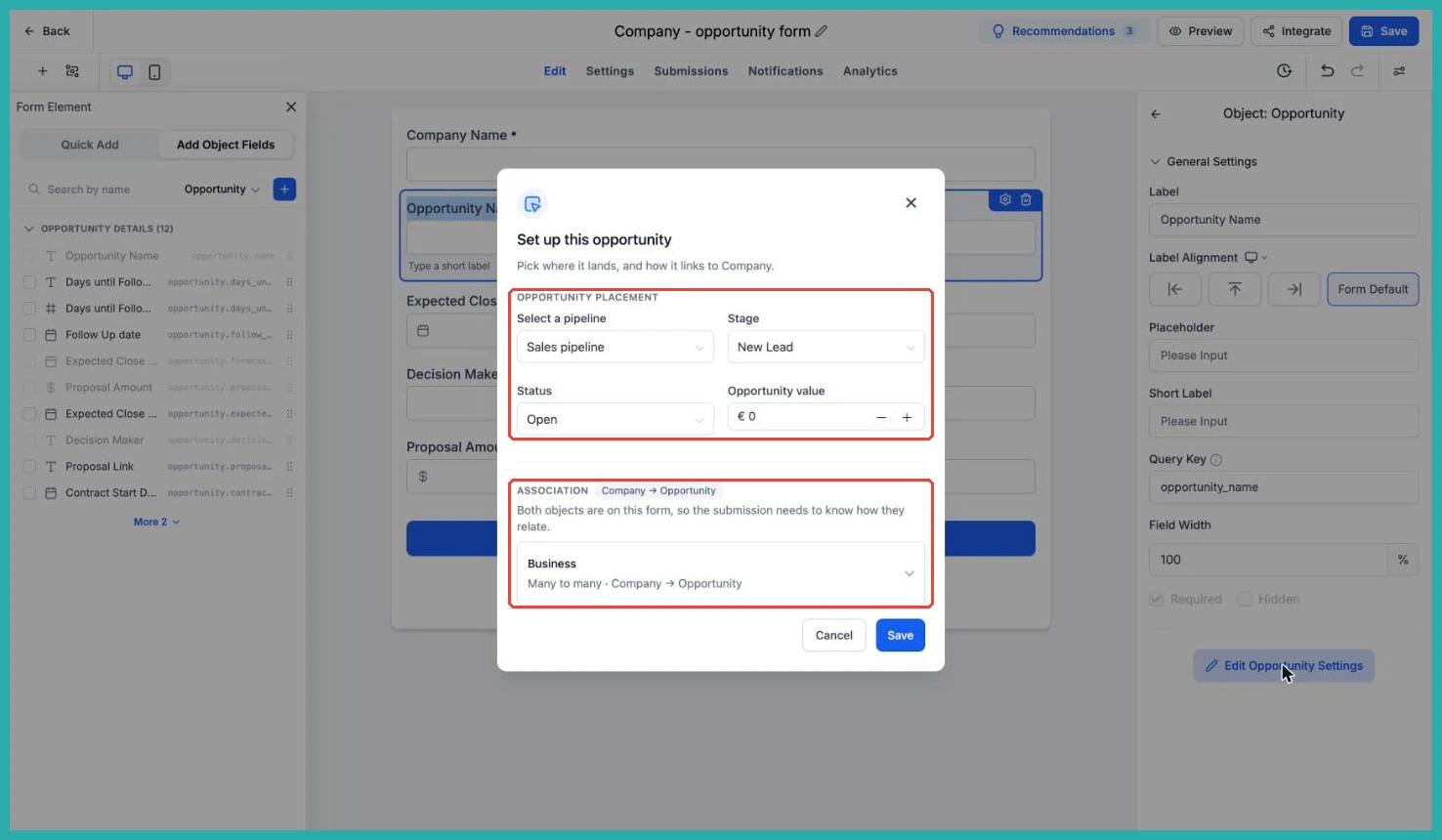
For any form with opportunity fields, click Opportunity Name, then Edit Opportunity Settings. Here you choose the pipeline, stage, status and value every submission should use.
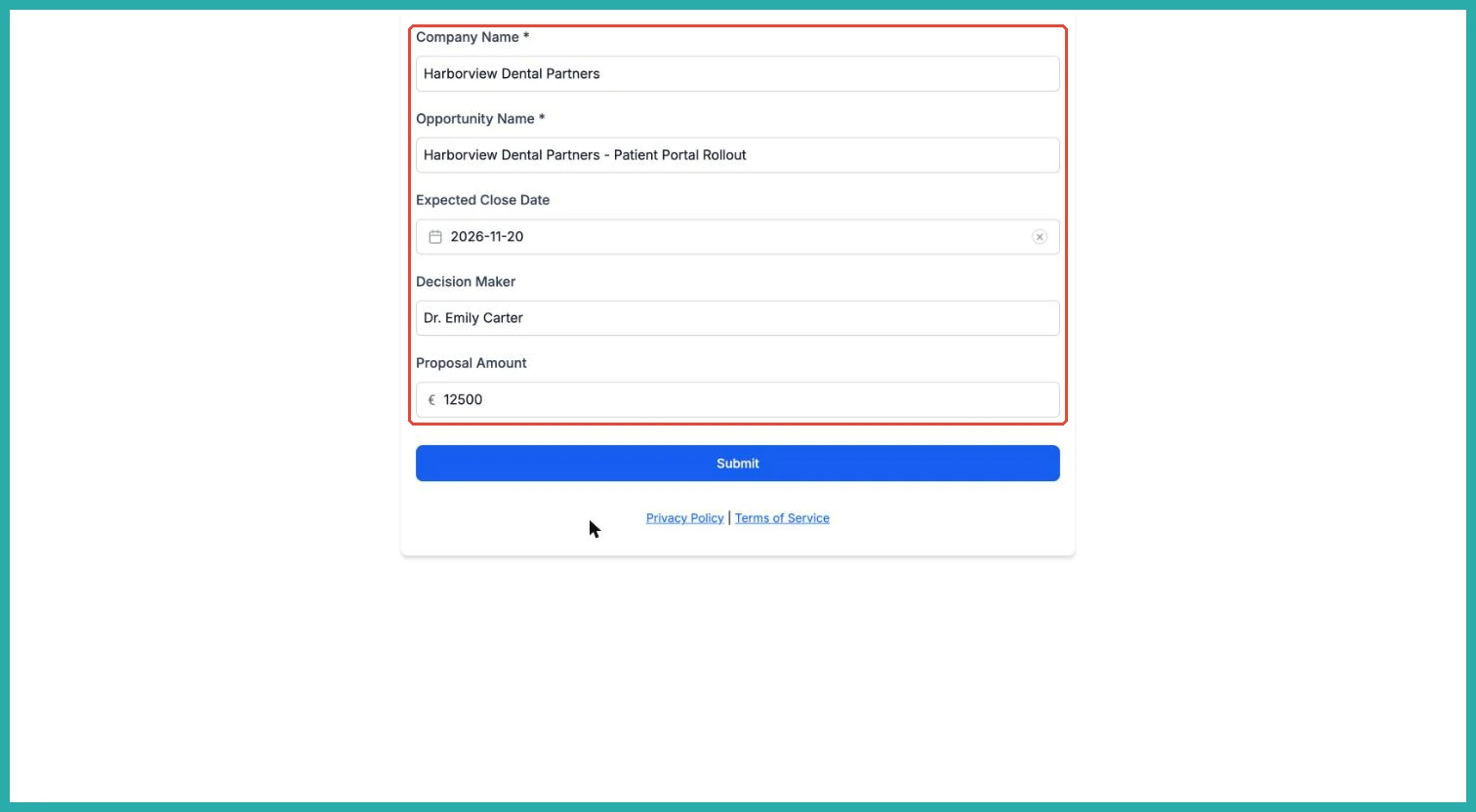
One thing worth knowing: the opportunity value is set here, not pulled from the form. If you want the visitor to tell you an amount, add an opportunity custom field such as Proposal Amount and use that instead.
Share it and watch the records roll in
Save the form and share it as you normally would. Every entry shows up under Submissions, and the records arrive already created and linked with the right relationship label.
A couple of quick reminders: Opportunity Name is required on any form that includes opportunity fields, and this is part of the Opportunity-First beta, so your account is already switched on for it.
If you've ever rebuilt a deal by hand after a form came in, this will save you that step entirely. Go build one and let it do the linking for you.
