
Notification Settings in Your Forms Now Have Their Own Tab (and Clearer Tooltips)
If you've ever built a form and then hunted around for where on earth the notification settings live, this one's for you. They used to be tucked behind a small icon that was easy to scroll right past.
Now they have their own clearly labeled tab, and the little tooltips around the builder actually explain themselves.
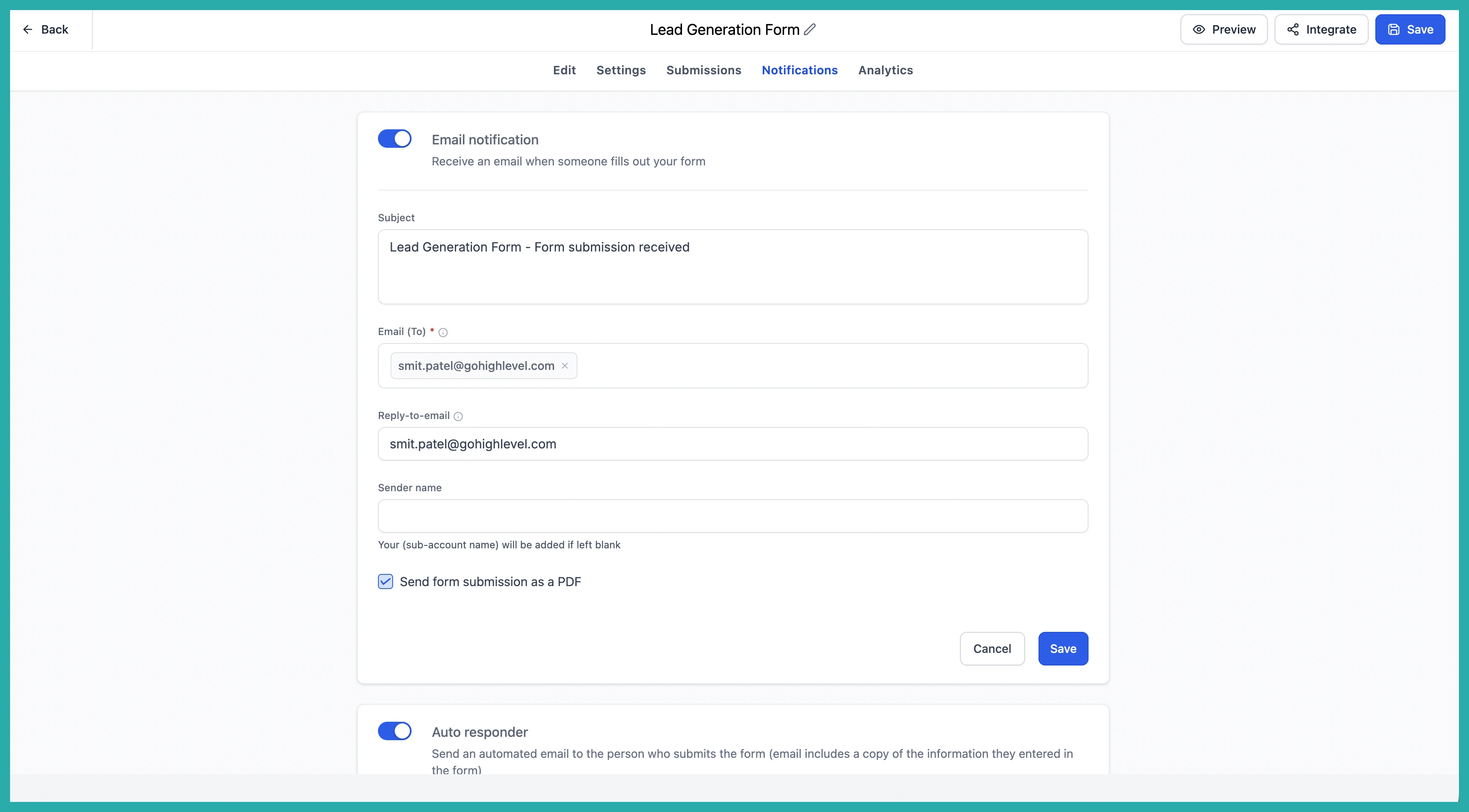
Notifications now have their own tab
Open up any form, survey, or quiz in the builder and you'll see a Notifications tab sitting right there. No more squinting for an icon or guessing which button does what.
In the screenshot below, you'll see the new tab in place. Click it and you've got your notification preferences ready to set, the same options you've always had, just somewhere you can actually find them.
Nothing about how notifications work has changed. If you've already got them set up, they keep running exactly as they did. This is purely about making them easy to reach.
Tooltips that actually tell you something
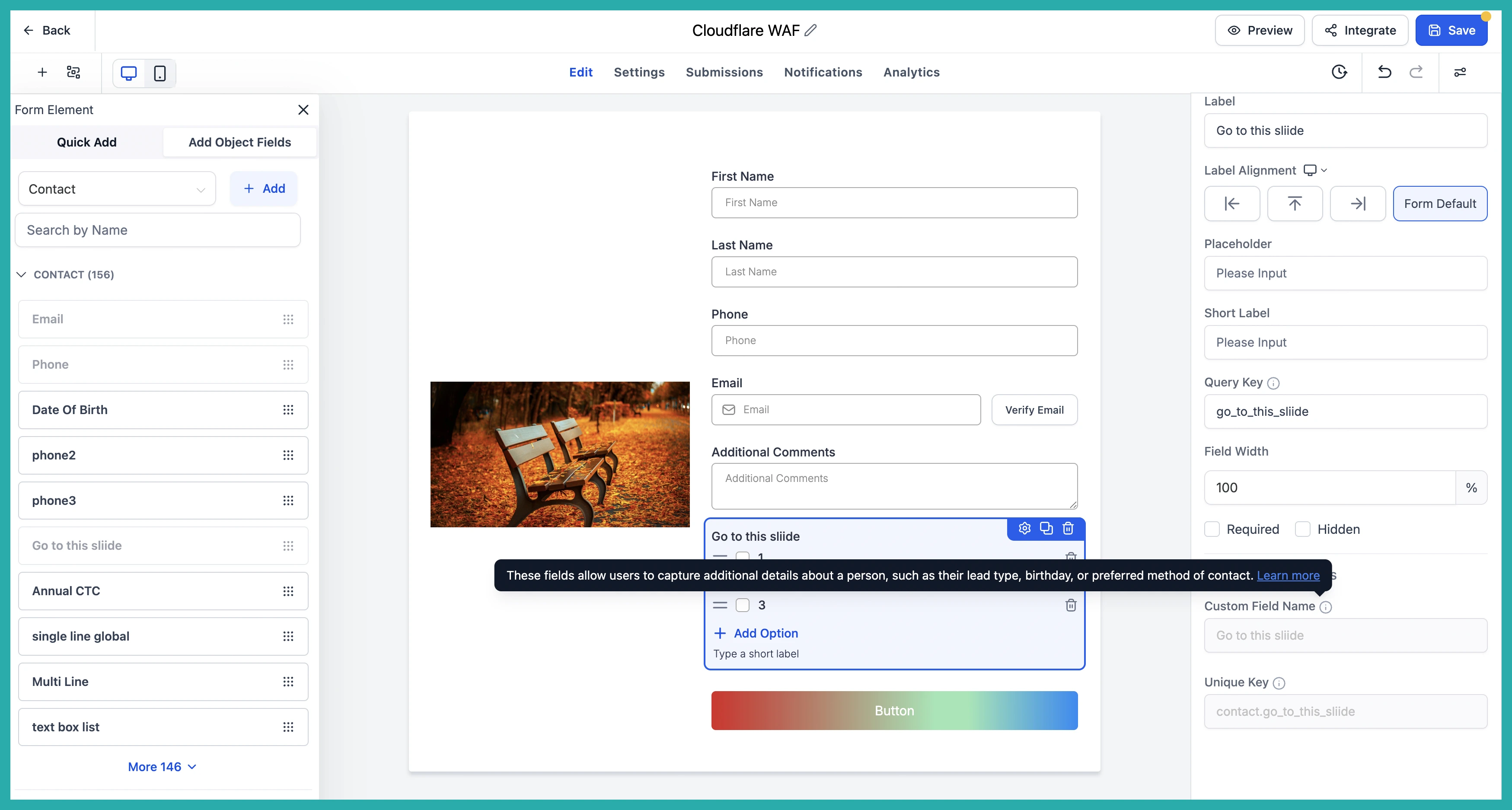
The other helpful change is in the tooltips dotted around the builder. They used to be a bit thin. Now they give you a proper description of what a setting does, and they change depending on what you're working on, so the guidance matches the field or product in front of you.
Where there's more to know, you'll also see a Learn more link that takes you straight to the relevant help article. No leaving your work to go searching for answers.
How to use it
- Open a form, survey, or quiz in the builder.
- Click the Notifications tab to set who gets told what, and when.
- Hover over any setting you're unsure about to read the tooltip, and follow the Learn more link if you want the full detail.
This works across forms, surveys, and quizzes, so it'll feel familiar wherever you're building.
If notification settings have ever sent you down a rabbit hole, go take a look. You'll have it sorted in about a minute.
