
See a Contact's Linked Pets, Companies and Records Right Inside Smart Lists
A quick heads-up: this one's in Labs
It's an early feature you turn on yourself in Settings > Labs inside your account. It works, but it's still in development - the documentation and support is limited and not everything will behave perfectly yet.
If you like getting your hands on new things early, switch it on and have a play. If you'd rather wait for the finished, fully-supported version, leave it off and we'll let you know when it lands.
You've linked records to your Contacts - pets, Companies, policies, cars, whatever you track. Until now, all that connection lived out of sight when you were working in Smart Lists.
Now you can see those linked records right in the list, and build segments from them. Want everyone connected to a particular pet, or every Contact tied to a specific Company? You can pull that audience in a few clicks and save it for follow-up.
What you can now do
Your Smart Lists now understand the records attached to each Contact. That gives you a few new things to play with:
- A column for each relationship. Add a separate column for every association label, even different relationships to the same type of record.
- Linked-record chips. See associated records at a glance and click a chip to open that record. A +N indicator shows you when more are linked than fit.
- Association filters. Find Contacts linked to specific records, or spot the ones missing a link entirely.
- Audiences built around relationships. Save a Smart List based on linked pets, Companies or other records, right alongside your usual Contact criteria.
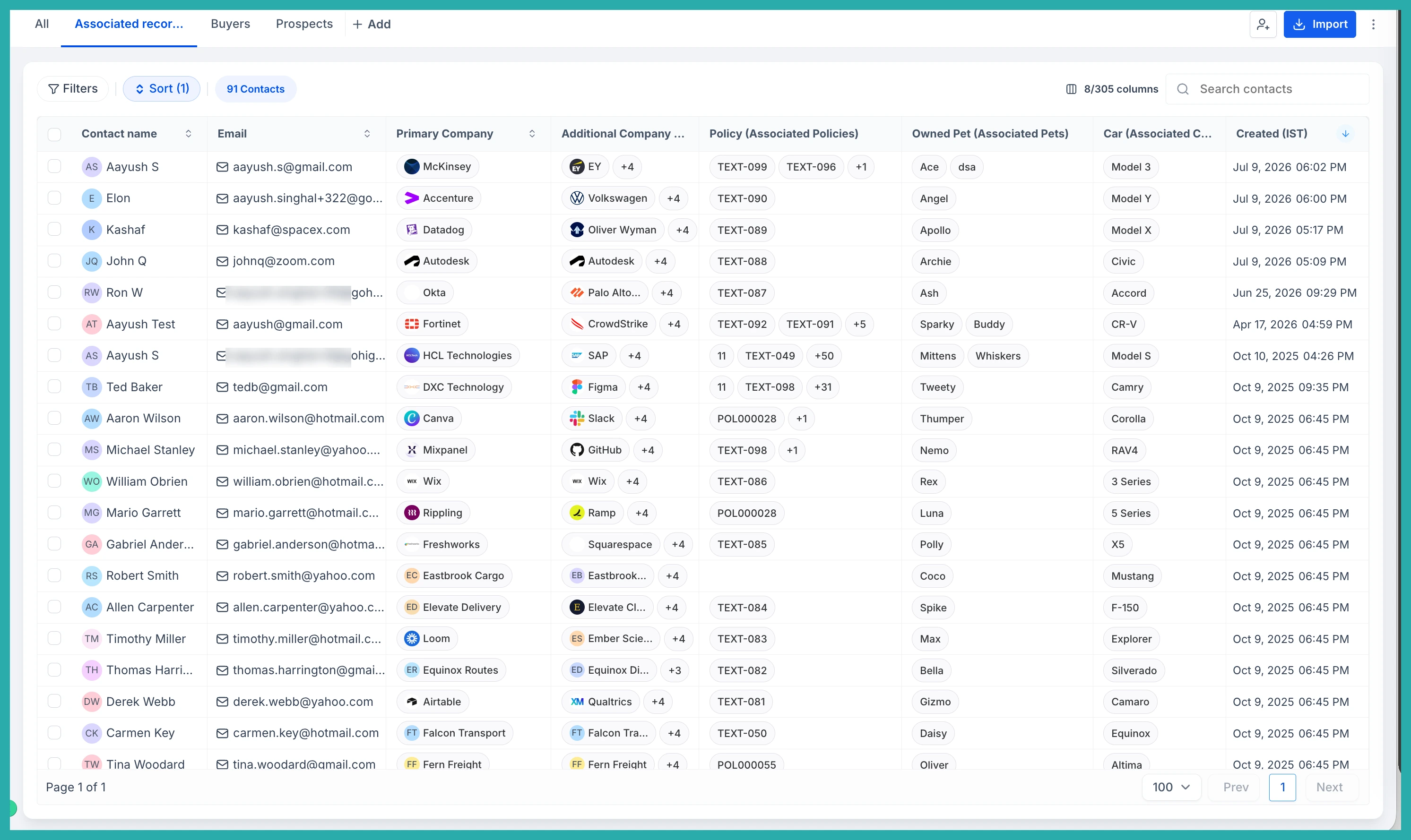
One nice tidy-up too: the old Company name column is now Primary Company, shown as a chip, with extra columns available for Additional Company, Policy, Owned Pet and Car.
Adding the association columns
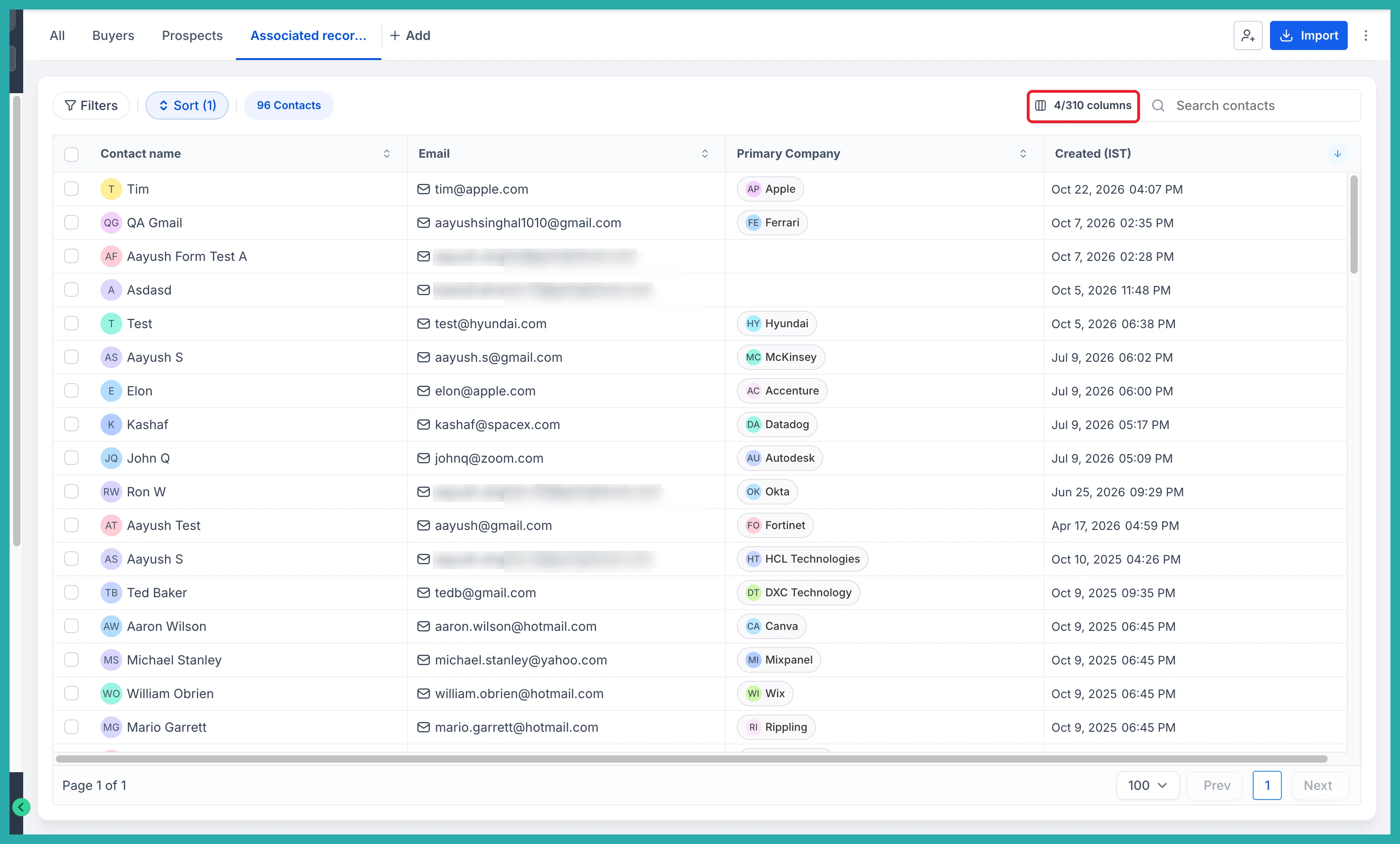
Head to Contacts, then Smart Lists. Above your list you'll see the columns count. Click it to open Manage fields.
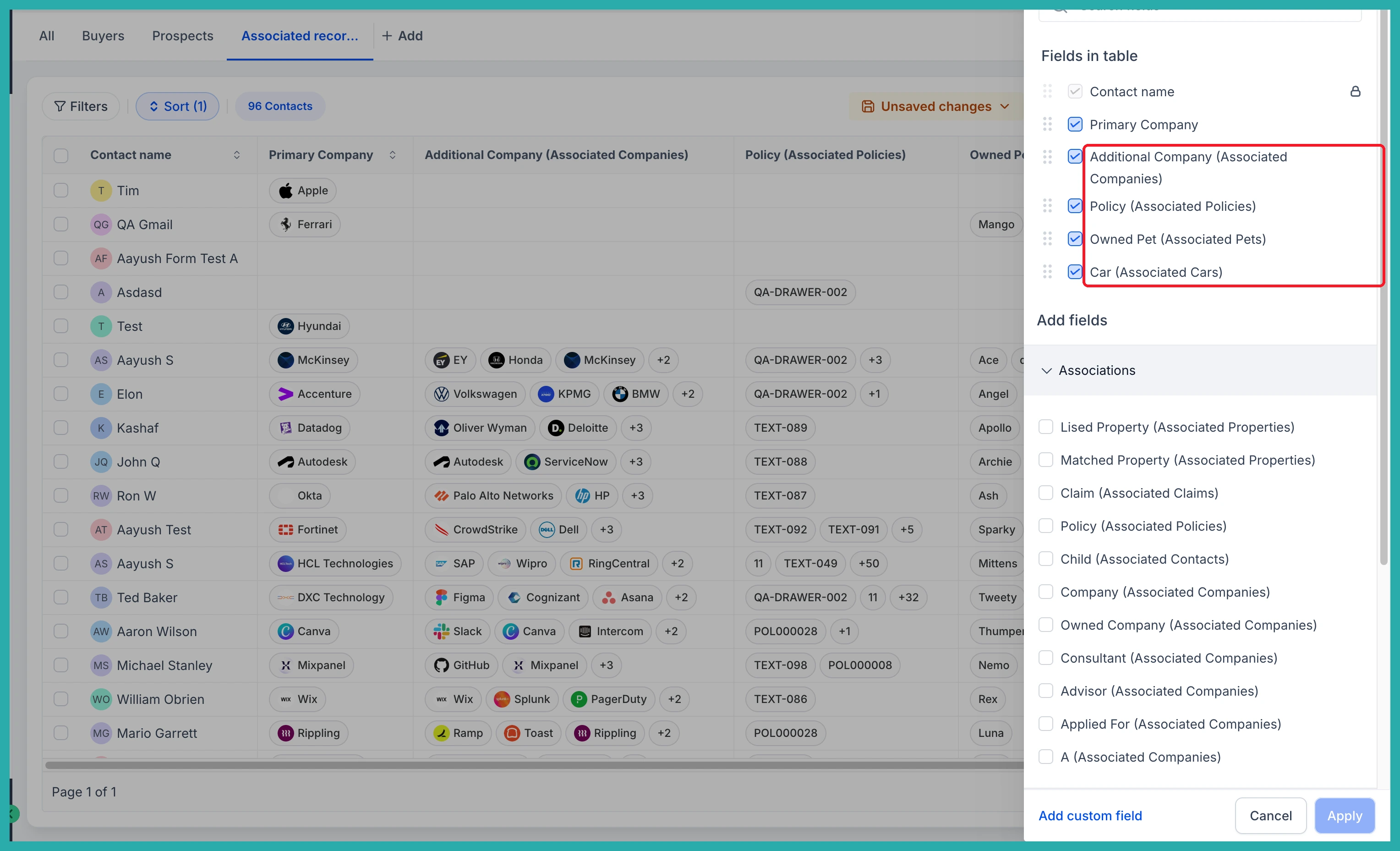
Under Associations, tick the labels you want to see - selected pets, Companies, or any other linked record. Click Apply and those columns drop straight into your list.
In the screenshot below, you'll see the linked records showing as chips. Click any chip to open that record, and look for the +N when a Contact has more linked than the column can display.
Filtering by a linked record
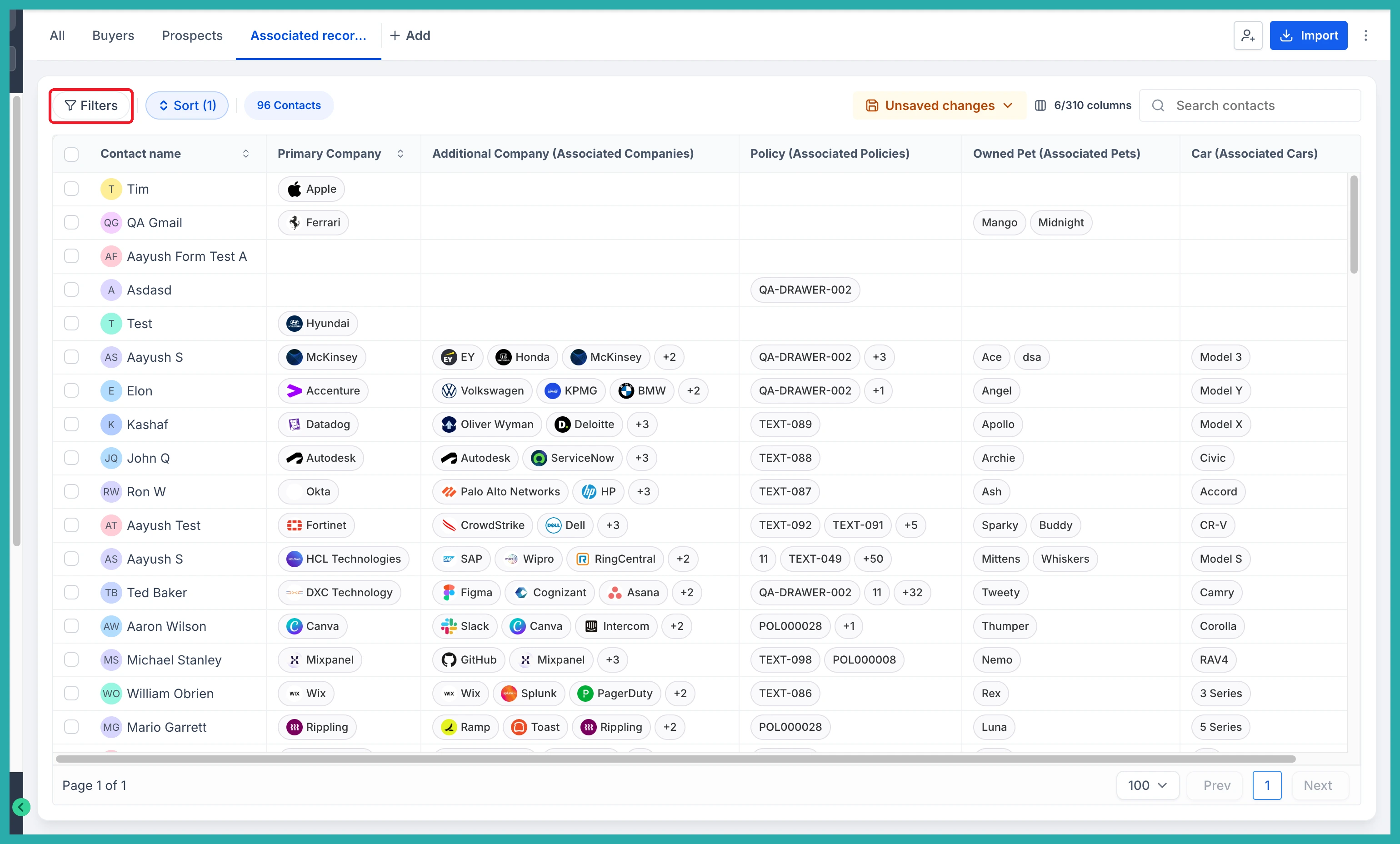
This is where it gets useful. Click Filters, then search for "Associated" and choose the association field you want to filter on.
From there, pick how you want to match:
- Contains any - Contacts linked to the records you select.
- Does not contain any - Contacts not linked to those records.
- Is not empty - Contacts that have any link for that label.
- Is empty - Contacts missing that relationship, handy for spotting gaps to fill in.
Select the records when you're asked for them, apply the filters, and you've got your audience. In the example below, the list is filtered down to Contacts linked to the pets Mango or Jasper - exactly the group a vet team would message about those pets.
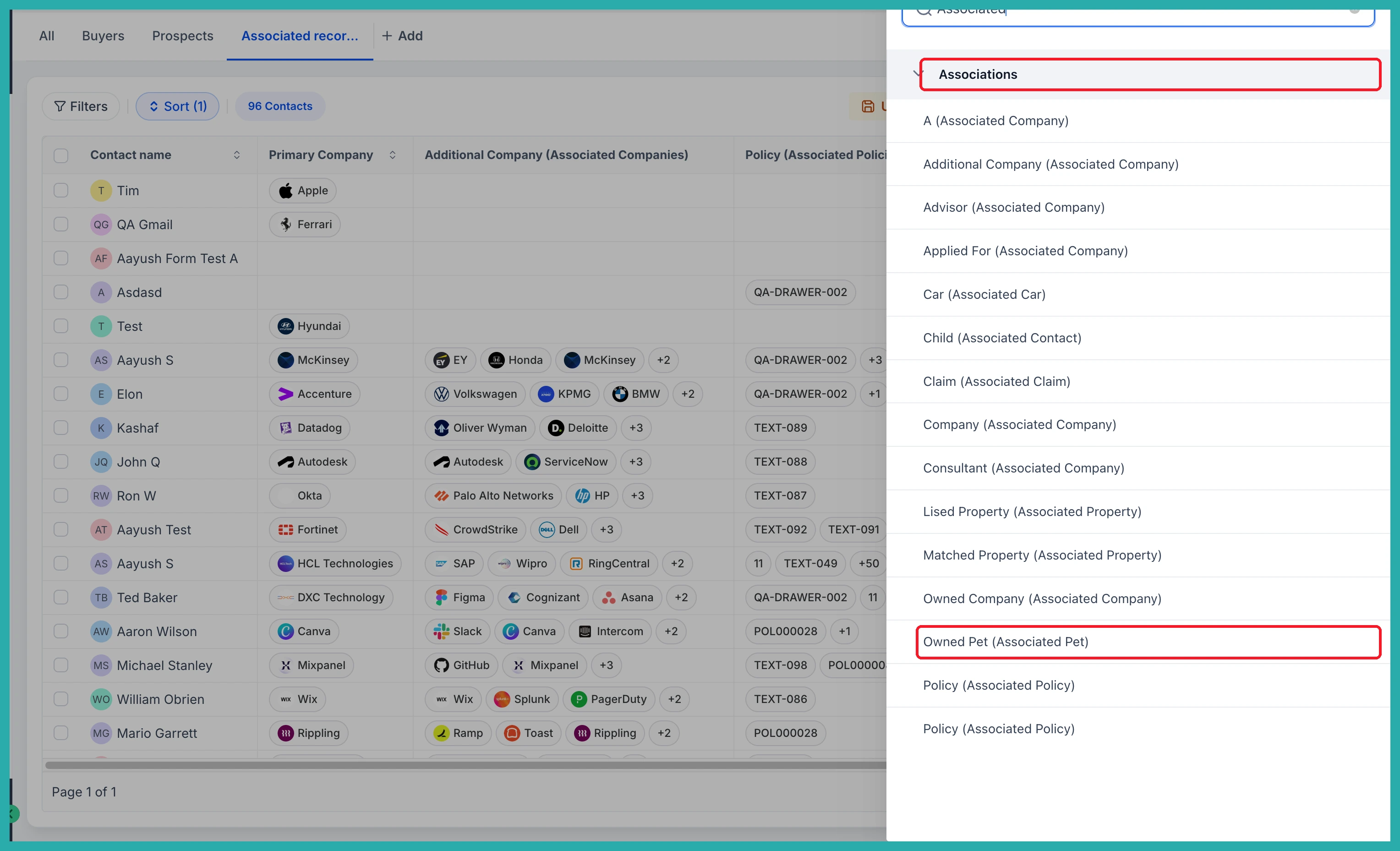
Once it looks right, save it as a Smart List so you can reuse the same audience without rebuilding it each time.
A couple of pointers
- Pick the right label. Different labels can describe different relationships to the same type of record, so choose the one that matches what you're after.
- Hunt for missing links. Use Is empty on a label to find Contacts that should have a connection but don't, then fill them in.
- The headings are yours. Association columns use the names you've already set up, so everything reads the way you expect.
Have a play with one relationship you follow up on often - you'll see how quickly a messy Contact list turns into a focused audience.
