
Run Your Whole Field Business - Requests, Jobs, Scheduling and Dispatch - in One Place
A quick heads-up: this one's in beta
It's live and ready to use, but it's still being refined - so you might notice the odd rough edge, and things could shift a little before it's finished.
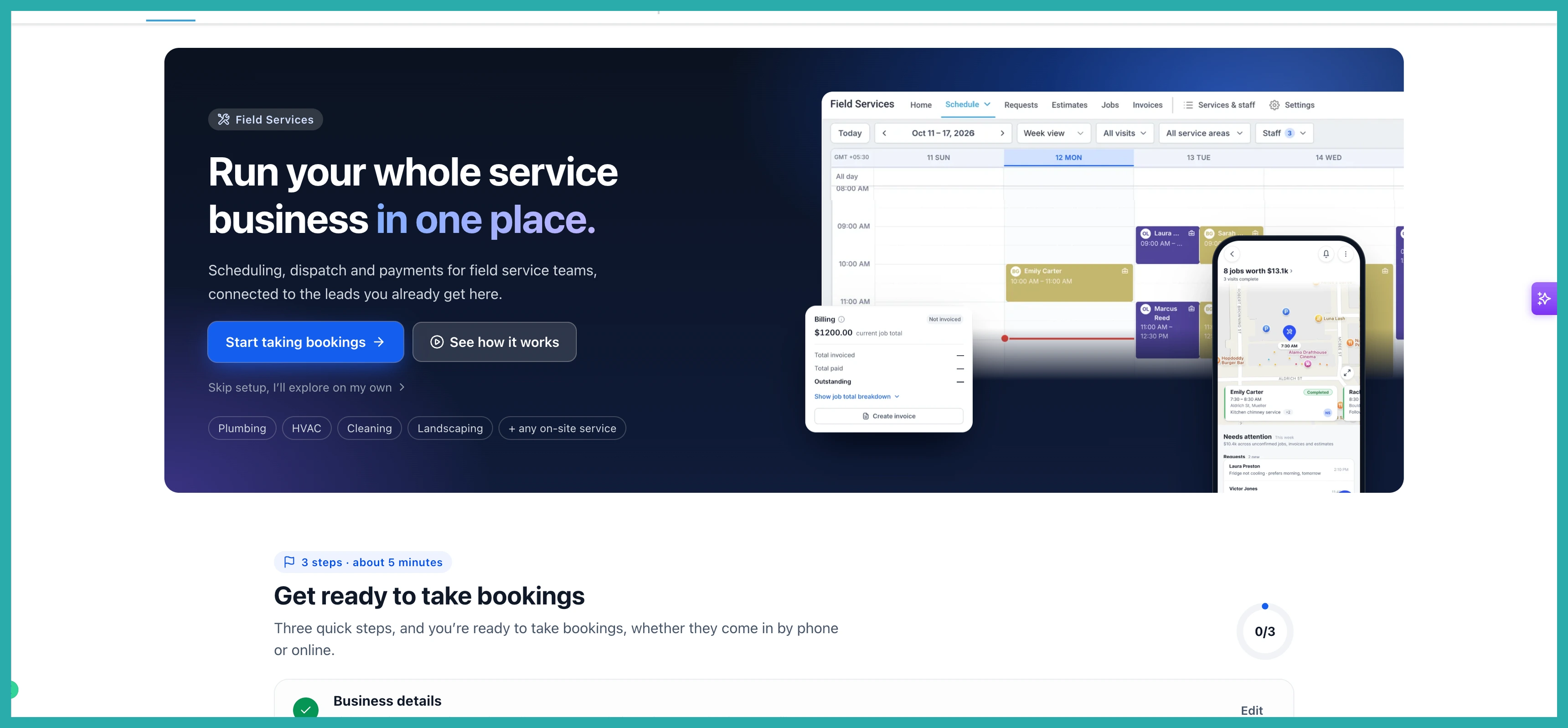
If your business happens at the customer's door rather than yours - think plumbing, electrical, HVAC, cleaning, landscaping and the like - this one's for you. Field Services is a brand-new module built around the way your work actually flows: a request comes in, you quote it, you schedule it, someone goes out and does it, you invoice and get paid.
It's not regular appointment booking. It's the whole job, start to finish, in one place - and your office team, dispatchers and field crew all work from the same picture of the day, on the web and on their phones.
Start on the Home screen
When you first open Field Services, you'll land on a welcome page with a quick setup checklist, a short walkthrough of how work flows from request to invoice, and the links to install the mobile app.
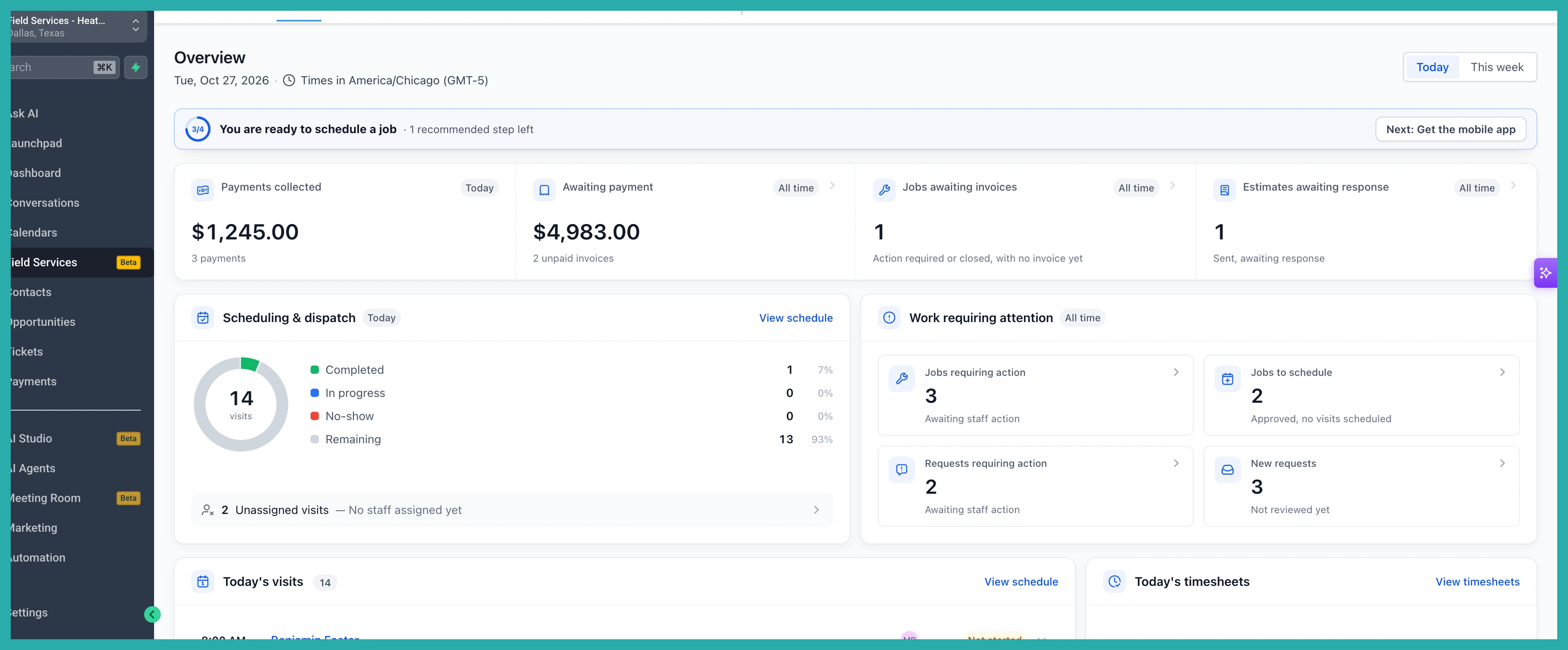
Once you're set up, Home becomes your daily overview - the place that tells you where to look first. In the screenshot below you'll see your money at a glance (payments collected, invoices awaiting payment, jobs awaiting invoices, estimates awaiting a reply), your scheduling and dispatch status, the work that needs attention, and today's visits with who's assigned.
Capture requests and send estimates
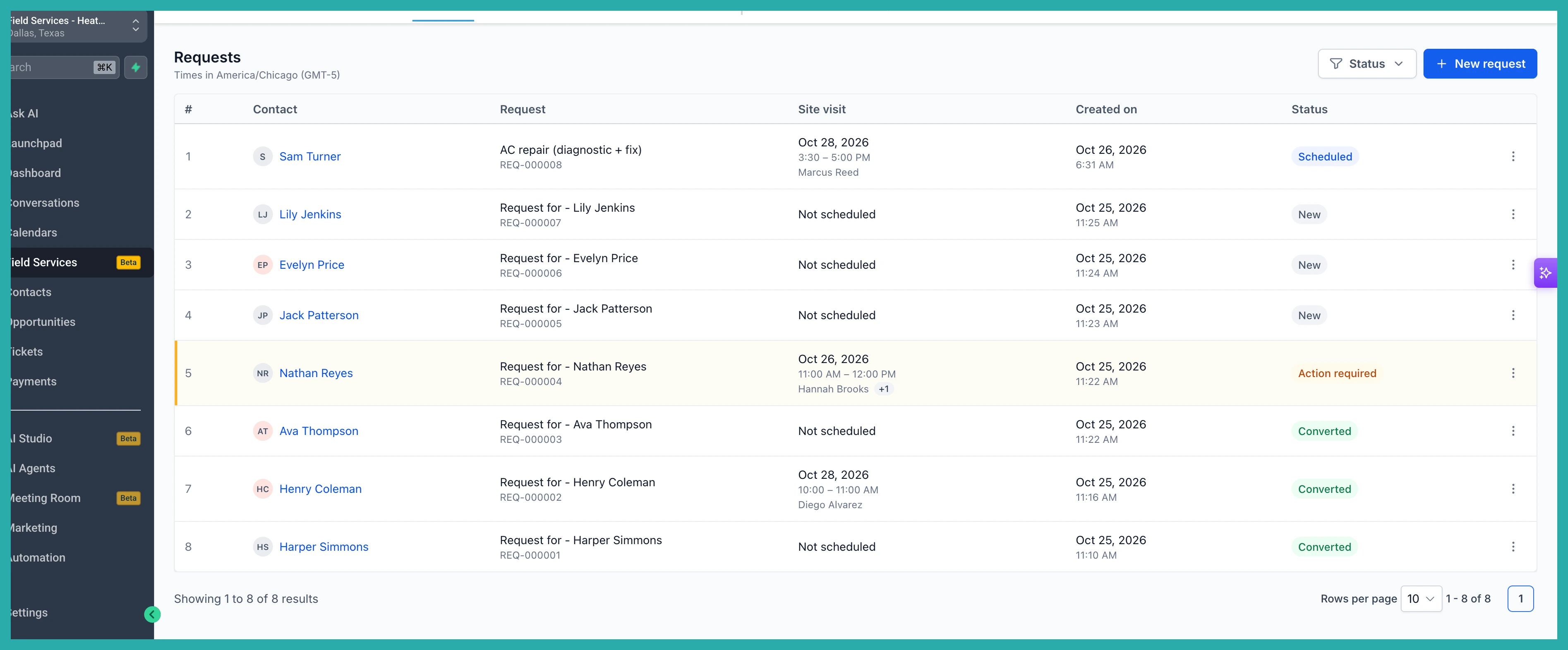
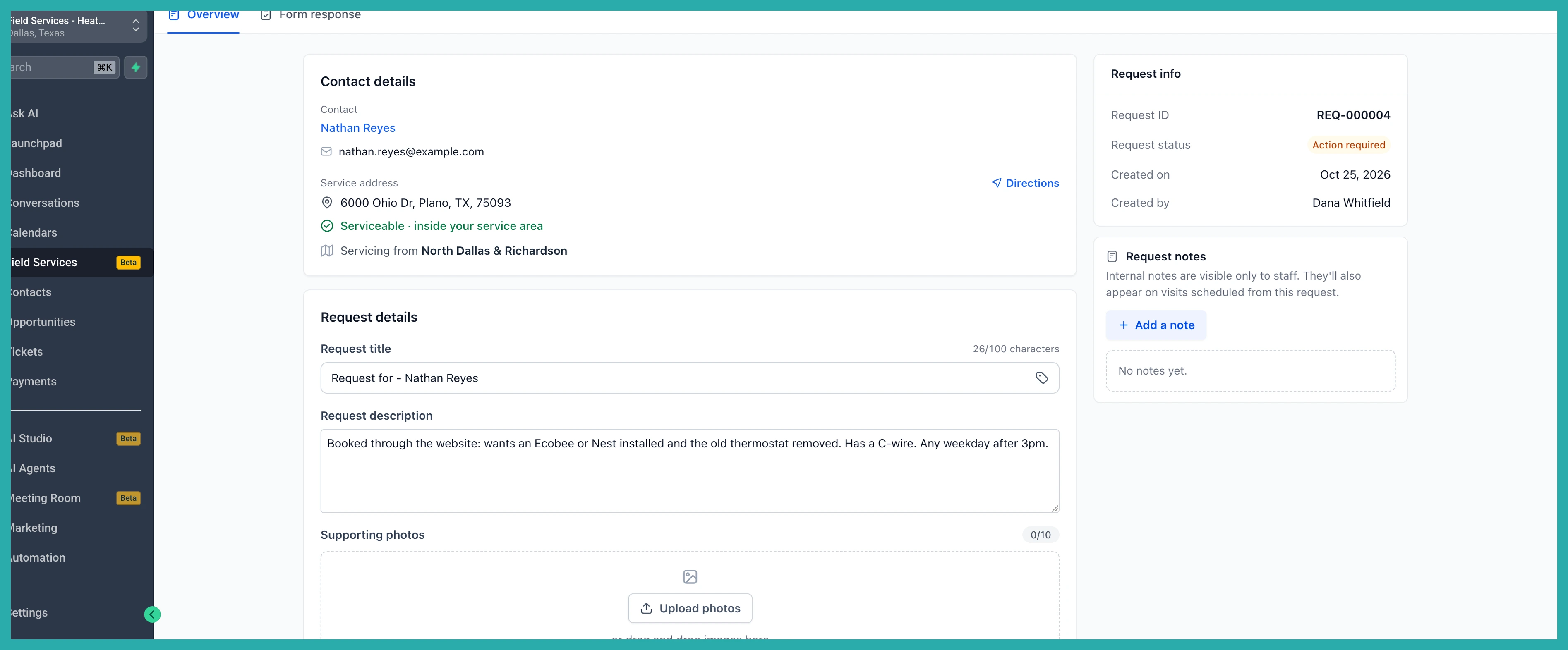
Work starts with a request. Customers can send one straight from your booking page, or your team can create one in the app - with the contact, address, a description, photos, and the services or products involved.
If you'd rather look before you commit, you can schedule a site visit first. When you're ready, convert the request into an estimate or straight into a job in one click.
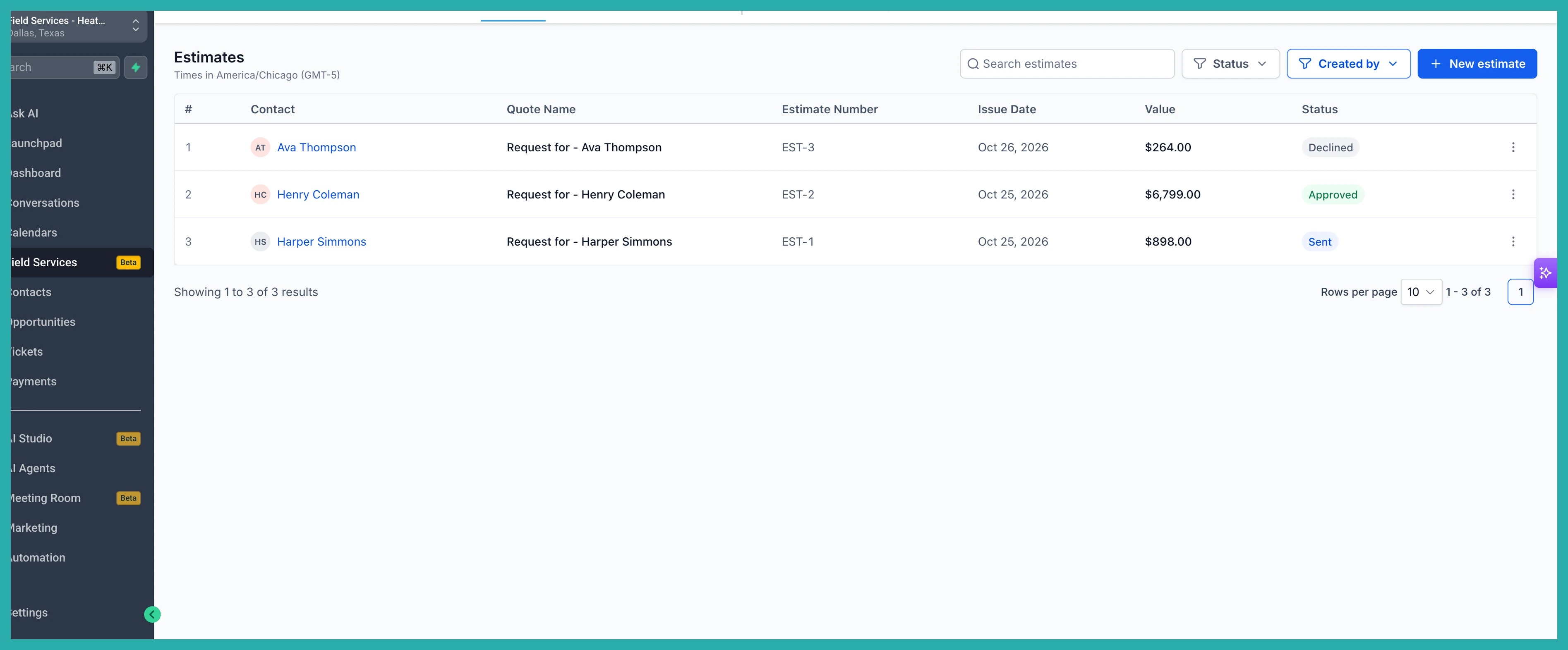
Send the estimate to the customer, and once they approve it, turn it into a job.
Everything about a job in one place
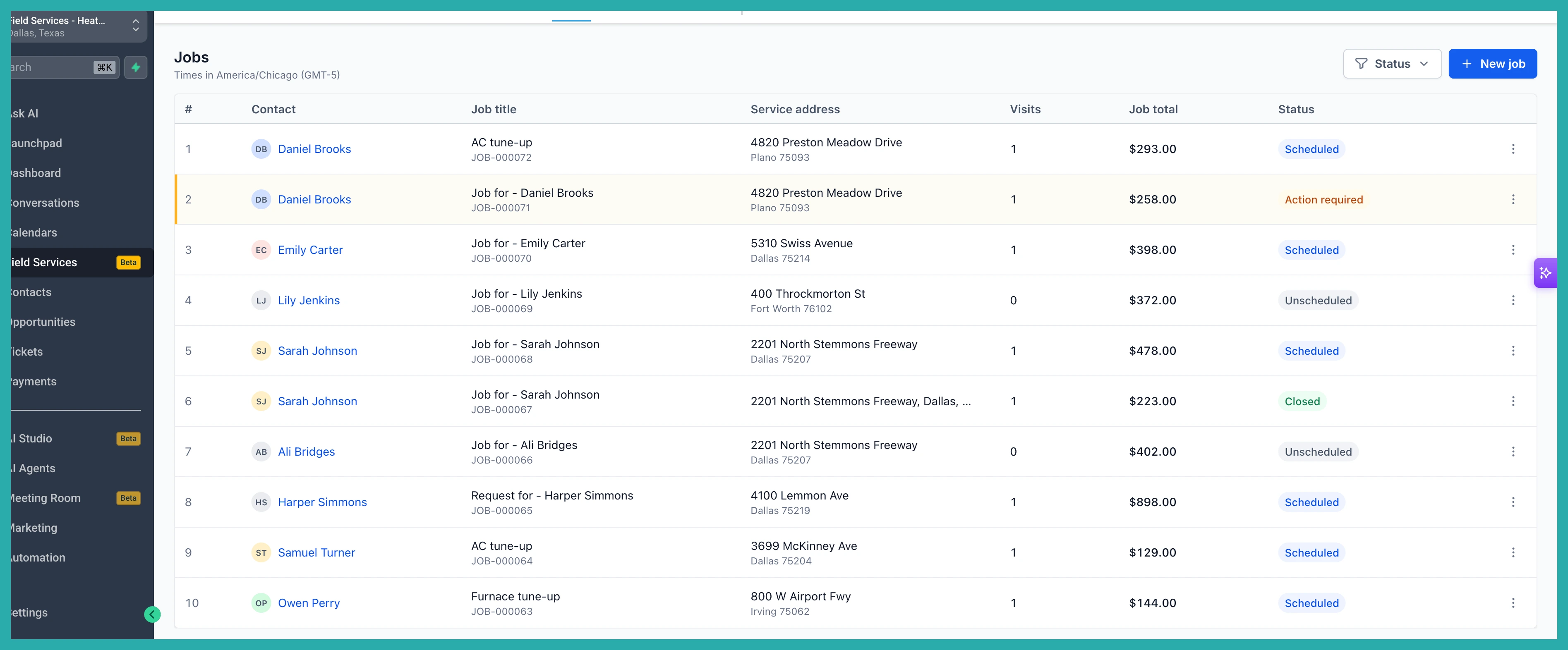
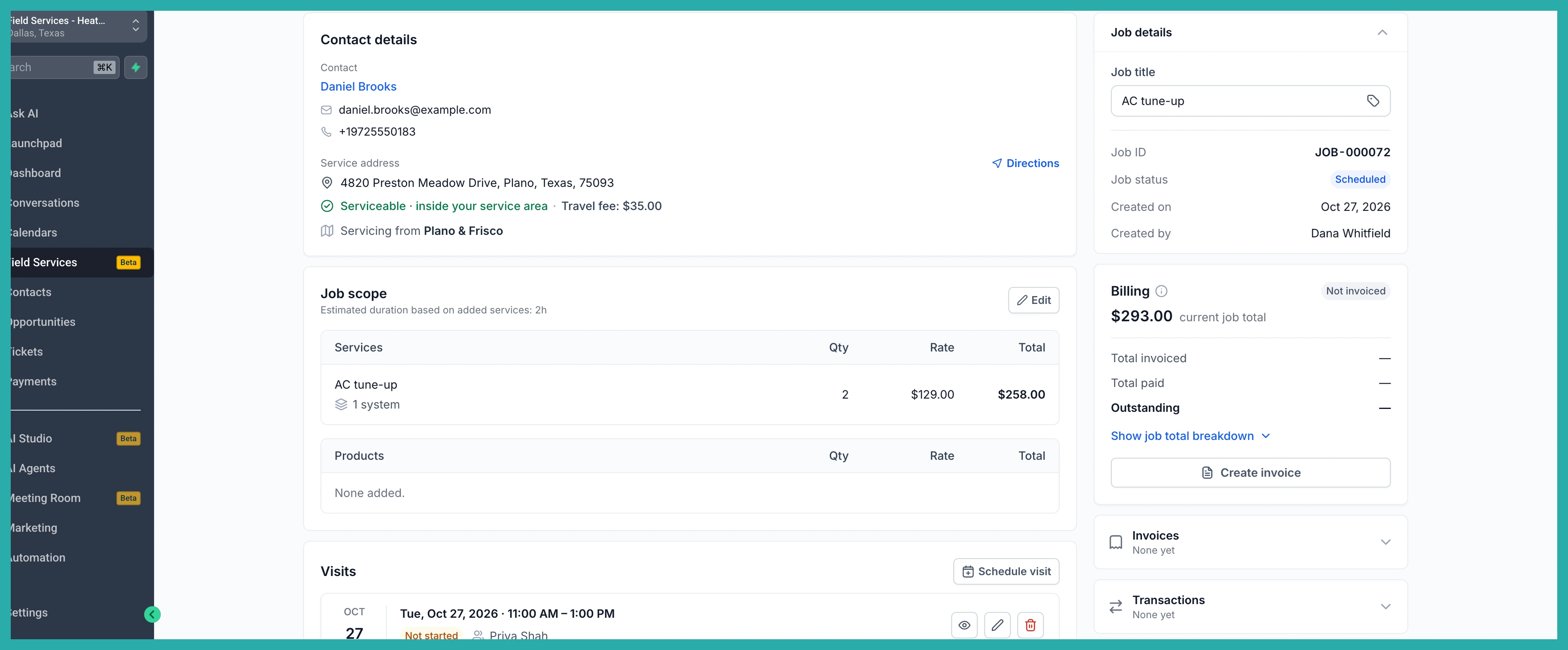
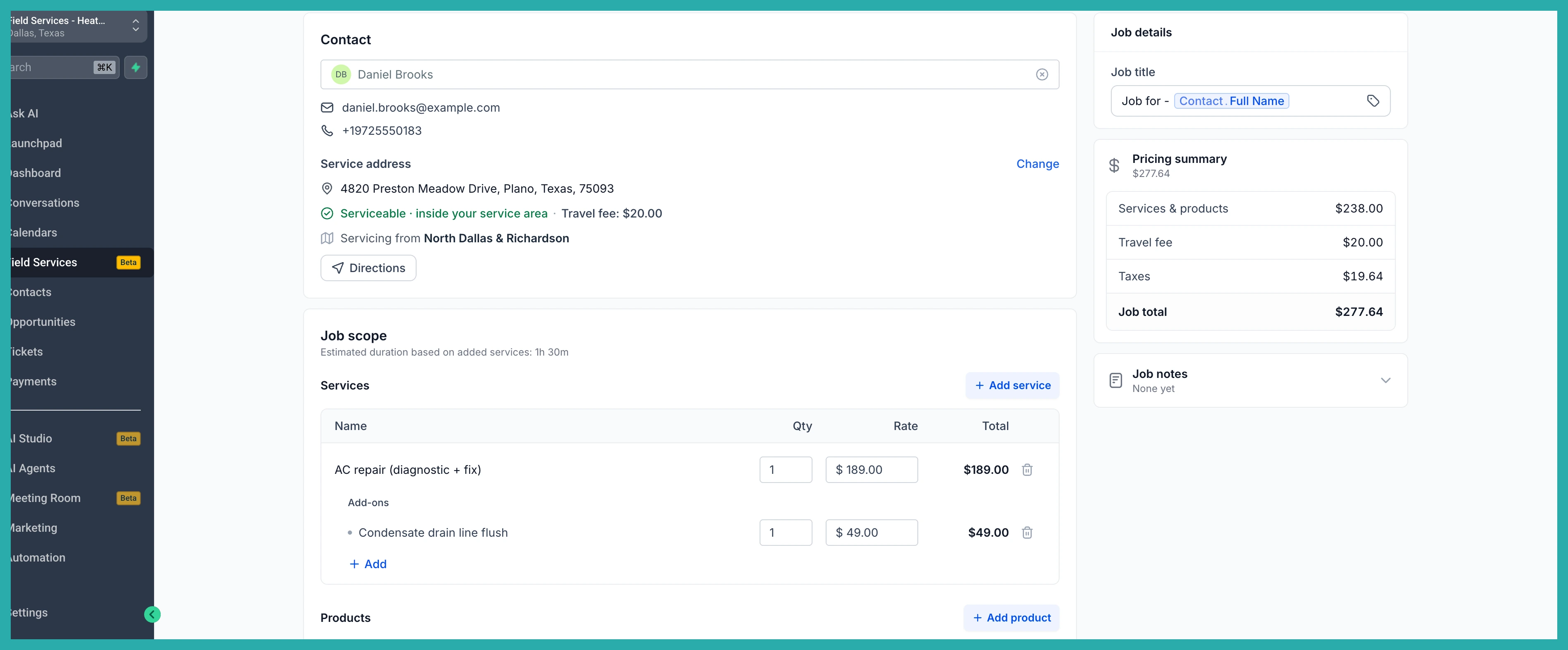
A job brings together one customer, one address and all the work - across as many visits as it takes. Services and products, pricing, checklists, notes, invoices and payments all live together.
The status looks after itself, moving from Unscheduled to Scheduled, In progress and Closed as visits happen and billing is done. There's also a Billing card showing exactly what's been invoiced, paid and still outstanding.
Smart scheduling
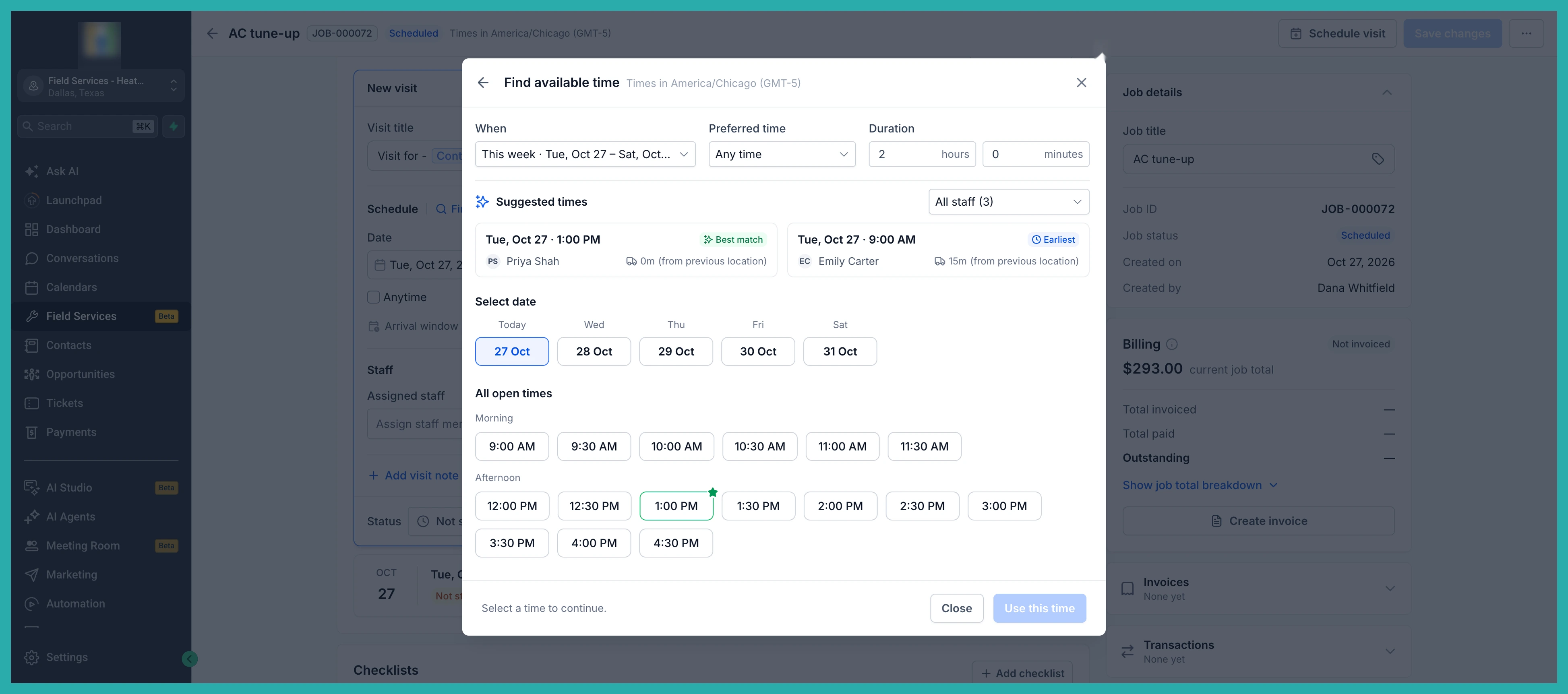
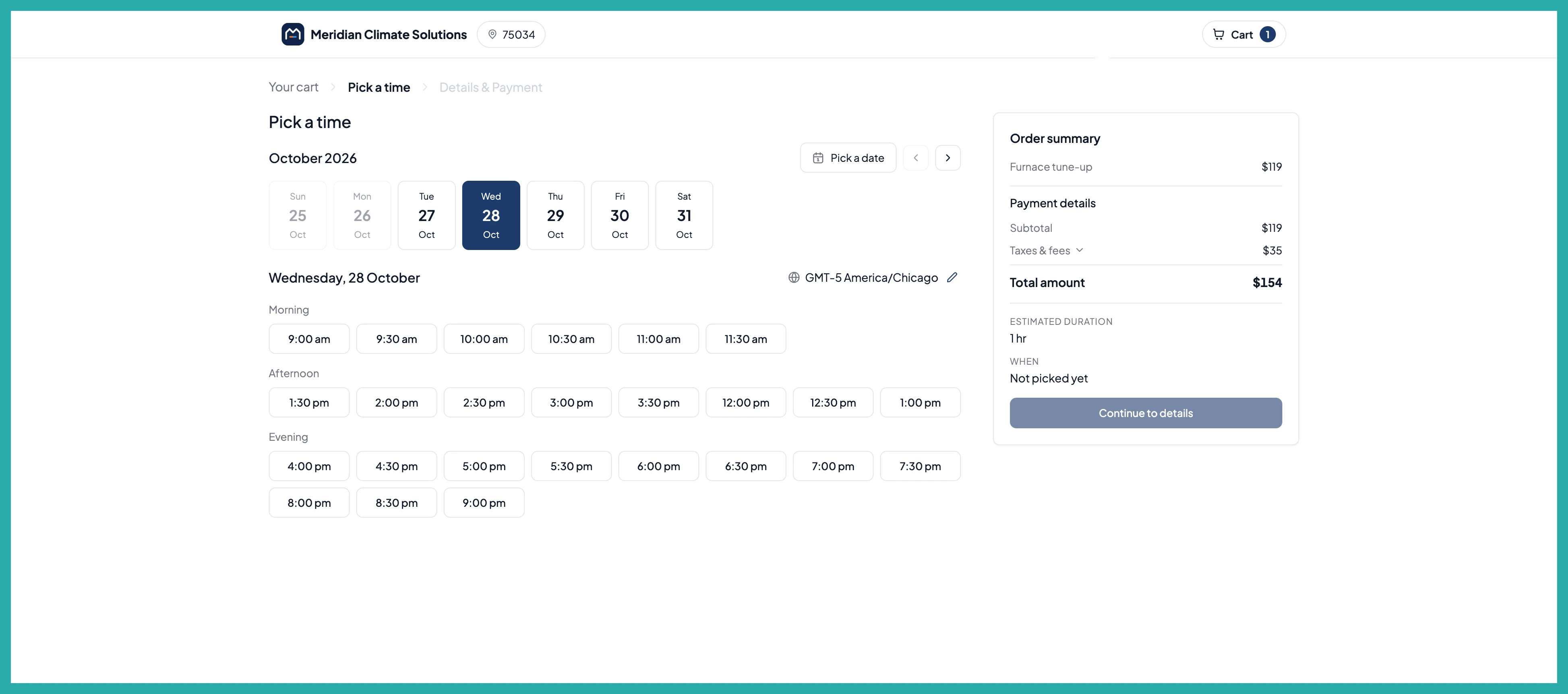
Open a request or job and click Schedule visit, and Find availability suggests the best times based on your staff's working hours, the services, your service areas, existing bookings and even drive time.
You can assign more than one technician to a visit, and decide whether the customer sees an exact time or a time window. And if you ever need to, you can schedule manually - even outside a service area.
See the day as a list, calendar or map
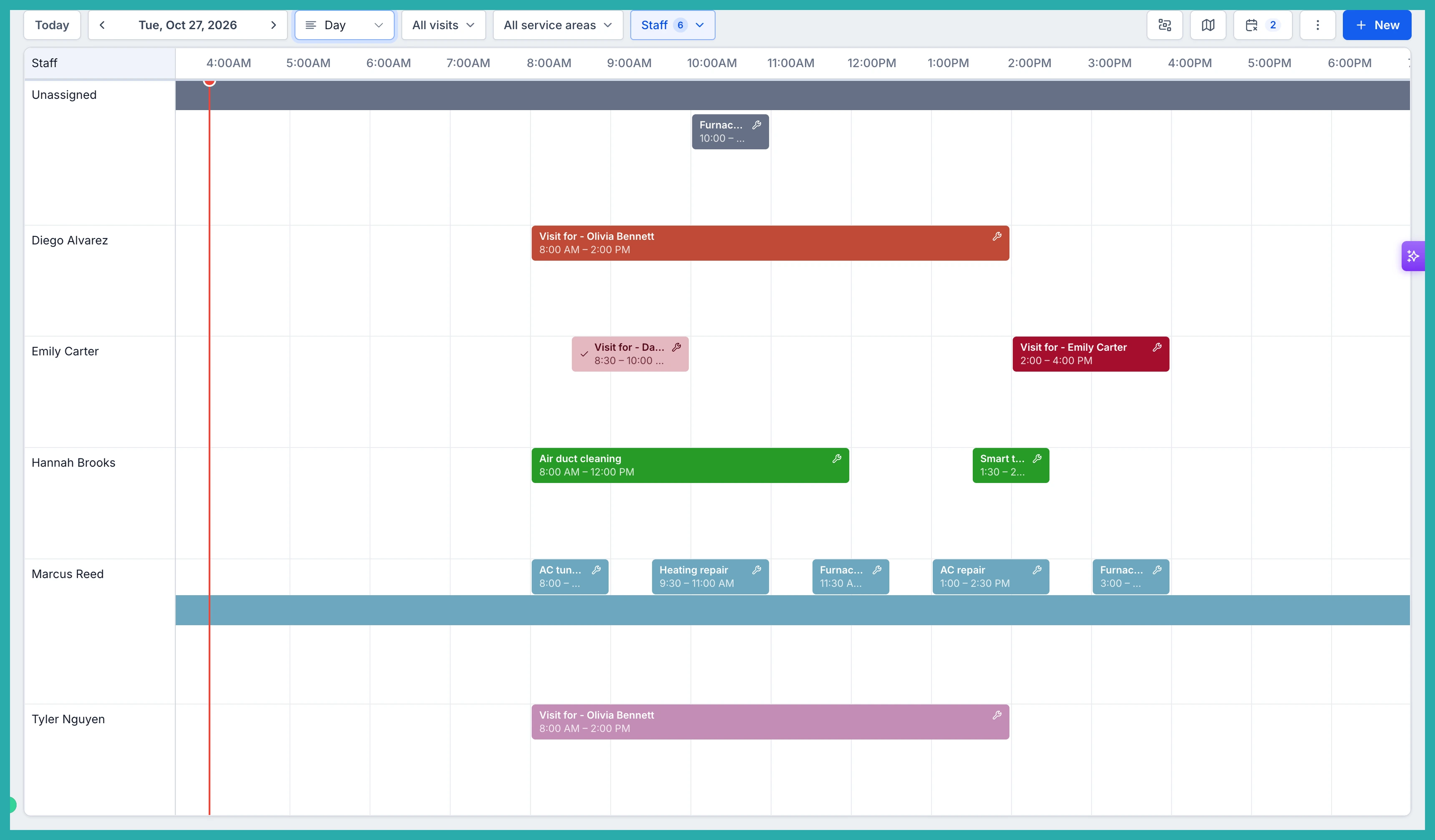
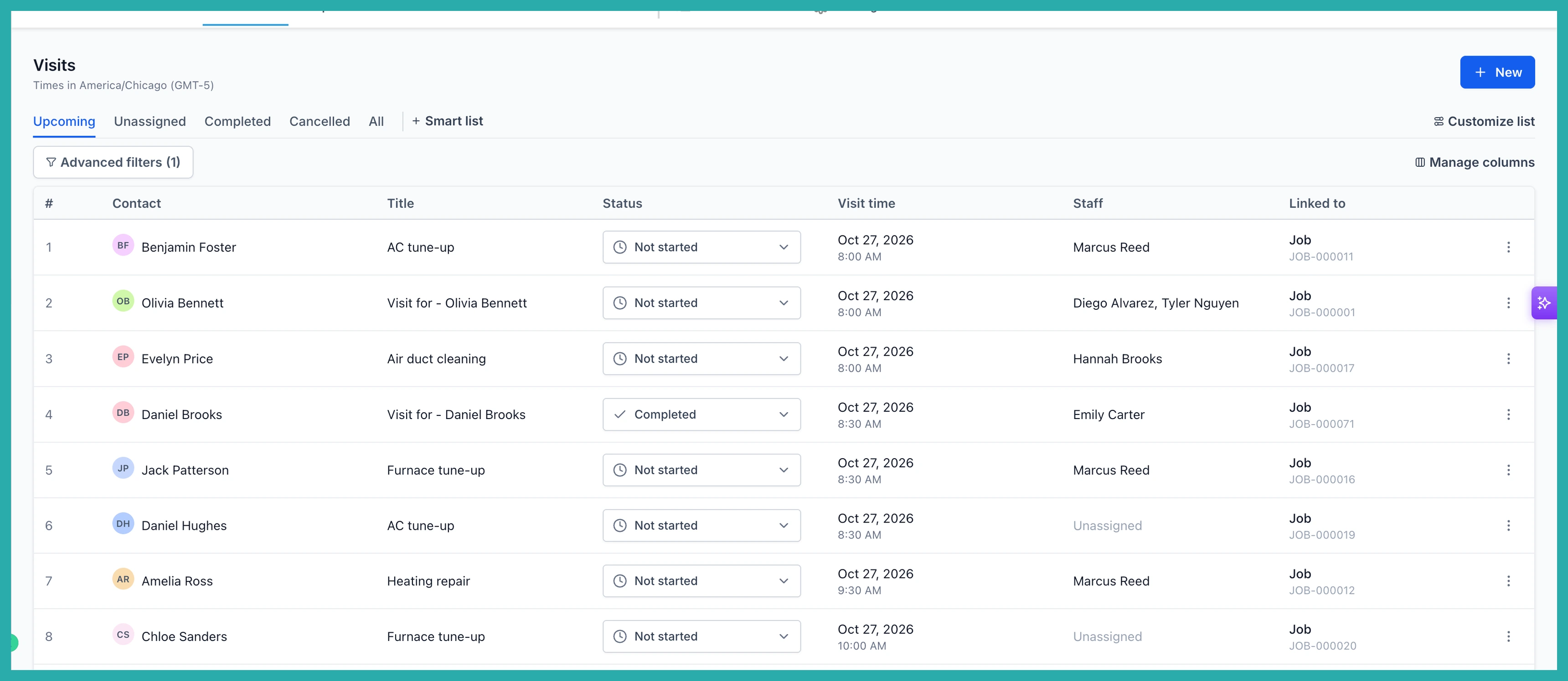
The Schedule view shows every visit as a list, on a calendar (Day, Timeline, Week or Month) or on a map.
Filter by staff, service area and status, and save your own Smart lists for the views you use most. You can spot jobs that still need a visit, block off time, and export the whole thing to PDF or CSV.
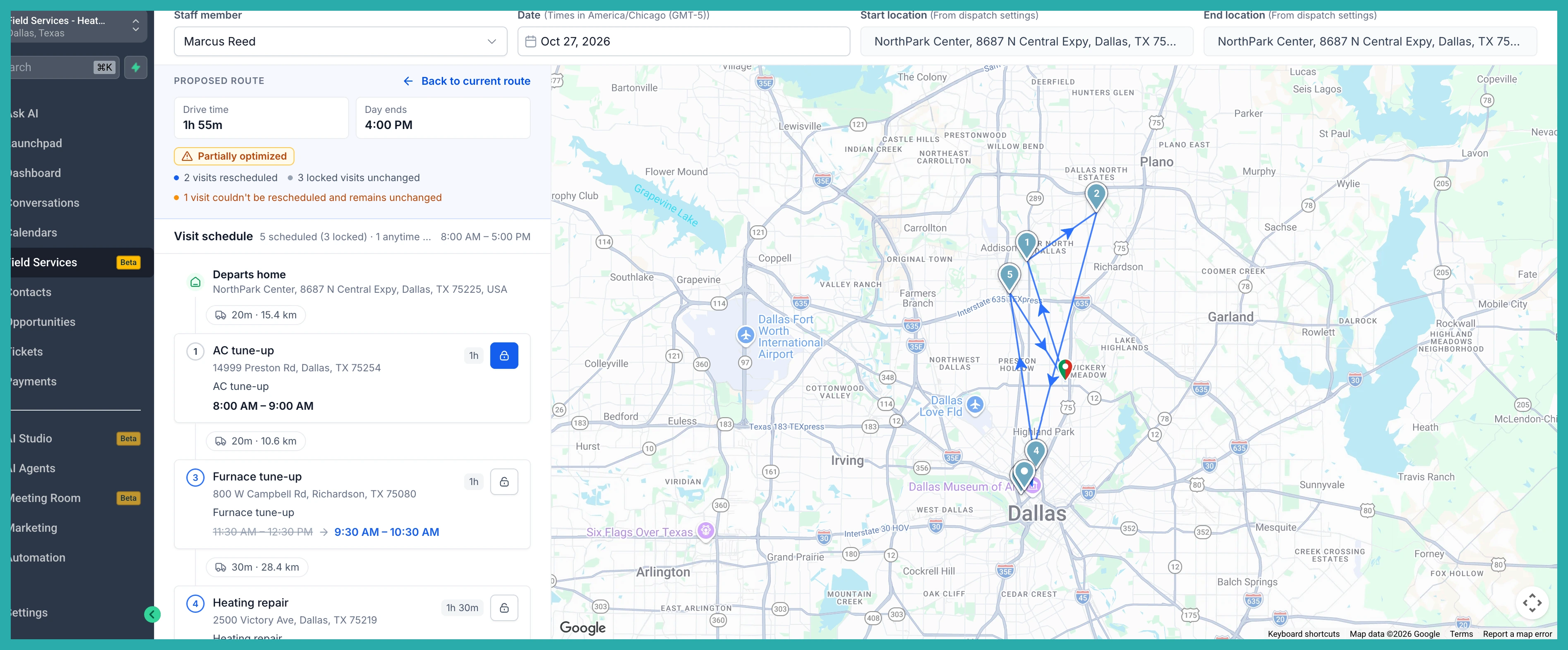
Cut the driving with route optimization
Before anything changes, you get to review a proposed route with the drive time it would save - and apply it only when you're happy.
Any visit that has to keep its time can be locked, and the rest get reordered around it. Routes run from each technician's start location to their end location.
Set up staff, service areas and travel
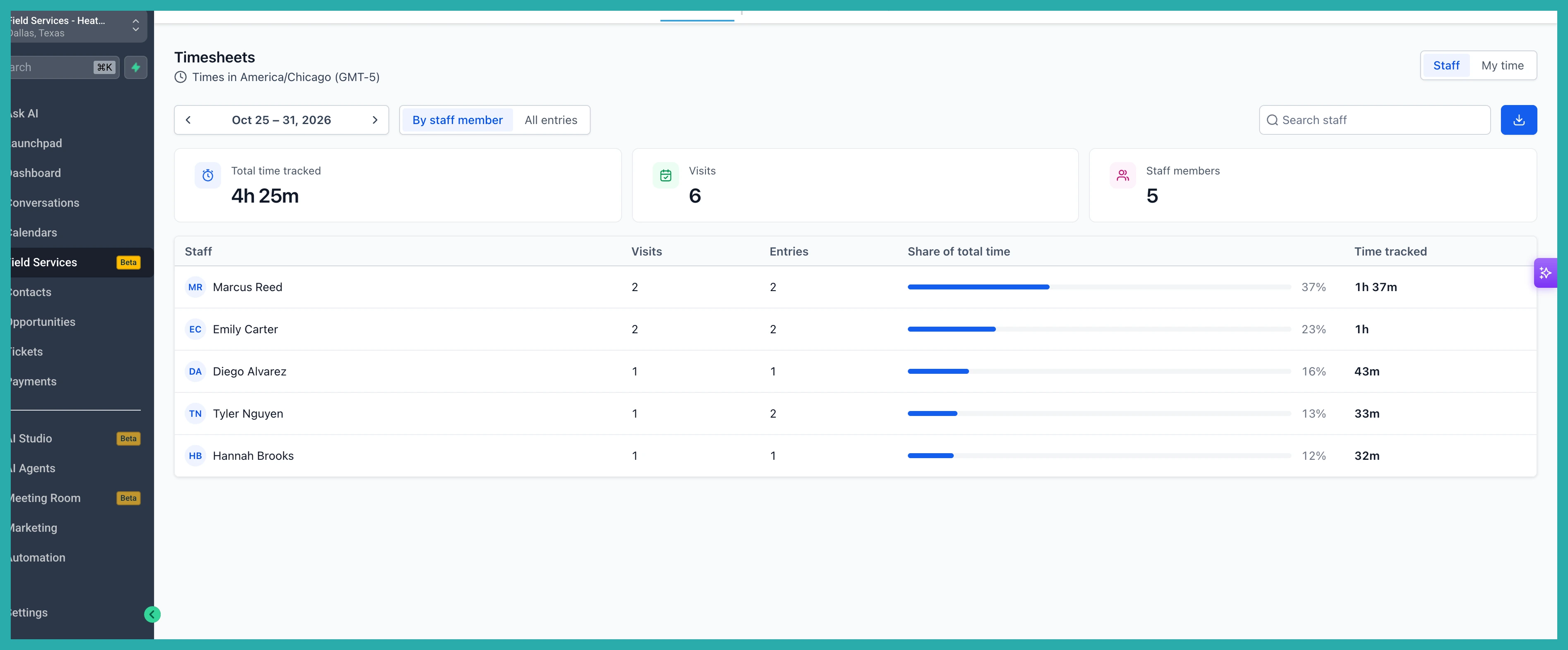
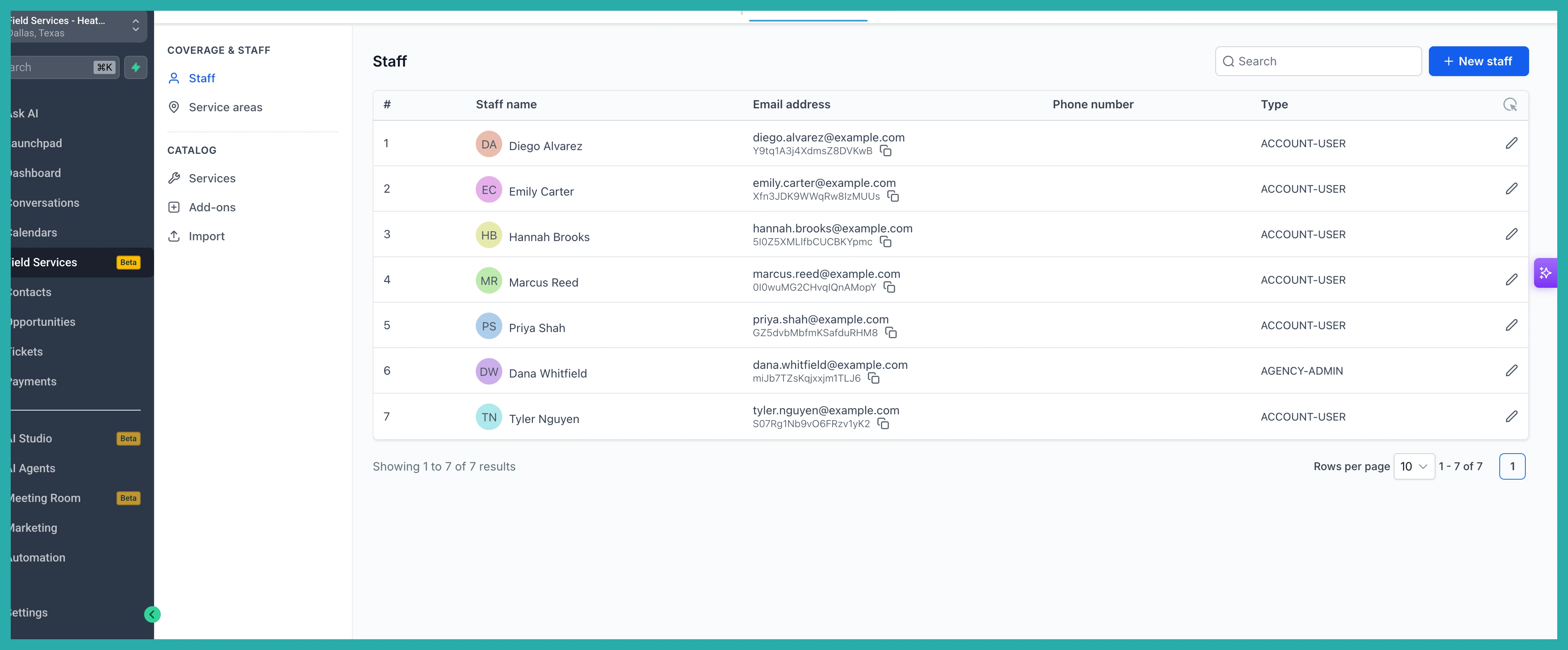
Give each staff member their working hours, the services they do, the areas they cover, and daily, weekly or monthly visit limits so no one gets overloaded.
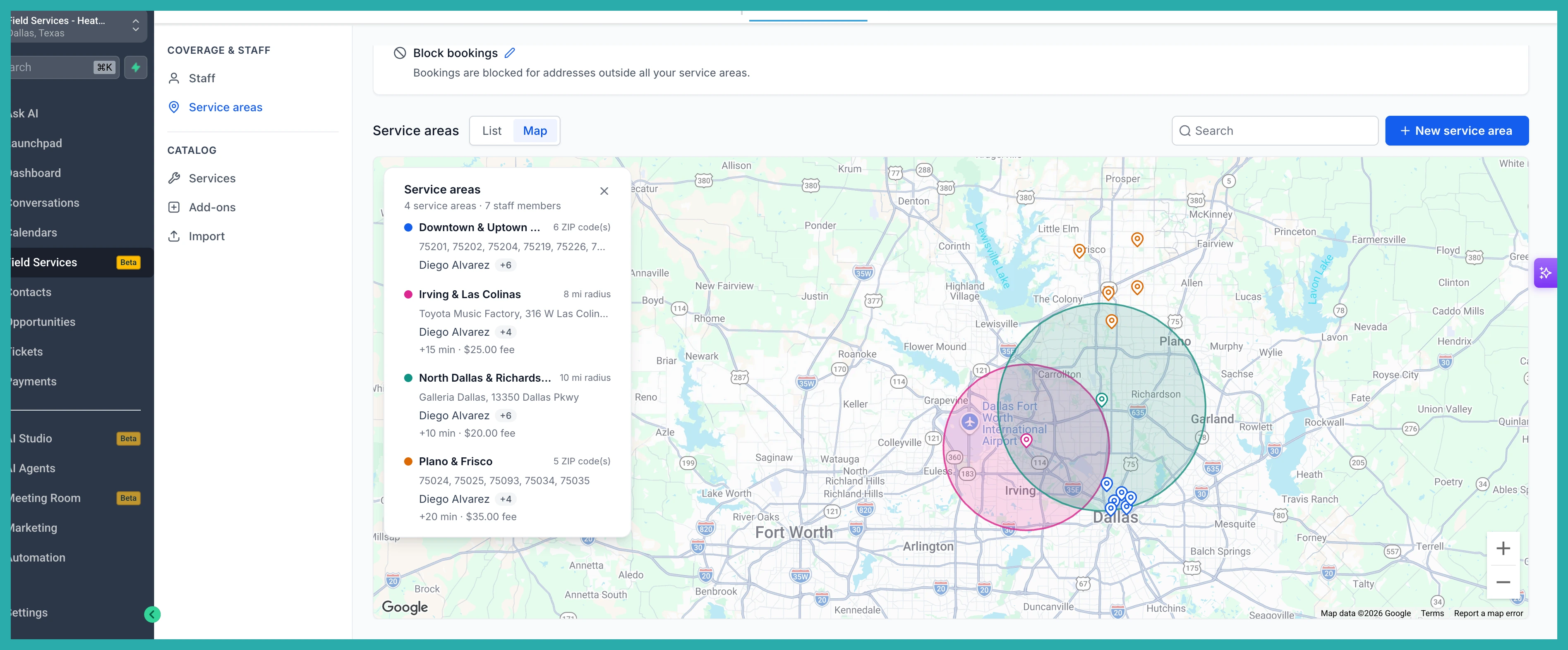
Define your coverage by radius or by ZIP / postal code, add a travel fee if you charge one, and build in extra time before visits. You also decide what happens when a customer is outside your coverage - block the booking, or allow it with a review first.
Build your services catalog
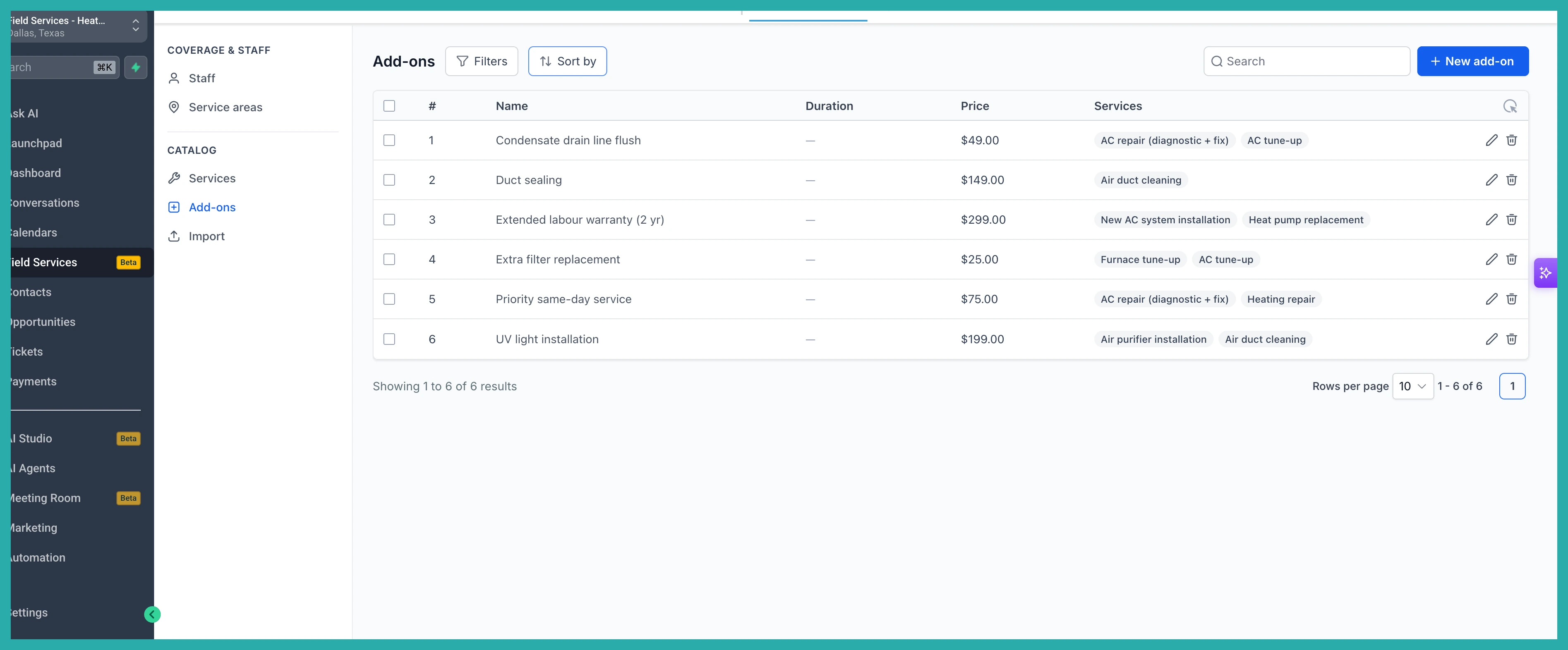
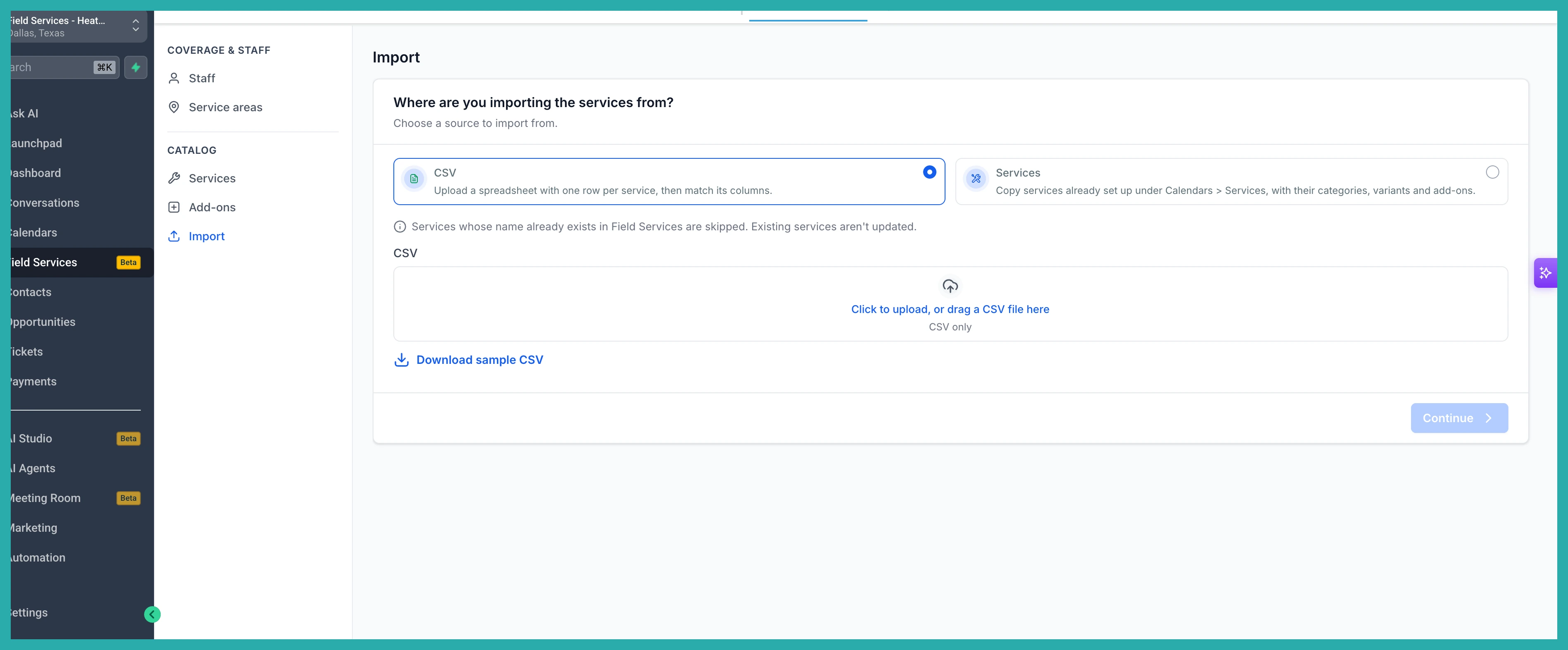
Set up your services with variants, add-ons, pricing and tax. If you've already got them elsewhere, bring them over in bulk from a CSV file or copy them from your existing Calendars > Services.
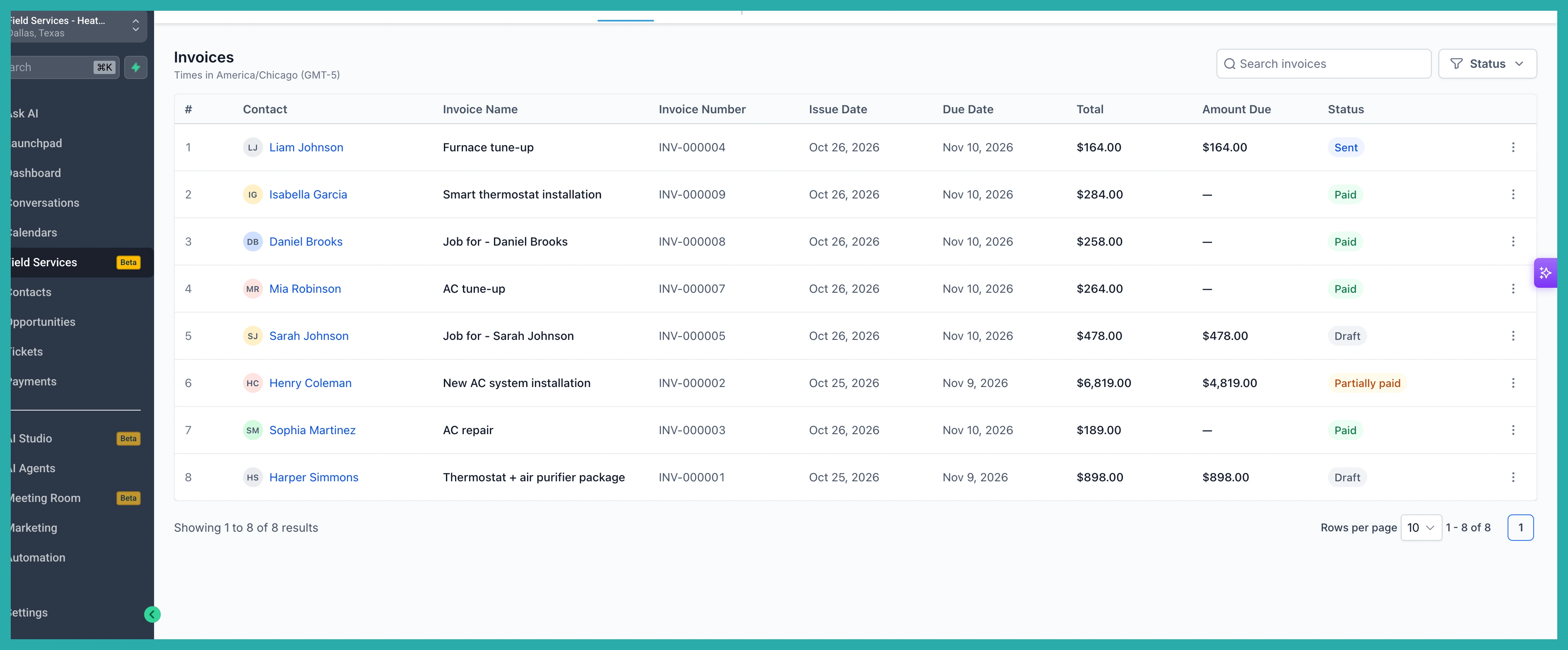
Invoice and get paid
Create an invoice straight from a job, and bill as you go - for example after one of several visits rather than waiting for the lot. Track invoiced, paid and outstanding amounts across the job, and collect payments online once you've connected a payment provider.
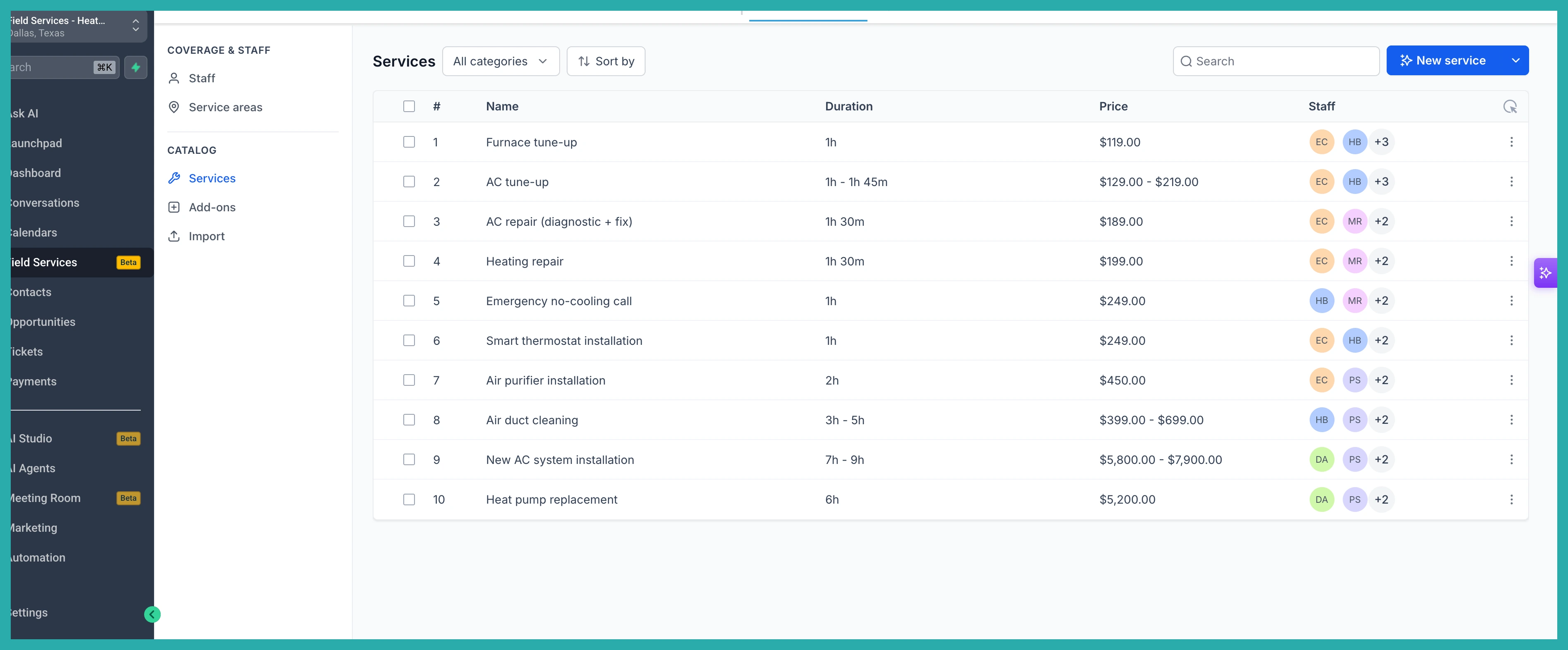
Checklists, notes, statuses and timers
Reusable checklists can apply to every job or just certain services, so nothing gets missed on site. Add job and visit notes, create your own visit status labels like On my way and Checked in, and track time with a timer on every visit (or a manual entry when you need one).
Keep everyone in the loop automatically
Customers, assigned staff and dispatchers can be kept informed over email, SMS and WhatsApp at the key moments - a new request, a visit reminder, a tech on the way, a visit completed - and you can customize the wording of each message.
A booking page your customers will actually use
Give your customers a branded page where they can browse your services, check their address against your coverage, pick a time and pay - online, in person, or with a card on file.
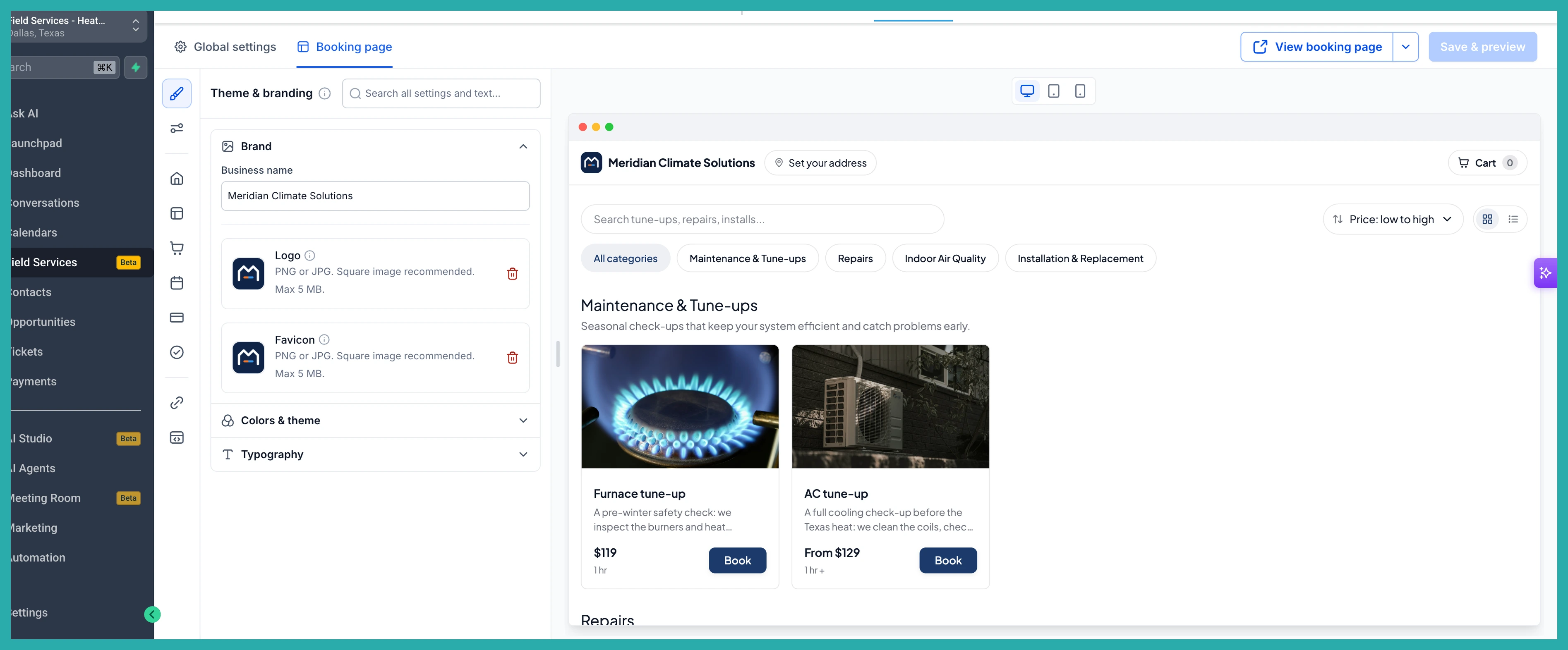
Choose instant booking or booking requests, let people send a request when nothing's open, and match the page to your brand in the editor, with a live preview on desktop, tablet and mobile.
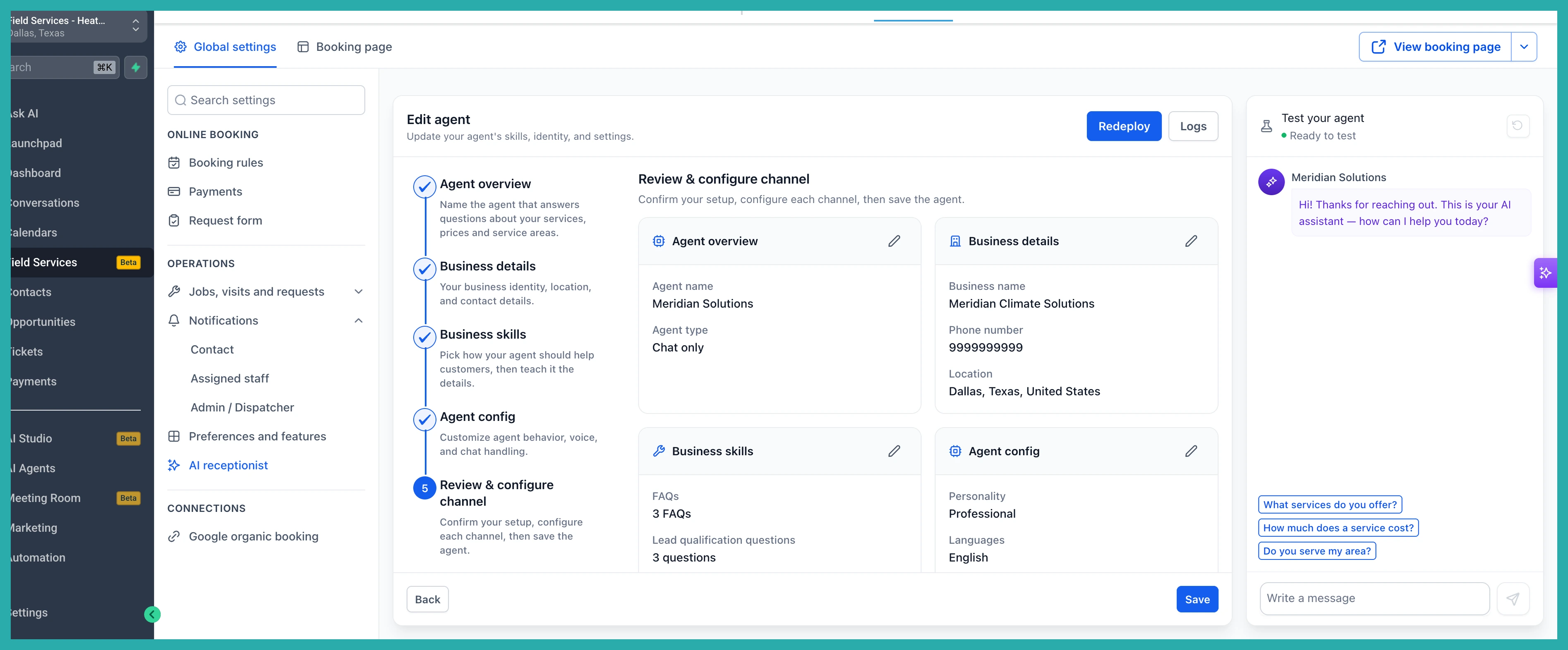
There's an AI receptionist too, answering questions about your services, prices and areas, and taking requests in chat for your team to follow up - plus Google organic booking so customers can find and book you straight from your Google Business Profile.
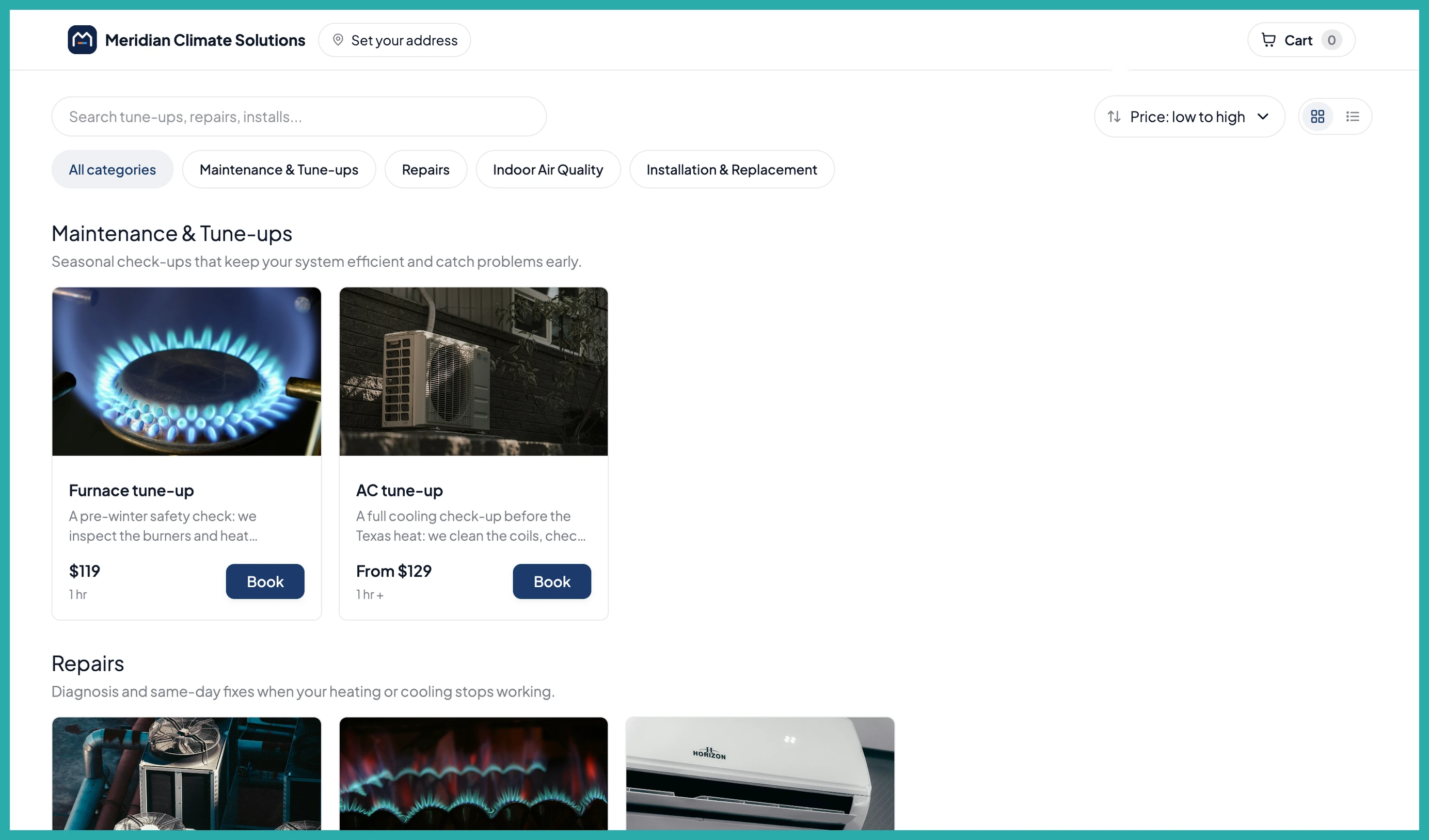
Your crew works from their phone
Out in the field, your team can manage requests and jobs, schedule and reschedule visits, update statuses, and use checklists, notes and timers - all from the mobile app, with everything synced back to the web.
How to get started
If you're enrolled in the beta, you'll see Field Services with a Beta tag in your left-hand menu. Here's the order I'd follow:
- Start on the welcome page, or go to Field Services > Services & staff to set up your service areas, staff and services.
- Open Field Services > Settings to choose how customers book, connect payments, and turn on the notifications you want.
- Create a request or a job, open it, and click Schedule visit to find a time and assign staff.
- Use Field Services > Schedule to follow the day, and Route optimization to plan each technician's route.
- Have your crew sign in to the mobile app with the same login to run their visits from the road.
If you'd like in and don't see it yet, you can register your interest for the beta through the enrolment form.
This is a big step - going from generating leads to actually running the work - so take it one setup step at a time. Get your services and staff in first, and the rest falls into place from there.
