
Drop Your Business Details Into Ad Copy Automatically With Custom Values
If you run ads, you already know the drill. Every new campaign means typing out the same details again - your business name, your city, your phone number, that current offer. Same words, over and over, and one typo away from an ad that says the wrong thing.
That part is done. You can now drop saved Custom Values straight into your ad copy across Meta, Google, and LinkedIn.
What landed
Custom Values are the reusable bits of your business you've already saved once - business name, location, support email, offer name, service area, phone number, and so on. Now you can pull those into your ad copy instead of typing them by hand.
They show up as real text in the preview and review screens, so you see exactly what the finished ad will say before it goes live.
How to use it
Head to Ad Manager and create or edit a campaign for Meta, Google, or LinkedIn.
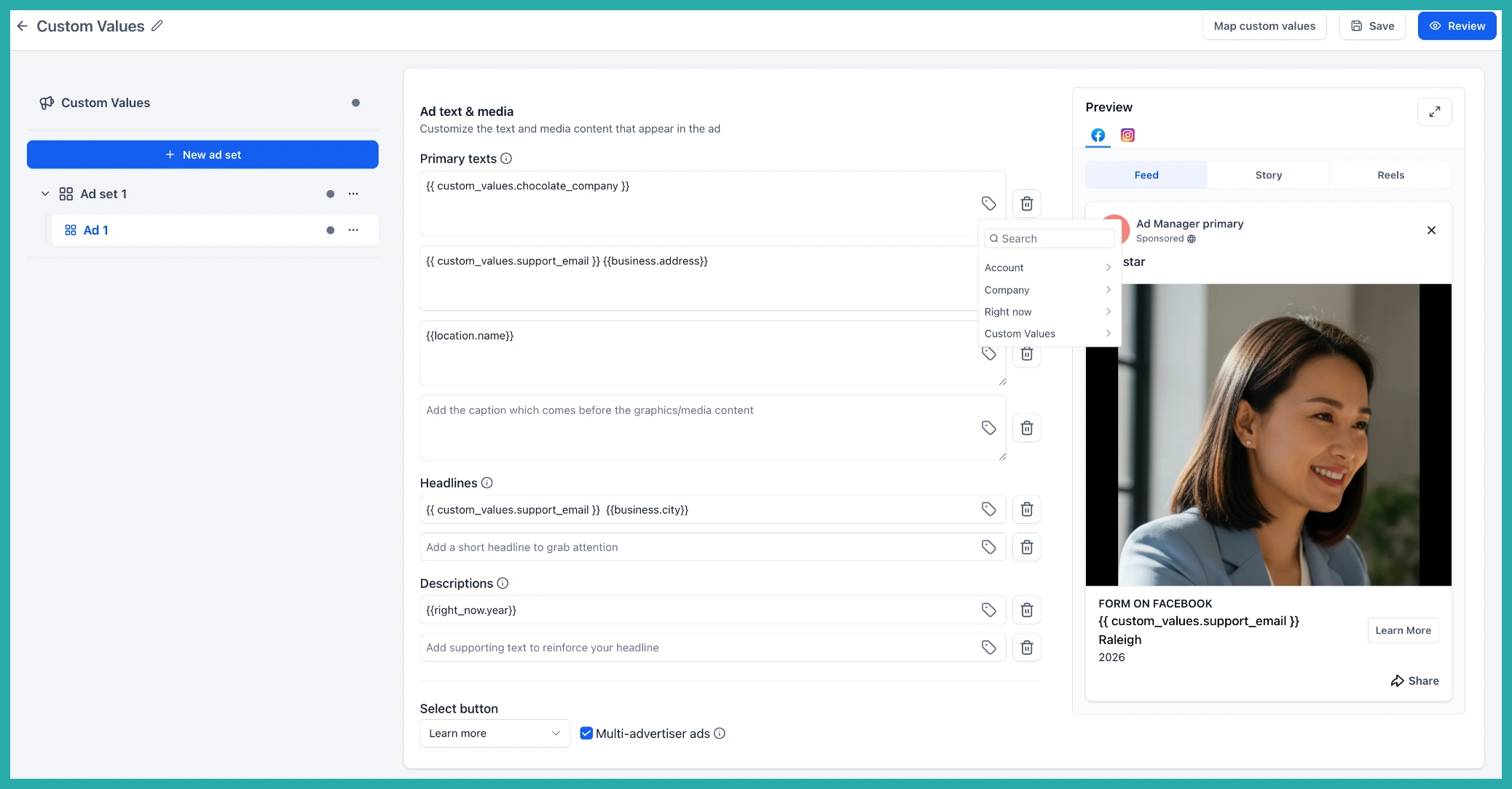
Open the ad copy section. Next to each supported field - primary text, headlines, descriptions, introduction text - you'll see an Insert Custom Values icon.
Click it, and a picker opens up. Search for the value you want, select it, and it drops right into the field where your cursor is.
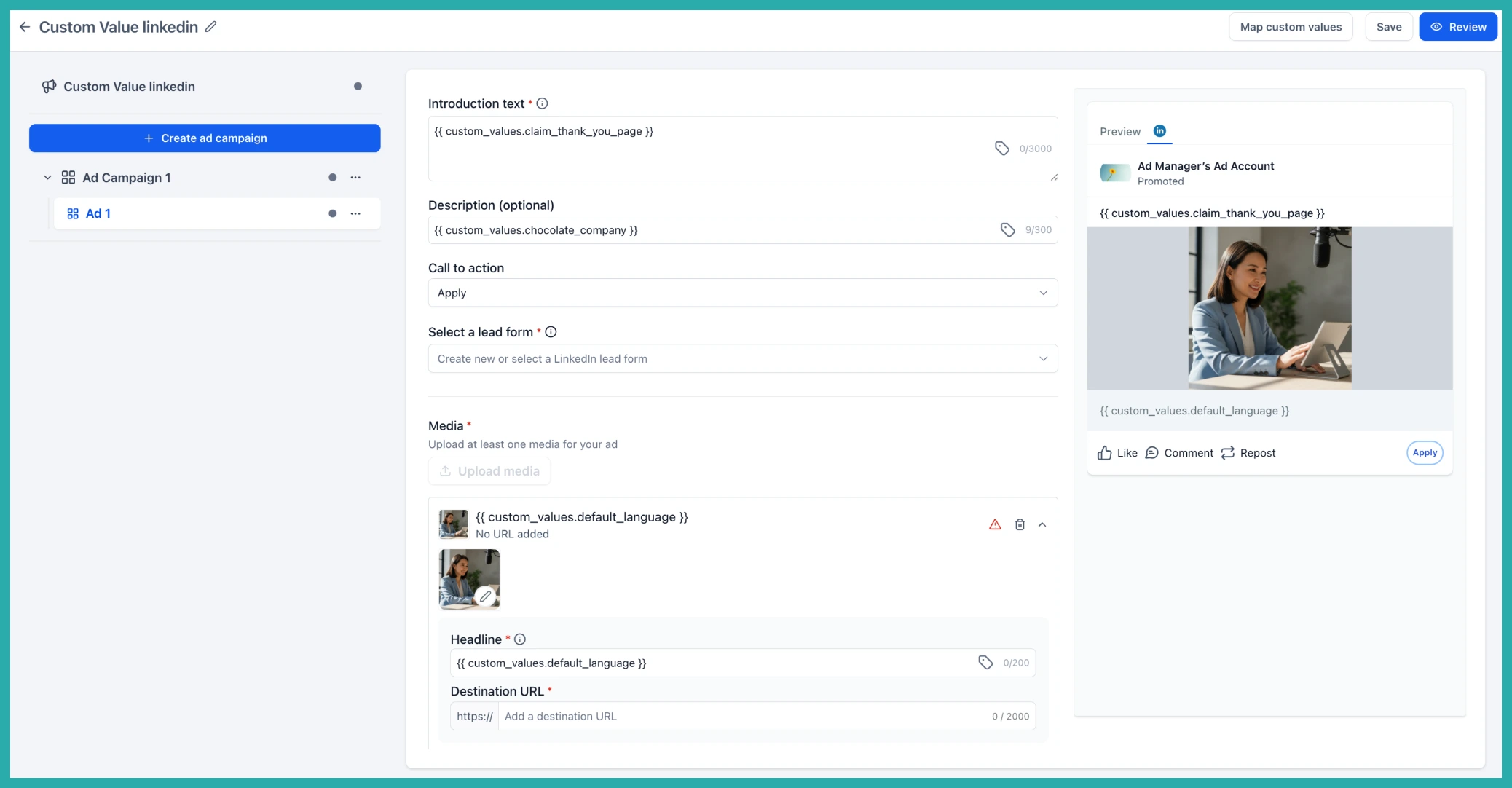
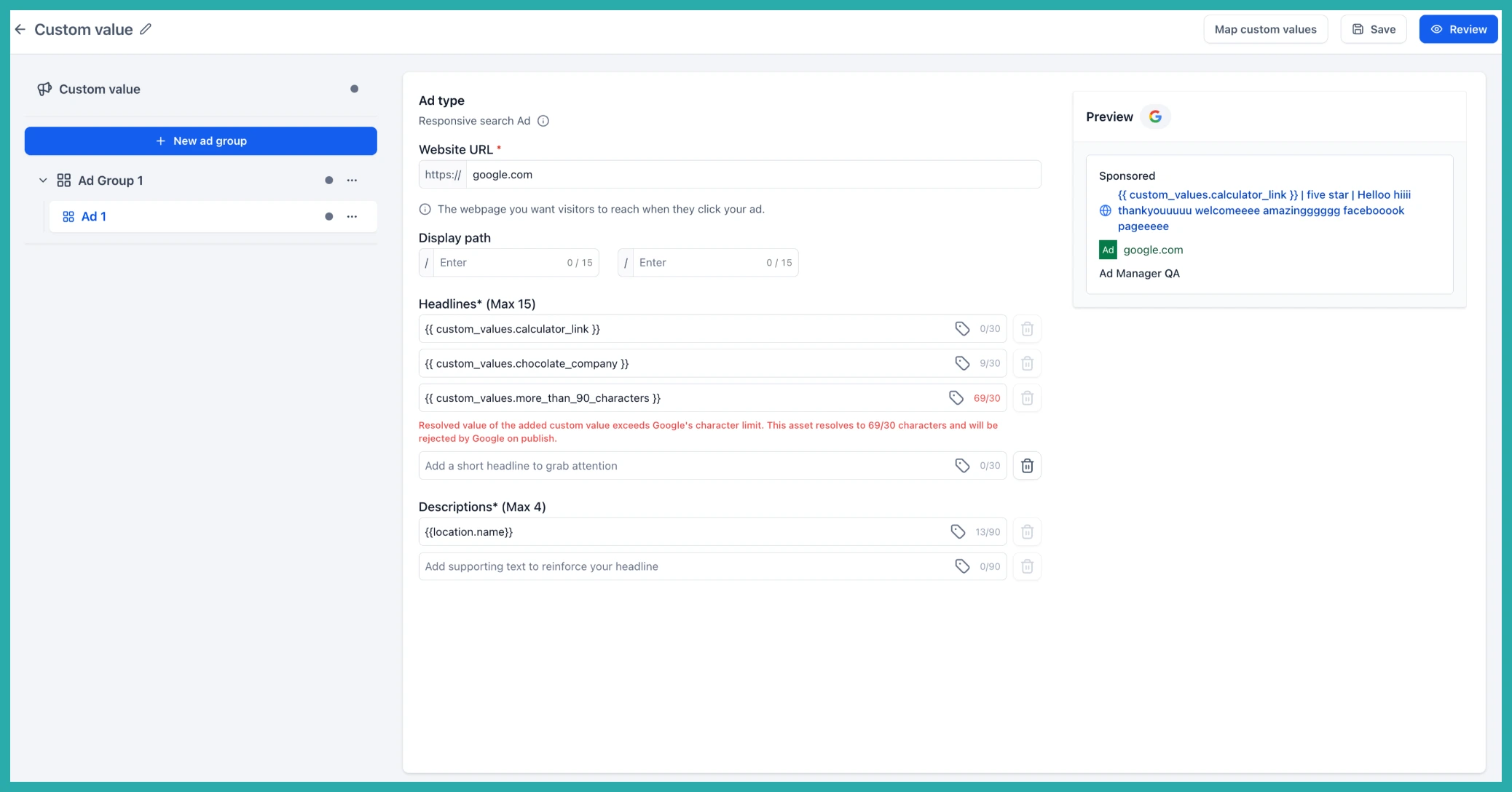
Keep building your campaign as normal. You can mix Custom Values with regular text however you like.
Check everything before you publish
Before launch, click Map custom values. This is where you add or review any values the campaign is using, so nothing is left blank or missing.
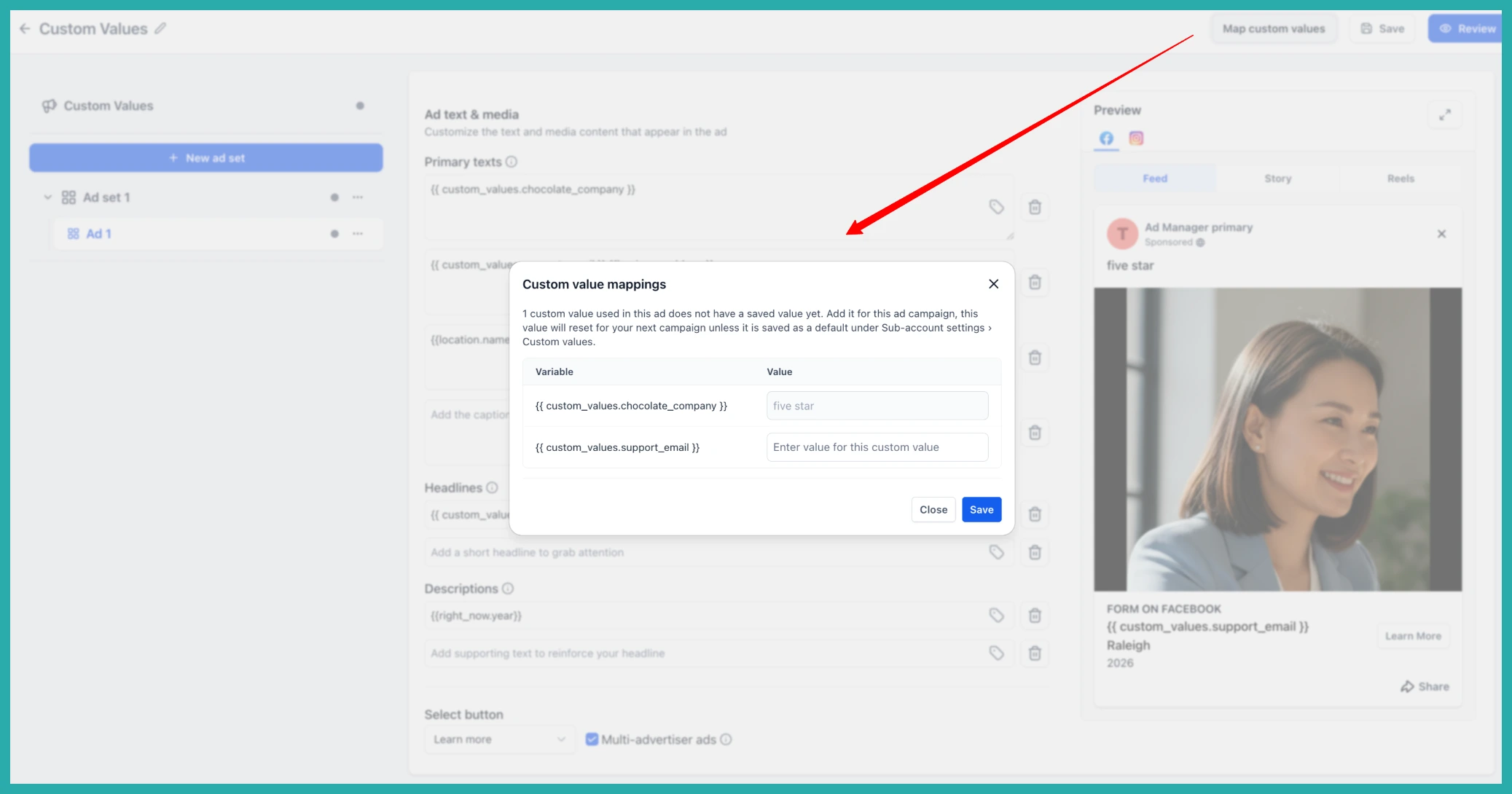
The preview and review screens then show the final resolved copy - the actual words that will appear in your live ad, not the placeholder.
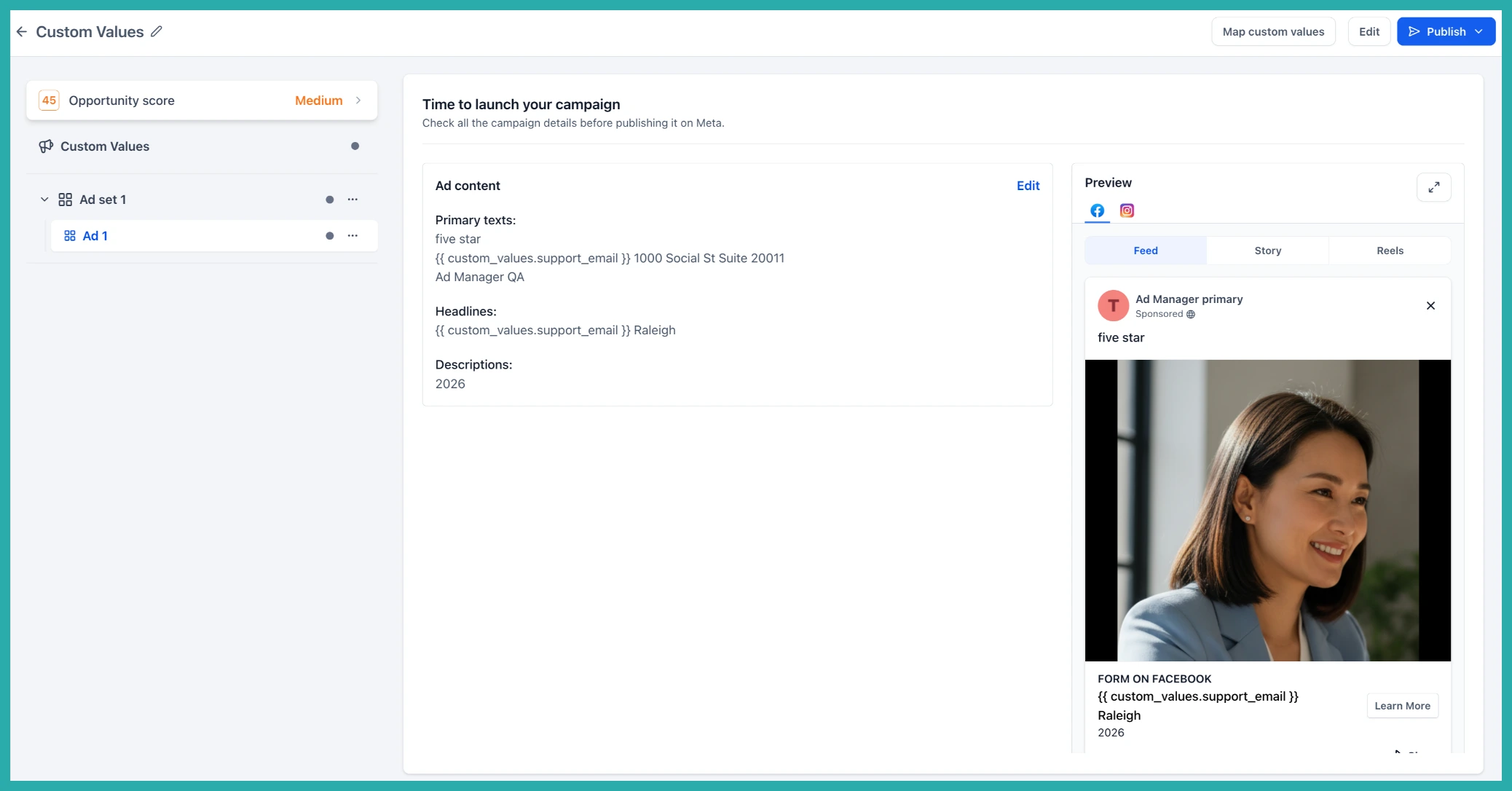
If anything is missing, empty, invalid, or over a platform's character limit, the system flags it before you publish. That way you catch problems on your screen instead of in a live ad.
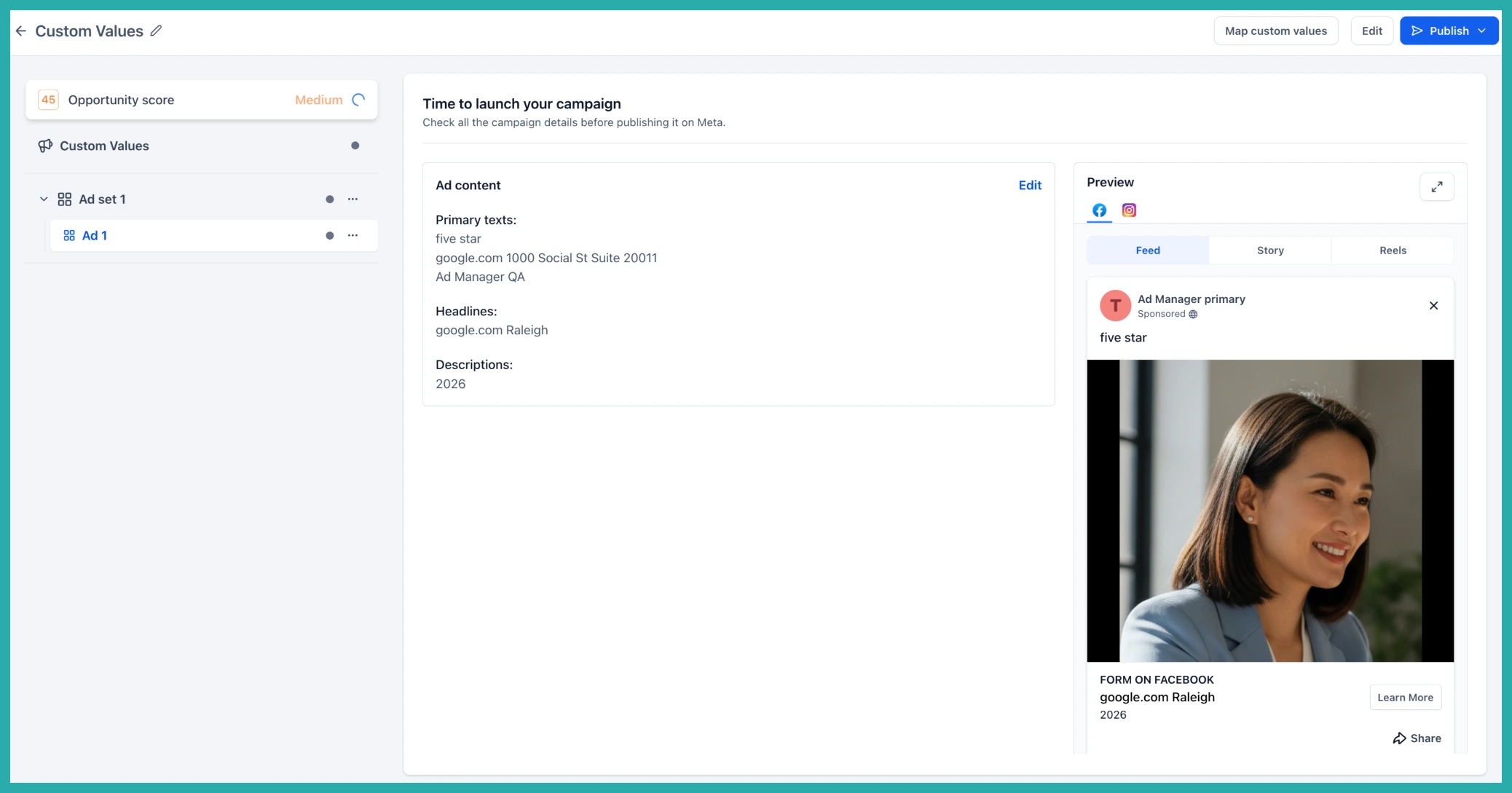
Once every check is clear, publish as usual.
A few things worth knowing
- Custom Values work in eligible copy fields only - not in URLs, CTA dropdowns, lead form selectors, media uploads, targeting, budget, or bid strategy fields.
- You can save a campaign as a draft even if some values still need attention.
- If you run more than one account, campaign templates hold onto the Custom Value keys. Reuse one template across accounts and just map the client-specific details before launch.
- Change a Custom Value after an ad is live and it won't update on its own - you'll need to re-publish for the new value to take effect.
Set your Custom Values up once and every future campaign gets that bit faster and more consistent. Go give it a try on your next ad.
