
Connect Your Other Apps to Ask AI Straight From Your Phone
You want Ask AI to help with more than what's already inside your account. You want it working with the other apps you use every day. Until now, that meant sitting down at a computer to connect them.
Not anymore. Connectors now live right inside Ask AI in the mobile app, so you can link an app, pick which tools it may use, and get back to work - all from your phone.
What you get
Connectors link Ask AI to the apps your team already uses. From your phone you can now:
- See what's connected. The Connected tab shows every linked app, how many accounts you've added and how many tools are switched on.
- Add something new. The Browse tab lets you search the app catalogue and connect a new app in a few taps.
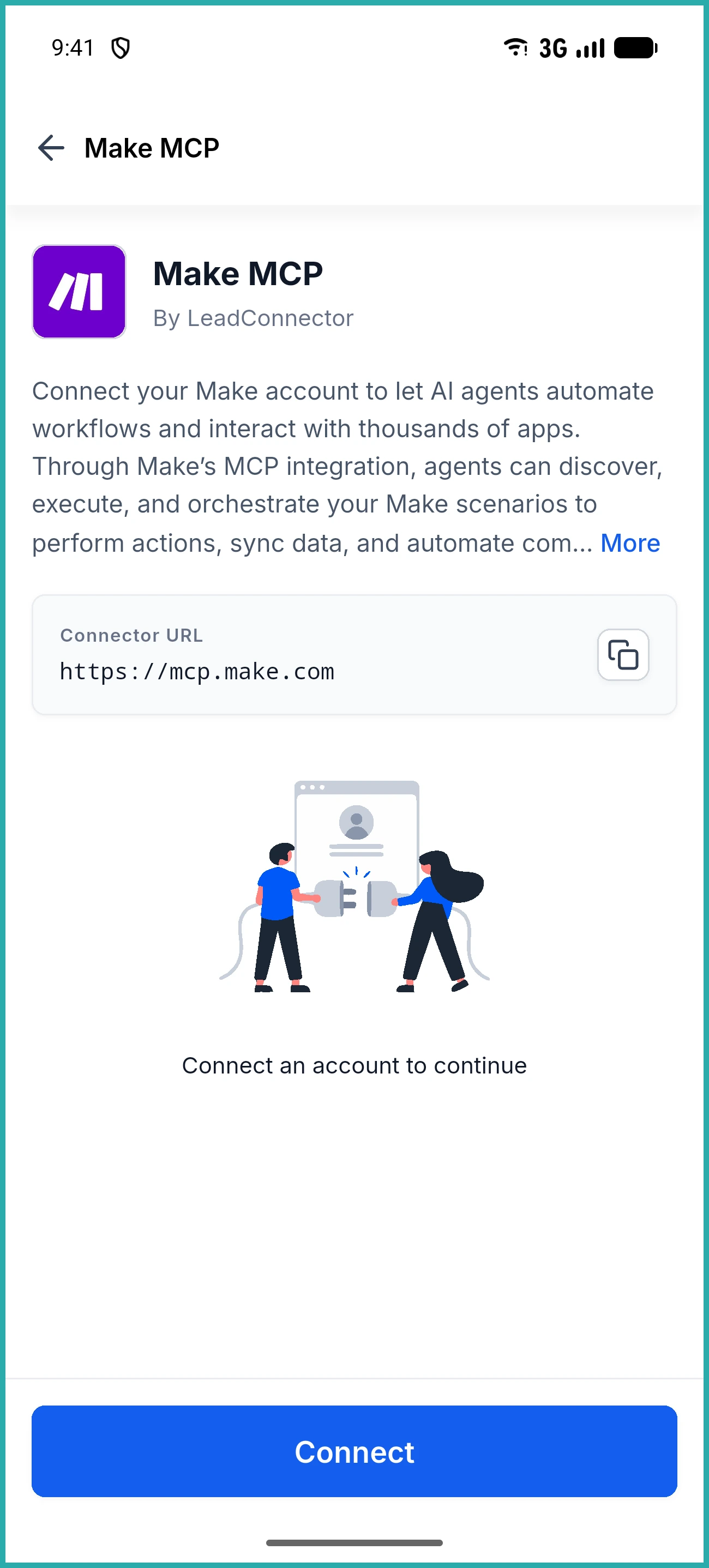
- Sign in safely. For most apps you log in on the app's own page inside a secure in-app browser.
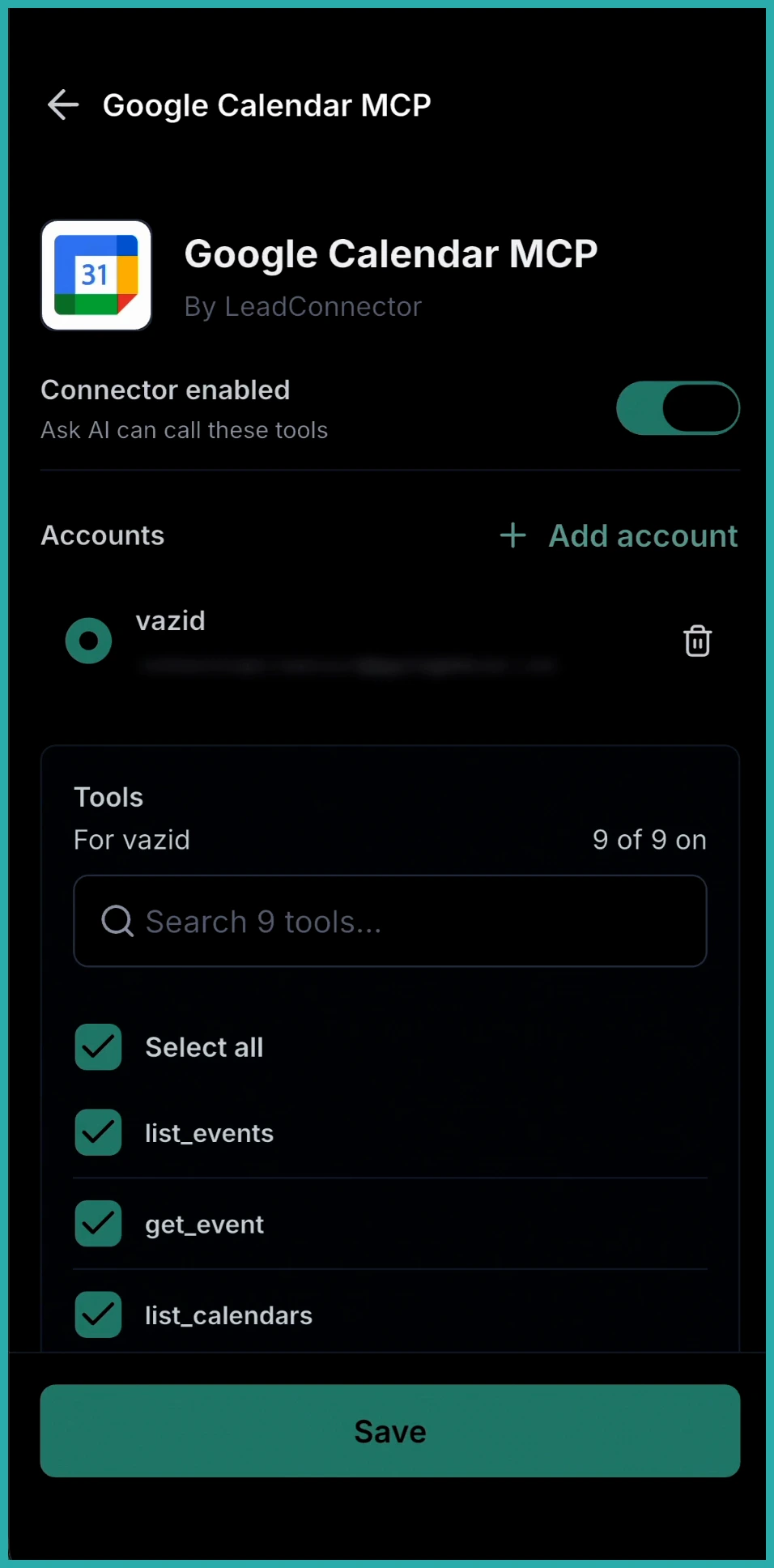
- Control the tools. Tick the exact tools Ask AI is allowed to use, or use Select all.
- Bring your own server. Add a custom MCP server with a name and URL. (MCP, or Model Context Protocol, is simply the standard way AI assistants talk to other apps.)
Anything you connect on the web shows up on mobile, and the other way round, so nothing gets out of step.
How to set it up
Open Ask AI, then tap the Chat history icon at the top right. In the screenshot below, you'll see where it sits.
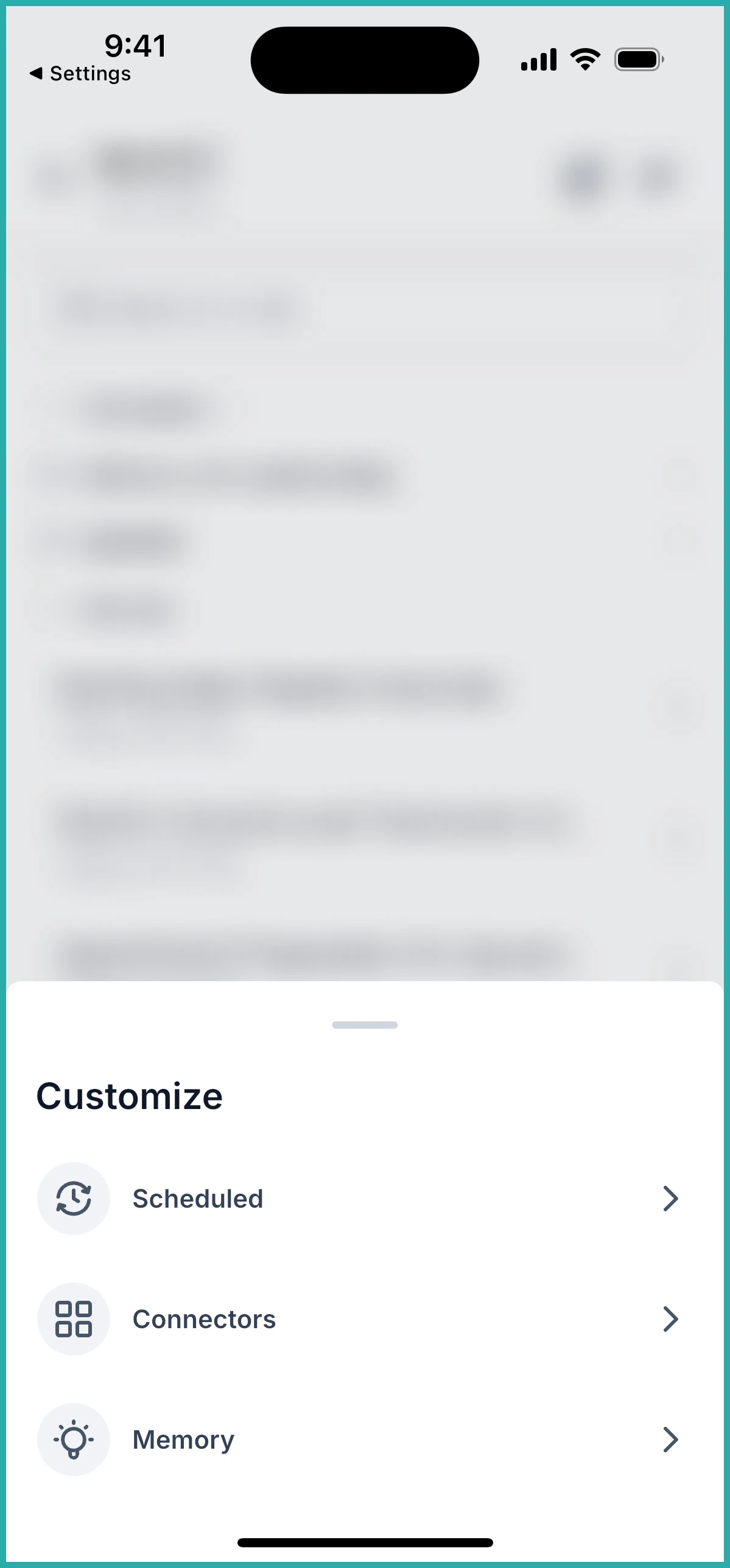
Next, tap Customize at the top right, then tap Connectors.
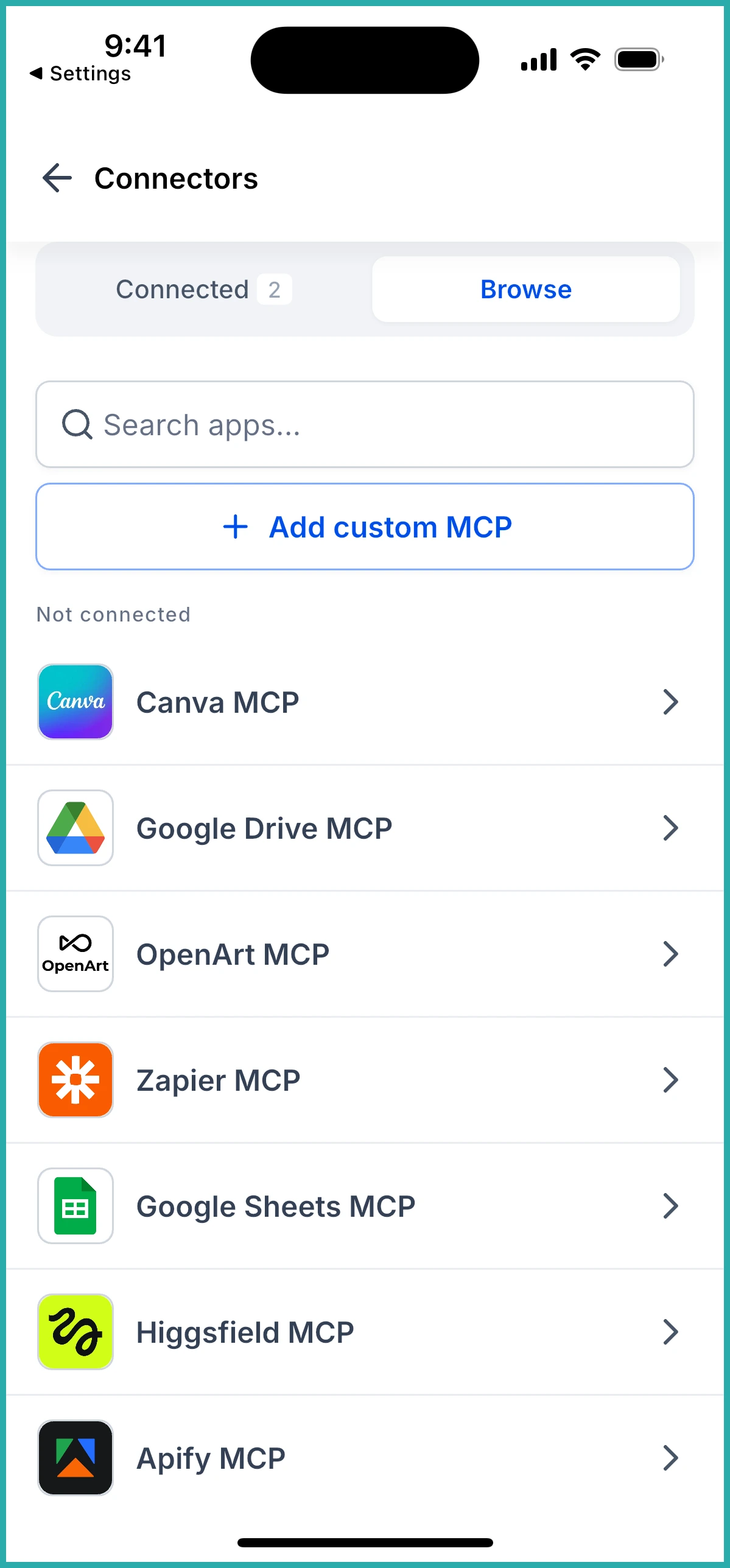
On the Browse tab, pick the app you want and tap Connect. Sign in when you're asked.
Then choose the account, tick the tools you want Ask AI to use, keep Connector enabled switched on, and tap Save.
Head back to Ask AI and ask away. That's it.
A few things worth knowing
- Connectors are set up per account. If you're at agency level, you'll be asked to switch into an account first.
- The accounts you connect are yours. Other users in the account don't see them.
- A connector needs a connected account and at least one tool ticked before it will turn on.
- Tapping Back without saving discards your changes, with no warning, so hit Save first.
- Deleting a custom MCP server also removes every account connected to it, and that can't be undone.
- Offline, you'll see your last loaded list with a "Couldn't refresh your connectors" banner. Tap Try again once you're back online.
If an app login has expired or you need to add a new tool, you no longer have to wait until you're back at your desk. Pull out your phone, sort it in seconds, and keep moving.
