
Connect Your AI Chat Agent to Your Website Without Leaving Your Site Settings
You build a site, add a chat widget, and of course you want your AI agent answering visitors while you get on with your day.
Until now, connecting that agent meant leaving AI Studio, opening Conversation AI, hunting down the right agent, and wiring up its live chat channel for that one widget. And your widget settings never showed whether an agent was even connected, let alone which one.
That's sorted now.
What landed
There's a new AI agent section built right into your site's chat widget settings. From there you can connect an agent, see exactly who's answering and under which conditions, and edit or remove it, all without leaving your site.
It works the same way as the Agent tab in the Chat Widget builder, so if you've used that, this will feel familiar.
How to connect an agent
Open your site in AI Studio, click More, go to Chat Widgets, then open the AI agent section.
Pick any Conversation AI agent from the Agent dropdown and save. That's the moment it goes live - the agent starts replying to visitors on that live chat widget straight away.
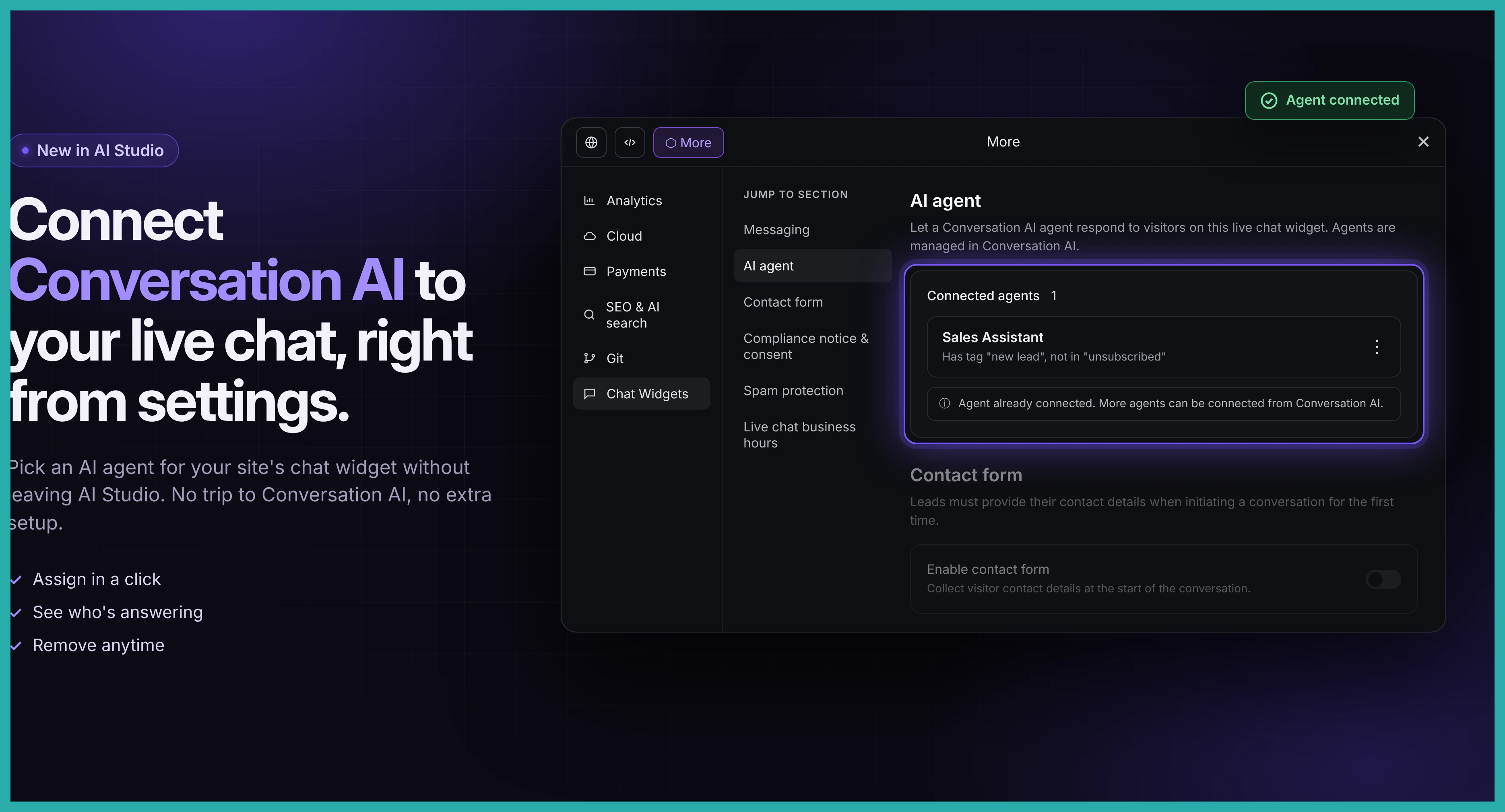
Once connected, the agent shows under Connected agents along with its tag conditions. So you'll see something like Has tag "new lead", not in "unsubscribed", which tells you exactly which contacts it answers for. No more guessing whether anything's switched on.
Editing, swapping or removing
Use the three-dot menu next to the agent to make changes.
- Edit agent opens it in Conversation AI, where it's created and trained.
- Edit tags takes you straight to that agent's tag settings in Conversation AI, since tags are managed there, not in AI Studio.
- Remove connection disconnects the agent from the widget, with a confirmation first so nothing changes by accident.
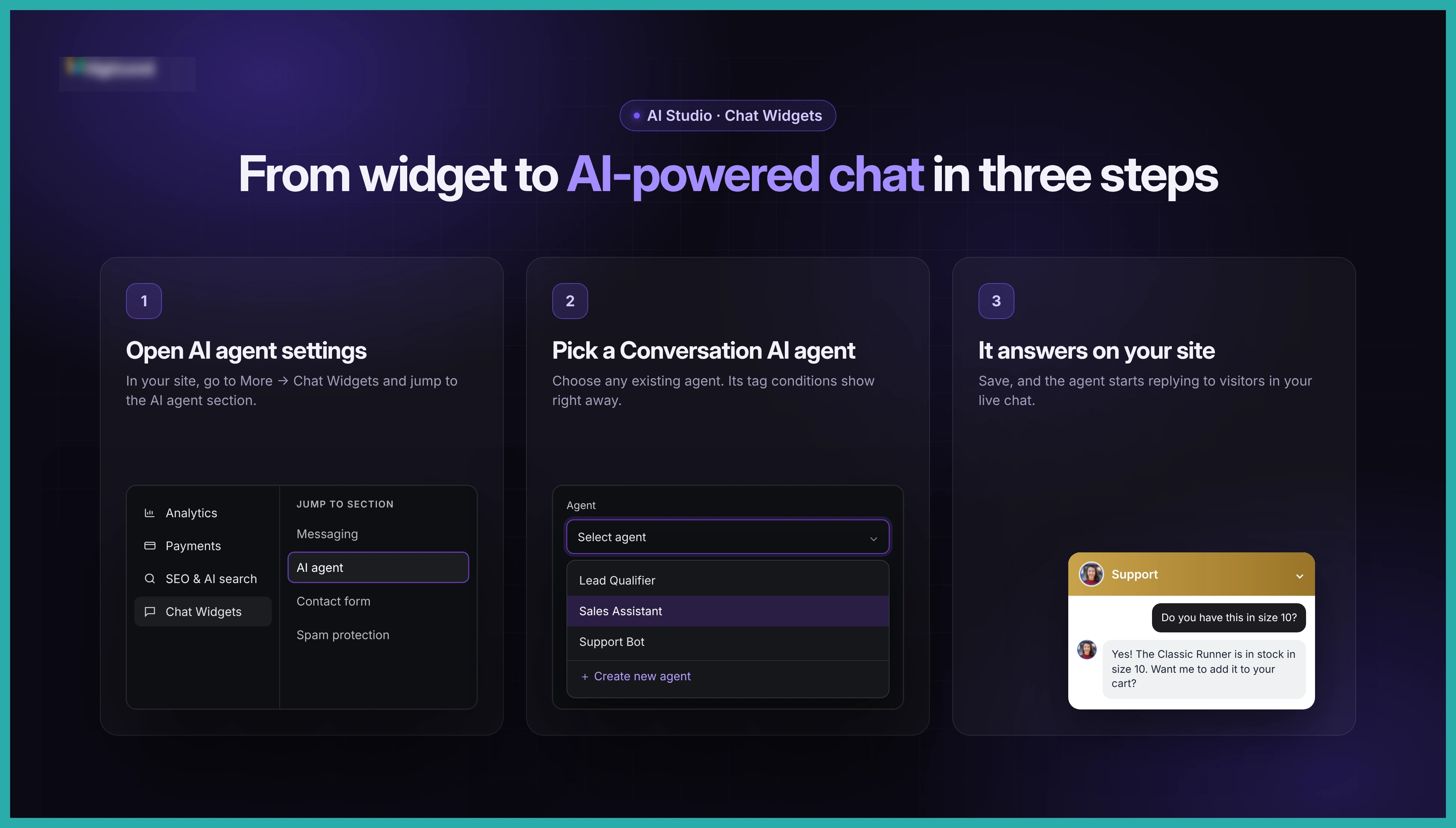
You stay in control the whole way through. Swap the agent, remove it, or send it out to answer visitors whenever you like.
A few things worth knowing
- This works with live chat widgets only.
- You can connect one agent from AI Studio. If you want more agents on a widget, you can still do that from Conversation AI.
- Tags can't be edited inside AI Studio - use Edit tags to change them in Conversation AI.
- Agents are built and trained in Conversation AI. AI Studio simply connects an existing one to your widget.
If you've got a site with a chat widget sitting there without an agent, this is a two-minute job now. Go pick your agent and let it start answering for you.
