
Your Clients Now Get Notified the Moment You Share a File
You upload a contract or a waiver to a client's portal, and then... you wait. Did they see it? Usually you end up sending a follow-up message just to make sure.
That guessing game is over.
What landed
When you share a file with a contact through the Client Portal, they now get a notification straight away. It shows up in the portal and, if they use it, in your branded mobile app too. No extra nudge from you needed.
So the moment you share a contract, an invoice, onboarding paperwork, or anything else, they know it's there and can open it.
How to share a file
This is the part you do. It's the same file sharing you already know, with the notification handled for you.
- Open the contact you want to share with.
- Go to the Files section in the right-side panel.
- Upload a new file or pick an existing one.
- Turn on the Upload to Client Portal option.
- Save.
In the screenshot below, you'll see the Files section with the Client Portal option enabled. Once you save, the notification goes out automatically.
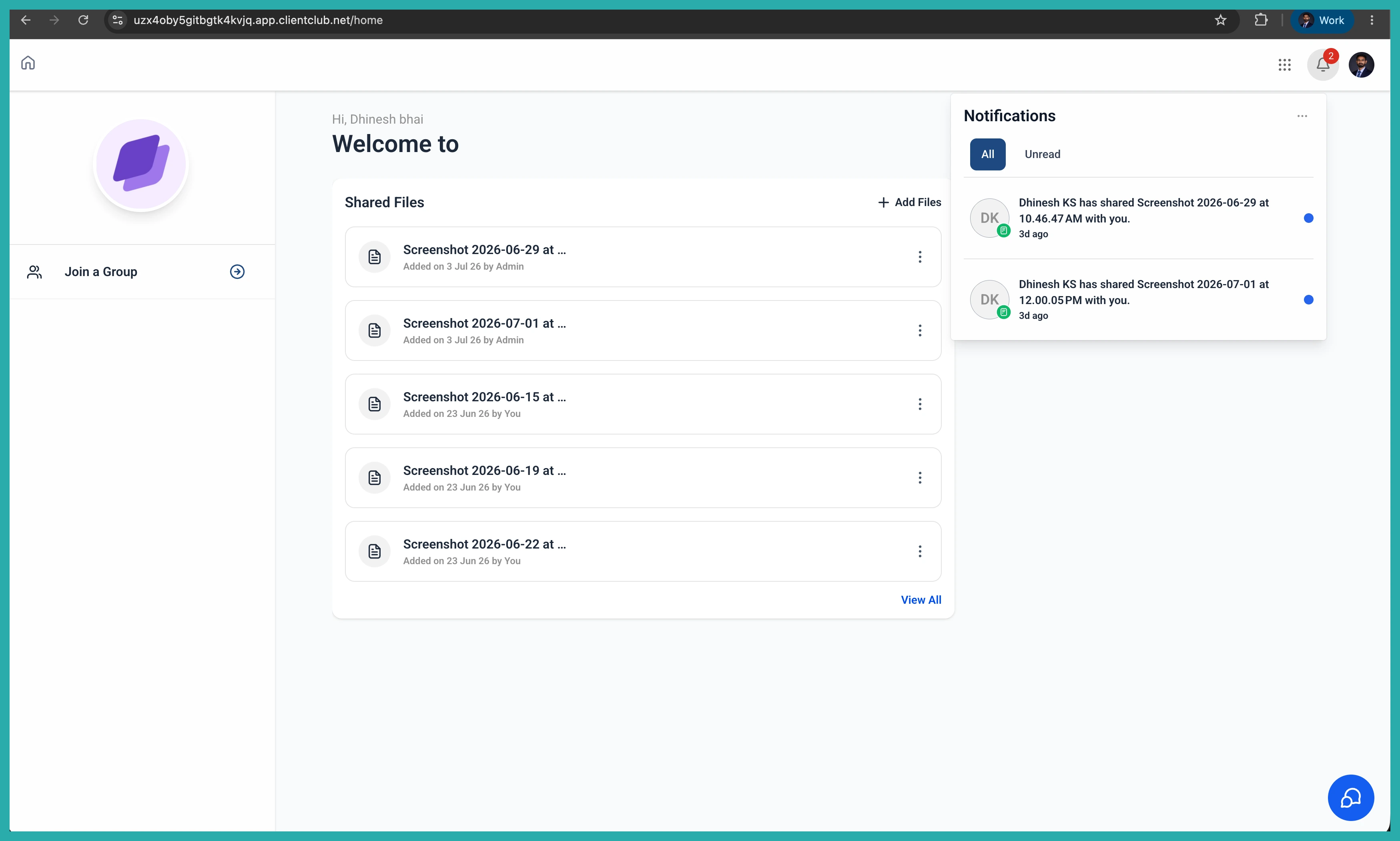
That's everything on your end. The contact gets an in-app notification, and a push notification too if they've got those switched on.
What your clients can control
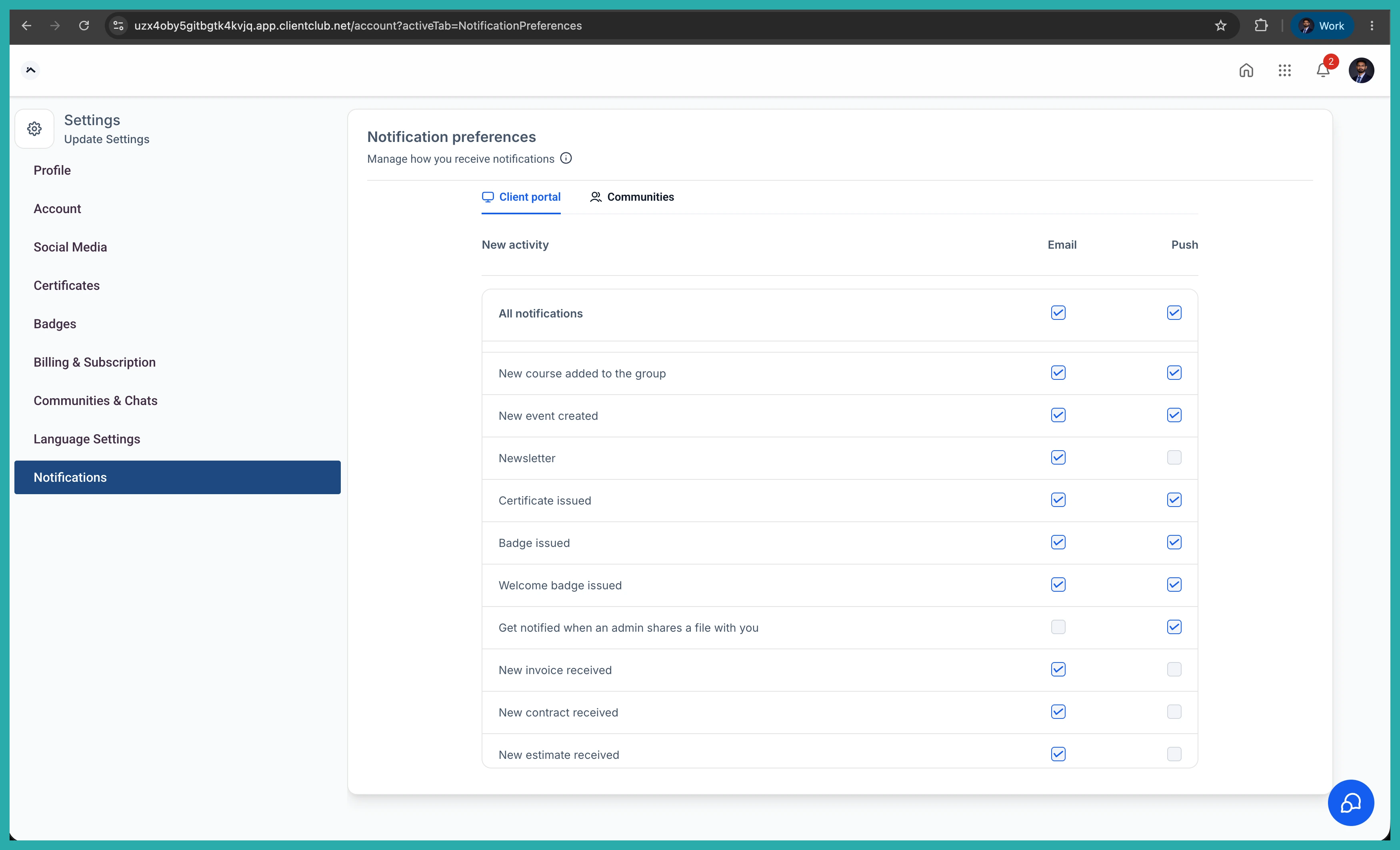
Your clients decide how they hear about shared files. They can turn these notifications on or off from inside their own portal.
To do it, they log in to the Client Portal, go to Settings, then Notification Preferences, and toggle In-app and Push notifications to suit them. A quick save and they're set.
It's a small change that saves you a lot of little check-in messages. Share the file, and trust that your client will know it's waiting.
