
Certificate Builder Now Has a Layers Panel, So You Can See and Lock Every Element
If you have ever built a certificate and then nudged the wrong text box, or discovered a broken name field only after it went out, this one's for you.
The Certificate and Badge Builder now has a proper Layers panel. You can see every element stacked in order, lock the ones you don't want touched, and spot broken custom fields before anyone gets issued the wrong thing.
What you get
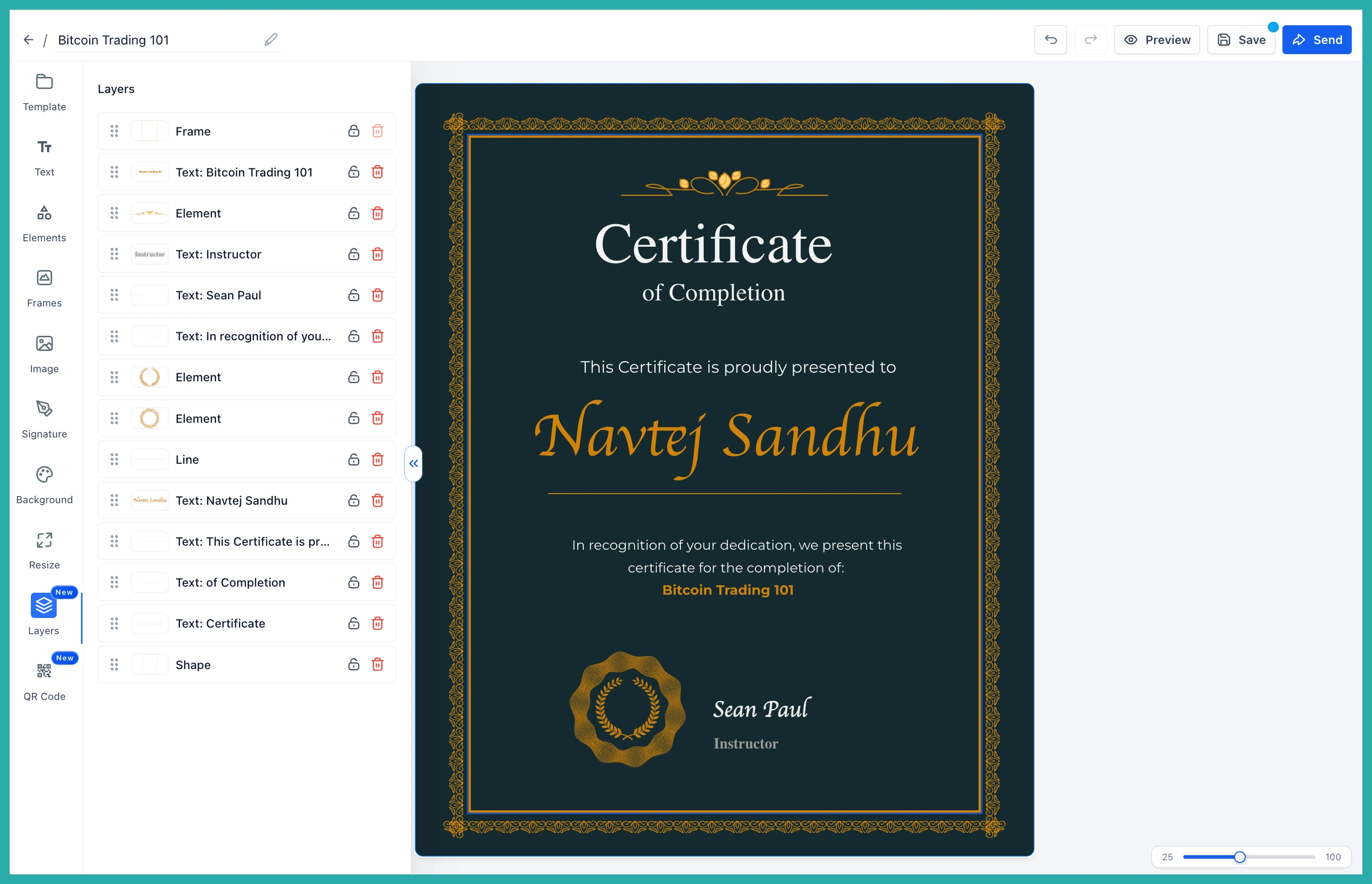
A new Layers tab sits in the builder's left sidebar. It shows the full stack of everything on your canvas, top to bottom, so you finally know what's sitting in front of what.
- Click any layer to select that element on the canvas
- Drag and drop to reorder the stack
- Lock a layer so it can't be moved, resized, deleted, or edited by accident
- Delete any unlocked layer straight from the panel
- Invalid custom-field placeholders get flagged with an error pill, so a broken name or date field stands out before you publish
If you have used any design tool before, it will feel familiar right away.
How to use it
Open the Certificate / Badge Builder and select the Layers tab in the left sidebar. From there you can:
- Click a row to select that element on the canvas
- Drag rows up or down to change the stacking order
- Lock the elements you want to protect from stray clicks
- Delete anything you no longer need
Keep an eye out for the error pill. If a custom field is broken, it shows there, and a manual save will warn you before you commit it. Auto-save works exactly as it did before.
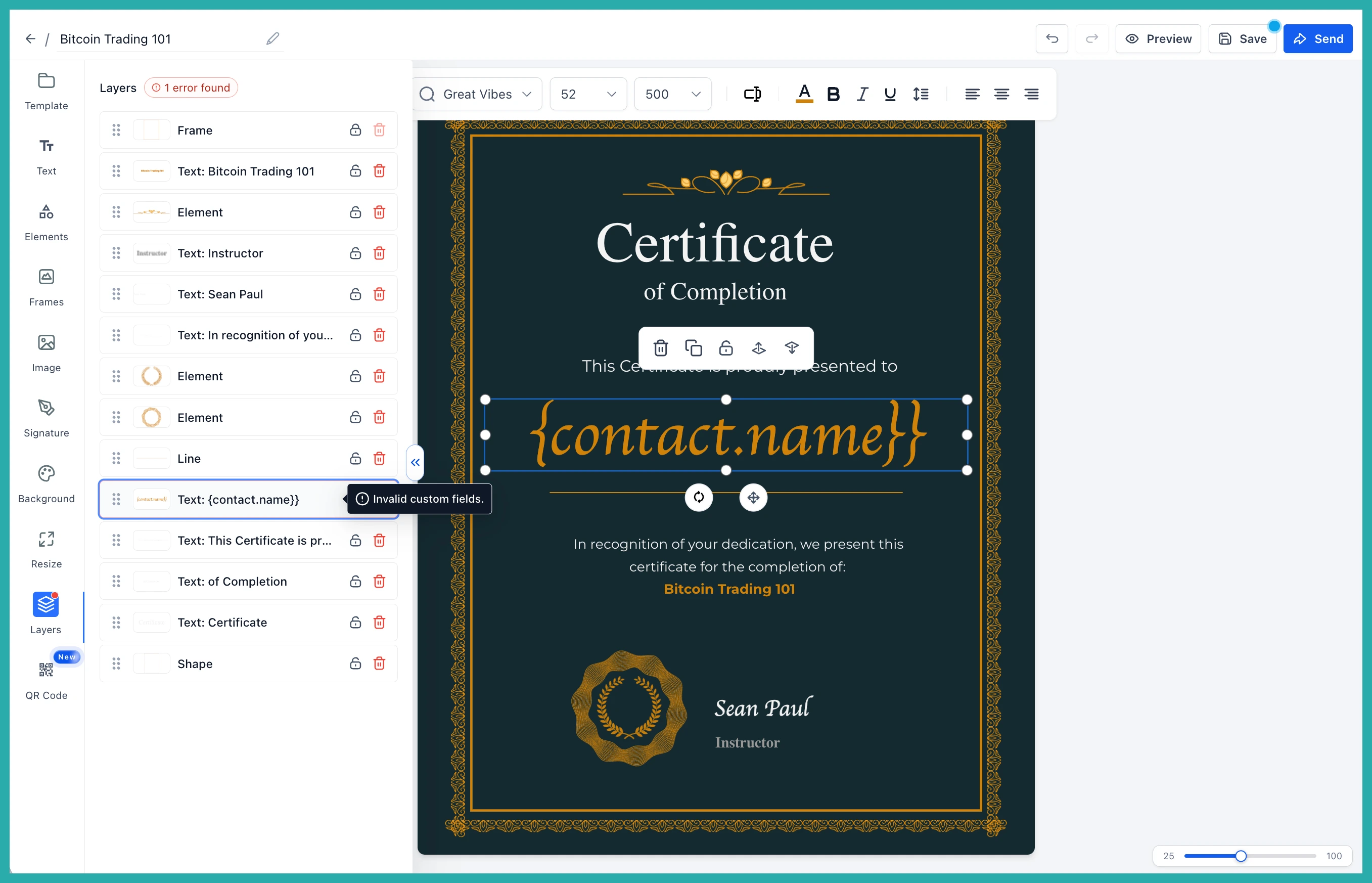
Fix any flagged placeholders, lock down the pieces you want to leave alone, and you can build cleaner templates with a lot less second-guessing. Give it a look next time you open a certificate.
