
Add Your Google Ads Keywords in One Paste, With No 40-Keyword Cap
If you've ever built a Google Ads campaign in Ad Manager, you'll know the old drill. Add a keyword, add another, add another, and hope you don't hit the wall at 40.
That wall is gone, and adding keywords just got a lot quicker.
What landed
Keyword management in your Google Ads campaigns is now faster and far more flexible. Here's what changed:
- The 40-keyword limit is gone, for both Positive and Negative Keywords.
- There's a bigger text area, so working with a long list is actually comfortable.
- You can bulk paste your keywords instead of typing them in one at a time.
- Paste them separated by new lines or by commas, whichever suits your list.
- Duplicates and stray blank spaces are cleaned up for you automatically.
So if you've already got a keyword list sitting in a spreadsheet or a doc, you can bring the whole thing in at once.
How to use it
Head to Ad Manager, open your Google Campaign, then go into your Ad Group.
Find the Positive Keywords or Negative Keywords section, depending on which you're working on.
In the screenshot below, you'll see the larger keyword field. Type or paste your keywords straight in, separating them with new lines or commas.
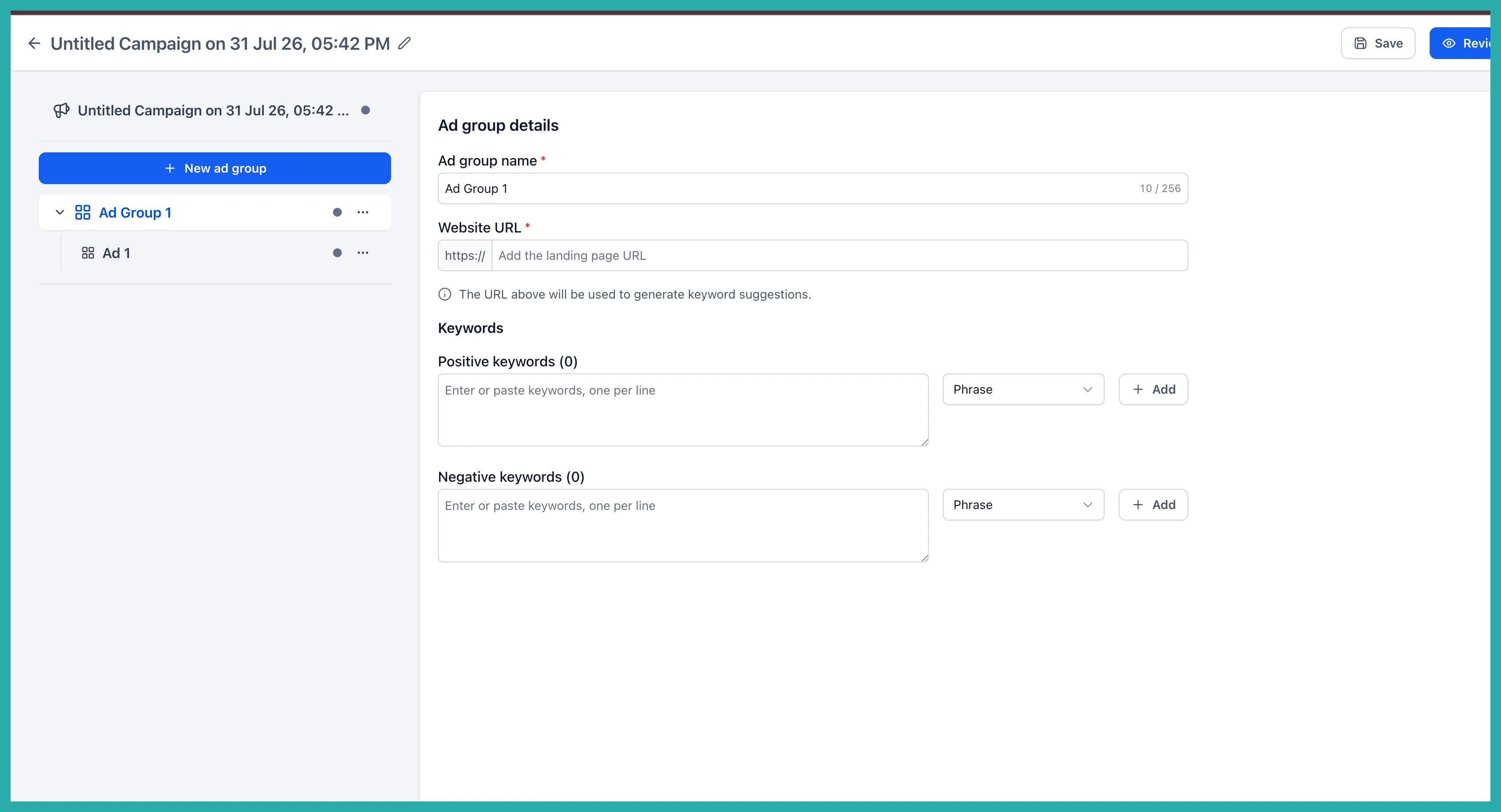
Then pick the match type you want, click Add, and the whole list drops in together. No copying one line at a time, no counting to 40.
A couple of notes
This works for both Positive and Negative Keywords. Duplicate and empty entries are removed during the paste, so you don't need to tidy your list first. And as always, keyword eligibility still follows Google Ads' own rules.
If you've been holding back on a bigger search campaign because the old limit made it a chore, now's the time. Paste your list in and get building.
