
Your Clients Can Now Book Services Straight From the Client Portal
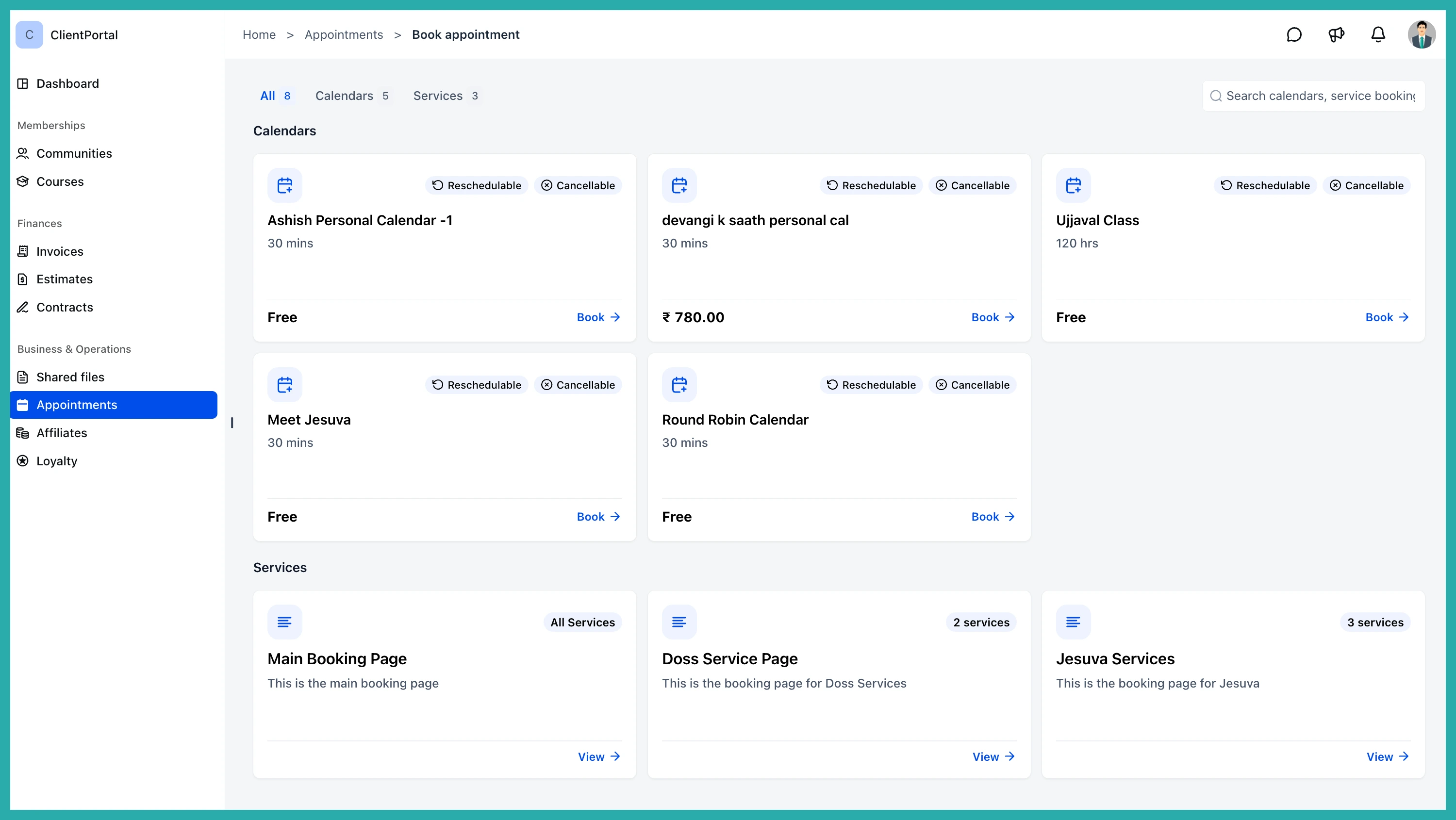
Here's one that takes some friction out of your client's day. They can now book your services directly from the Client Portal - no separate booking link to hunt down, no jumping between tabs.
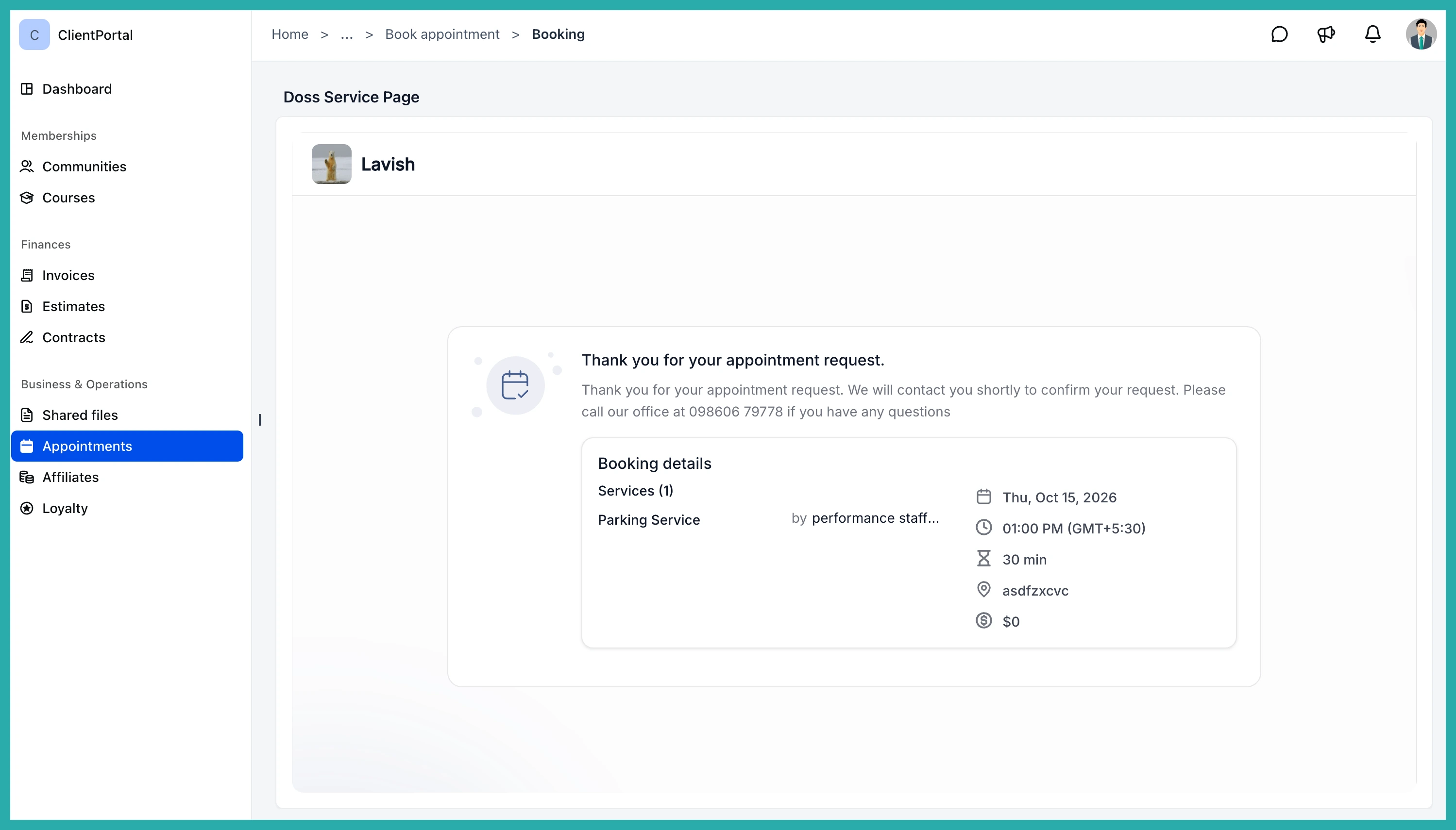
Everything lives in one place. They log in, see what you offer, pick a time, and they're booked. If they need to reschedule or cancel later, they do that from the same spot too.
What your clients can now do
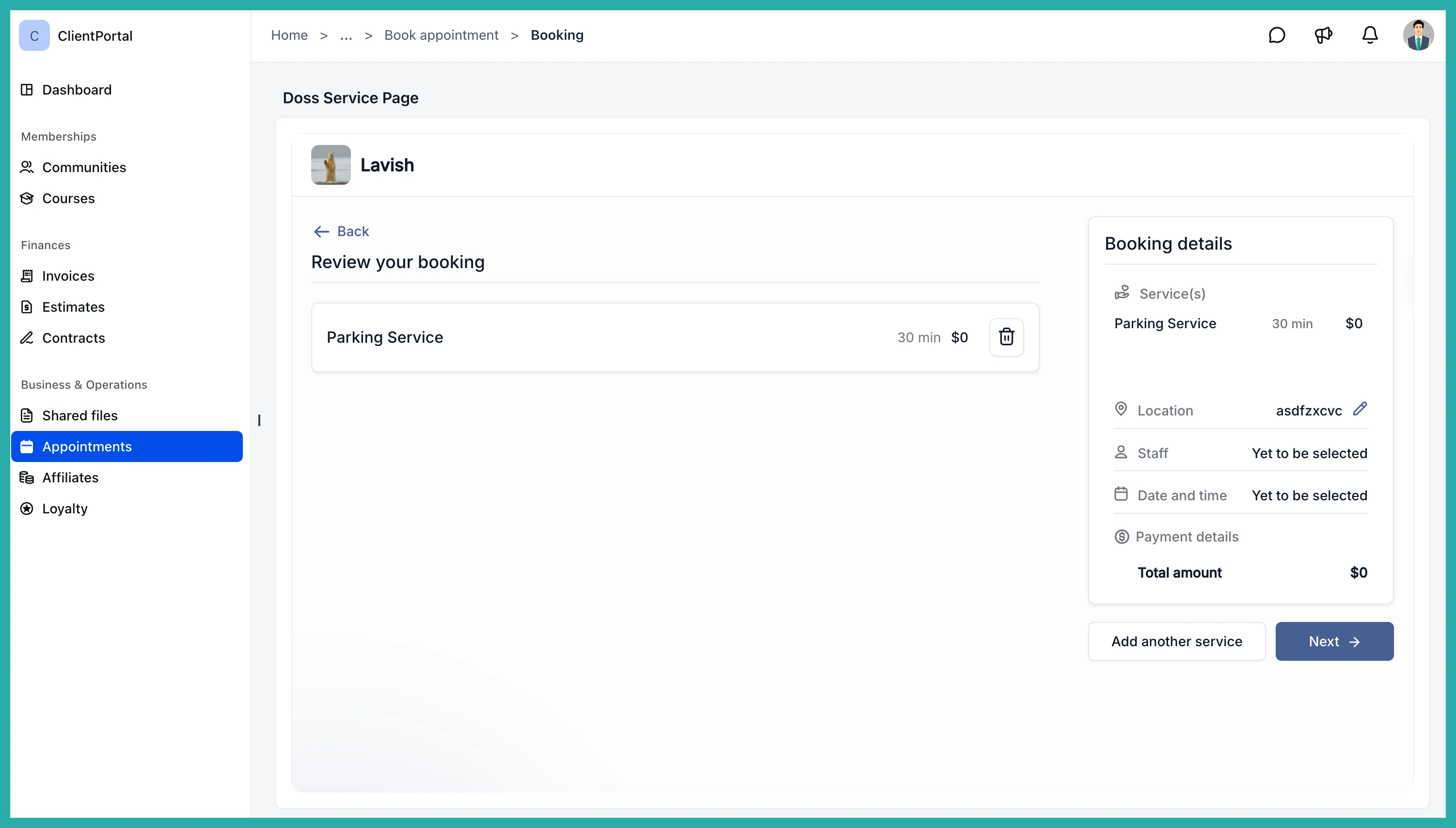
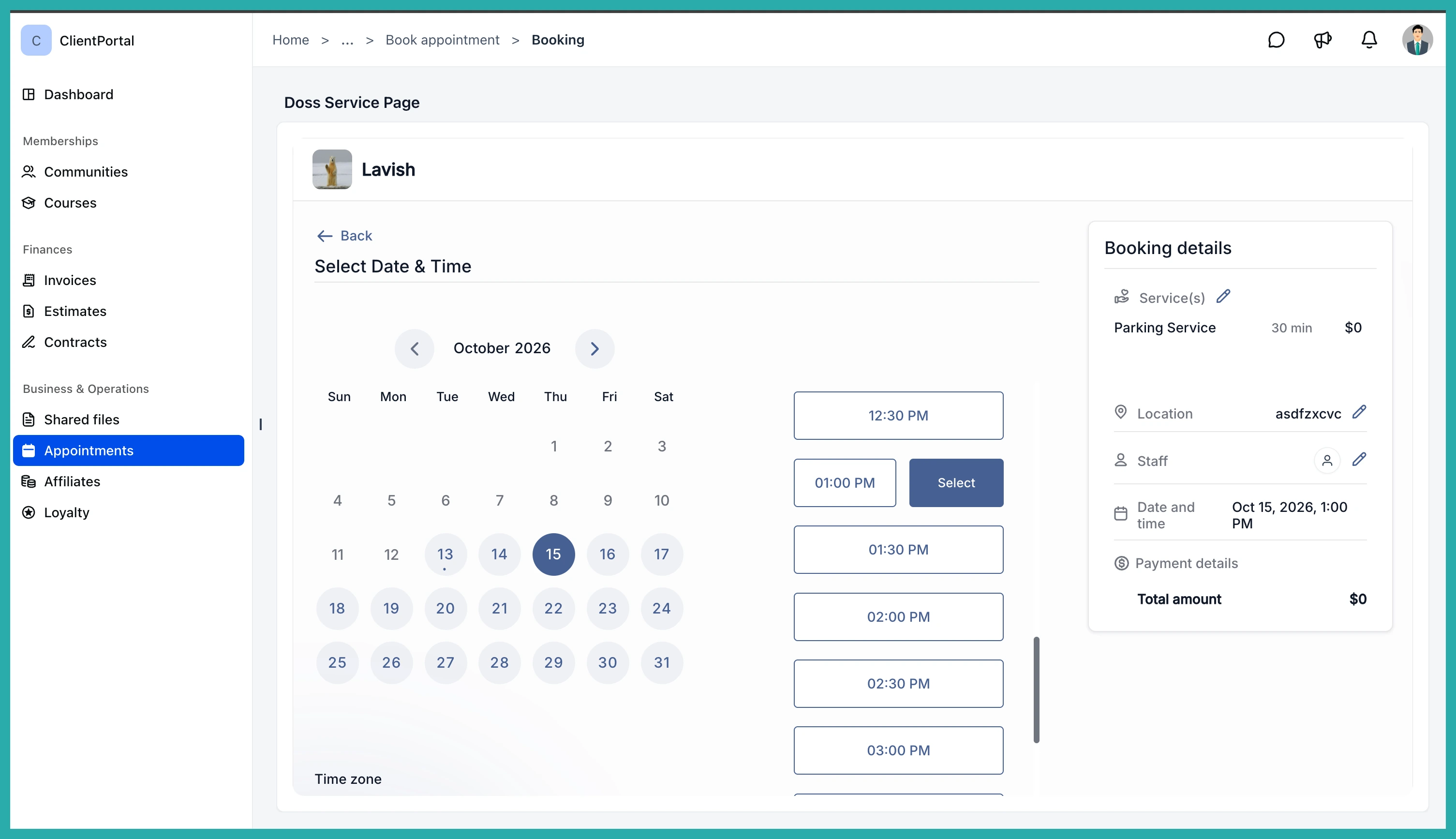
- Book services directly - browse what's available, choose a date and time, and confirm without ever leaving the portal.
- Book faster - their details are pre-filled, and they can book a single service or several, depending on how you've set things up.
- Reschedule and cancel themselves - as long as your calendar settings allow it, they can manage eligible bookings on their own.
- See everything together - meetings and service bookings now sit side by side under Appointments, split into Upcoming and Past.
- Only see what you want them to - you decide which booking pages show up in the portal.
Before this, services meant sending clients off to separate booking links. That's the kind of small hassle that adds up, both for them and for you. Now the portal is the one place they go to book and manage everything.
Step 1: Turn on booking for a service
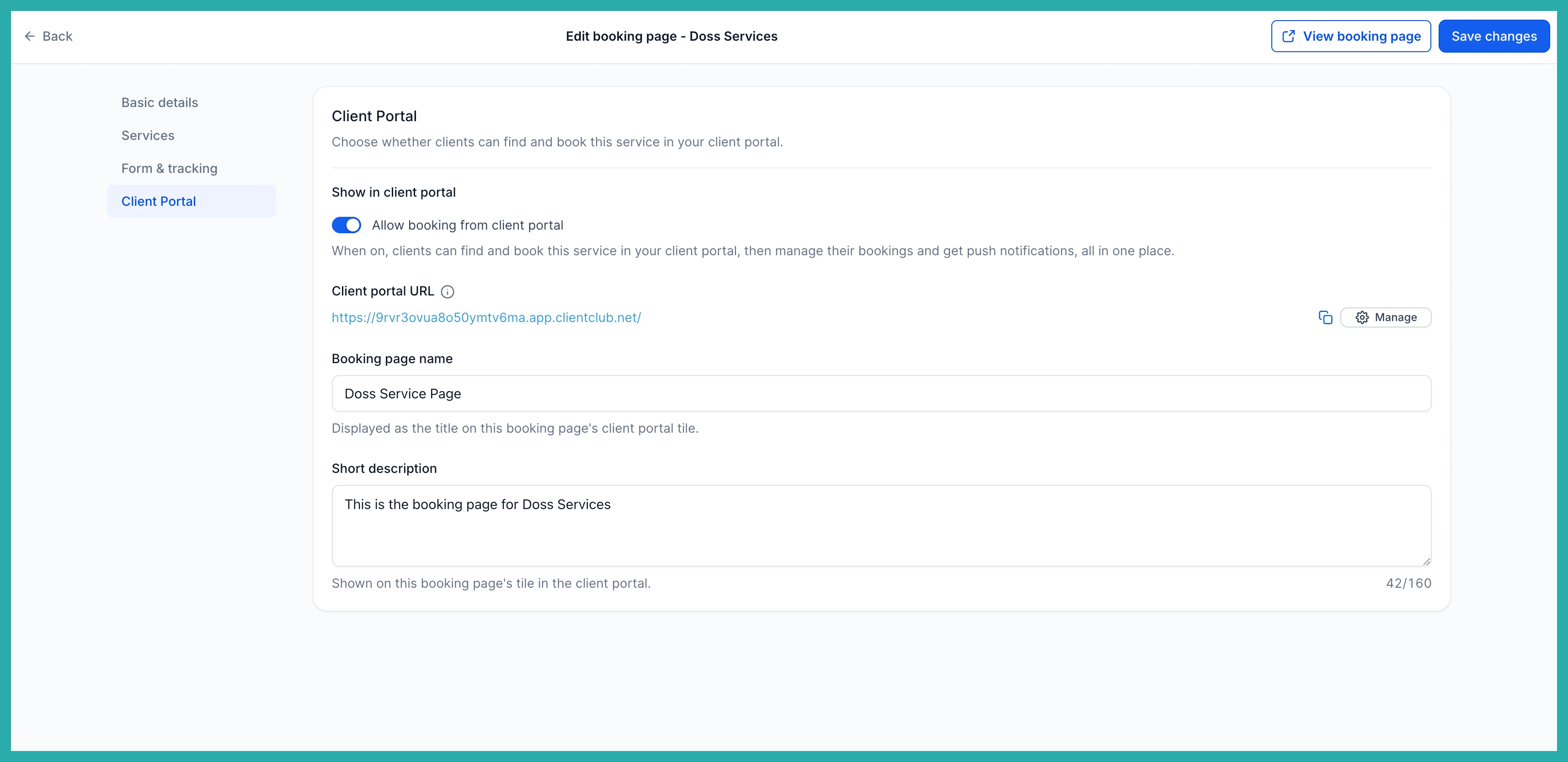
Start with the service you want clients to be able to book. Go to Calendars, then Services, then Booking Pages, and open the booking page you want to make available.
Scroll to the Client Portal section and switch on Allow booking from client portal. Then click Save changes.
Repeat this for any other services you'd like clients to book. Anything you leave switched off simply won't appear in the portal, which gives you full control over what's on offer.
Step 2: Switch on Appointments in the portal
Now make sure the portal actually shows appointments. Go to Memberships, then Client Portal, then Settings, and open App Permissions.
Enable Appointments and click Save.
That's everything. Your clients can now discover and book your enabled services right from their Client Portal, and manage them without a single extra link from you.
Pop in and switch on booking for one service to try it out. Once you see how tidy it looks in the portal, you'll likely want to add the rest.
