
Sell on Your Forms With Automatic Tax and Proper Shipping and Billing Addresses
If you take payments through your forms or surveys, you've probably wrestled with tax. You either skipped it or typed in a flat amount and hoped it was right for everyone.
That's sorted now. Your forms and surveys can work out tax automatically from the address your customer enters, collect shipping and billing details separately, and give buyers a familiar, tidy checkout - all without any clunky workarounds.
What landed
Four things, and they fit together nicely:
- Automatic tax calculated from the customer's address.
- Editable address labels, so you can call it "Shipping Address" instead of plain "Address".
- A separate billing address, for when it differs from where the order ships.
- A "Same as Shipping Address" checkbox, so customers don't type the same thing twice.
Let me walk you through setting it up.
Start in your form builder
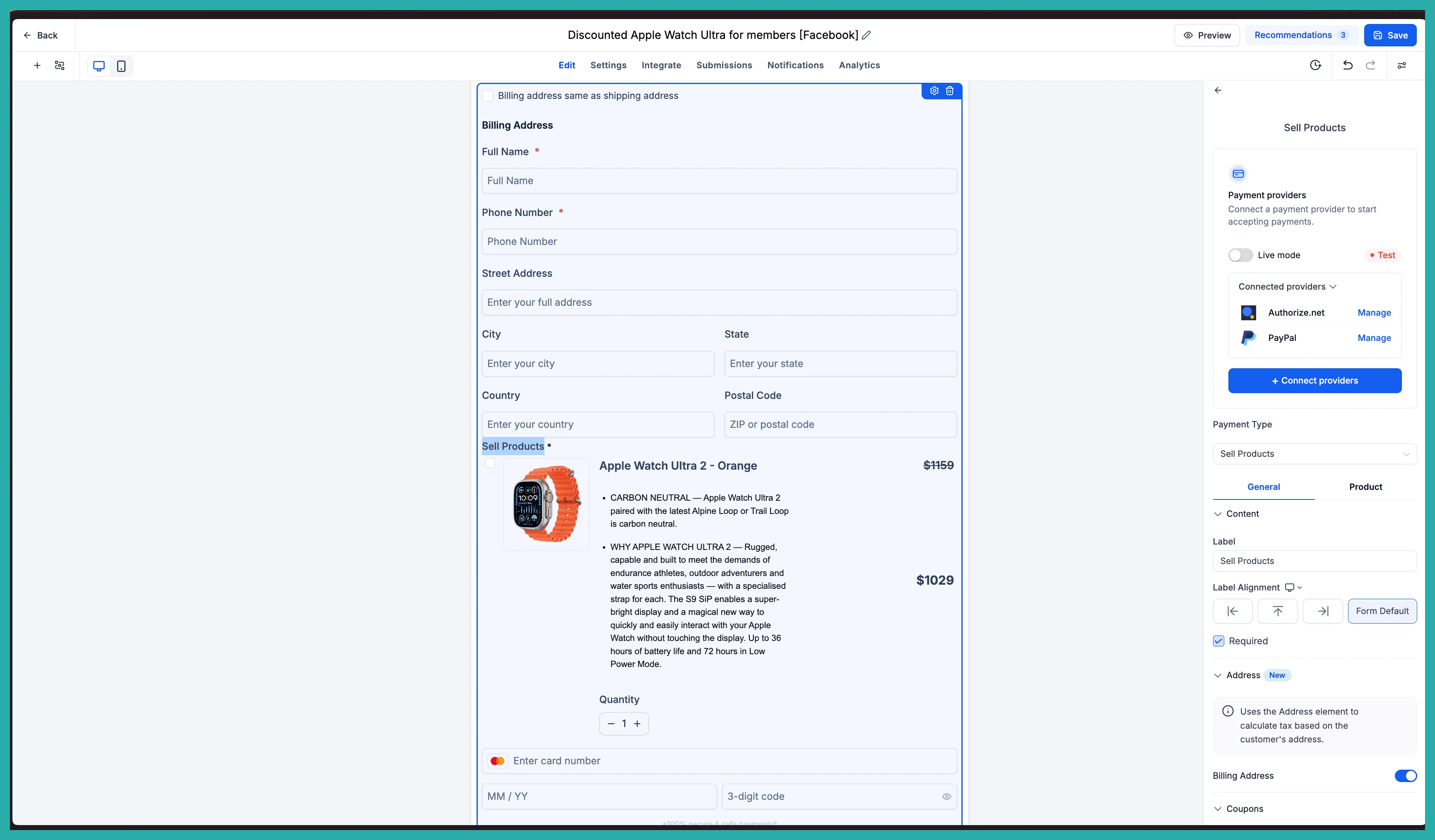
Open the form or survey that has your Sell Products element, or add one. This is where the order experience lives.
Add and configure the Address element
Drop in the Address element and set it to collect the fields you need - street address, city, state, postal code, country. This element does double duty now: it collects the delivery details and it feeds the tax calculation.
Rename the label so it makes sense
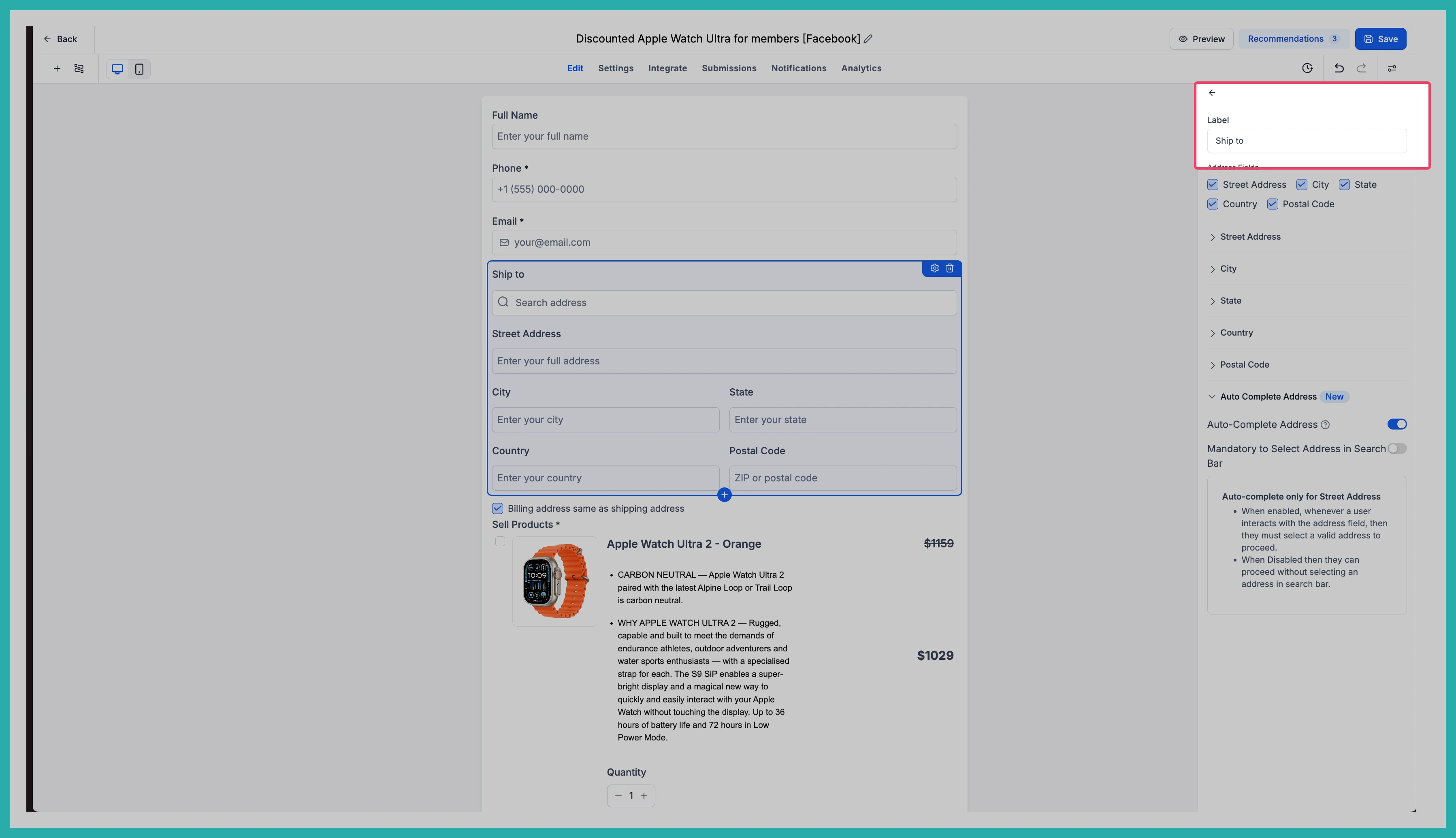
You can now edit the label on the Address element. If you're collecting delivery details, call it "Shipping Address". It's a small change, but it tells your customer exactly what you're asking for, which cuts confusion at checkout.
Turn on automatic tax
With the address in place, switch on automatic tax. From here, the system uses the address your customer enters to work out the right tax, so you're no longer stuck typing in a fixed figure that may not fit everyone.
Add a billing address when you need one
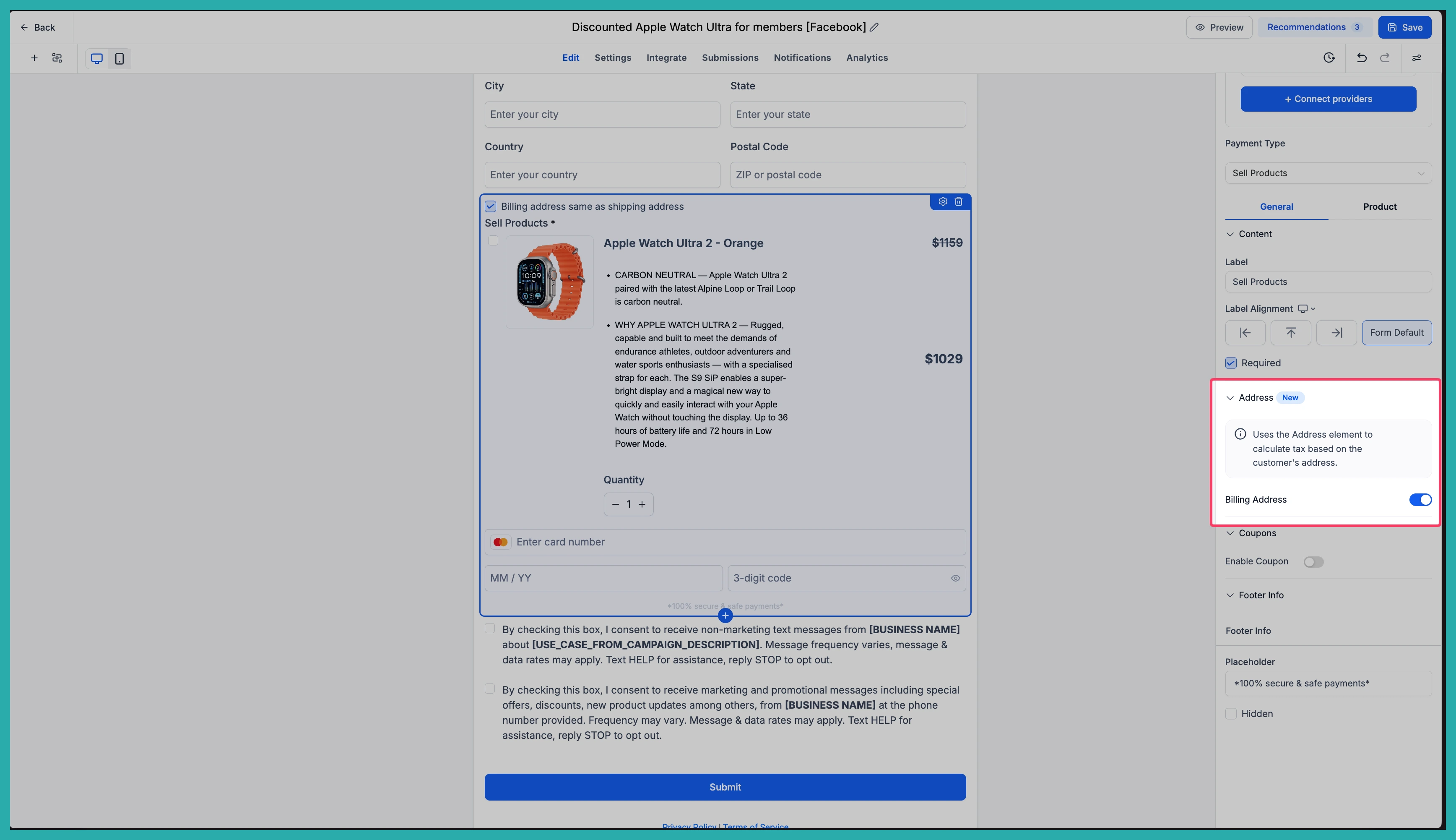
Inside the Sell Products element you'll find a Billing Address toggle. Flip it on when a customer's billing details might differ from where the order ships. One thing to know: you need Shipping Address enabled first, since Billing depends on it.
The billing fields mirror whatever you set up in the Address element, so you don't configure the same thing twice. And for the common case where both addresses match, your customer just ticks "Same as Shipping Address" and moves on.
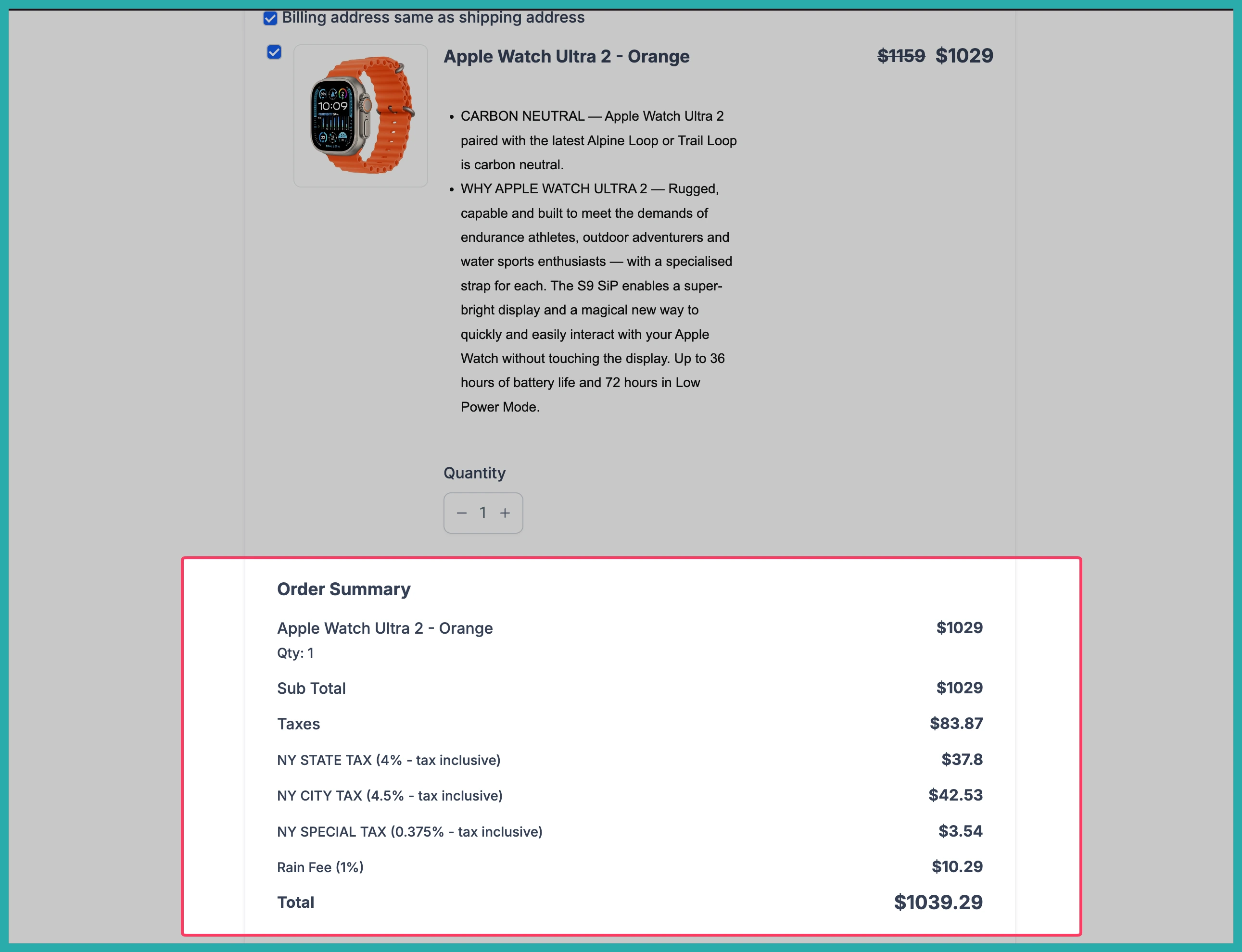
That's your order form sorted
Put together, this turns a basic payment form into a proper ordering experience - accurate tax, the right address details, and less typing for your buyer.
If you sell anything through your forms, it's worth opening one up and switching this on. Ten minutes now saves you a lot of manual tax fiddling later.
