
Your Whole Team Can Now Use Ask AI From the Mobile App
You grant a teammate access to Ask AI on the web, they use it happily in the browser, and then they open the app on their phone and it's gone. For everyone but agency admins, Ask AI on mobile was off limits.
That's fixed.
What landed
Ask AI on mobile now follows the exact same per-user access you already set on the web. Grant someone access once, and they can use Ask AI right from the app - no more admin-only wall.
This matters because most of your team's quick questions happen when they are on the go: sorting out a problem or dealing with life. Now the people you've chosen can get answers wherever they are.
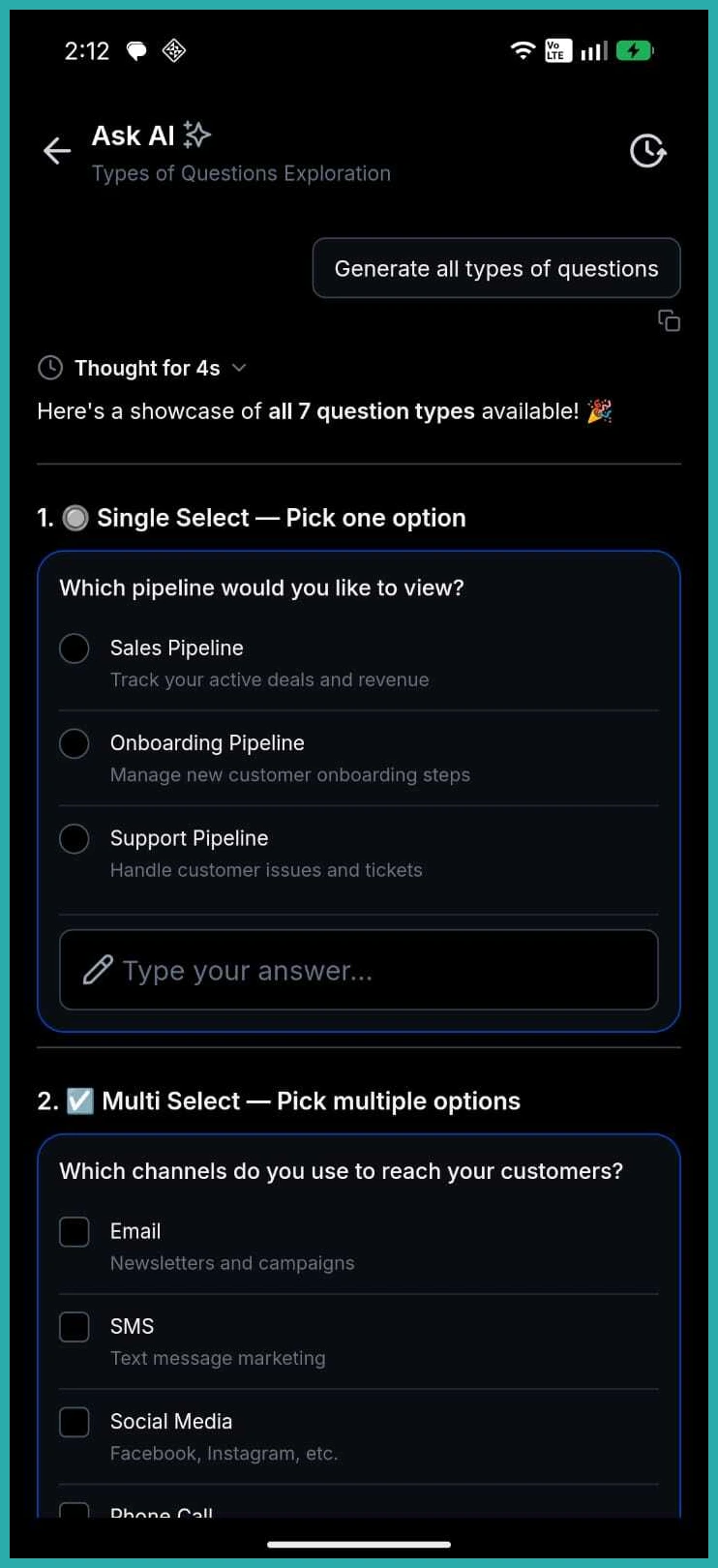
Access stays in your hands. It's granted per user, by you. Anyone you haven't given access to simply won't see Ask AI in the app at all.
Granting access on the web
This all starts on the web, where you decide who gets it.
Enable Ask AI for the users in your account who should have it. That single setting now carries straight through to their phones.
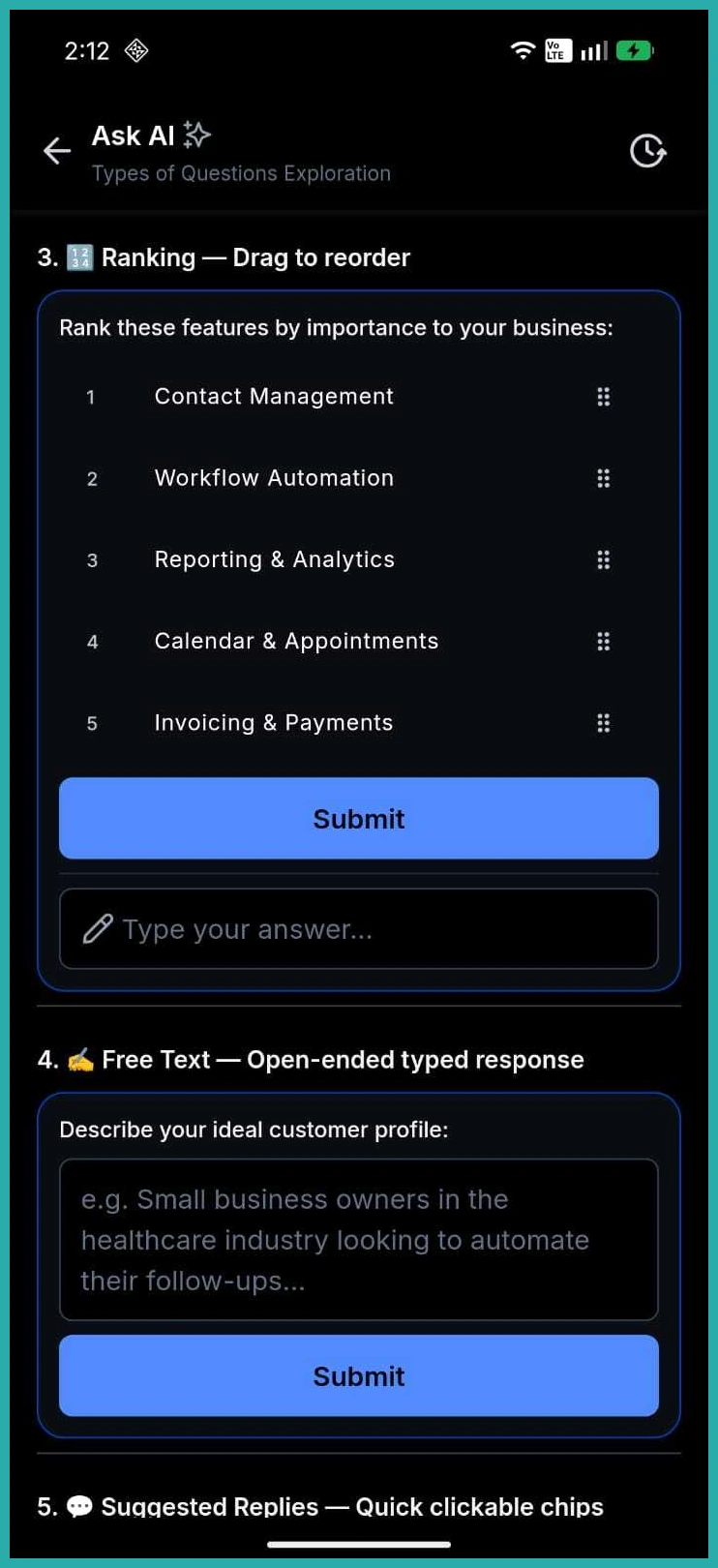
Once that's done, those teammates are ready to go on mobile.
Using it on the phone
Have your team sign in to the mobile app as a user with Ask AI access. That can be an agency admin, agency staff, or a regular user in the account.
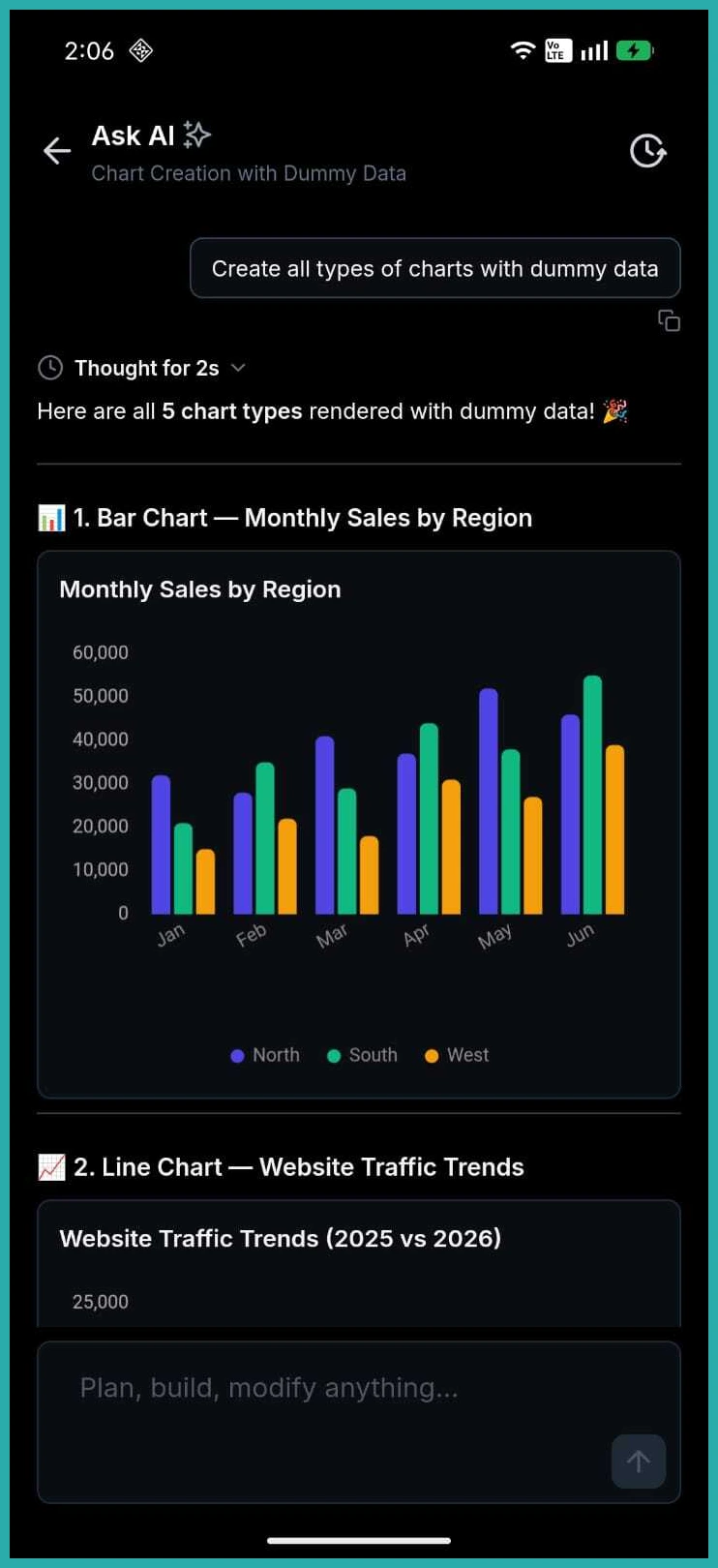
From there, they tap Ask AI - from the floating button, the home screen, or the dashboard - and start chatting normally.
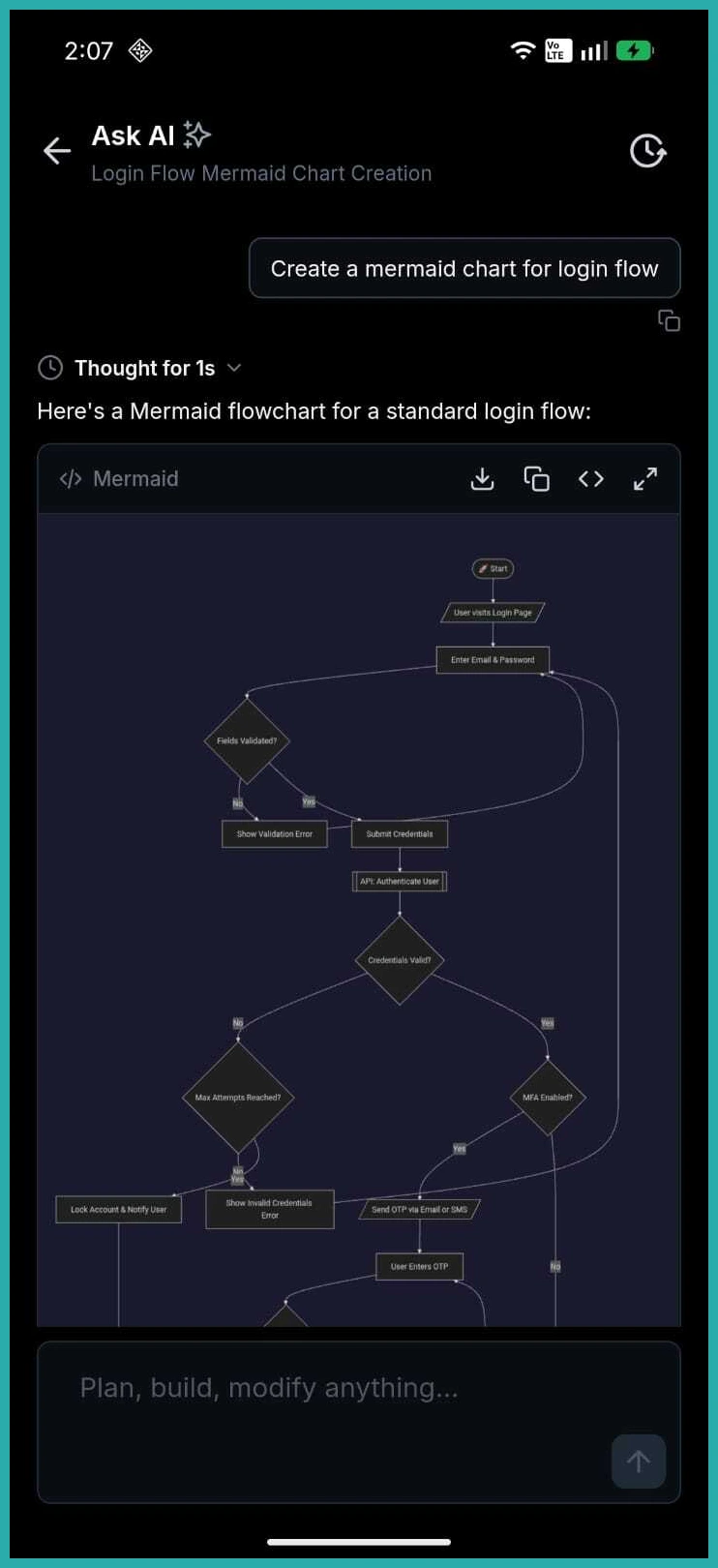
Finishing the rollout
If you're an agency user and some teammates still need access, you'll see a small banner above the message box. It's a nudge, not a roadblock.
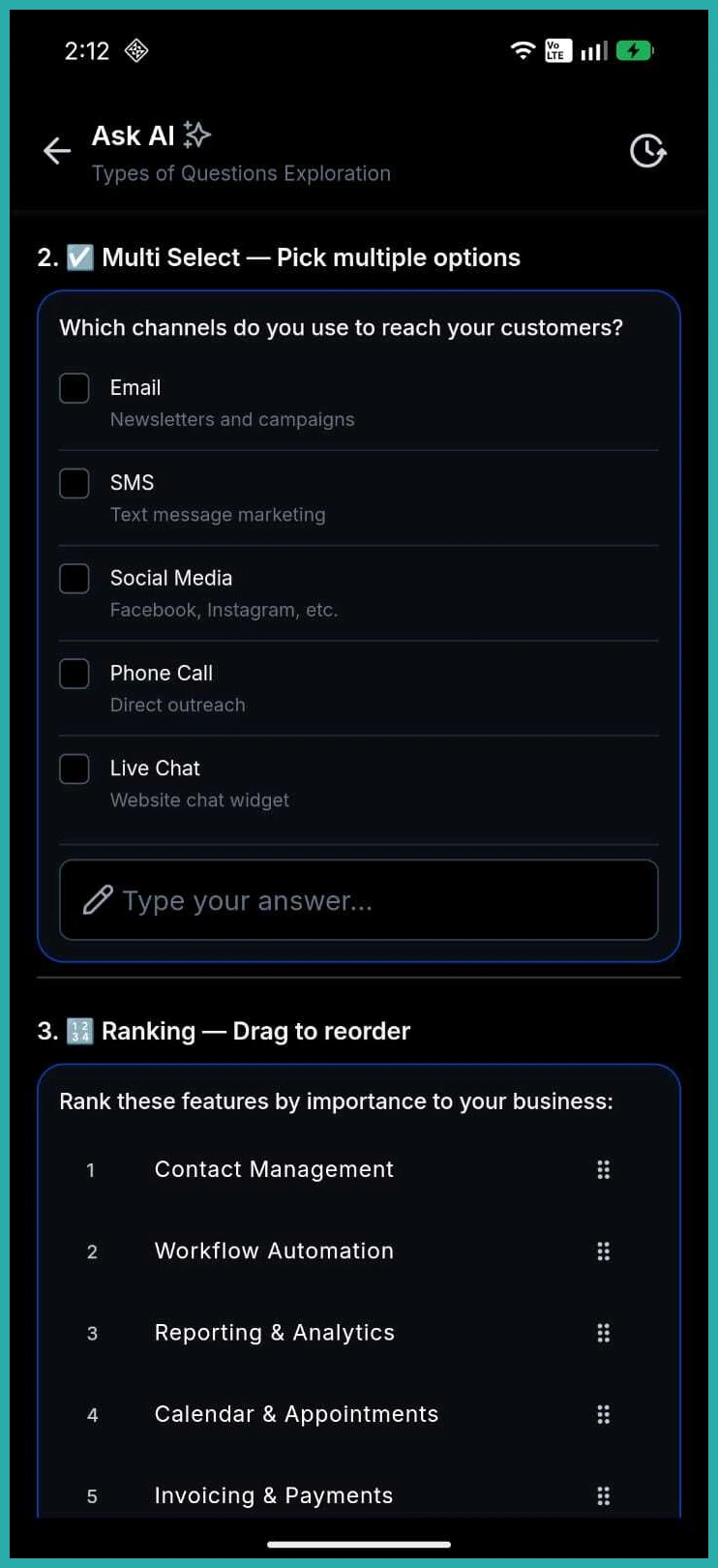
Tap through to finish setting up access on the web. For anyone who already has access, the composer stays fully enabled the whole time.
Clearer messages when something's blocked
If an account hits its monthly usage limit or access is blocked, you'll now see a plain explanation right inside the chat instead of a vague "failed to send" message. You'll know exactly what's going on and what to do next.
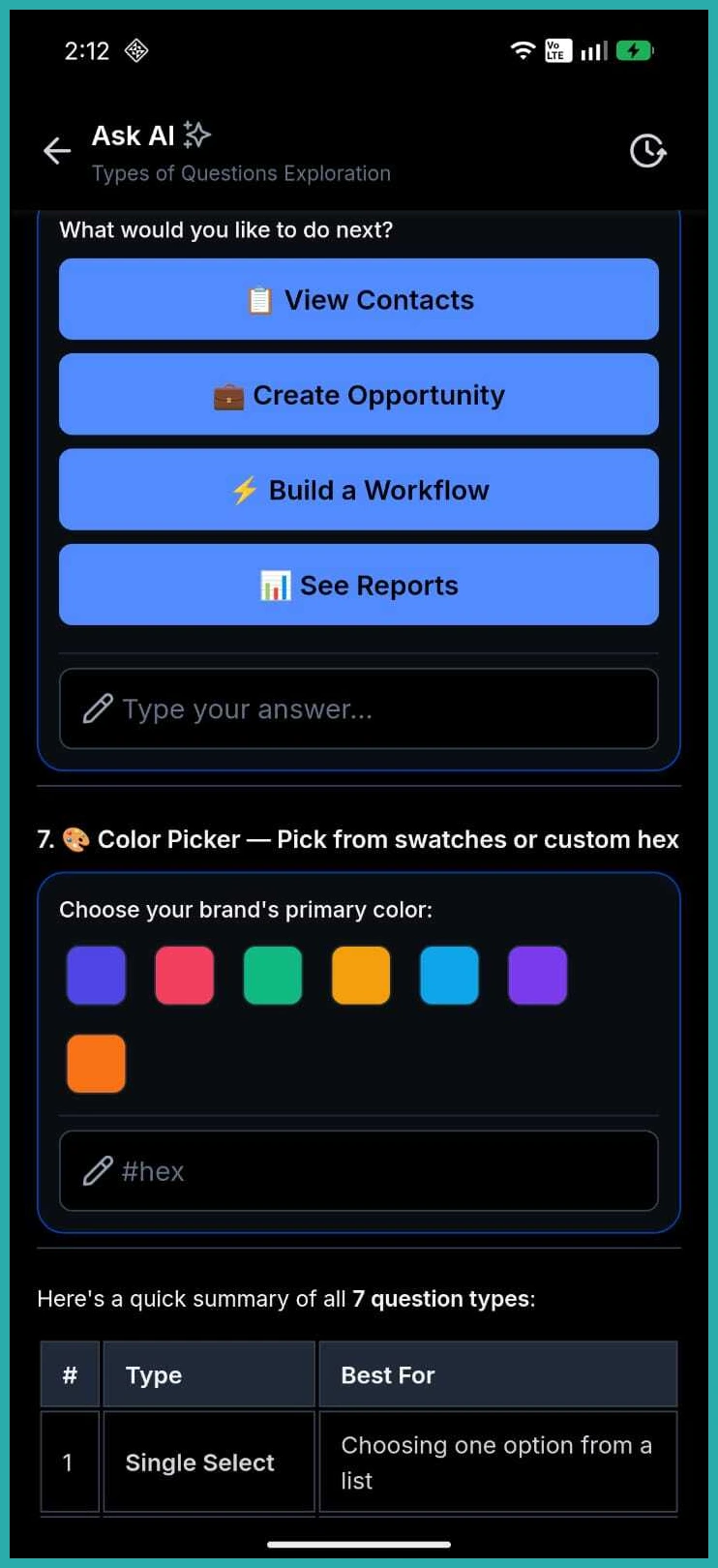
And if the app can't verify access while offline, you'll get a simple retry screen rather than a broken chat.
If you've already enabled Ask AI for your team on the web, there's nothing more to do - just have them open the app and start asking. It'll be waiting.
