
Point the AI at exact files and start integrations in one step
When you're asking the AI to change something, being vague costs you. You describe the file you mean, cross your fingers, and hope it lands on the right one.
The AI Studio chat composer just got a lot more precise. You can now point it straight at a file with @, kick off a common integration with a / skill, and watch replies arrive smoothly instead of jumping around as they render.
What landed
Three things, all in the chat composer inside AI Studio.
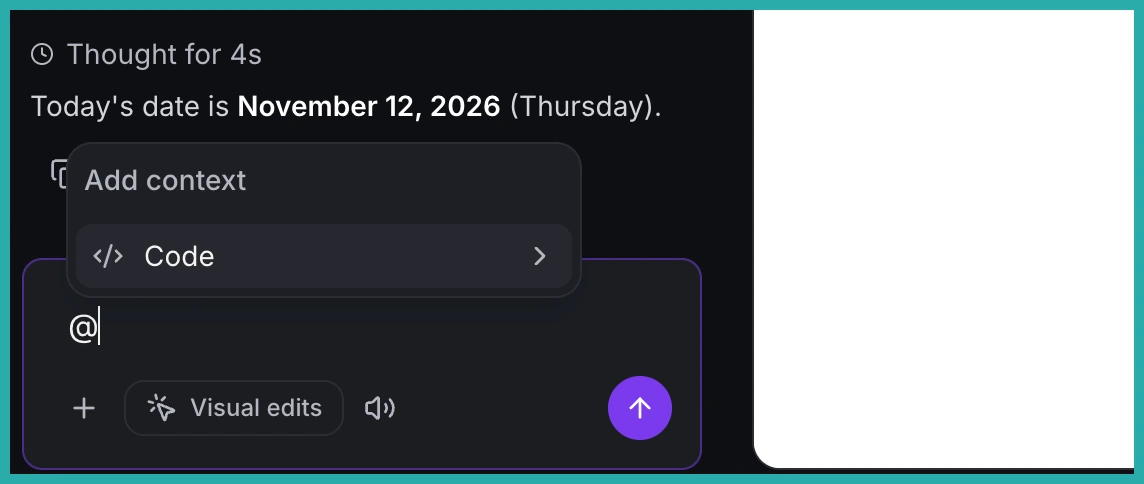
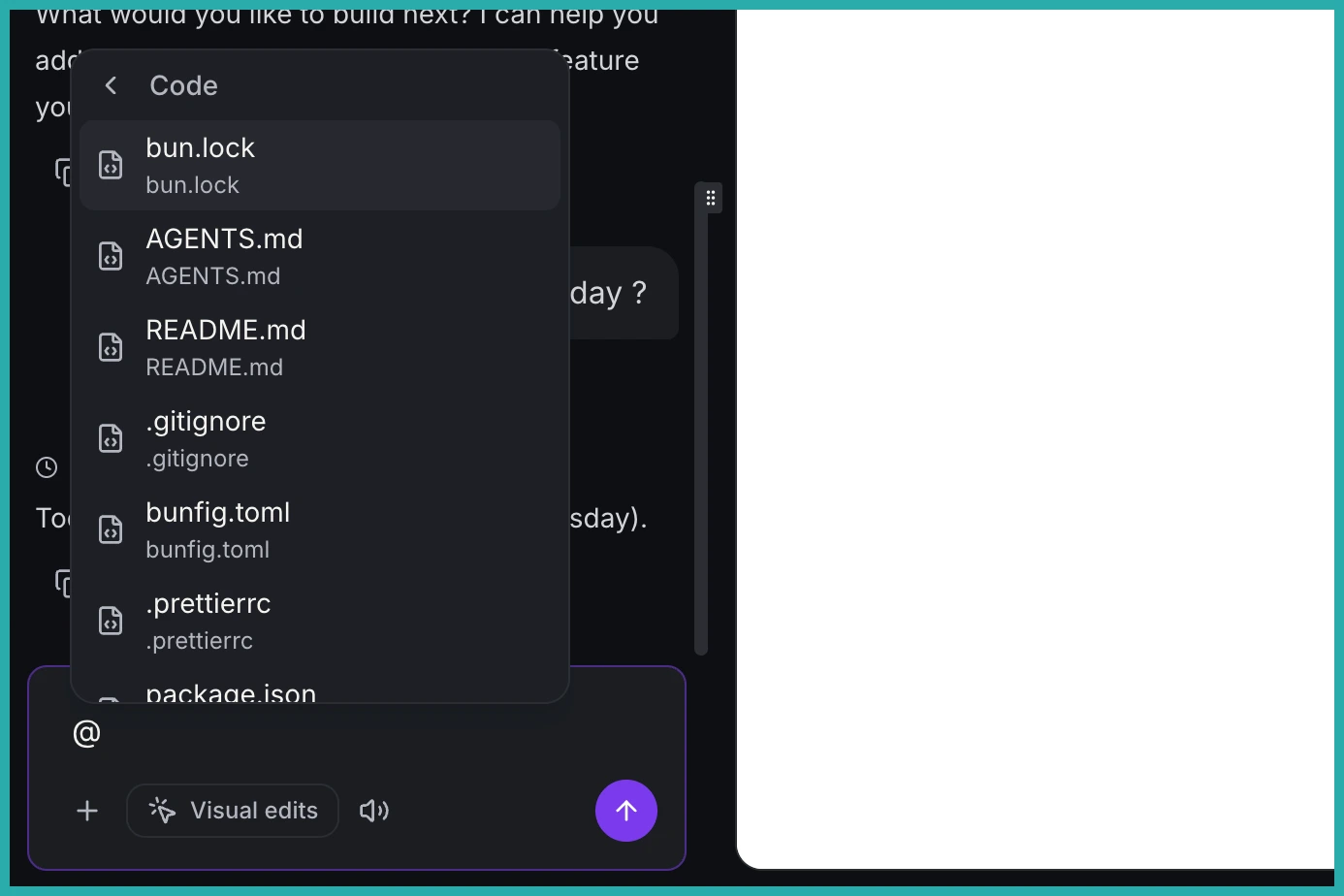
- @ file references in Code view - type @ and pick the exact project file you want the AI to work on, right down to a line or range.
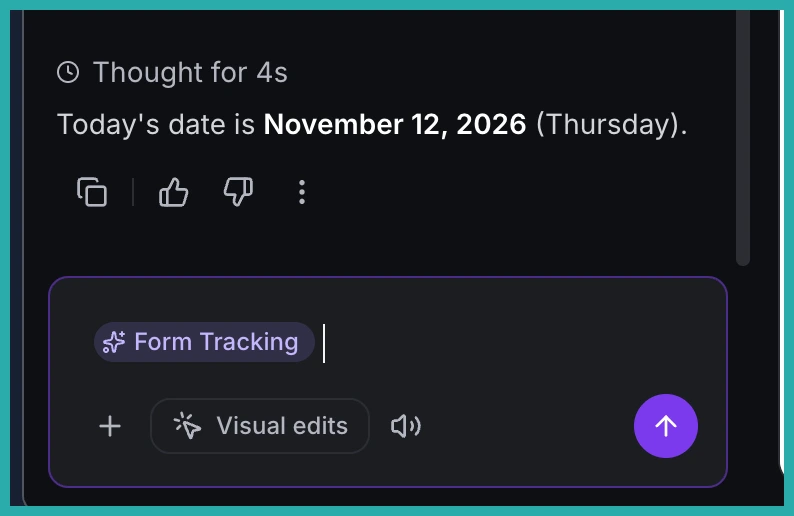
- / skills in Builder - type / and choose a built-in skill like Form Tracking, Calendar Integration, Payment Integration or Chat Widget.
- Smoother streaming - replies render cleanly as they come in, Markdown stops stuttering, and reduced-motion settings are respected.
Image attachments, selected-element context and international keyboard input all still work exactly as before.
Pointing the AI at a specific file
This one lives in Code view. Instead of writing out "change the pricing component" and hoping, you type @ and a picker appears with your project files.
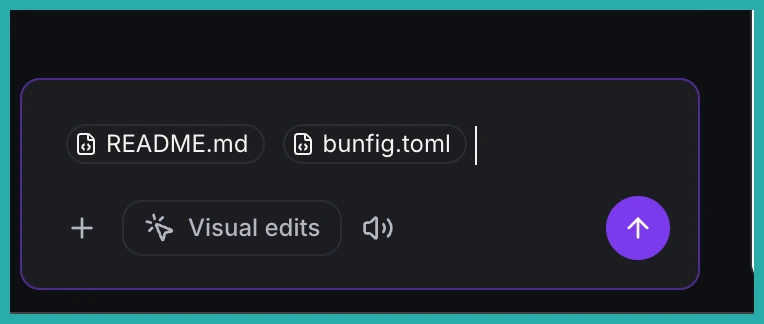
Choose the file you mean, and if you want to be really specific, narrow it to a line or a range. It shows up as a tidy pill in the composer and stays visible in the message you send.
One honest note: a file reference tells the AI which file you're talking about. It doesn't pin that file's contents into the conversation. It's about pointing, not pasting.
Starting an integration with a / skill
Over in Builder, type / and you'll get a list of built-in skills: Database Optimization, Form Tracking, Calendar Integration, Payment Integration and Chat Widget.
You can use one skill per message. The integration skills will ask you to choose which integration you want before they run, so you stay in control of what connects to what.
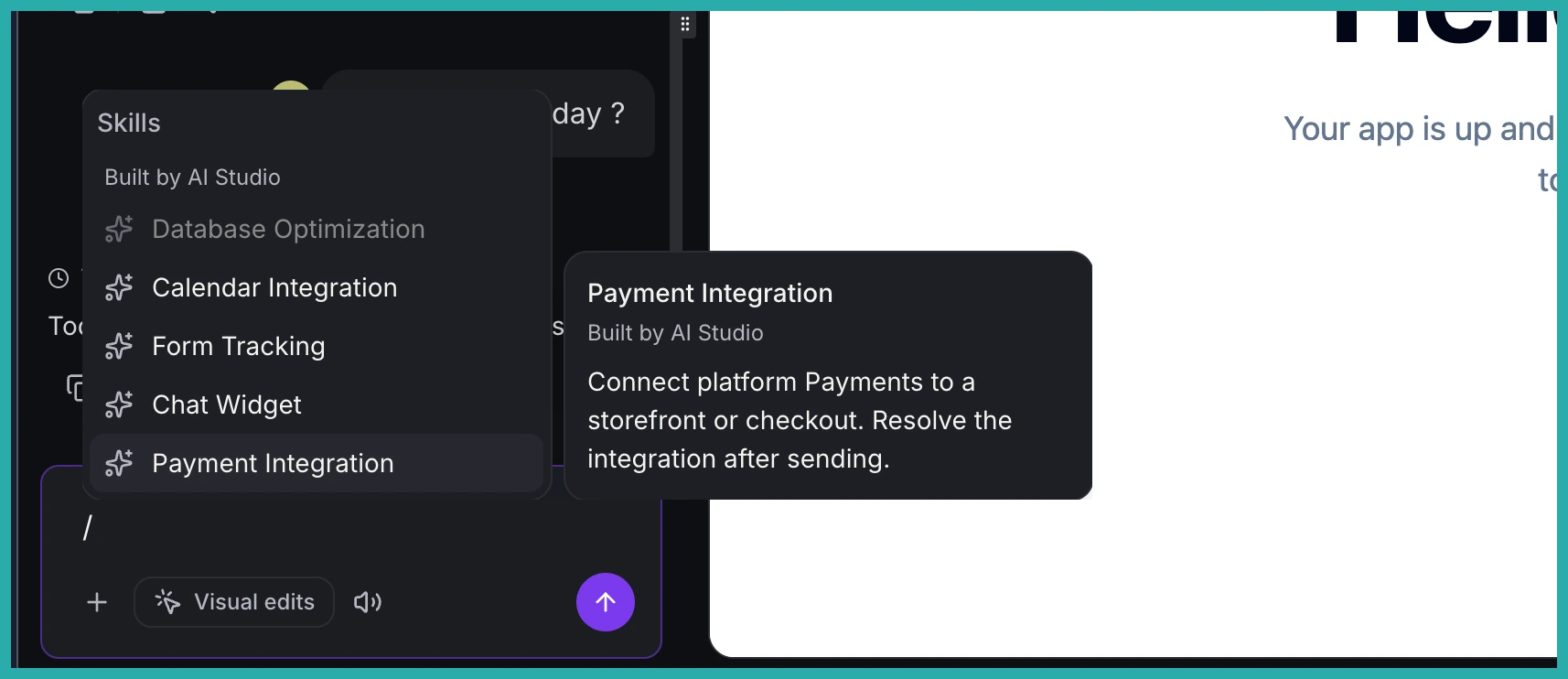
So a full go might look like this: type /, choose Payment Integration, pick the integration you're using, and send. One step instead of a paragraph of explanation.
How to get started
- Go to AI Studio and open a project.
- Open Chat.
- In Code view, type @ to reference a file. In Builder, type / to choose a skill.
Good to know
- @ file references work in Code view only. / skills work in Builder only.
- Typing / or @ as plain text still works fine. If nothing matches, Enter just sends your message as normal - so "fix the /pricing page" goes through untouched.
- Database Optimization is unavailable if there's a Cloud status error. The other skills aren't affected.
- Nothing to migrate. Your existing chats and skill follow-ups carry on working.
Next time you open a project, try typing @ or / and see how much quicker it is to tell the AI exactly what you mean.
