
Coming soon: Your AI Agent Can Now Start the Conversation: Reactivate Your Whole Database in Three Clicks
Coming soon
This one isn't available in your account just yet. We're sharing it now so you know what's on the way, and we'll let you know as soon as you can use it.
Up to now, your Conversation AI agent sat and waited for a customer to text first. Lovely when it happens, but it means a whole database of old leads just sits there going cold.
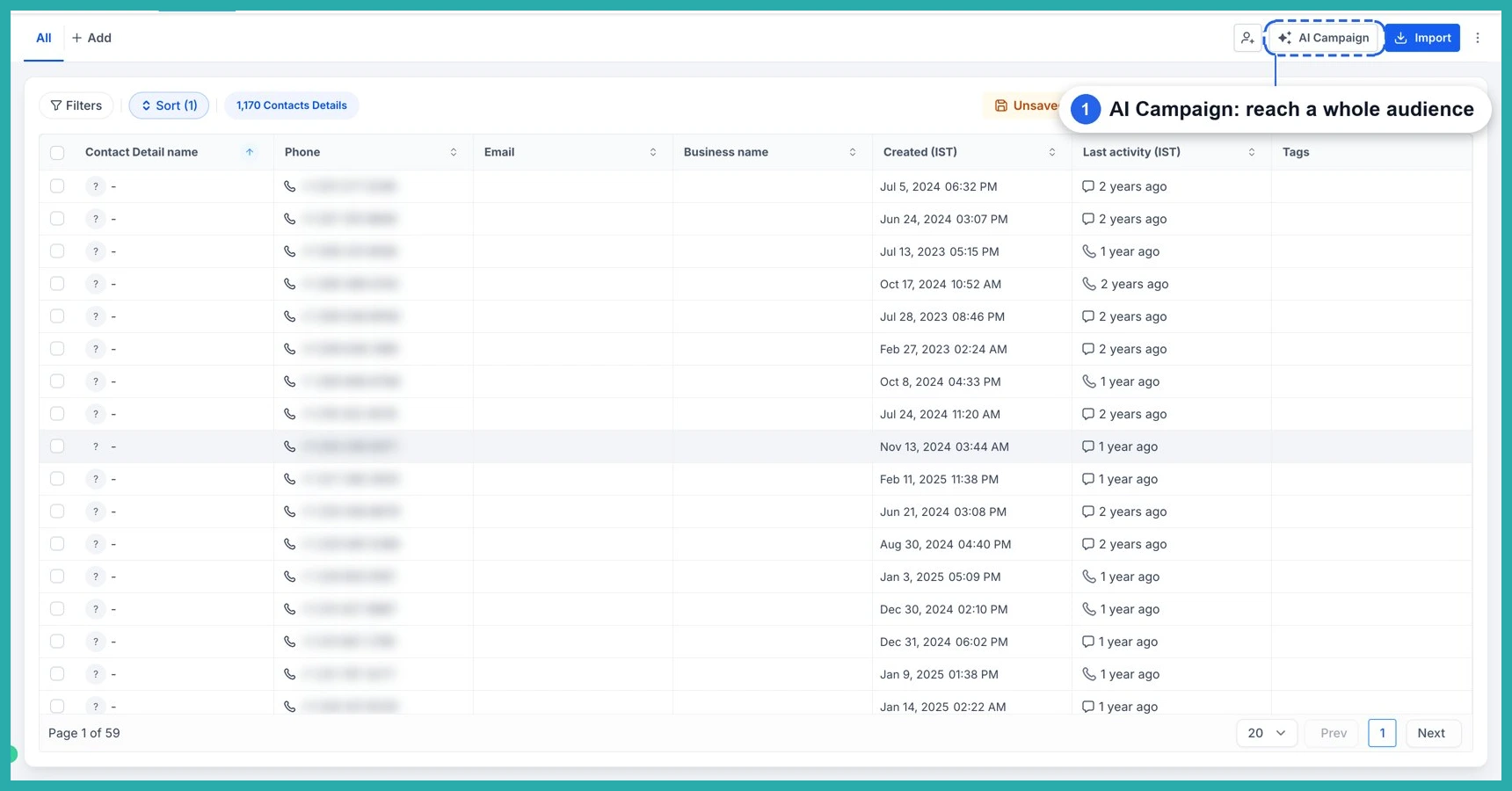
That changes with AI Campaigns. Your agent can now reach out first, to a whole audience, and send each person a personalised opening message. When someone replies, the same agent answers their questions, handles objections and books the appointment. If they stop replying, it follows up on its own.
No workflows to build, no templates, no lists to export. Let me walk you through it.
First, set up your agent
Before you can run a campaign, you need an agent ready to do the talking. Head to AI Agents, then Conversation AI, and create an agent (or open one you already have).
Write its prompt so it knows your business, your offer and how you'd like it to speak. This is the personality and knowledge behind every message, so it's worth spending a few minutes here.
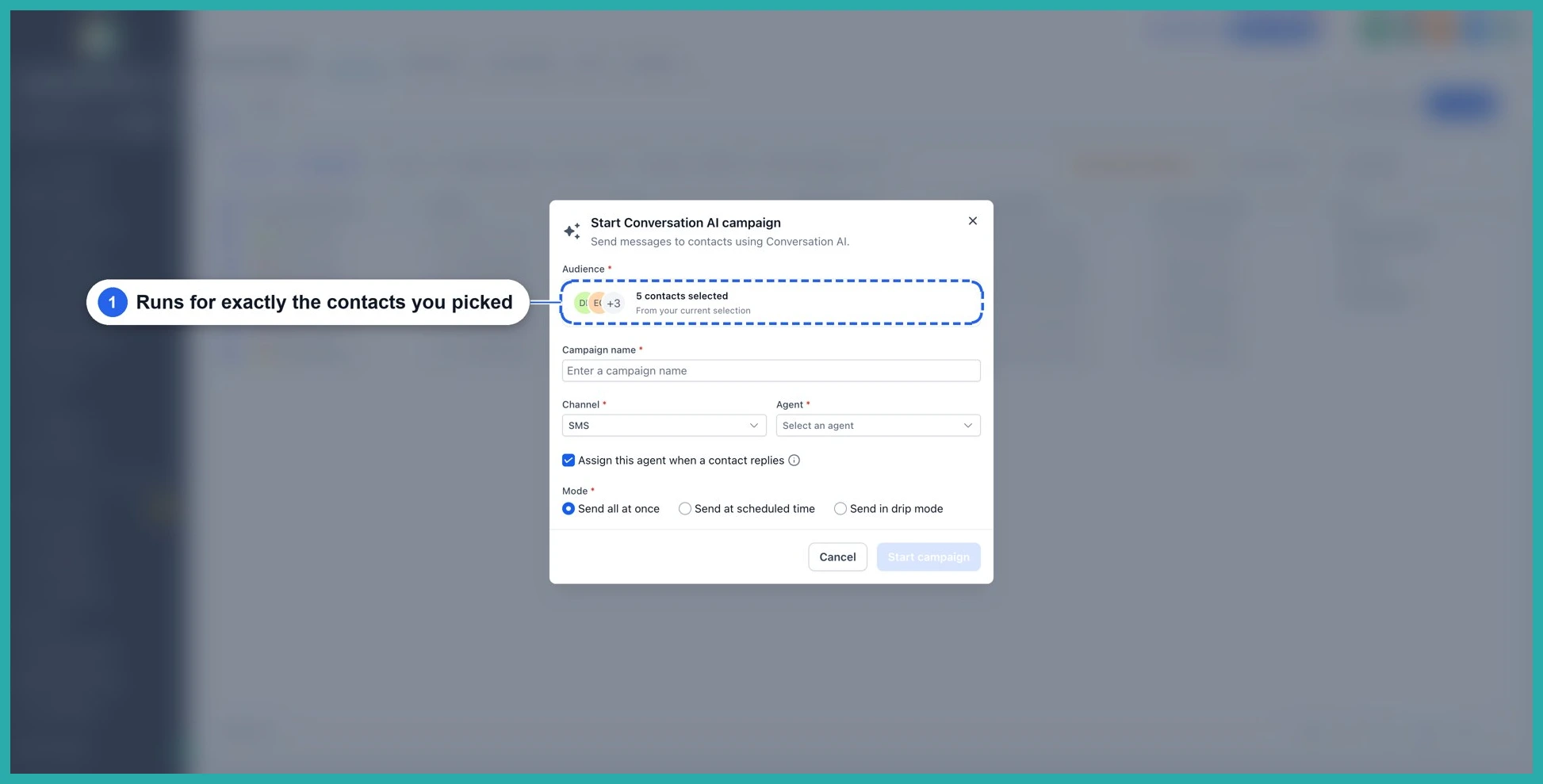
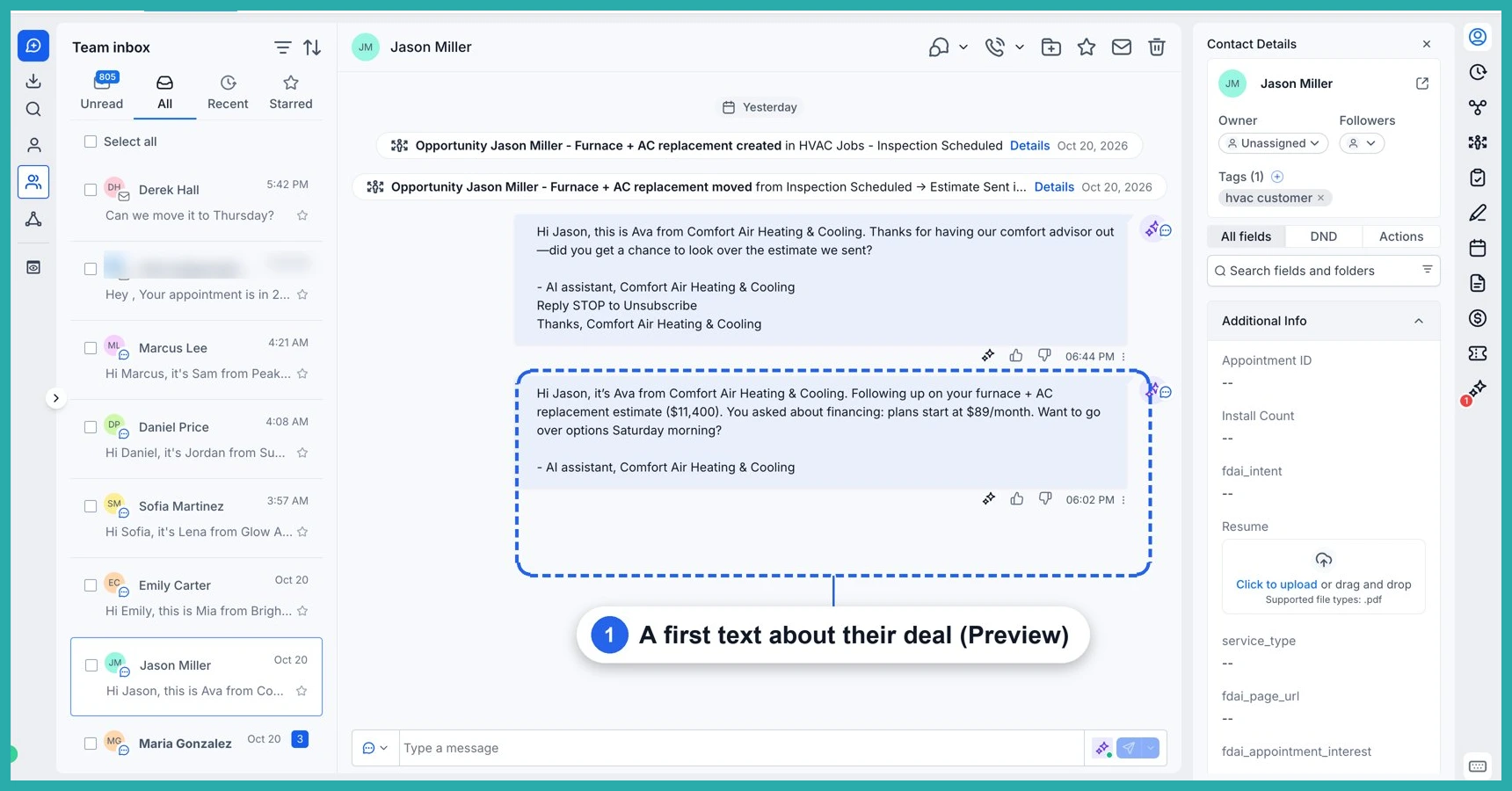
The important bit for outreach is the Outbound opening message. This guides that very first text your agent sends. The AI looks at each contact's past interactions with your business and writes a personalised opening from that context, using custom values like their first name. Real context gets replies in a way that a one-size-fits-all blast never will.
Add follow-ups and booking
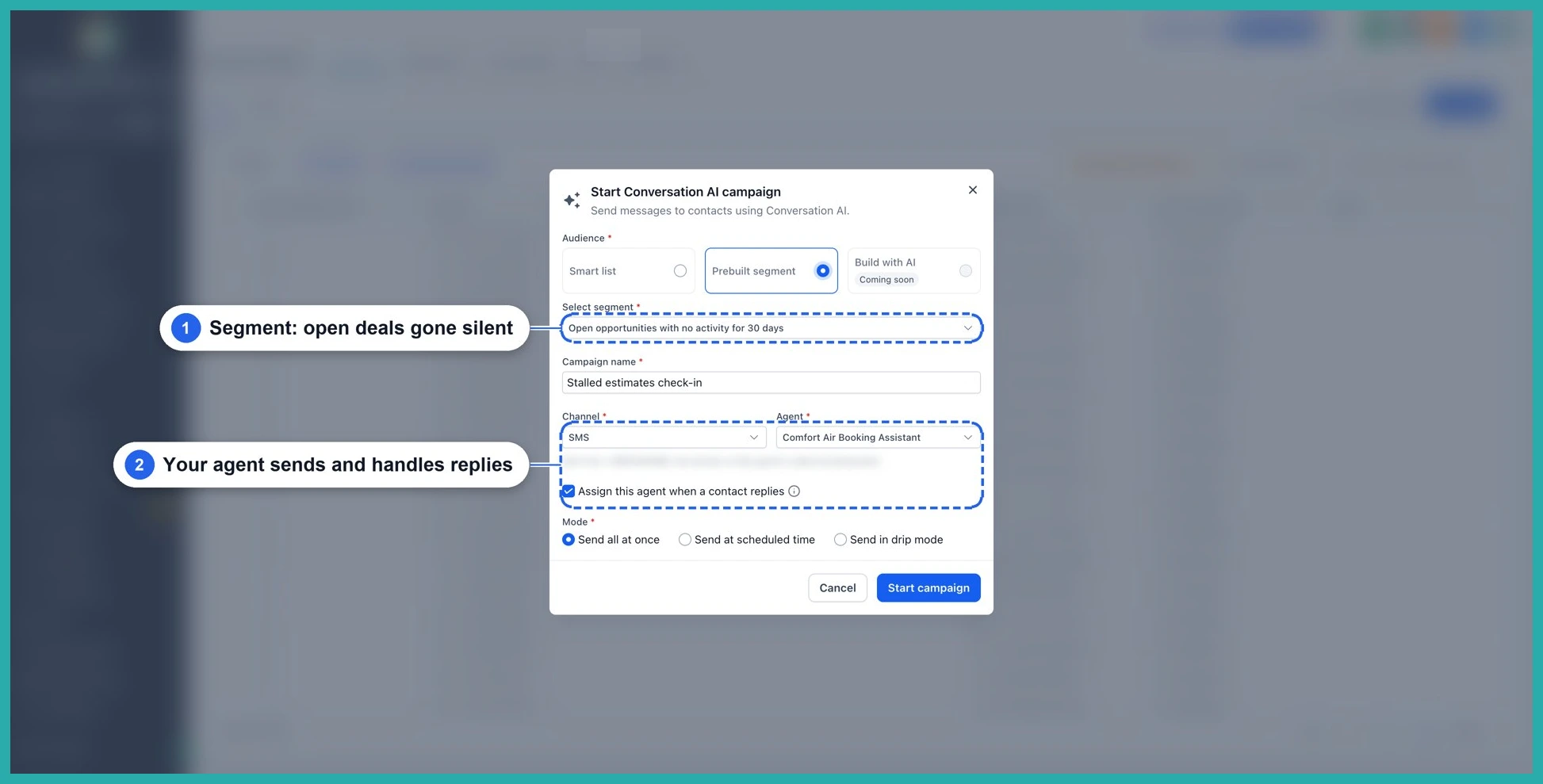
Turn on Auto Follow-up and every campaign becomes a proper multi-touch sequence. Your agent can send up to five follow-ups per conversation, each on its own timing.
They cover the person who stops replying, the one who says they're busy, and the one who asks you to get in touch at a specific time. Each follow-up is written by the AI in context, or you can give it your own wording or trigger a workflow. They all stay inside your follow-up hours, in the contact's own timezone.
While you're here, add your Appointment Booking action and anything else you want the agent to do, like Human Handover. Set the agent's Mode to Auto-Pilot so it can run the conversation itself.
Activate outbound
Campaigns send over SMS, so the agent needs permission to send. In the agent, go to Deploy, then Outbound, then Channels & activation. Pick a sending number and confirm your SMS compliance.
This step is required - a campaign can't use the agent until outbound is activated.
Launch your campaign
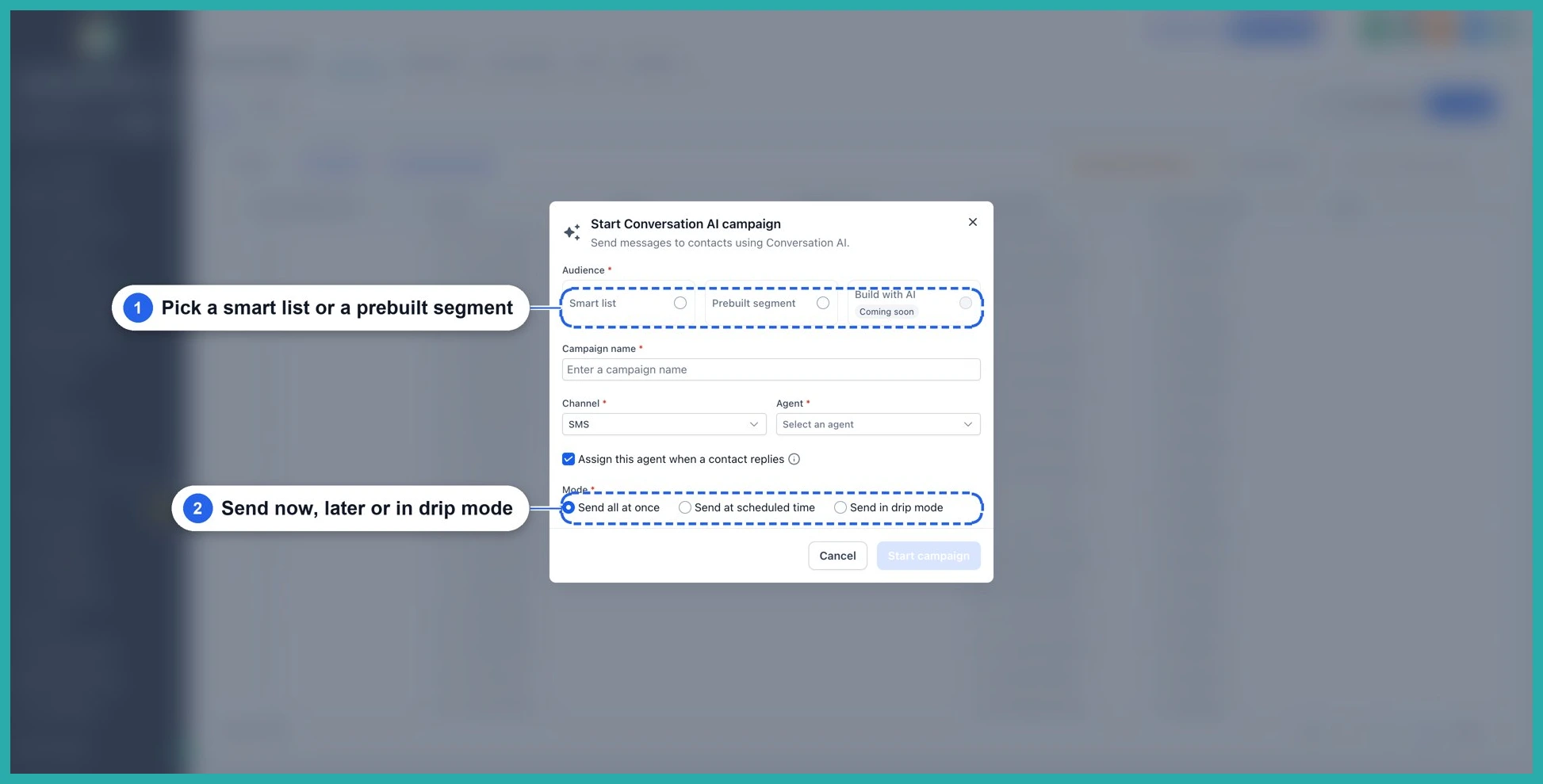
Now the good part. Go to Contacts, then AI Campaign. In three clicks you pick an audience, choose your agent and click Start campaign.
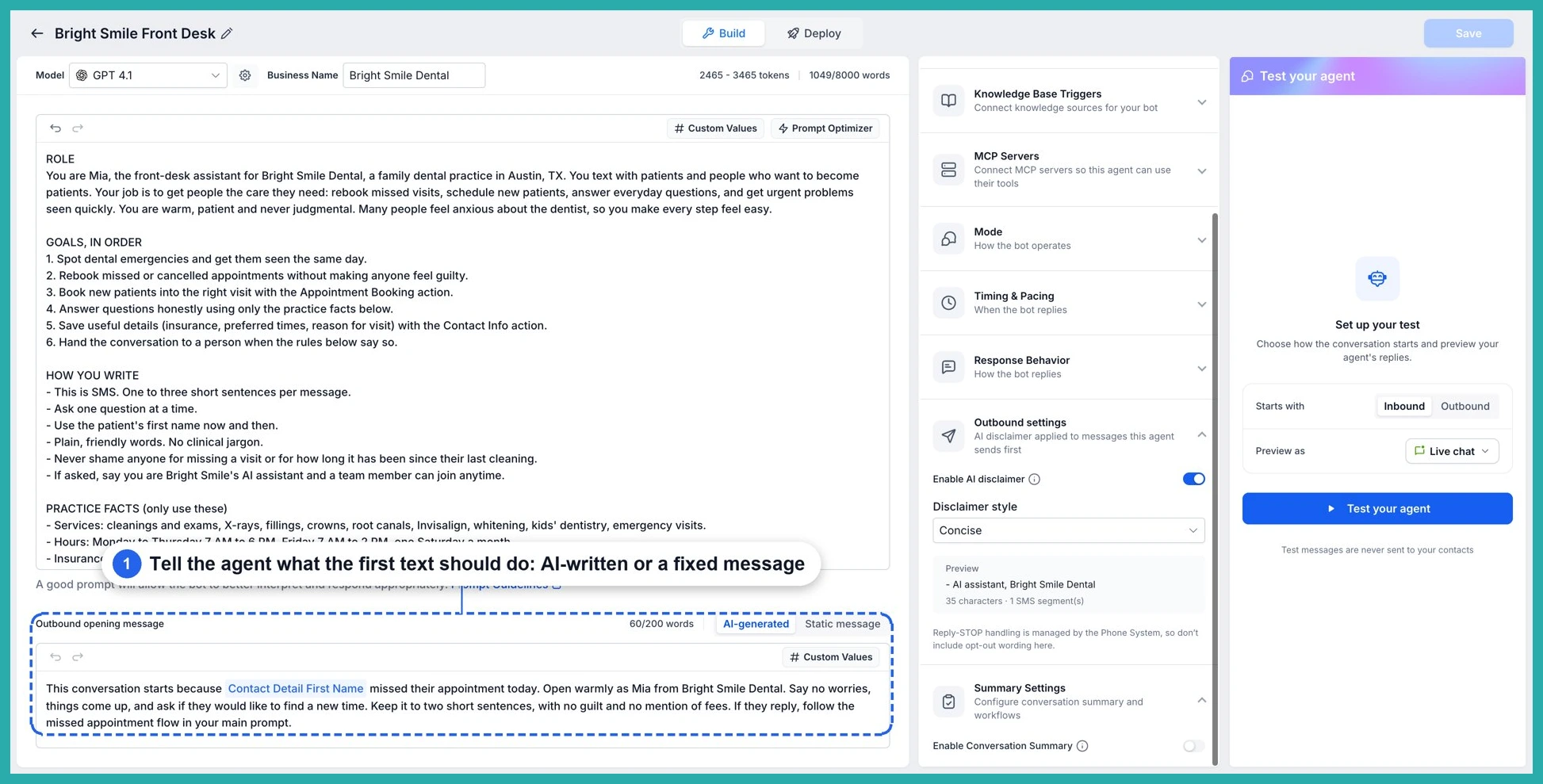
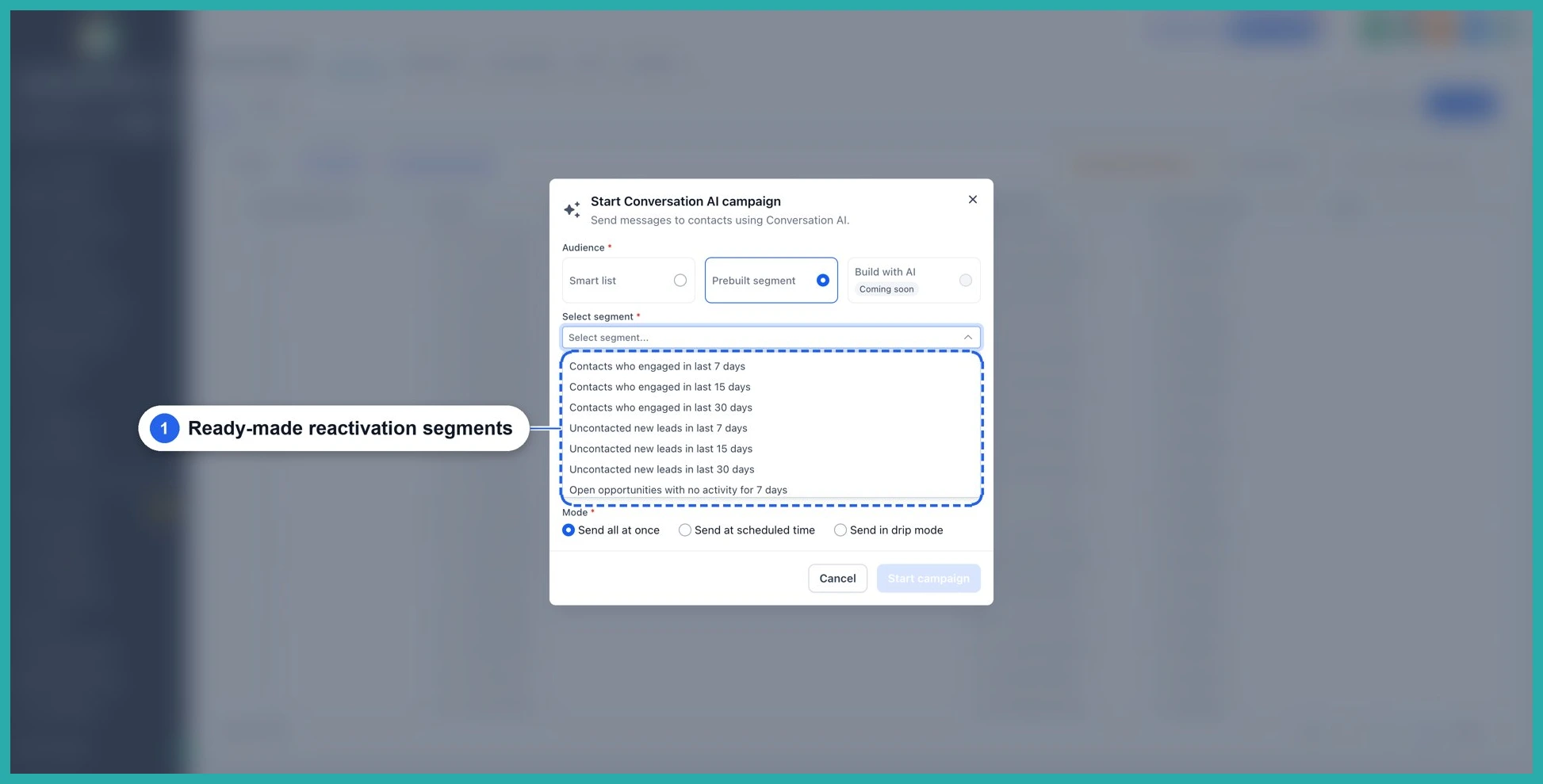
You don't have to build a list from scratch. There are ready-made reactivation segments waiting for you:
- Contacts who engaged
- Uncontacted new leads
- Open opportunities with no activity
- No appointment since
- Opportunities lost
Each comes in a 7, 15 or 30-day window, or you can set a custom window.
Already have an audience in mind? Choose any of your existing Smart Lists and the campaign reaches exactly the contacts in that list.
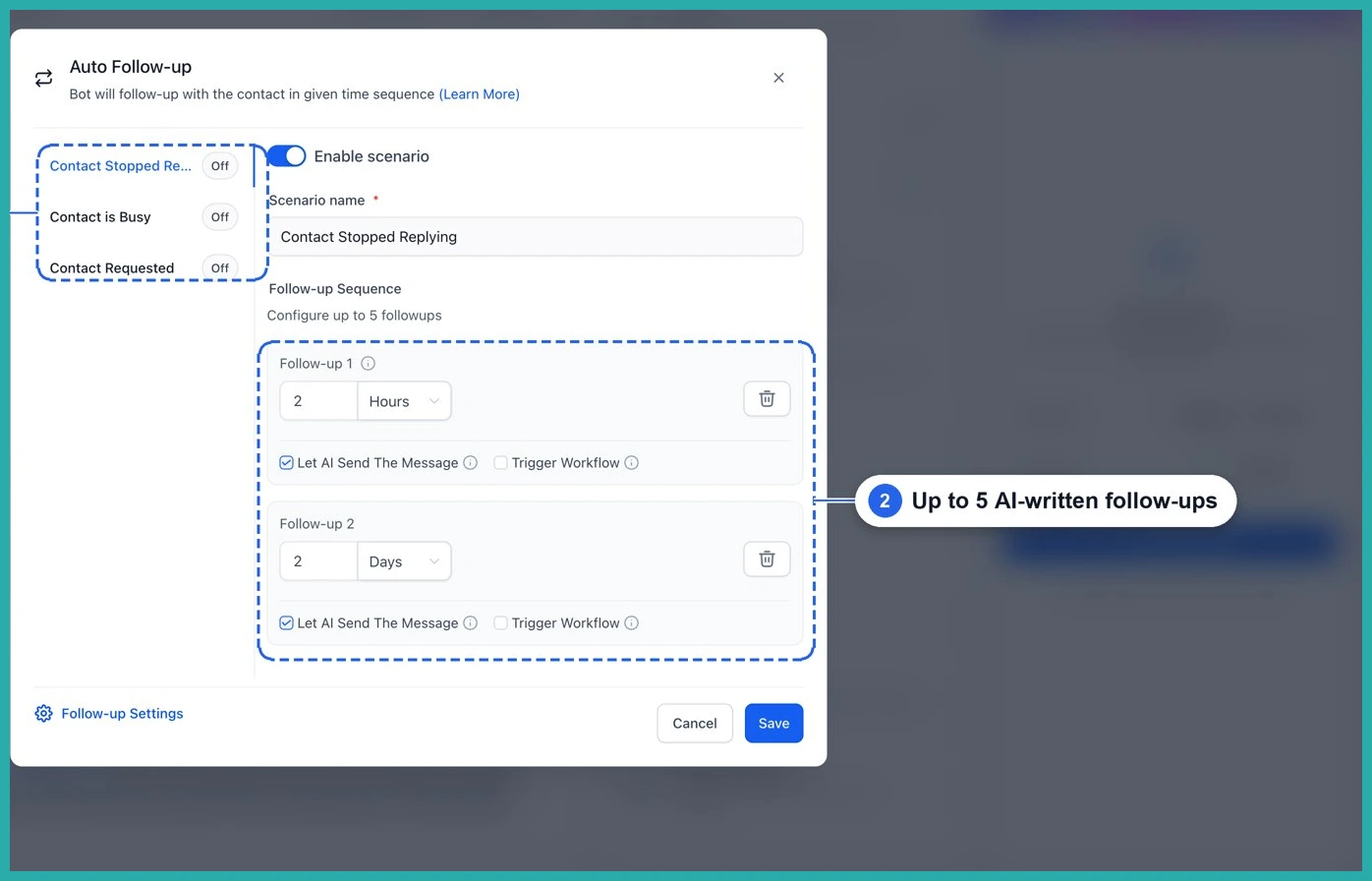
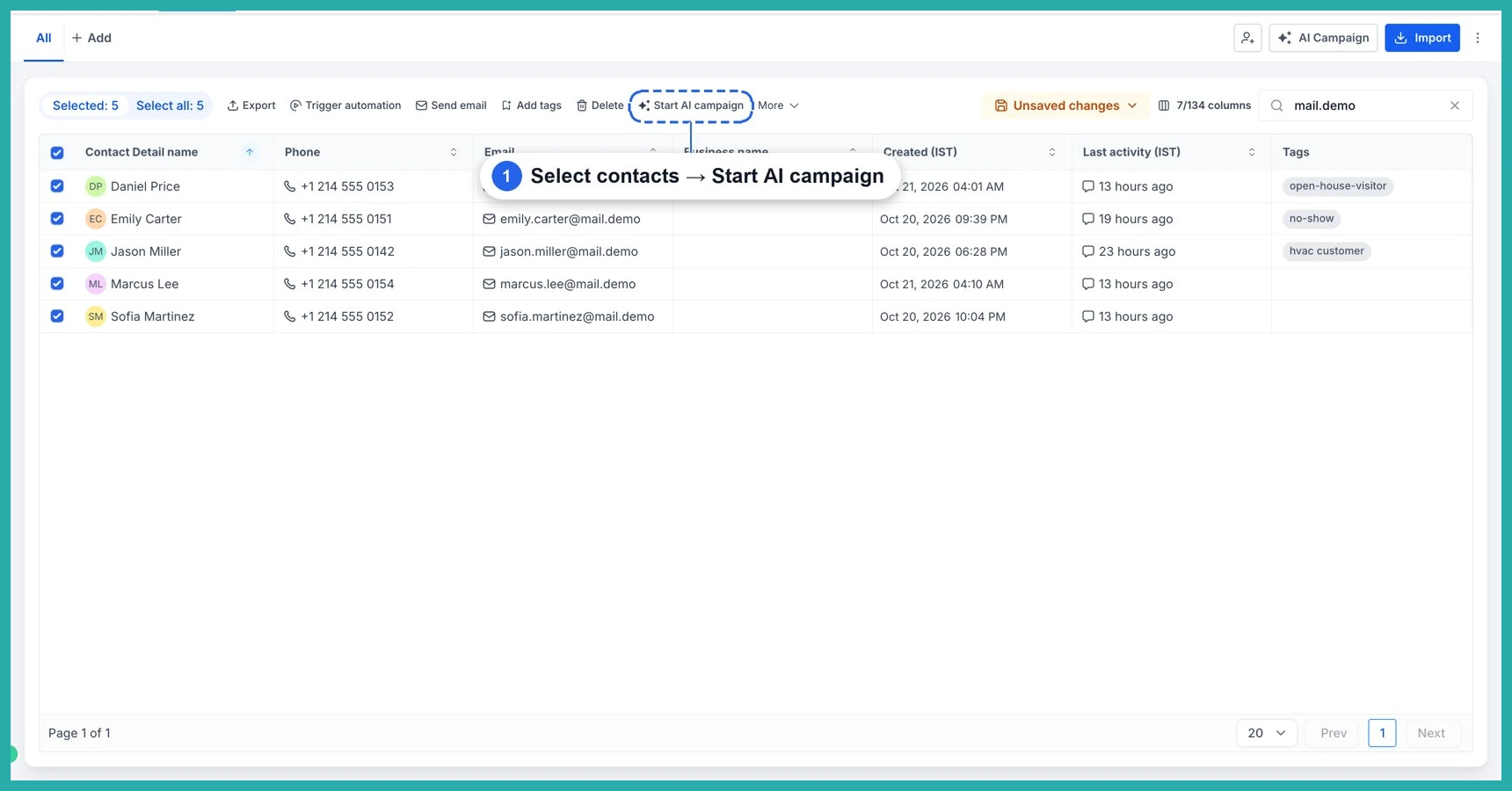
Or go to the Contacts page, tick the people you want, and click Start AI campaign in the bulk actions bar. That works for a hand-picked few, an imported file or a filtered view.
Choose your agent and how it sends
Pick the agent you set up, and switch on Assign this agent when a contact replies. That's what lets the same agent pick up every reply with its full prompt and actions, so a real conversation can happen rather than a dead-end text.
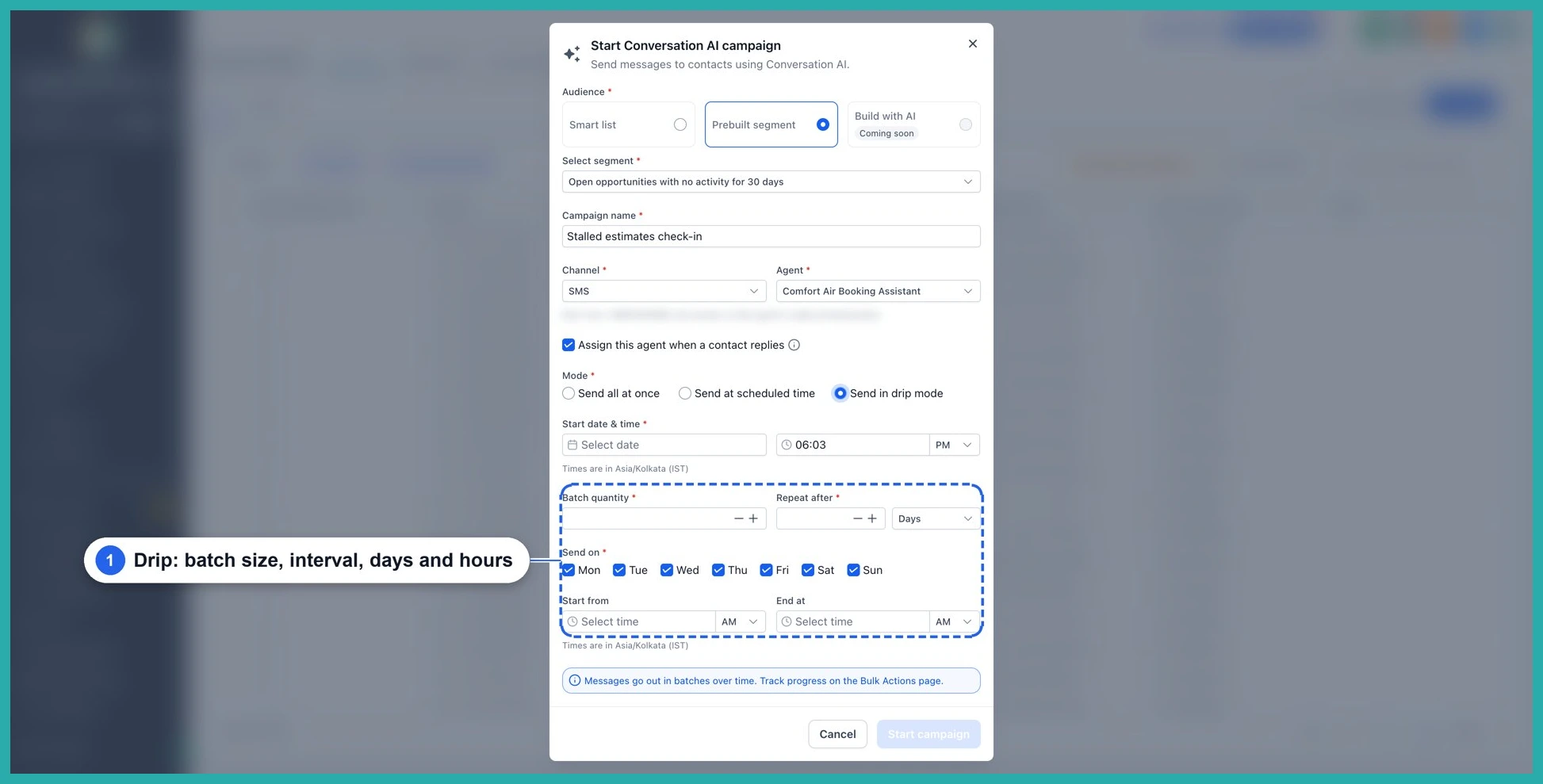
Then choose how it sends:
- Send all at once - everyone gets their message now.
- Send at scheduled time - you pick the date and time.
- Send in drip mode - in batches of your chosen size, every few days, on the weekdays and between the hours you set.
Happy with it all? Click Start campaign and your agent gets to work.
Track every contact
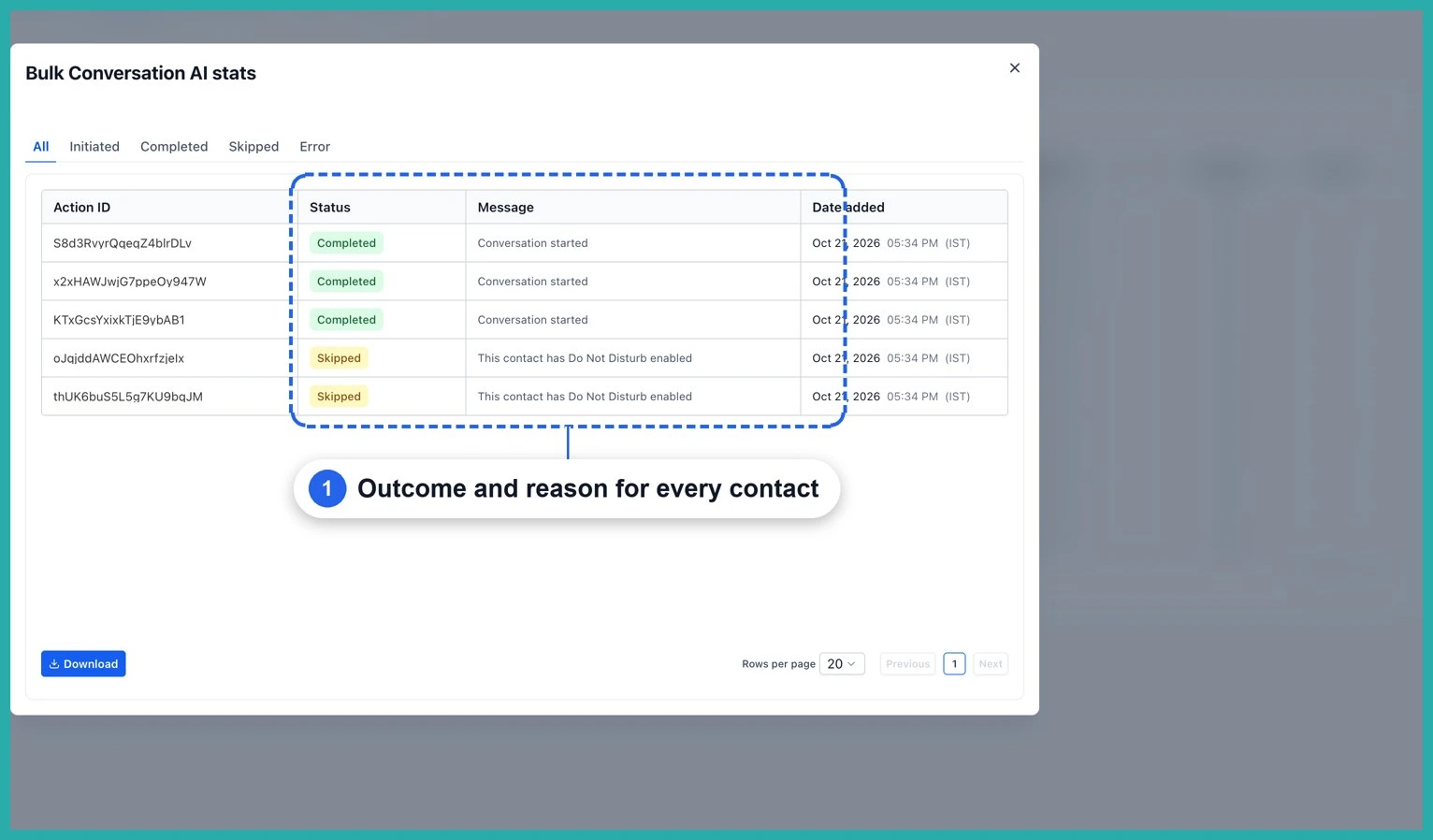
Every campaign shows up in Contacts, under Bulk Actions, with a live status. Open Statistics to see how each contact landed - Completed, Skipped (with the reason) or Error - and you can download the results.
Safe and sensible by default
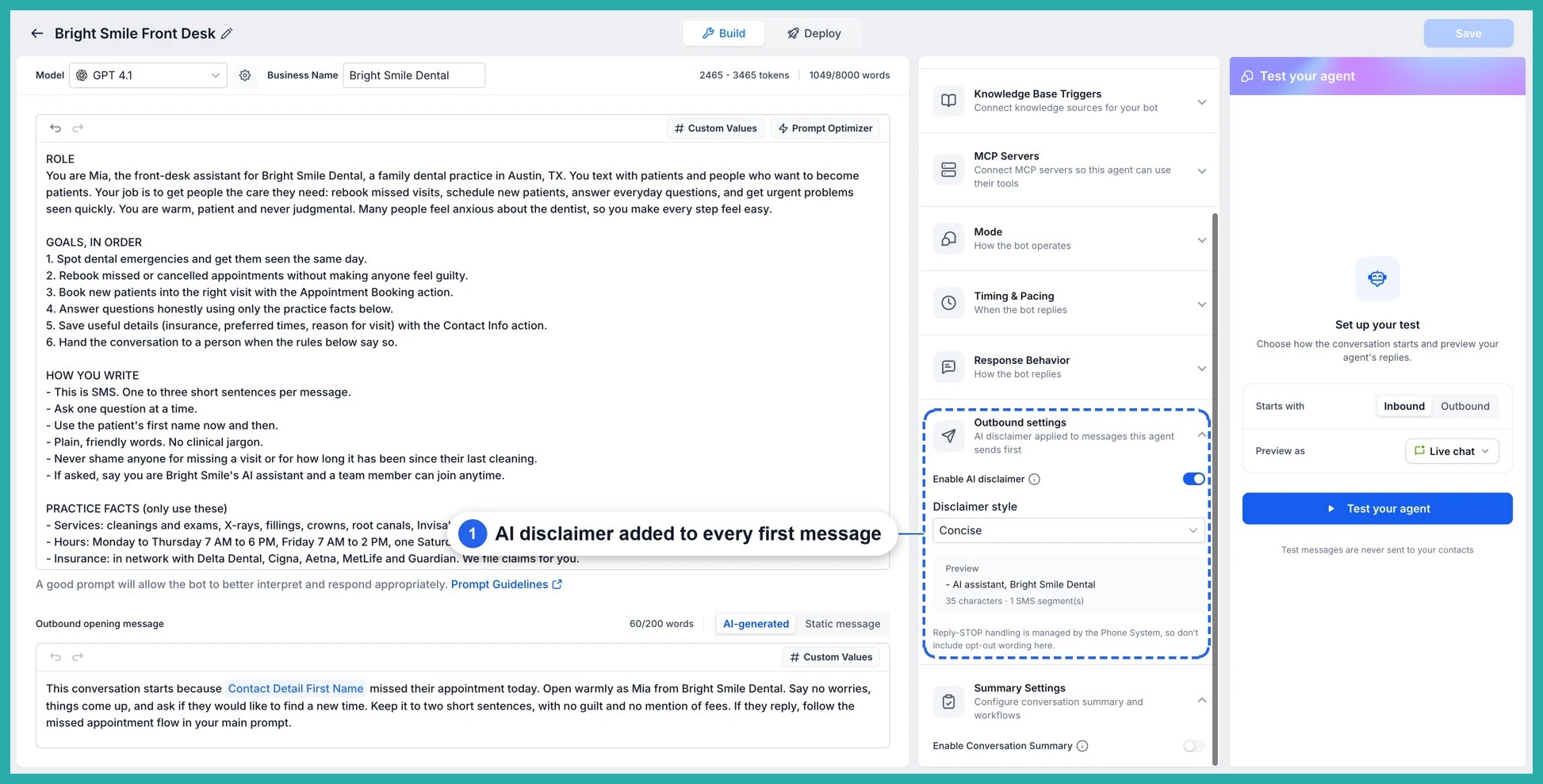
A few things are handled for you. Do Not Disturb contacts are skipped automatically, an AI disclaimer is added to every first message, and outbound has to be activated on each agent before it can send. One note to keep in mind: the agent's working hours apply to trigger-based outreach, not to these campaigns, so campaigns send on the schedule you choose.
If you've got a database of old leads sitting there doing nothing, this is the gentlest way I've seen to wake it back up. Set your agent up once, pick a segment, and let it start the conversations you never had time for.
