
Your AI Agent Can Now Fill In Dropdowns, Checkboxes and Radio Fields
You set up an AI agent to chat with people, and it happily saved names, dates and notes. But the fields you actually use to sort your leads - the dropdowns, the checkboxes, the radio buttons - it couldn't touch. Those answers still landed in a conversation somewhere for you to copy over by hand.
That's now sorted.
What landed
The Contact Info action lets your Conversation AI agent save what a customer says straight into the contact record. It used to work only with text, number, date and time fields. Now it fills your option-based fields too.
That means Radio, Checkbox, Dropdown (single), Dropdown (multiple) and Phone custom fields, plus the standard Contact Source and Contact Type fields.
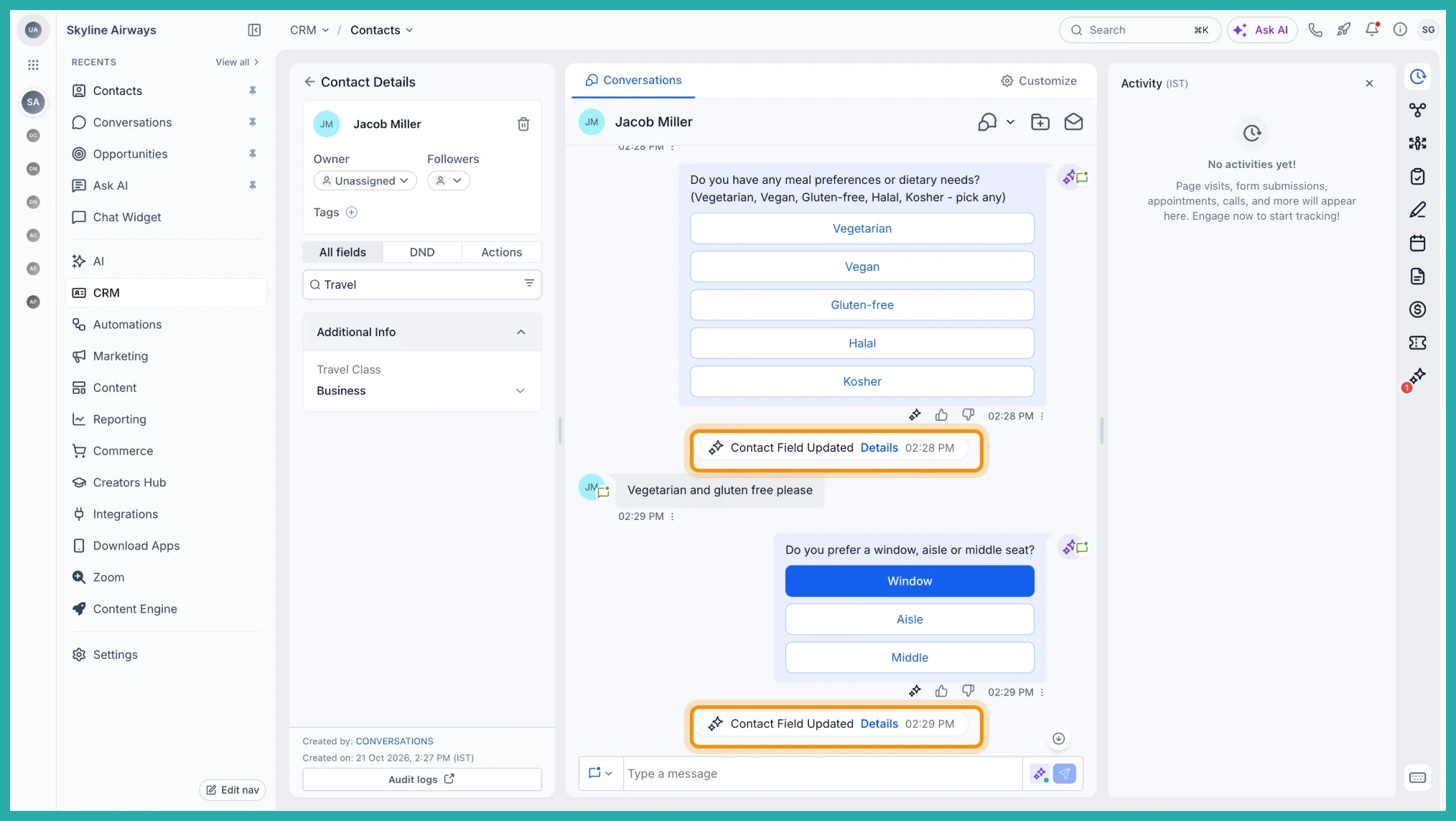
The clever part is that customers still answer in their own words. Someone says "business class please" and the agent saves Business. "I'm vegetarian and gluten free" saves both Vegetarian and Gluten-free. "Blue" saves Blue. You don't have to train anyone to speak in menu options.
A few things worth knowing
- It can save more than one answer. Checkbox and multi-select dropdown fields will store several options at once.
- It only saves valid options. If an answer matches none of your field's choices, nothing is saved - so your data stays clean. Fields that allow a custom option will still accept new values.
- It stays in sync. Edit a field's options in your Custom Fields settings and the agent uses the updated list from the very next message.
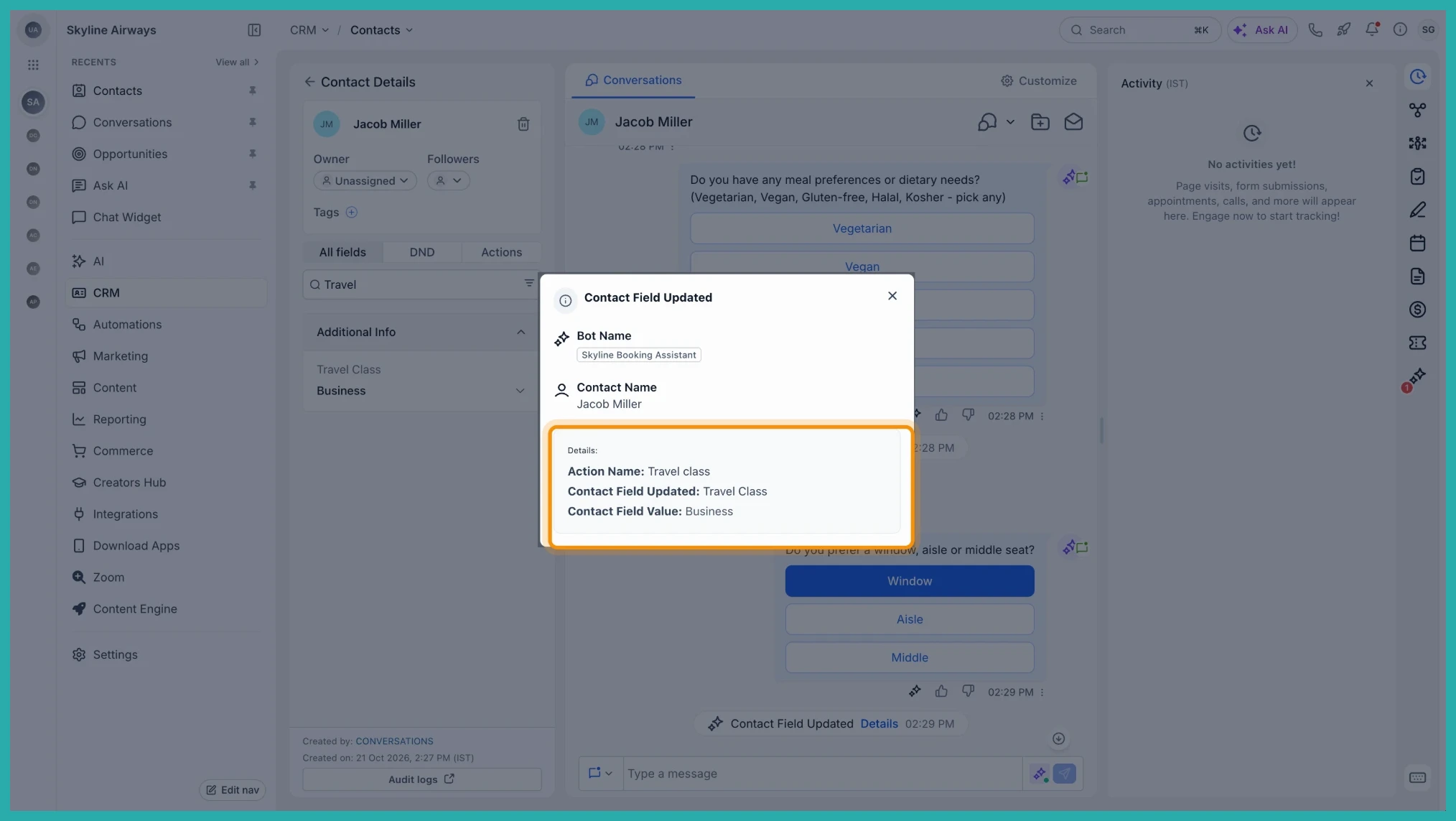
- Everything is on record. A Contact Field Updated event shows up in the conversation. Open Details and you'll see the action, the field and exactly what was saved.
How to set it up
Open your agent and go to Actions, then Contact Info.
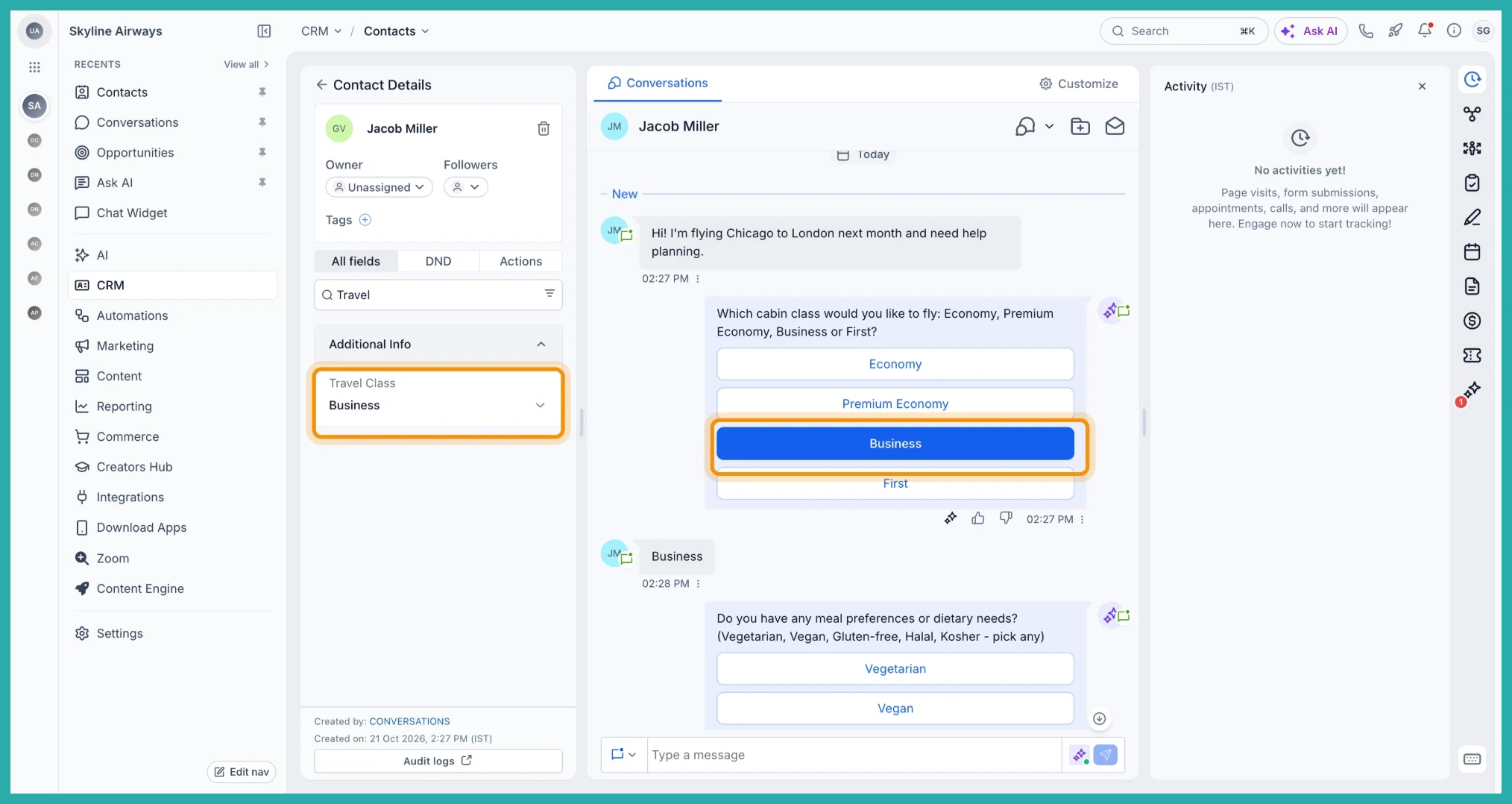
Choose one of your new field types - a radio, checkbox or dropdown field.
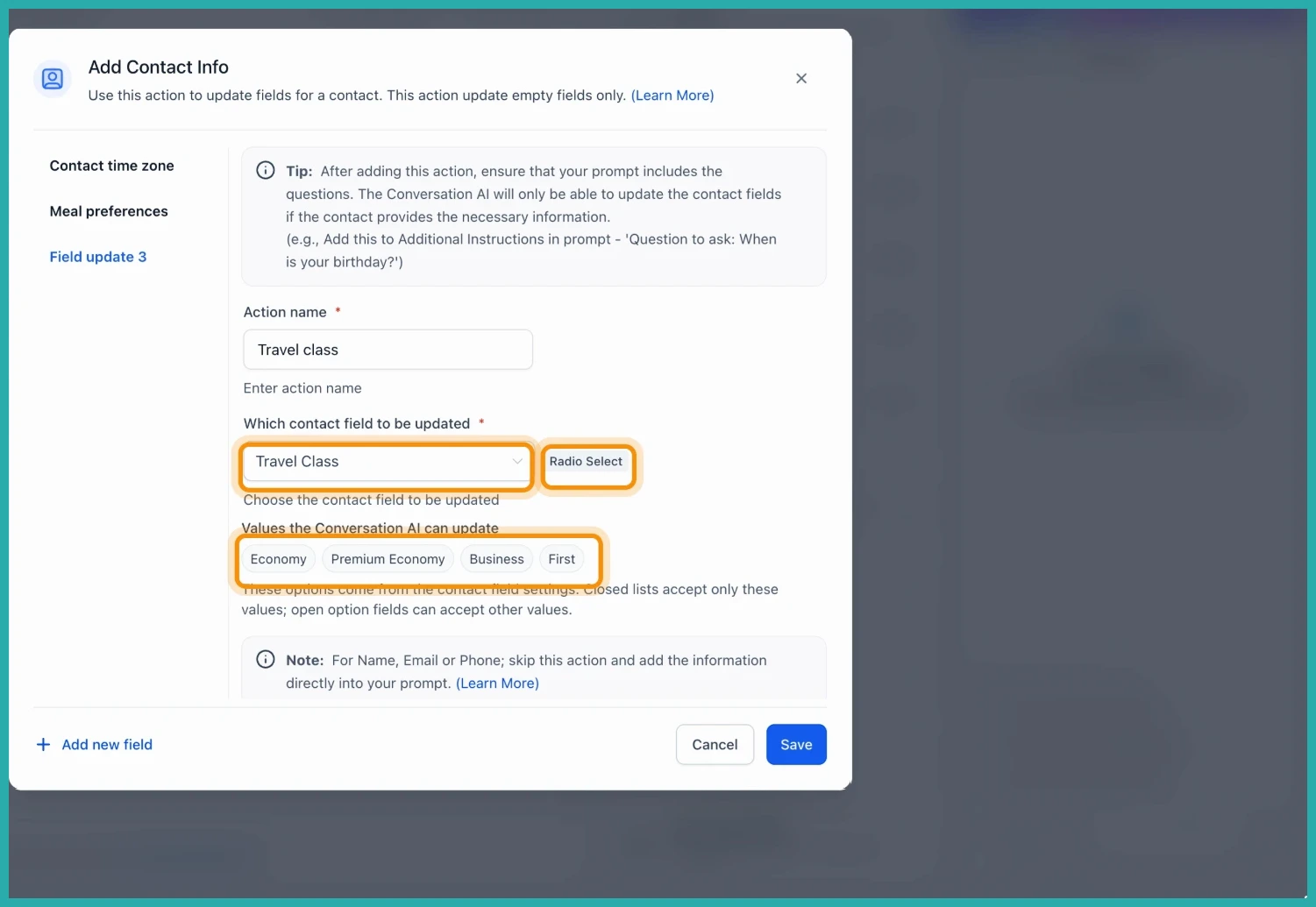
Once you've picked an option field, its choices are listed under Values the Conversation AI can update. This is where you check that the agent is working from the right set of options before anything goes live.
Now make sure your prompt actually asks the question, so the contact has a chance to answer it. The agent can only save what it's been given a reason to ask about.
Save, then test it by having a quick chat with your agent. When it saves an answer, you'll see the update recorded in the conversation.
Where it works
This is available now in every account, for prompt-based Conversation AI agents running in Auto-Pilot mode.
If you've got an agent already collecting leads, go and add one of your dropdown or checkbox fields to its Contact Info action. It's a small change that saves you a lot of copying.
