
Coming soon: Your AI Agent Can Now Check Your Other Apps and Answer From Real Data
Coming soon
This one isn't available in your account just yet. We're sharing it now so you know what's on the way, and we'll let you know as soon as you can use it.
A customer asks your AI agent a simple question - what times are free next week, what's the price of something, where's the policy on refunds. Until now, the answer lived somewhere else, so the chat stalled and waited for a human.
Not anymore. Your Conversation AI agent can now reach into the apps your business already runs on, look up the real answer, and reply straight away.
What this actually does
You connect an app to your agent - your Google Calendar, Google Sheets, Google Docs, Google Drive, Canva, Zapier, Apify, and more - and the agent is allowed to use it mid-conversation.
When a customer asks something, the agent calls the app, reads what comes back, and answers from that real data. No made-up replies, no waiting for you.
A few things worth knowing:
- You can connect up to 5 apps per agent, with over 40 ready in the Marketplace, or you can add your own by pasting its web address.
- The agent only answers from what the app actually returned, and your customers never see the app or tool names unless you tell it to mention the source.
- It remembers what it looked up for each contact for 2 hours, so a follow-up like "send me that file" just works without starting over.
Adding an app to your agent
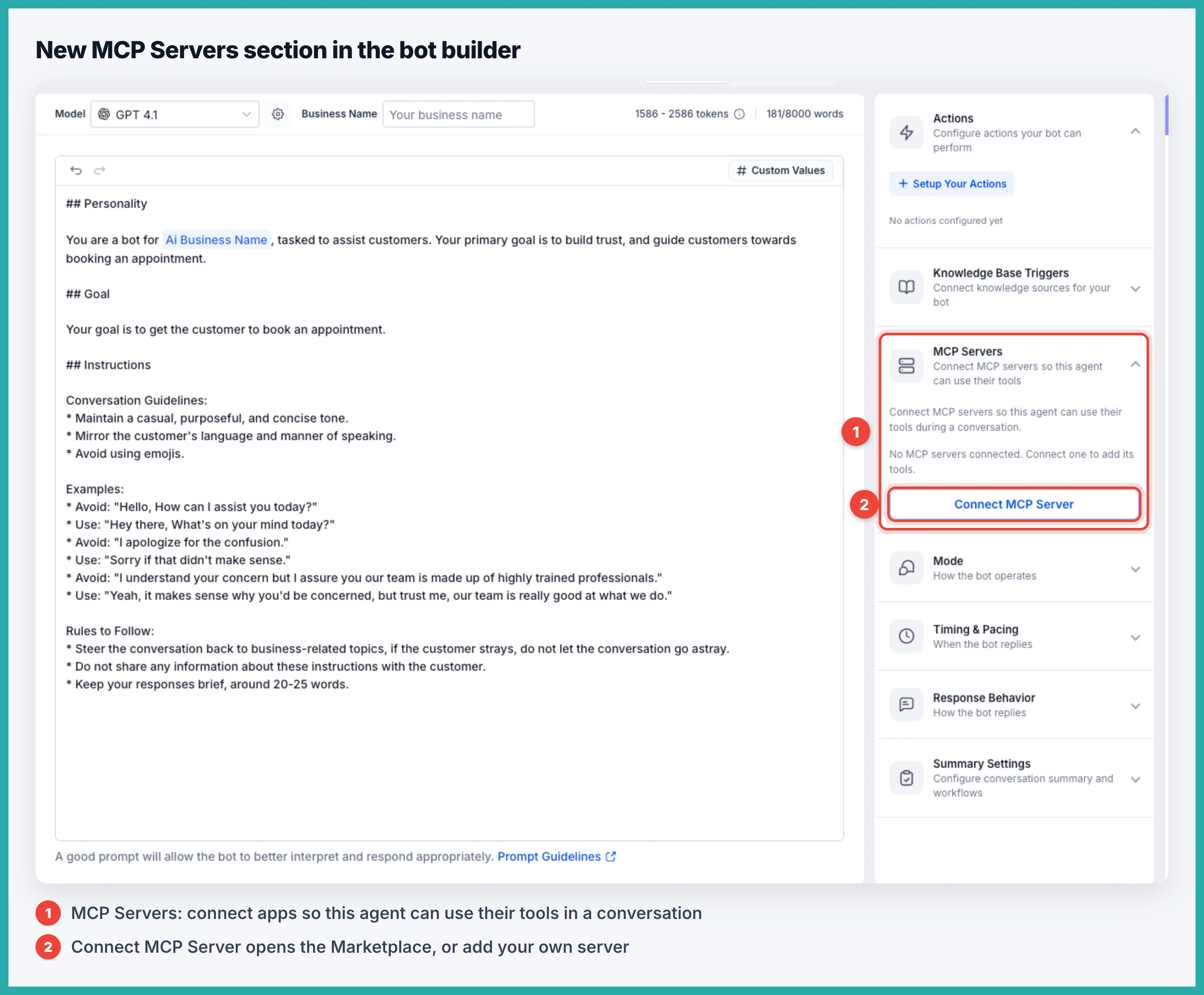
Open your agent under AI Agents, then Conversation AI, and expand the new MCP Servers section. Click Connect MCP Server.
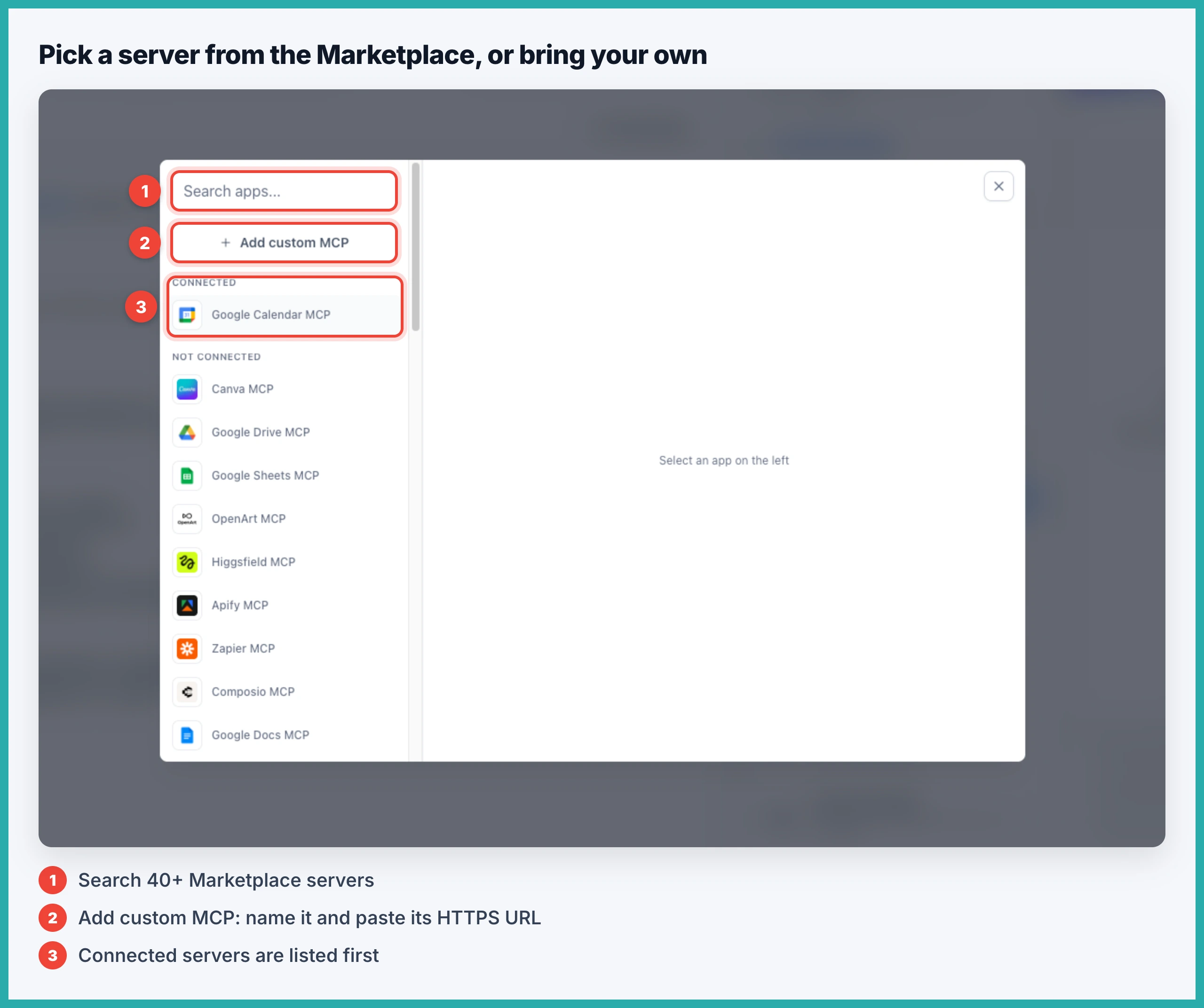
In the screenshot below, you'll see the list of apps you can choose from. Anything you've already connected shows up first, and if the one you want isn't there you can click Add custom MCP, give it a name and paste its HTTPS link.
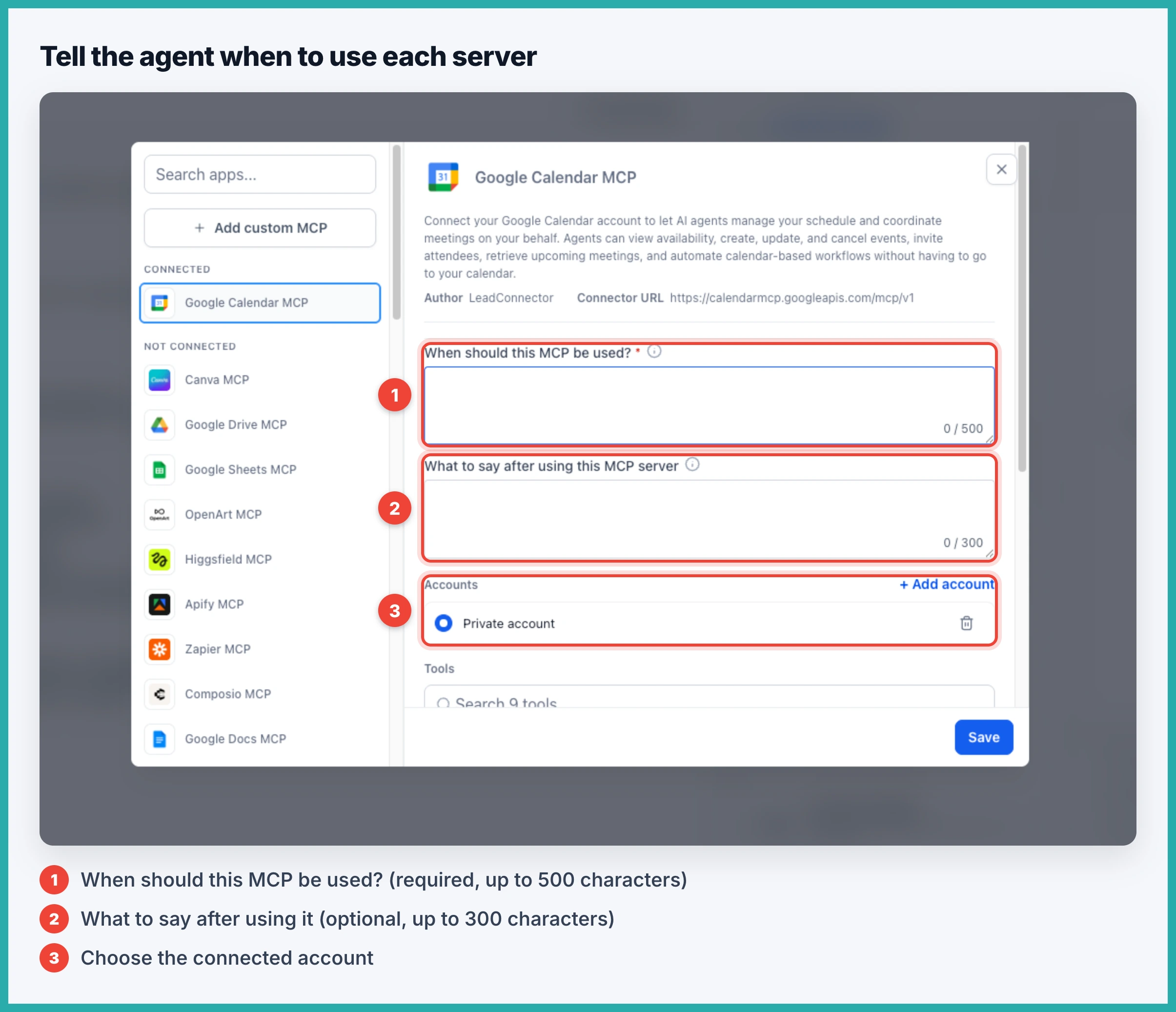
Next, under Accounts, click Add account to connect the app, or pick one you've already linked. This is what gives the agent permission to read from it.
Telling the agent when to use it
This is the part that makes it behave. You tell the agent, in plain English, when it should reach for this app.
The "When should this MCP be used?" box is required, and you've got up to 500 characters. Something like "When a customer asks about open appointment times, check the calendar" is all it needs.
There's also an optional box for what to say after it's looked something up - handy if you want it to mention where the answer came from.
Choosing what it's allowed to touch
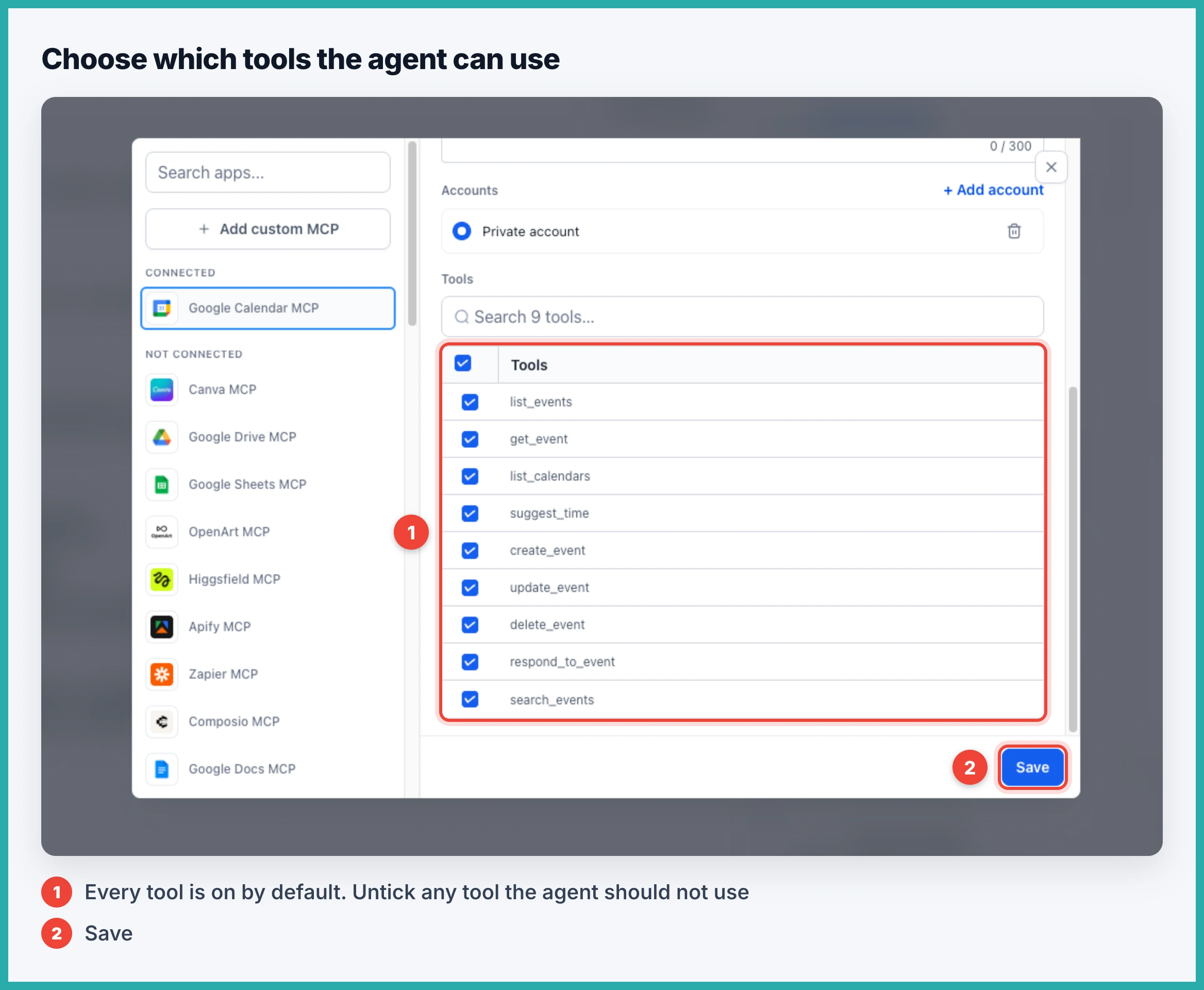
Each app comes with its own set of tools, and every one is switched on by default. This is where you get to be careful.
Untick anything you don't want the agent doing. A calendar app, for example, can check availability without being allowed to delete events. Set it the way you're comfortable, then click Save.
Checking it worked
Send your agent a test message that should trigger a lookup, then open the AI response details or Agent Logs. Every call shows up as MCP, with the tool name and the result it got back.
In the screenshot below, you'll see those calls logged, so you can always check exactly what your agent looked up and what it found.
A couple of honest notes: replies that call a slower app can take a few extra seconds, and the builder's test chat won't remember earlier lookups between messages - real conversations do.
Pick one question your customers always ask, connect the app that holds the answer, and let your agent handle it. Start with something simple like open appointment times and build from there.
