
Show Off Your Event Exhibitors and Sponsors on Any Event Page
If you run events, you'll know the feeling of wanting to showcase the people who make them happen - the businesses in the booths, the sponsors who backed you - and finding the feature locked away behind settings you didn't have switched on.
That limit is gone. Exhibitors and Sponsors now work on every event, whether you use the Client Portal or not.
What landed
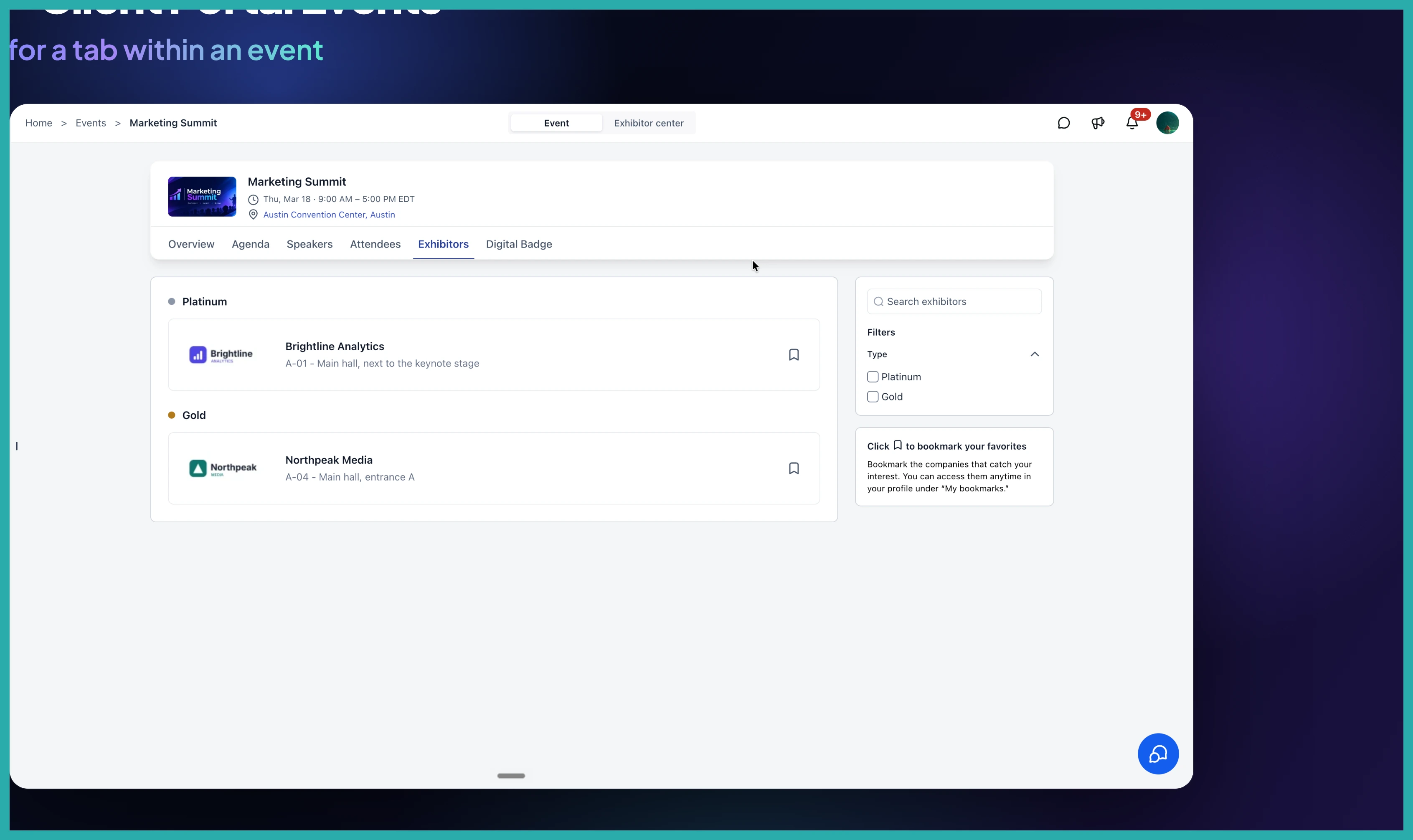
Exhibitors and Sponsors used to only appear on events with the Client Portal turned on. Now they show on the public event page for any event, and still appear in the Client Portal when you've got that enabled too.
You can build out proper exhibitor profiles, group them into tiers, add reorderable sponsor sections, and arrange it all exactly how you like.
Adding your exhibitors
Head to Events, open your event, then go to Content and choose Exhibitors.
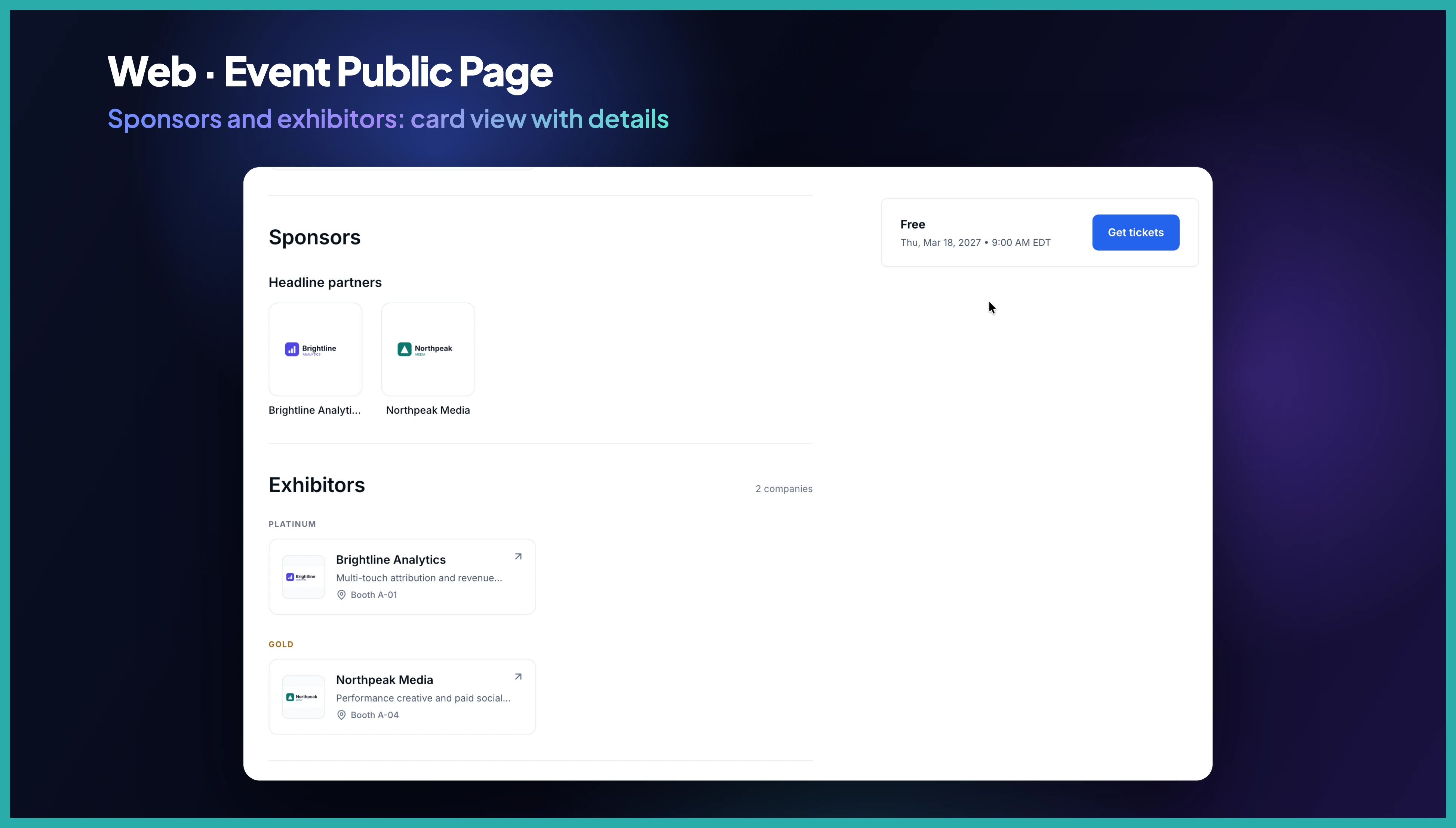
Each exhibitor gets a full profile: company name, tier, booth number, a booth note, a description, logo and header image. You can also add their contact details and links - email, phone, website, address and social links.
In the screenshot below, you'll see where you fill all this in.
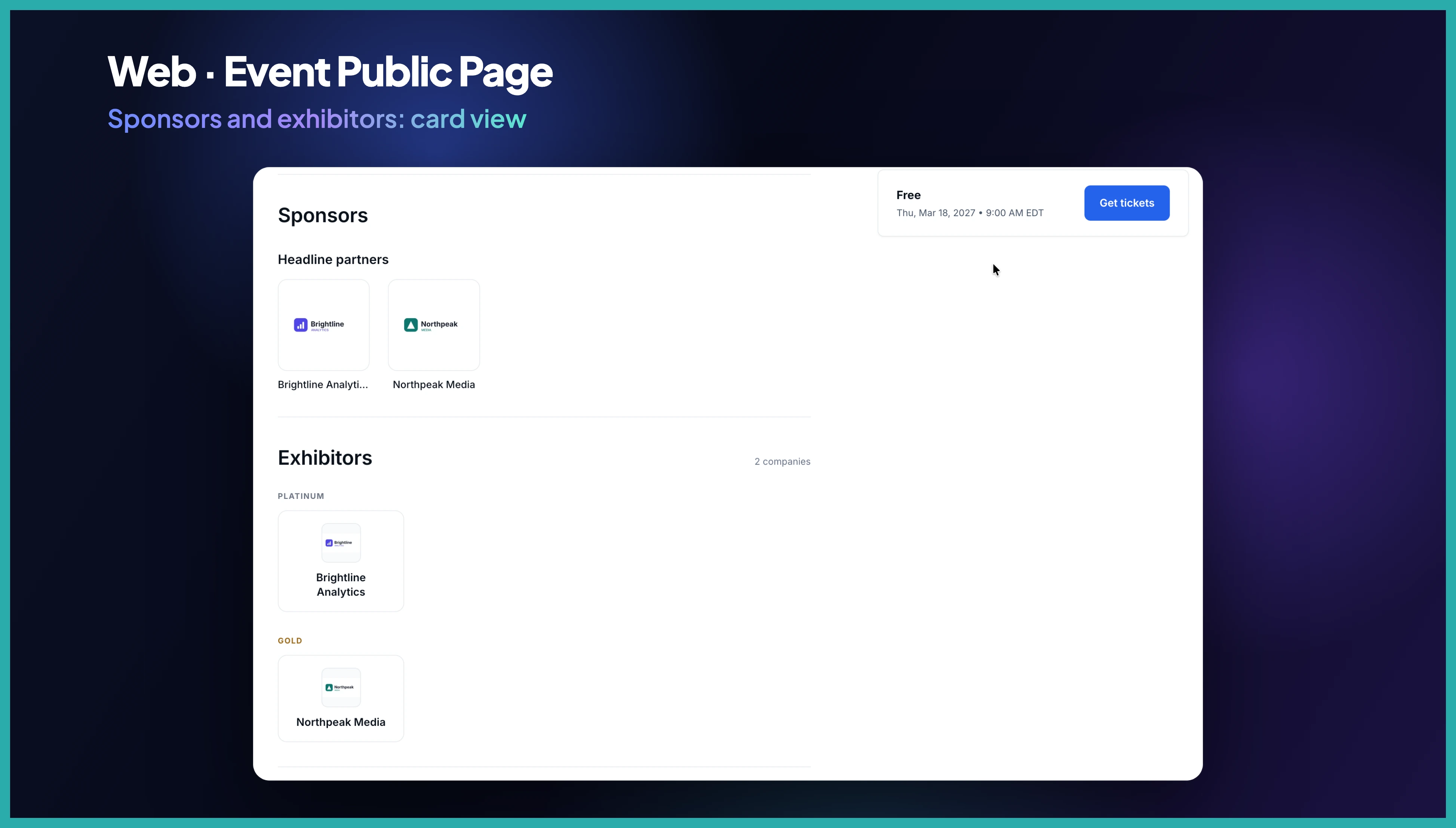
If you'd like to organise them, you can group exhibitors by tier (that bit's optional) and show or hide each one on the public page. When a visitor clicks an exhibitor, their full profile opens up.
Locking a description (Client Portal only)
If you use the Client Portal and let booth admins manage their own listings, you can stop them editing the description while leaving everything else open to them.
On the exhibitor's Details tab, untick Allow booth admins to edit the description. Booth admins then can't change it from the Exhibitor Center, but they can still edit the rest. As the organiser, you can always edit it yourself from the CRM.
Setting up your sponsors
Sponsors work a little differently. You group their logos into sections you can reorder - think Platinum, or Community Partners - and name them however suits your event.
Each logo can link to one of your exhibitors, which opens their profile, or to any external URL you choose.
Arranging it all in Pages and Design
Both sections behave just like every other part of your event page. In Pages and Design you can add, rename, reorder or hide them, and see exactly how they'll look in the live preview and on the Details tab preview.
If you use Copy from event or Duplicate, your exhibitors and sponsors come across too, so you're not rebuilding from scratch each time.
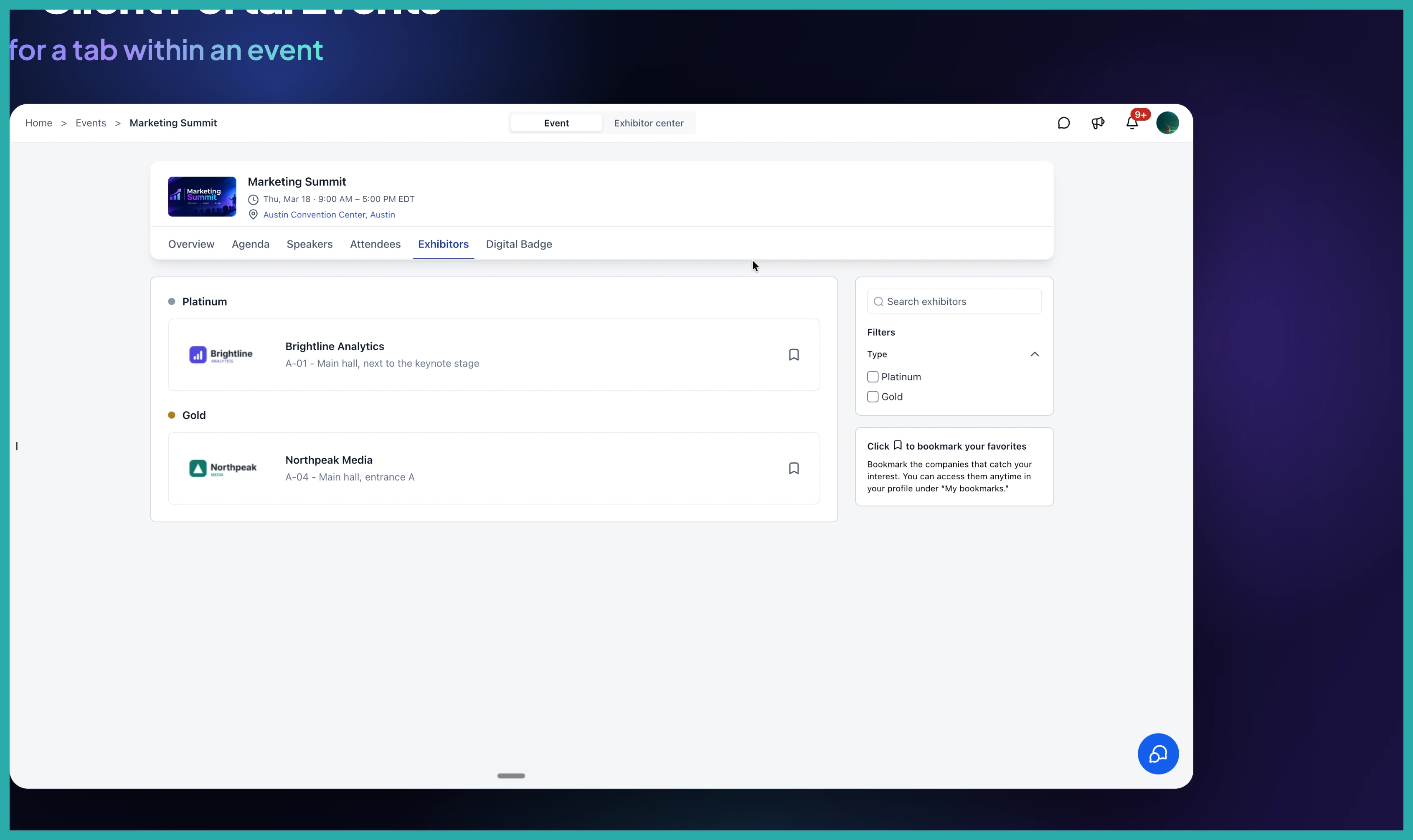
The Client Portal event detail page also got a cleaner design that's easier to browse, if that's where your attendees land.
So go pick an event, add the businesses and sponsors behind it, and give them the spotlight they've earned. It takes just a few minutes.
